import pandas as pd
import matplotlib.pyplot as plt
import seaborn as sns8 Data Visualization I: Choosing and Drawing a Single Plot
In NumPy and pandas in a Real Workflow, you carried one table through cleaning, calculation, and checking, and every answer came back as numbers. A table of numbers tells you what the values are. A plot tells you what they do — whether they cluster, spread out, drift upward, or split into groups. Almost every question you will ask of a dataset in this course is easier to answer with a picture first.
This chapter has two goals:
- Choosing the right kind of plot for the question you are asking.
- Drawing that plot three different ways — with
pandas, withmatplotlib, and withseaborn— so you understand how the three libraries relate to each other.
Every plot in this chapter is a single plot: one set of axes, one picture. Putting several plots side by side in one figure is the subject of the next chapter.
By the end of this chapter you should be able to:
- Choose a plot from the question you are asking and the types of the variables involved, rather than from habit.
- Draw the same plot with
pandas,matplotlib, andseaborn, and say what each library contributes. - Read a histogram as a choice about bins, and describe how the bin count changes the story it tells.
- Compare a histogram with its two relatives, the density curve and the box plot, and say what each one hides.
- Add a third or fourth variable with
hue,style, andsize, and recognize when one set of axes is carrying too much. - Interpret a correlation table and its heatmap, and fit a regression line only where a line belongs.
- Name the aggregation a plotting function performed for you when you never asked for one.
- Report how many observations a plot left out, since all three libraries drop missing values silently.
- Label, size, and theme a finished plot, and judge whether it makes an honest argument.
Complete the practice activity after the worked examples.
8.1 Set Up Your Chapter Files
Download the Data Visualization I practice kit. Extract stat303-data-visualization-1 inside the chapters folder of your stat303-1 course folder, open stat303-1 in VS Code, and select the course environment. The terminal opens in stat303-1, so move it into the kit with cd chapters and then cd stat303-data-visualization-1 before you render the activity.
stat303-1/
├── .venv/
├── assignments/
└── chapters/
    └── stat303-data-visualization-1/
        ├── data_viz_1_examples.ipynb
        ├── activity08.ipynb
        └── README.md
Run data_viz_1_examples.ipynb for the lesson and complete activity08.ipynb for your own activity report, with stat303-data-visualization-1 as the notebook working folder.
This kit has no data/ folder, and nothing belongs in one. Every plot in the chapter and in the practice work uses the Palmer penguins dataset that comes with seaborn, which sns.load_dataset("penguins") hands you in one line. The first call downloads the file and caches it on your computer, so you need a network connection once; after that it loads from the cache. If you would rather read it from a file of your own, the note under The data shows the one-line change.
We need three libraries. The import aliases below (pd, plt, sns) are near-universal conventions — you will see them in every textbook, tutorial, and Stack Overflow answer, so use them.
Environment check: This chapter uses pandas, matplotlib, and seaborn. If an import fails, check the selected notebook kernel first. If a package is missing, activate your project environment and run this command in its terminal:
python -m pip install pandas matplotlib seabornpandas and matplotlib went into that environment in Project Environments, Packages, and File Paths, and seaborn is the package that chapter installs as its worked example.
8.2 The data
We will use the Palmer penguins dataset throughout. It records body measurements for 344 penguins observed near Palmer Station, Antarctica. seaborn ships with it, so we can load it in one line.
df = sns.load_dataset("penguins")
df.head()| species | island | bill_length_mm | bill_depth_mm | flipper_length_mm | body_mass_g | sex | |
|---|---|---|---|---|---|---|---|
| 0 | Adelie | Torgersen | 39.1 | 18.7 | 181.0 | 3750.0 | Male |
| 1 | Adelie | Torgersen | 39.5 | 17.4 | 186.0 | 3800.0 | Female |
| 2 | Adelie | Torgersen | 40.3 | 18.0 | 195.0 | 3250.0 | Female |
| 3 | Adelie | Torgersen | NaN | NaN | NaN | NaN | NaN |
| 4 | Adelie | Torgersen | 36.7 | 19.3 | 193.0 | 3450.0 | Female |
NoteLoading the data from a file instead
sns.load_dataset downloads the data over the internet. If you have the file saved locally as penguins.csv, use what you already know instead: df = pd.read_csv("penguins.csv"). Everything after this point is identical.
Before plotting anything, look at the shape of the data and the type of each column.
print(df.shape)
df.dtypes
(344, 7)species str
island str
bill_length_mm float64
bill_depth_mm float64
flipper_length_mm float64
body_mass_g float64
sex str
dtype: objectSo we have 344 rows and 7 columns. The column types fall into two groups, and this distinction is the single most important thing for choosing a plot:
- Numeric (
float64):bill_length_mm,bill_depth_mm,flipper_length_mm,body_mass_g. These are measured quantities. Arithmetic on them is meaningful — an average body mass is a sensible thing to compute. - Categorical (text, reported as
objectorstrdepending on your pandas version):species,island,sex. These are labels that sort penguins into groups. There are only a handful of distinct values, and arithmetic on them is meaningless.
Here are the categories:
print(df["species"].value_counts())
print(df["island"].value_counts())
print(df["sex"].value_counts())
species
Adelie 152
Gentoo 124
Chinstrap 68
Name: count, dtype: int64
island
Biscoe 168
Dream 124
Torgersen 52
Name: count, dtype: int64
sex
Male 168
Female 165
Name: count, dtype: int64Notice the counts for sex add up to 333, not 344. Some values are missing. We can see exactly how many are missing in each column:
df.isna().sum()species 0
island 0
bill_length_mm 2
bill_depth_mm 2
flipper_length_mm 2
body_mass_g 2
sex 11
dtype: int64
ImportantMissing values and plots
Eleven penguins have no recorded sex, and two have no body measurements at all. All three plotting libraries silently drop missing values when they draw. That is usually what you want, but it means the number of observations in a plot can be smaller than the number of rows in your data — and nothing on the plot tells you so. Whenever you plot a column with missing values, it is your job to know how many were dropped.
8.3 Choosing a plot
Do not start by asking “what plot should I make?” Start by asking what question you want answered, then let the types of the variables involved pick the plot for you.
That gives you a small decision table. Nearly everything in an introductory course fits in it:
| Variables involved | Question you are asking | Plot to use |
|---|---|---|
| One numeric | How are these values distributed? | Histogram, density plot, or boxplot |
| One categorical | How many observations in each group? | Bar chart of counts |
| Two numeric | Do these two move together? | Scatter plot |
| Two numeric, roughly linear | How strong is the trend, and how steep? | Scatter plot with a regression line |
| Two numeric, one ordered (e.g. time) | How does this change along the other? | Line plot |
| Several numeric | Which pairs move together? | Correlation heatmap |
| One numeric, one categorical | Does this quantity differ across groups? | Grouped boxplot, violin, or bar of means |
| Two categorical | Are these two groupings related? | Grouped bar chart or heatmap of counts |
Two rules of thumb that will save you from most bad plots:
- Count the variables. One variable is a distribution. Two variables is a relationship. Three or more means you need a color, shape, or extra panel to carry the extra variable — and past three, it is usually clearer to draw more than one plot.
- A line implies a connection. Use a line plot only when the x-values have a meaningful order, so that “between” two points means something. Species names have no order, so connecting them with a line would be inventing structure that isn’t there.
The rest of this chapter works down that table, row by row.
8.4 The three libraries
All three libraries draw the same kinds of plots. They differ in how much you have to say to get them.
matplotlib is the foundation. It draws the pixels. Everything is under your control, which also means everything is your responsibility — axis labels, titles, and colors are all separate commands. Both of the other libraries are built on top of it.
pandas adds a .plot() method directly to DataFrames and Series. It calls matplotlib for you and reads the labels off your column names. It is the fastest way to get a quick look at data you already have in a DataFrame, and it is meant for exactly that: a quick look.
seaborn is also built on matplotlib, but it is designed around statistical plots of tidy DataFrames. You name the DataFrame and the columns; it handles grouping, aggregation, binning, and legends. It is the best choice when a plot involves groups or requires computing something (a mean, a distribution, a regression line).
A rough guide to which to reach for:
| Situation | Use |
|---|---|
| Quick look at a column, mid-analysis | pandas |
| Plot involving groups, distributions, or statistics | seaborn |
| Full control over an unusual or heavily customized plot | matplotlib |
| Data not in a DataFrame (plain lists or arrays) | matplotlib |
You will end up mixing them, and that is fine — because pandas and seaborn both draw through matplotlib, matplotlib commands like plt.title() work on plots the other two libraries made. We rely on that repeatedly below.
TipWhy some cells end in
plt.show()
In a notebook, a plot appears as soon as a cell finishes. But pandas and seaborn plotting calls also return an object, and the notebook prints it — you get a stray line like <Axes: xlabel='body_mass_g'> above your figure. Ending the cell with plt.show() displays the plot and suppresses that line. (A semicolon after the last command, e.g. sns.histplot(...);, does the same thing.) In a .py script, plt.show() is not optional: without it, no window ever opens.
8.5 One numeric variable: the histogram
Question: how heavy are these penguins? Are most of them around the same mass, or is there a wide spread?
One numeric variable means we want its distribution. A histogram answers this by cutting the range of values into bins and counting how many observations fall in each.
8.5.1 With pandas
df["body_mass_g"].plot(kind="hist")
plt.show()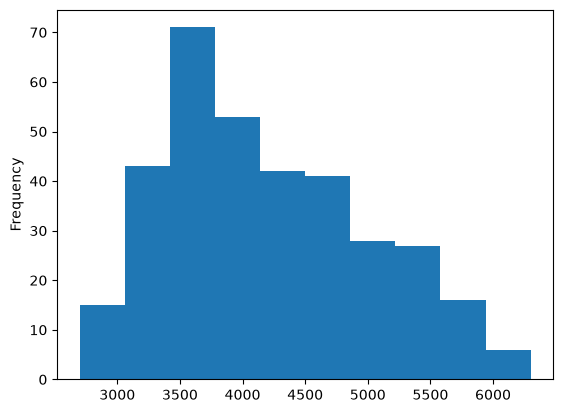
df["body_mass_g"] selects a single column (a Series), and .plot(kind="hist") draws it. That is the whole command. Note that the y-axis is already labeled Frequency — pandas filled that in.
8.5.2 With matplotlib
plt.hist(df["body_mass_g"])
plt.xlabel("Body mass (g)")
plt.ylabel("Number of penguins")
plt.title("Distribution of penguin body mass")
plt.show()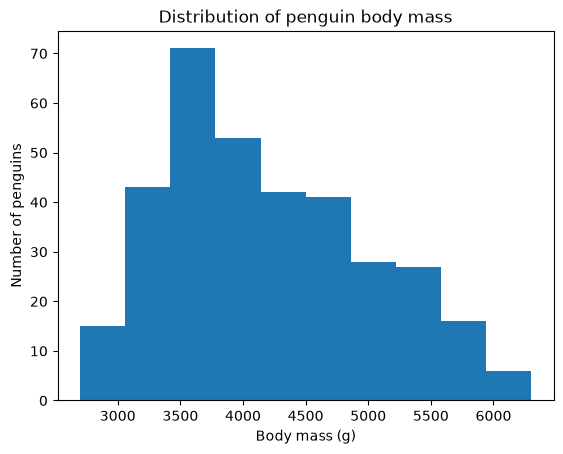
matplotlib draws exactly what you ask for and nothing more, so the labels are three extra commands. This is the trade-off: more typing, total control.
8.5.3 With seaborn
sns.histplot(data=df, x="body_mass_g")
plt.show()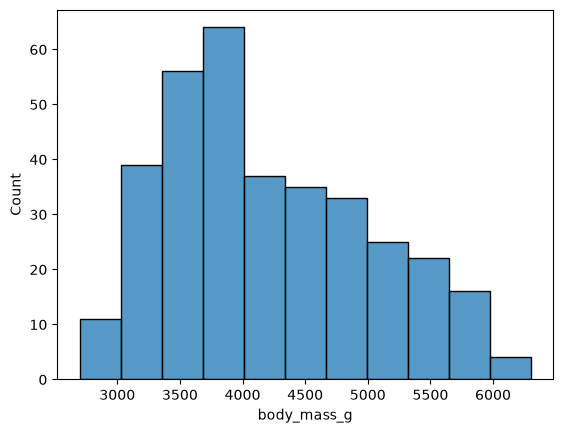
Notice the pattern in that call, because every seaborn function in this chapter uses it:
sns.plotting_function(data=<DataFrame>, x=<column name>, y=<column name>)You pass the whole DataFrame to data and then name columns as strings. Seaborn looks them up and labels the axes from the column names automatically.
8.5.4 Bins: the one choice that matters
A histogram’s shape depends on how many bins you use, and the default is only a guess. Too few bins hides structure; too many turns the plot into noise. This is not a cosmetic setting — the number of bins can change the conclusion you draw.
To see that happen, switch to a different column, bill_length_mm, and draw it three times.
sns.histplot(data=df, x="bill_length_mm", bins=5)
plt.title("5 bins: too few")
plt.show()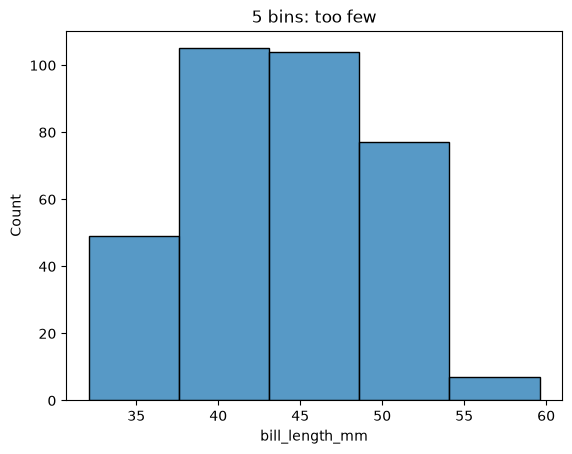
Five bins says bill length has one broad plateau between 40 mm and 50 mm. Now look more finely:
sns.histplot(data=df, x="bill_length_mm", bins=15)
plt.title("15 bins: about right")
plt.show()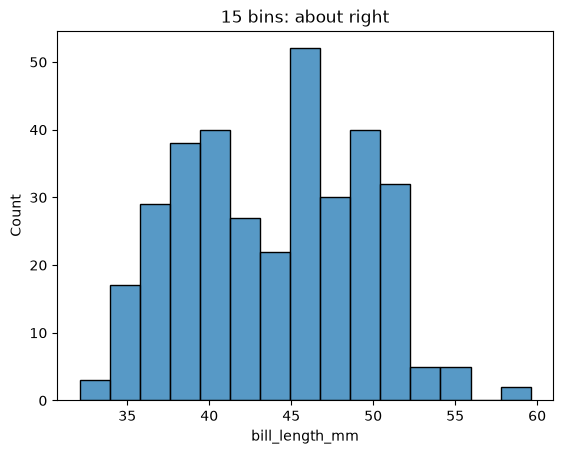
That is a different story entirely. There are two peaks — one near 39 mm and one near 48 mm — with a dip between them around 43 mm. A distribution with two peaks is called bimodal, and it almost always means the data contains two distinct groups that have been mixed together. The five-bin version hid this completely.
Push further and the structure dissolves:
sns.histplot(data=df, x="bill_length_mm", bins=50)
plt.title("50 bins: too many")
plt.show()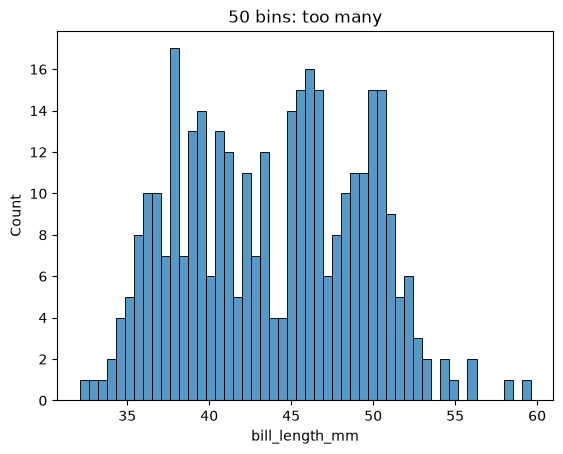
With 50 bins there are only a handful of penguins per bin, so random variation dominates and the bars jump up and down. The two peaks are still in there, but you would be guessing.
The lesson: always redraw a histogram with a couple of different bin counts before you trust its shape. If a feature survives at several settings it is probably real; if it appears at only one setting it probably isn’t. A good starting range for a few hundred observations is 10–30 bins.
bins works the same way in all three libraries: .plot(kind="hist", bins=15), plt.hist(..., bins=15), sns.histplot(..., bins=15).
We now have an open question — what are the two groups hiding inside bill length? — and we will answer it shortly, once we can put two variables on one plot.
8.5.5 Two relatives of the histogram
A density plot (KDE) draws a smooth curve instead of bars, so you see the overall shape without having to pick a bin count:
sns.kdeplot(data=df, x="bill_length_mm")
plt.show()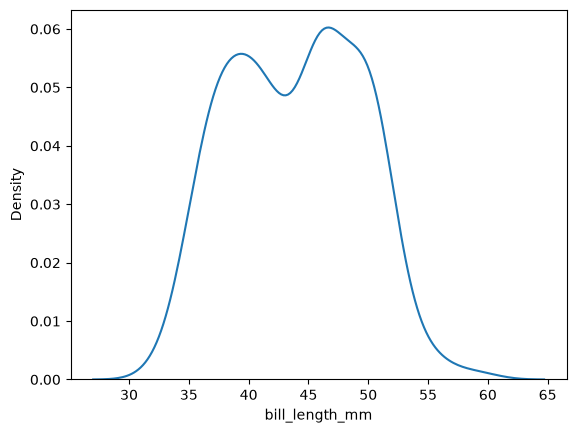
The two peaks we found are unmistakable here. The trade-off is that the curve is a smoothed estimate: it hides where the actual observations are, it extends slightly past the smallest and largest values in the data, and it has a smoothing setting of its own (bw_adjust) that can over- or under-smooth just as bin count can. A histogram shows you the data; a density plot shows you an interpretation of it.
A boxplot summarizes the same distribution as five numbers — the median, the middle 50% of the data (the box), the reach of the rest (the whiskers), and any outliers as individual points:
sns.boxplot(data=df, x="bill_length_mm")
plt.show()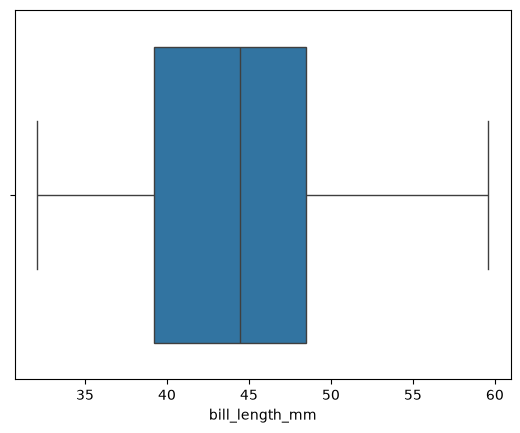
The histogram and the boxplot answer different questions about the same column, so neither one replaces the other. A histogram shows you the shape: where the values pile up, whether there is one peak or several, and how the tails fall away. A boxplot sets shape aside and reports position, spread, and extremes as a handful of exact numbers — the median line, the box edges at the first and third quartiles, and whiskers that reach out to 1.5 times the height of the box. Any observation past a whisker is drawn as its own point, which is why a boxplot is the standard first look for outliers: the Data Cleaning chapter later uses this same plot, and the same 1.5×IQR rule behind it, to decide which observations are worth investigating. Boxplots are also compact, which is what makes them line up so well side by side when you compare groups, as we do below.
The cost of that compactness is visible here: this boxplot does not tell you that bill length is bimodal. The five numbers a boxplot reports would be nearly identical for a single broad hump and for two separate peaks, so the most interesting feature of this variable is invisible in it. The histogram has the opposite blind spot — it shows the two peaks plainly but marks nothing as unusual, and reading a median or a quartile off it is guesswork. Draw the histogram when you are asking what the distribution looks like, and the boxplot when you are asking where the middle sits or which observations are far from it.
df["species"].value_counts().plot(kind="bar")
plt.ylabel("Number of penguins")
plt.show()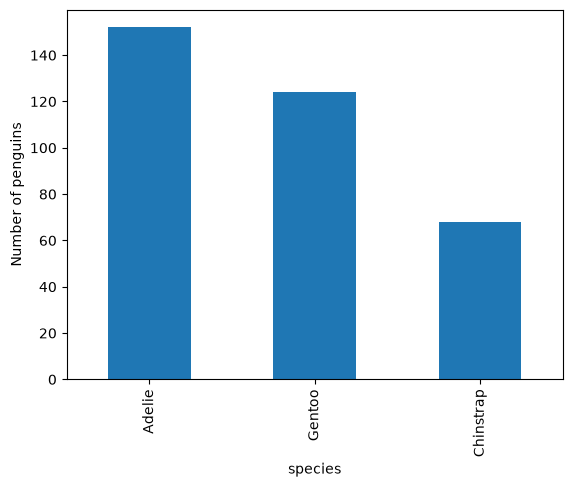
Read that chain left to right: take the species column, count how many times each value appears, then draw the result as bars. Note that pandas needs you to do the counting yourself; the plotting method just draws whatever numbers you hand it.
8.5.6 With matplotlib
counts = df["species"].value_counts()
plt.bar(counts.index, counts.values)
plt.xlabel("Species")
plt.ylabel("Number of penguins")
plt.show()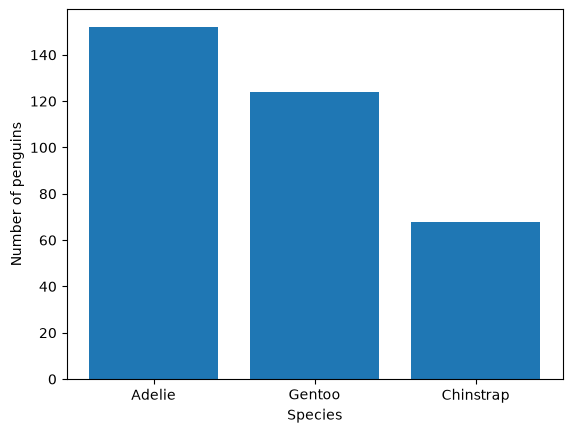
plt.bar needs two things: the category labels and the bar heights. counts.index gives the labels (Adelie, Gentoo, Chinstrap) and counts.values gives the heights. Again, you count first and plot second.
8.5.7 With seaborn
sns.countplot(data=df, x="species")
plt.show()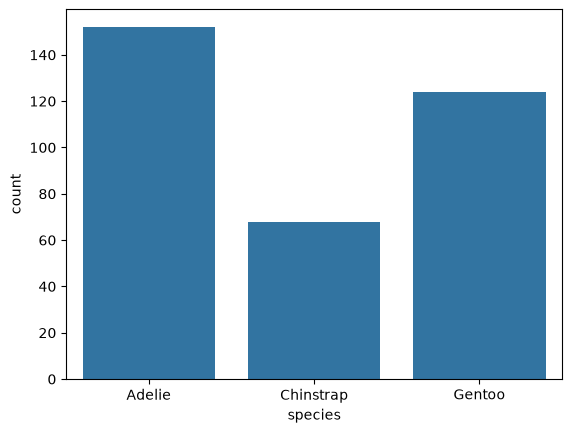
countplot does the counting and the drawing. This is the first place where seaborn’s design pays off: you never build an intermediate table.
NoteOrdering the bars
Bar categories have no natural order, so the library has to pick one. value_counts() sorts by frequency (largest first), while countplot uses the order the values appear in the data. Neither is wrong, but if the order carries meaning — largest to smallest, or a fixed sequence like Small, Medium, Large — set it yourself with the order argument:
sns.countplot(data=df, x="species", order=["Adelie", "Chinstrap", "Gentoo"])8.6 Two numeric variables: the scatter plot
Question: do penguins with longer flippers also weigh more?
Two numeric variables means we are asking about a relationship, and the scatter plot is the answer: one dot per penguin, positioned by both measurements at once.
8.6.1 With pandas
df.plot(kind="scatter", x="flipper_length_mm", y="body_mass_g")
plt.show()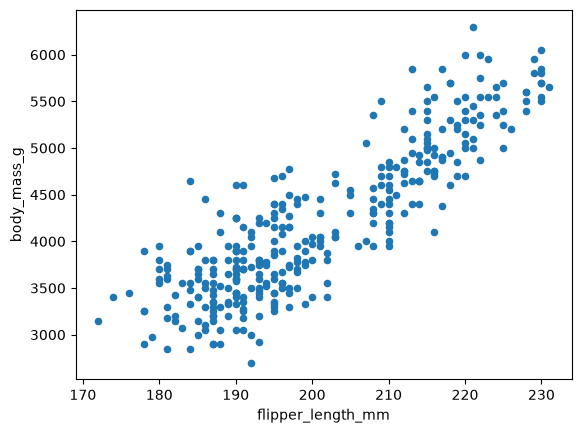
This one is called on the whole DataFrame (df.plot), not a single column, because a scatter plot needs two columns. You name them with x and y.
8.6.2 With matplotlib
plt.scatter(df["flipper_length_mm"], df["body_mass_g"])
plt.xlabel("Flipper length (mm)")
plt.ylabel("Body mass (g)")
plt.show()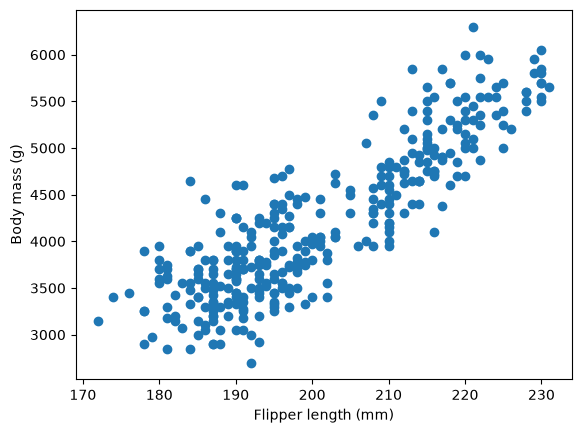
plt.scatter takes the actual data — two Series, x first then y — rather than column names.
8.6.3 With seaborn
sns.scatterplot(data=df, x="flipper_length_mm", y="body_mass_g")
plt.show()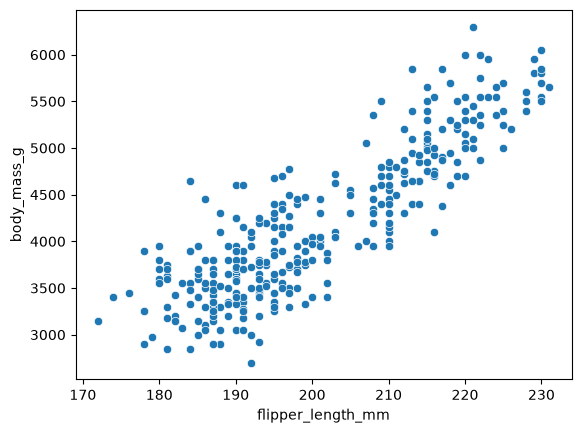
All three plots show the same clear pattern: flipper length and body mass rise together. Longer-flippered penguins are heavier.
8.6.4 Adding a third variable with color
Look closely at that scatter plot and you can see the points are not one single cloud — there seem to be two or three clumps. And we still owe an answer to the question the bill-length histogram raised: what are the two groups hidden inside it?
Both questions have the same suspected cause — species — and we can test it by bringing in a third variable: color the points by it. This is where seaborn pulls decisively ahead. One argument, hue:
sns.scatterplot(data=df, x="flipper_length_mm", y="body_mass_g", hue="species")
plt.show()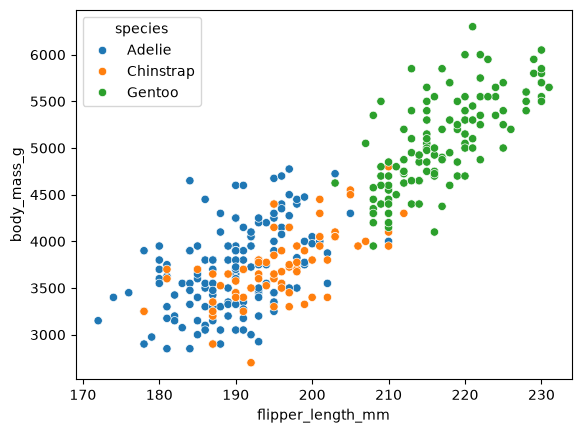
There is the answer. Gentoo penguins are the heavy, long-flippered group; Adelie and Chinstrap overlap almost entirely in mass and flipper length but separate clearly from Gentoo.
hue works on the distribution plots too, which settles the bimodality question directly:
sns.histplot(data=df, x="bill_length_mm", hue="species", multiple="stack")
plt.show()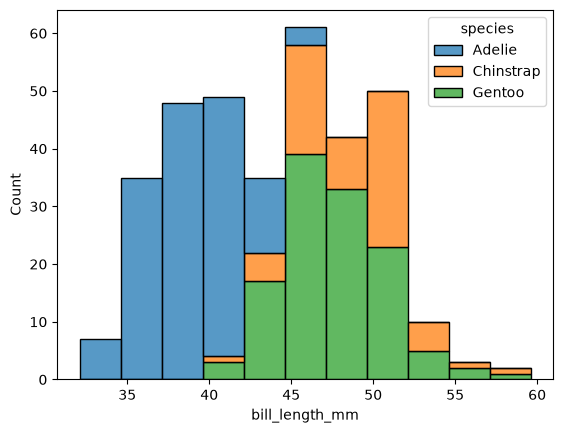
The left peak is almost entirely Adelie; the right peak is Chinstrap and Gentoo together, with only a narrow band of overlap between them. Bill length was never really bimodal — it was two different kinds of penguin measured into one column. A bimodal distribution is usually a hint that you have forgotten to split the data by some group, and hue is how you check.
The multiple="stack" argument stacks each species’ bars on top of one another. Without it, seaborn’s default is multiple="layer", which draws the three histograms on top of each other semi-transparently — fine for two groups, but muddy where three overlap. The other useful option is multiple="dodge", which puts the groups’ bars side by side.
hue works on essentially every seaborn function, and it accepts a numeric column too (in which case you get a continuous color scale rather than a discrete legend). Two related arguments split the data the same way but with a different visual channel: style varies the marker shape and size varies the marker size.
sns.scatterplot(data=df, x="flipper_length_mm", y="body_mass_g",
                hue="species", style="sex")
plt.show()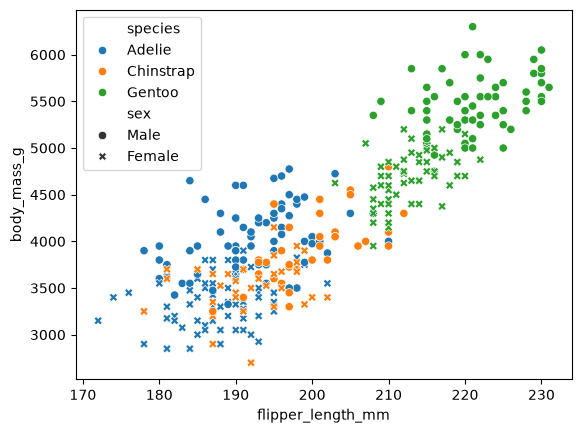
That plot is close to the limit of what one set of axes can carry — four variables and a two-part legend. When a plot needs more, the answer is usually several plots rather than more channels, which is exactly what the next chapter is about.
NoteThe same thing in pandas and matplotlib
Coloring by category is possible in the other two libraries, but you have to build the color mapping yourself: pick a color per species, then either plot each species separately or construct a list of colors, one per row. The comparison is the point — whenever a plot involves groups, seaborn is the tool that was designed for it.
8.7 Many numeric variables: the correlation heatmap
Question: the dataset has four numeric columns. Which pairs move together, and which don’t?
A scatter plot handles one pair at a time. Four columns make six pairs, and drawing six scatter plots to find the interesting ones is tedious. The usual shortcut is to reduce each pair to a single number — its correlation — and then show all of those numbers at once as a heatmap.
You already know how to produce those numbers: .corr(), from the Pandas Intermediate chapter, returns the correlation of every pair of numeric columns as a DataFrame — a symmetric matrix with 1.00 down the diagonal and values running from −1 (perfect negative) through 0 (no linear relationship) to +1 (perfect positive). As a rough guide, magnitudes above 0.7 are strong, 0.3–0.7 moderate, and below 0.3 weak. What is new in this chapter is turning that table into a picture.
One argument earns its place here. numeric_only=True tells .corr() to skip species, island, and sex, since correlation is only defined for numbers and the call fails without it — the same job the earlier chapter did by selecting the numeric columns first. .round(2) is only for readability:
df.corr(numeric_only=True).round(2)| bill_length_mm | bill_depth_mm | flipper_length_mm | body_mass_g | |
|---|---|---|---|---|
| bill_length_mm | 1.00 | -0.24 | 0.66 | 0.60 |
| bill_depth_mm | -0.24 | 1.00 | -0.58 | -0.47 |
| flipper_length_mm | 0.66 | -0.58 | 1.00 | 0.87 |
| body_mass_g | 0.60 | -0.47 | 0.87 | 1.00 |
Four numeric columns give a four-by-four table, with each real correlation appearing twice, once on either side of the diagonal. At this size the numbers are readable as they stand; at ten or twenty variables the same table becomes a wall of digits.
8.7.1 Drawing it
A heatmap replaces each number with a color, so the pattern arrives before you read anything:
corr = df.corr(numeric_only=True)

sns.heatmap(corr, annot=True, fmt=".2f", cmap="coolwarm", vmin=-1, vmax=1)
plt.title("Correlations among penguin measurements")
plt.show()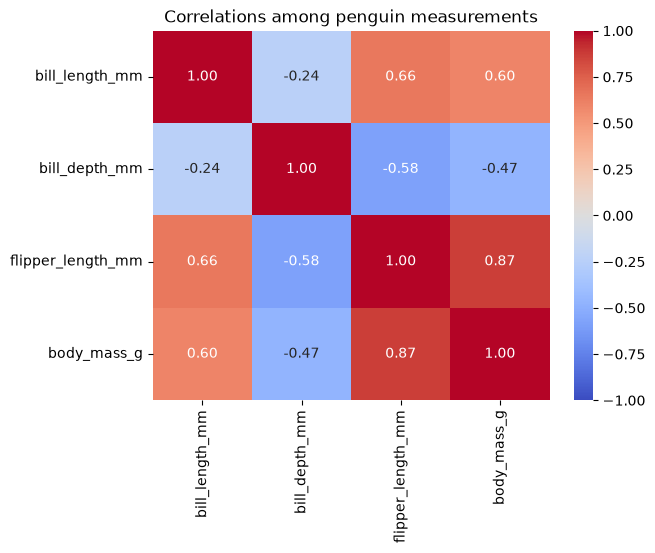
Four arguments are doing real work here, and the last three matter more than they look:
annot=Trueprints the number inside each cell, andfmt=".2f"rounds it to two decimals. With a small matrix, always do this — the reader gets the color and the value.cmap="coolwarm"picks a diverging color scale: strong color at both ends, pale in the middle. This is the right choice because correlation has a meaningful midpoint at zero, and a diverging scale puts “no relationship” at the washed-out center where it belongs. Compare with the counts heatmap later in this chapter, which uses sequential"Blues"— counts start at zero and only go up, so they need a scale that runs from light to dark in one direction.vmin=-1, vmax=1pins the ends of the color scale to the full possible range. Without them, seaborn stretches the colors to fit whatever values happen to be present, so a matrix whose strongest correlation is 0.3 would be colored as intensely as one full of 0.95s. Settingvmin/vmaxis what makes two heatmaps comparable. For a diverging scale you can equivalently passcenter=0.
Reading the plot: flipper_length_mm and body_mass_g are the most strongly related pair at 0.87 — the relationship we already saw in the scatter plot. bill_length_mm is moderately positive with both (0.66 and 0.60). And bill_depth_mm is the odd one out, negatively correlated with everything: −0.58 with flipper length, −0.47 with body mass.
8.7.2 Adding a regression line
The heatmap told us that flipper_length_mm and body_mass_g are the most strongly related pair, at 0.87. A correlation that high, on variables whose scatter plot really does look like a band around a straight line, is the situation where it is worth drawing the line itself. Seaborn has a dedicated function for it, regplot — “regression plot”:
sns.regplot(data=df, x="flipper_length_mm", y="body_mass_g")
plt.xlabel("Flipper length (mm)")
plt.ylabel("Body mass (g)")
plt.title("Body mass rises with flipper length (r = 0.87)")
plt.show()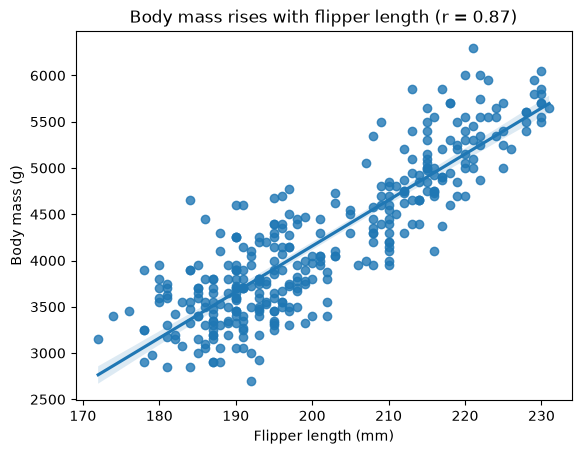
regplot draws three things from that one call: the scatter points, the best-fitting straight line through them, and a shaded band around the line. The band is a 95% confidence interval for where the line sits — it is narrow in the middle of the data, where there are many penguins, and flares at the edges, where there are few. It is not a prediction interval, so do not read it as “95% of penguins fall in here.”
The line makes the relationship quantitative rather than impressionistic: it slopes up by roughly 50 g of body mass per millimetre of flipper, and the points sit close to it along its whole length, which is what a correlation of 0.87 looks like in practice.
ImportantOnly draw a line where a line belongs
A regression line is a claim: this relationship is linear. regplot will happily fit a straight line to any two numeric columns, including ones where a straight line is nonsense, and the line will look just as authoritative. So check the scatter plot first and add the line only when the cloud of points genuinely runs in a straight band.
The order matters. Scatter plot first, line second — never add a line because a correlation coefficient was large. The coefficient itself only measures straightness, so using it to justify a straight line is circular reasoning.
Two escape hatches when the relationship is curved rather than straight:
sns.regplot(data=df, x="...", y="...", order=2)      # fit a parabola instead
sns.regplot(data=df, x="...", y="...", lowess=True)  # follow the data, no formula
Useful arguments:
| Argument | What it does |
|---|---|
ci=None |
Drop the shaded band — good when overlaying several lines |
scatter=False |
Draw only the line, onto a scatter plot you already made |
order=2 |
Fit a quadratic instead of a straight line |
lowess=True |
Fit a flexible smooth curve instead of any fixed formula |
line_kws={"color": "black"} |
Style the line |
scatter_kws={"alpha": 0.4} |
Style the points — useful when they overlap |
sns.regplot(data=df, x="flipper_length_mm", y="body_mass_g",
            ci=None,
            scatter_kws={"alpha": 0.4, "s": 20},
            line_kws={"color": "black"})
plt.xlabel("Flipper length (mm)")
plt.ylabel("Body mass (g)")
plt.show()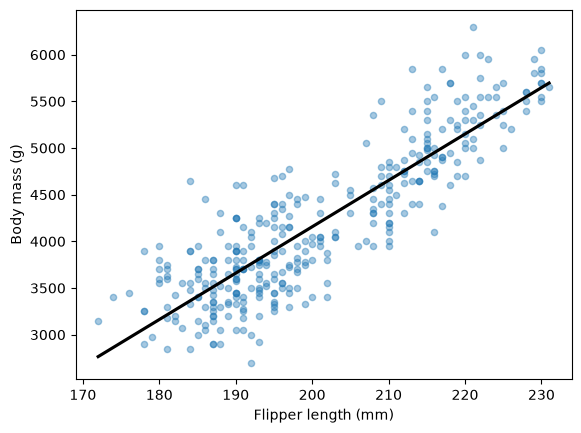
Note one thing regplot cannot do: it has no hue argument. To fit a separate line per group, you either overlay several regplot calls — which we do in a moment — or use seaborn’s lmplot, a figure-level function that we save for the next chapter, because it creates and owns its own figure.
8.7.3 Three warnings
Correlation is the most over-trusted number in introductory statistics. Three things it does not tell you:
It only sees straight lines. A correlation near zero means no linear trend, not no relationship. Two variables can follow a perfect U-shape and still have a correlation of about 0. This is why you plot the data rather than only computing the number.
It does not mean causation. Flipper length and body mass correlate at 0.87, but neither causes the other; both reflect how big the penguin is, and much of the spread comes from species.
A correlation over a mixed population can point the wrong way. That negative bill_length / bill_depth correlation of −0.24 is the clearest warning in this dataset. Compute it within a single species and it turns positive — about +0.39 for Adelie. The overall negative number is an artifact of mixing three species with differently shaped bills, not a fact about any penguin. A reversal like this is called Simpson’s paradox, and you can see it happen by drawing the scatter plot with hue="species":
sns.scatterplot(data=df, x="bill_length_mm", y="bill_depth_mm", hue="species")
plt.xlabel("Bill length (mm)")
plt.ylabel("Bill depth (mm)")
plt.title("Negative overall, positive within every species")
plt.show()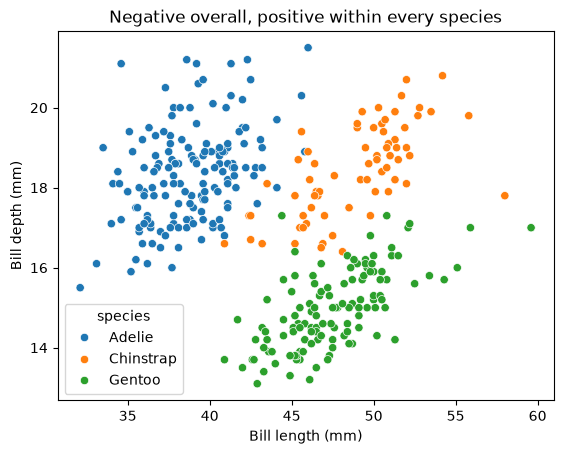
The cloud as a whole slopes downward, while each colored group slopes upward. Regression lines make this impossible to miss. First, the line a correlation of −0.24 would have you draw — one line over all 344 penguins at once:
sns.regplot(data=df, x="bill_length_mm", y="bill_depth_mm",
            scatter_kws={"alpha": 0.4}, line_kws={"color": "black"})
plt.xlabel("Bill length (mm)")
plt.ylabel("Bill depth (mm)")
plt.title("One line over all species: slopes down")
plt.show()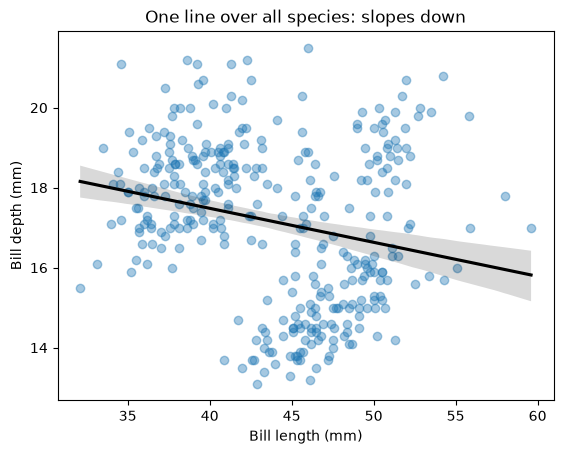
Now one line per species, drawn onto the same axes. Since regplot has no hue, we call it once per species, each time on just that species’ rows:
for name in df["species"].unique():
    subset = df[df["species"] == name]
    sns.regplot(data=subset, x="bill_length_mm", y="bill_depth_mm",
                label=name, ci=None)

plt.legend(title="species")
plt.xlabel("Bill length (mm)")
plt.ylabel("Bill depth (mm)")
plt.title("One line per species: all three slope up")
plt.show()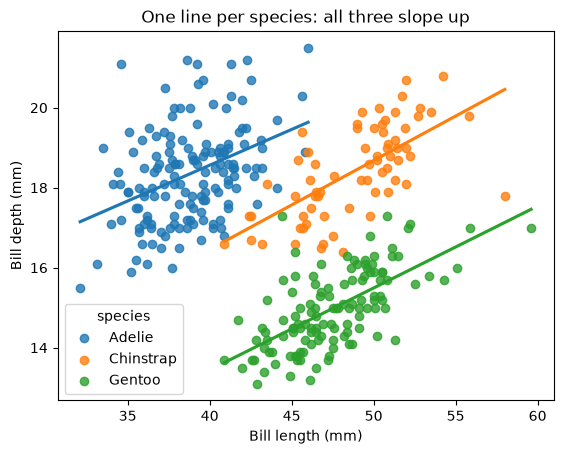
Three upward lines, from data whose overall correlation is negative. The trick is that df["species"].unique() lists the three species names, and df[df["species"] == name] keeps only the rows matching one of them — so each regplot call sees a single species and fits a line to it alone. Drawing three plotting calls onto one set of axes works the same way the layered box-and-points plot later in this chapter does: each call adds to whatever is already there.
The reason for the reversal is visible in the plot. Gentoos sit low and to the right — long, shallow bills — while Adelies sit high and to the left. That between-species offset is steeply downward and it swamps the gentle upward trend inside each group. The single black line is not describing any penguin; it is describing the arrangement of the three species.
No correlation coefficient can warn you about this, and neither can a single regression line. Treat a correlation heatmap as a way of deciding which scatter plots to draw next, never as a substitute for drawing them — and before you fit any line, ask whether your data is one population or several stacked together.
8.8 Numeric by categorical: comparing groups
Question: which species is heaviest?
This pairs one numeric variable with one categorical variable, so we want the numeric variable’s distribution within each group, drawn side by side for comparison.
8.8.1 Boxplots by group
sns.boxplot(data=df, x="species", y="body_mass_g")
plt.show()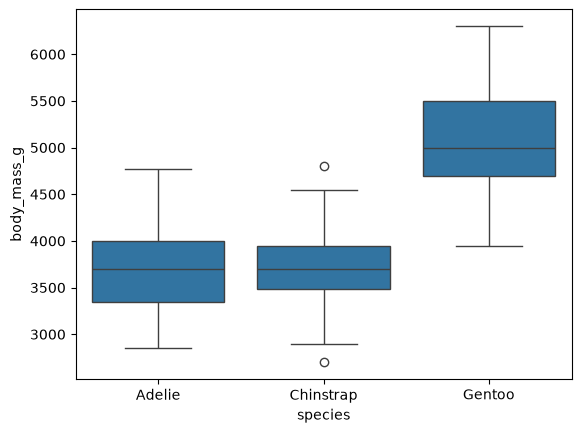
Categorical variable on x, numeric variable on y, and seaborn draws one box per species. This is what boxplots are best at: three distributions, directly comparable, in one line of code. Gentoos are clearly heavier, and the Adelie and Chinstrap distributions sit almost on top of each other.
The equivalent in pandas is:
df.plot(kind="box", column="body_mass_g", by="species")
plt.suptitle("")               # pandas adds a figure-level title
plt.title("")                  # ...and an axes-level one; clear both
plt.xlabel("Species")
plt.ylabel("Body mass (g)")
plt.show()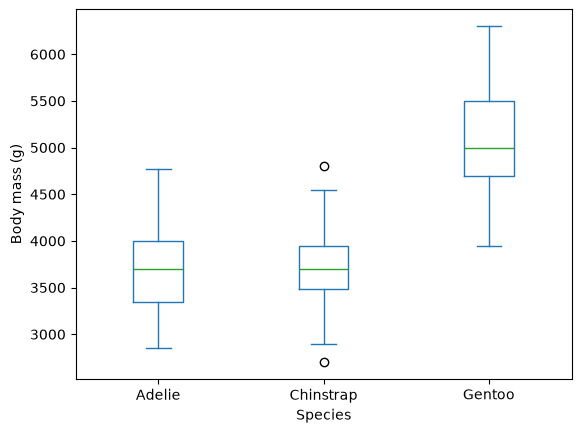
Note the two empty-string calls. When you use by=, pandas writes two titles onto the figure — the grouping variable as a suptitle and the column name as an axes title — so getting a clean plot means clearing both. In bare matplotlib it is worse: you would have to split the data into three separate arrays yourself and pass them as a list to plt.boxplot. Use seaborn for this.
8.8.2 Violin plots
A violin plot replaces each box with a mirrored density curve, so you see the shape of each group’s distribution rather than just its five summary numbers:
sns.violinplot(data=df, x="species", y="body_mass_g")
plt.show()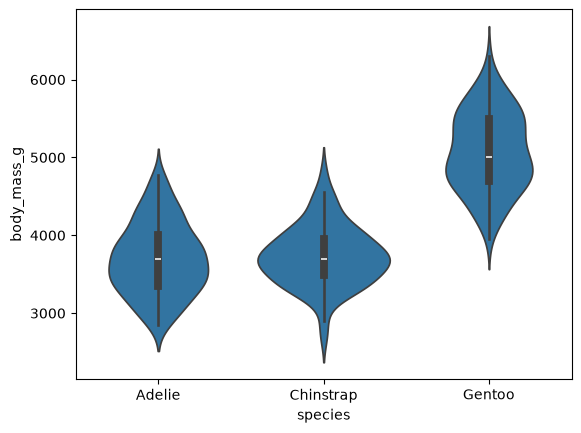
Here the violins tell us something the boxplot could not: the Adelie distribution has a single broad peak, while Gentoo mass is spread more evenly across a wider range. Use a violin plot when the shape matters and you have enough observations per group (a few dozen at least) for the curve to be trustworthy.
8.8.3 Bar chart of means
A bar chart can also compare a numeric variable across groups — but a bar has only one height, so the many values in each group have to be reduced to a single number first.
sns.barplot(data=df, x="species", y="body_mass_g")
plt.show()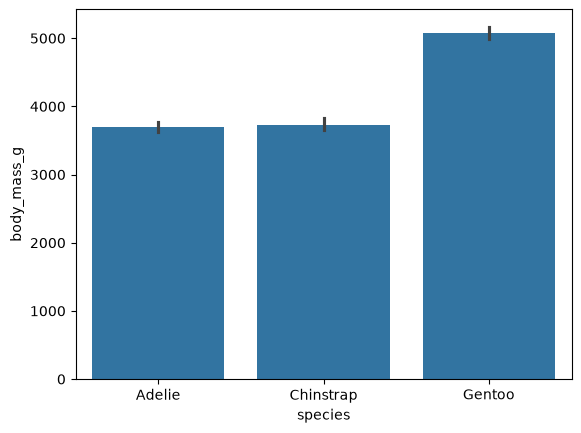
ImportantAggregation is happening, even though you didn’t ask for it
That command had no averaging step in it, yet each bar is a single height. Seaborn aggregated the data for you: the bar height is the mean body mass of all penguins of that species, and the thin vertical line on each bar is a 95% confidence interval for that mean.
This is worth stopping on, because it is invisible in the code. A bar chart of a numeric variable by category must reduce many values to one, so some aggregation is unavoidable — seaborn just picks a sensible default (the mean) instead of making you say so. You will learn to do this aggregation explicitly with .groupby() in a later chapter, and at that point you will be able to compute these exact bar heights yourself. For now, the thing to remember is that a bar height is an average over a whole group, not a single observation.
The same hidden work is going on elsewhere in this chapter. sns.histplot bins the data and counts the rows in each bin. sns.boxplot computes a median and quartiles per group. sns.countplot counts rows per category. In every case the library is summarizing your data before it draws.
When you have one numeric and one categorical variable, prefer a boxplot or violin plot over a bar of means. The bar throws away almost everything — you cannot see the spread, the shape, or the outliers, and two groups with identical means can have completely different distributions. Reach for the bar chart when the average genuinely is the quantity of interest.
8.9 Two categorical variables
Question: are the three species spread evenly across the three islands, or does each island have its own?
Two categorical variables means counting the combinations. The clearest plot is a grouped bar chart, which in seaborn is countplot plus a hue:
sns.countplot(data=df, x="island", hue="species")
plt.show()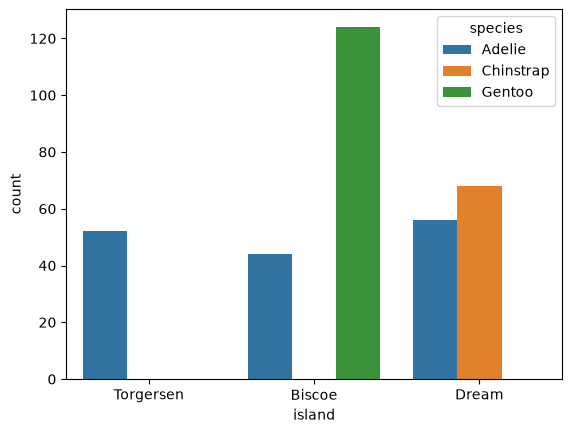
The structure is striking. Adelie penguins live on all three islands, but Gentoos appear only on Biscoe and Chinstraps only on Dream; Torgersen has nothing but Adelies. Species and island are strongly related, which is worth knowing before comparing anything across islands — a difference in body mass between Biscoe and Torgersen would really be the Gentoo/Adelie difference wearing a disguise.
NoteThe pandas version needs a method you haven’t met yet
To make this plot in pandas, you first need a table of counts for every island–species combination. That is what pd.crosstab builds: you give it two columns and it returns a small DataFrame whose rows are the values of the first and whose columns are the values of the second, with counts in the cells.
pd.crosstab(df["island"], df["species"])| species | Adelie | Chinstrap | Gentoo |
|---|---|---|---|
| island | |||
| Biscoe | 44 | 0 | 124 |
| Dream | 56 | 68 | 0 |
| Torgersen | 52 | 0 | 0 |
Read the cell in row Biscoe, column Gentoo: 124 penguins were both. The zeros show the combinations that never occurred. Once the table exists, plotting it is the usual .plot() call — and because the table has three columns, pandas draws one bar per column within each row:
pd.crosstab(df["island"], df["species"]).plot(kind="bar")
plt.ylabel("Number of penguins")
plt.show()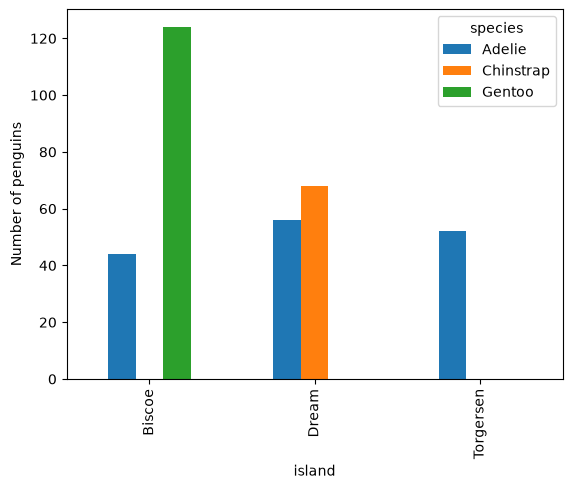
You are not expected to reach for crosstab on your own yet; it is here so you can see that the seaborn version is doing the same counting internally.
When both variables have many categories, a grouped bar chart becomes a forest of thin bars. A heatmap scales better — it shows the same counts as color intensity, exactly as the correlation heatmap did for correlations:
sns.heatmap(pd.crosstab(df["island"], df["species"]), annot=True, fmt="d", cmap="Blues")
plt.show()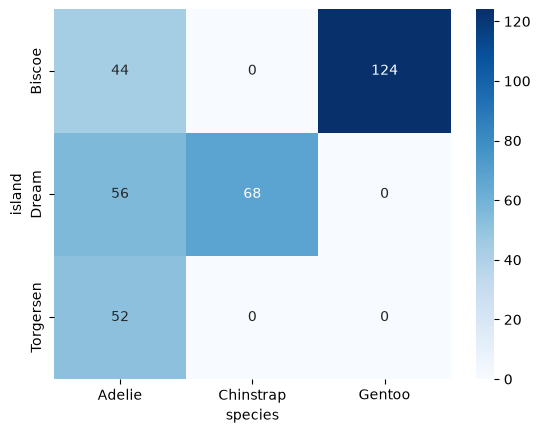
annot=True prints the number in each cell, and fmt="d" formats those numbers as integers rather than the ".2f" we used for correlations — these cells are counts, so 44.00 would be silly.
The colormap choice differs too, and for a reason worth remembering. Counts are sequential: they start at zero and only increase, so "Blues" runs light-to-dark in one direction. Correlations are diverging: they run from −1 through a meaningful zero to +1, so "coolwarm" puts a pale color at the midpoint and strong colors at both extremes. Using a diverging map for counts, or a sequential map for correlations, makes a plot that actively misleads — the reader’s eye looks for a midpoint that isn’t there, or misses the one that is.
| Kind of data | Colormap | Examples |
|---|---|---|
| Sequential (low → high, no midpoint) | "Blues", "viridis" |
Counts, totals, prices |
| Diverging (meaningful center) | "coolwarm", "RdBu_r" |
Correlations, change from a baseline, profit vs. loss |
8.10 Two numeric variables in order: the line plot
None of the penguin columns is a time series, so this row of the decision table needs a different example. The rule is what matters: use a line plot when the x-values have a meaningful order, because a line asserts that the space between two points is real.
years = [2019, 2020, 2021, 2022, 2023]
observations = [110, 95, 130, 142, 138]

plt.plot(years, observations, marker="o")
plt.xlabel("Year")
plt.ylabel("Penguins observed")
plt.title("Observations per year (illustrative data)")
plt.show()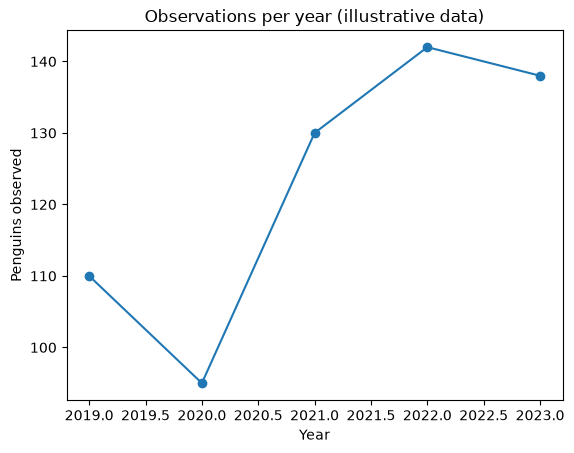
Note that plt.plot accepts plain Python lists — no DataFrame needed. The marker="o" argument puts a dot at each actual data point, which is a good habit: it shows your reader where the measurements are and where the line is just interpolation.
The seaborn equivalent for data in a DataFrame is sns.lineplot(data=df, x=..., y=...), and in pandas, df.plot(kind="line", x=..., y=...).
A line plot of unordered categories is one of the most common beginner mistakes. Nothing stops you from drawing a line across Adelie, Chinstrap, Gentoo — the code runs fine — but it implies a trend through a sequence that could be rearranged at will. If the x-axis could be shuffled without losing information, use bars.
8.11 Finishing a plot
An unlabeled plot is not finished. Whichever library drew it, these matplotlib commands will adjust it, because all three ultimately draw through matplotlib:
sns.scatterplot(data=df, x="flipper_length_mm", y="body_mass_g", hue="species")

plt.xlabel("Flipper length (mm)")
plt.ylabel("Body mass (g)")
plt.title("Heavier penguins have longer flippers")
plt.show()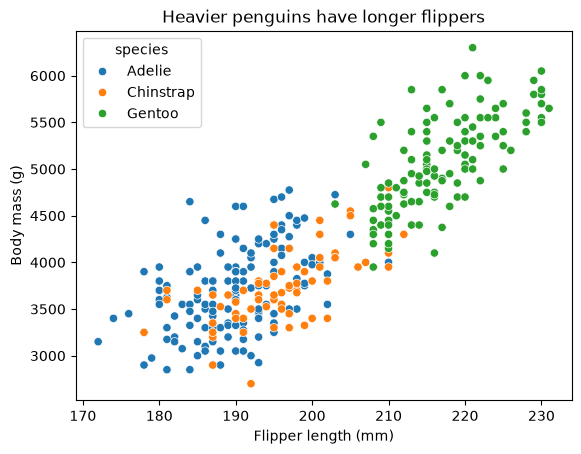
The commands you will use constantly:
| Command | What it does |
|---|---|
plt.xlabel(...), plt.ylabel(...) |
Label the axes — include units |
plt.title(...) |
Title the plot |
plt.xlim(...), plt.ylim(...) |
Set the axis range |
plt.legend(title=...) |
Adjust the legend |
plt.xticks(rotation=45) |
Rotate tick labels so long names don’t overlap |
plt.figure(figsize=(w, h)) |
Set the figure size in inches — before drawing |
plt.savefig("name.png", dpi=300) |
Save to a file — before plt.show() |
Two ordering traps in that table, both of which produce a confusing result rather than an error:
plt.figure(figsize=...)must come before the plotting command, since it creates the figure that the plot goes into.plt.savefig(...)must come beforeplt.show().plt.show()closes out the current figure, so saving afterwards writes a blank image.
plt.figure(figsize=(7, 4))
sns.boxplot(data=df, x="species", y="body_mass_g")
plt.xlabel("Species")
plt.ylabel("Body mass (g)")
plt.title("Gentoo penguins are markedly heavier")
plt.show()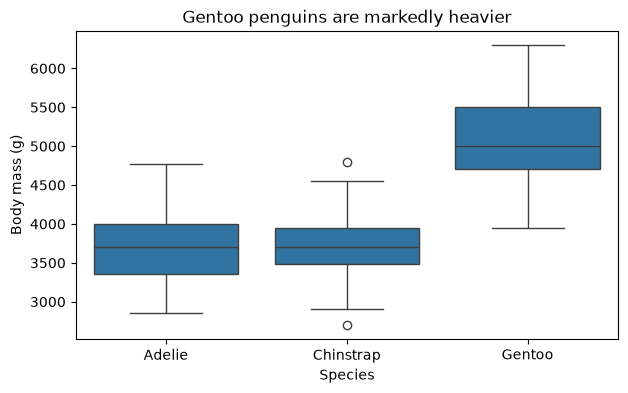
Seaborn also controls overall appearance with themes, which apply to every plot you draw afterwards:
sns.set_theme(style="whitegrid")

sns.violinplot(data=df, x="species", y="body_mass_g")
plt.xlabel("Species")
plt.ylabel("Body mass (g)")
plt.show()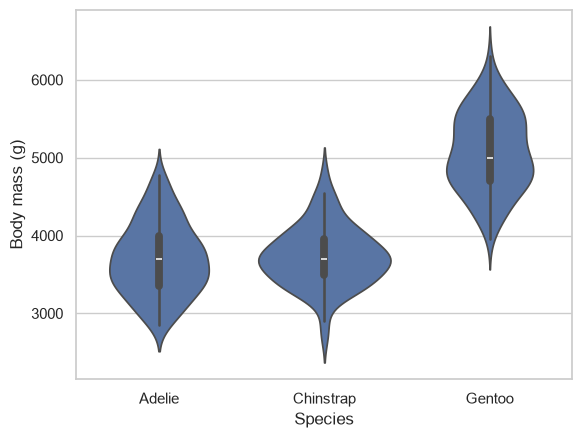
Other style options are "darkgrid" (seaborn’s default), "white", "dark", and "ticks". Setting a theme once at the top of a notebook is a good way to keep every figure in a report looking consistent.
NoteGoing further: making a plot look good
A chapter has room for the arguments that decide what a plot means, and little room for the ones that decide how it looks. Every plot here can be made considerably handsomer without changing what it claims, and seaborn documents that side of the work in three places worth a browse when you have a plot you care about:
- Controlling figure aesthetics — themes, grids, spines, and the
contextsetting that scales every element at once for a slide or a printed page. - Choosing color palettes — which palette suits categories, an ordered scale, or a diverging one, and which choices stay readable for colour-blind readers. Matplotlib’s colormap reference is the companion for
cmap=. - The example gallery — finished figures with their source code. Finding one that resembles what you want and reading its code is the fastest way to learn the styling arguments.
None of this is required for the practice activity, and none of it repairs a plot that answers the wrong question.
8.12 Making plots honest
A plot is an argument, and it is easy to make a misleading one by accident.
Start bar charts at zero. A bar’s length is what encodes the value, so cutting off the bottom of the axis exaggerates differences. Compare:
sns.barplot(data=df, x="species", y="body_mass_g")
plt.ylim(3500, 5500)
plt.title("Misleading: truncated y-axis")
plt.show()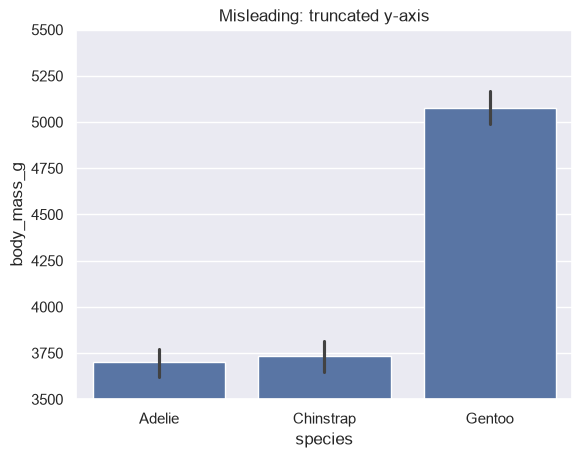
sns.barplot(data=df, x="species", y="body_mass_g")
plt.title("Honest: y-axis starts at zero")
plt.show()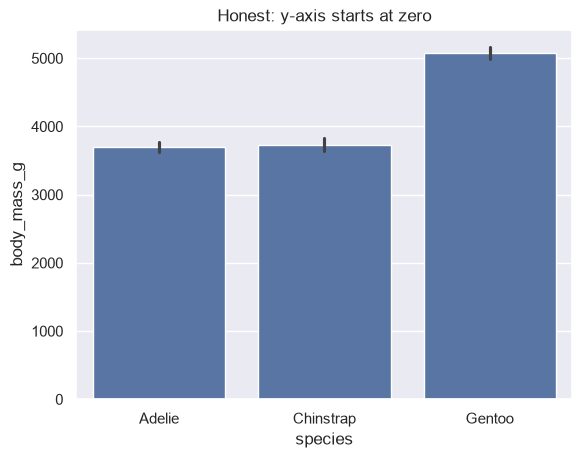
The first plot makes Gentoos look several times heavier than Adelies. In fact the means are about 5076 g and 3701 g — Gentoos are roughly 37% heavier, a real difference but not the overwhelming one the truncated axis suggests. Scatter and line plots, where position rather than length carries the meaning, do not need a zero baseline.
Label your axes and include units. body_mass_g is a column name, not a label. “Body mass (g)” tells the reader what they are looking at.
Don’t hide the sample size. A bar chart of means looks equally confident whether a group has 300 observations or 3. A boxplot or violin at least shows the spread; adding the raw points is even better, and one of the nicest things seaborn does is let you layer plots by simply drawing one after the other:
sns.boxplot(data=df, x="species", y="body_mass_g", whis=(0, 100), color="lightgray")
sns.stripplot(data=df, x="species", y="body_mass_g", size=3, color="black", alpha=0.5)
plt.xlabel("Species")
plt.ylabel("Body mass (g)")
plt.title("Distribution and every individual penguin")
plt.show()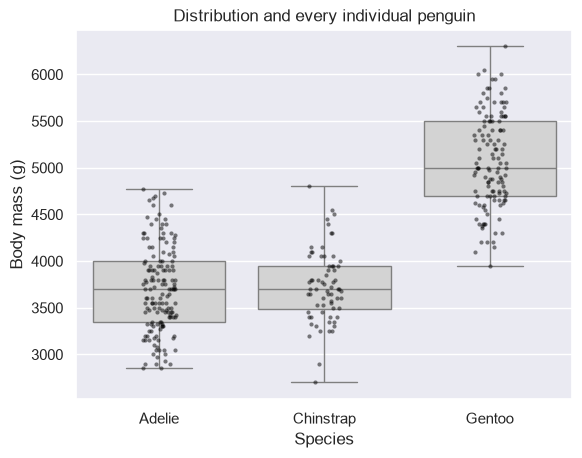
Two seaborn calls in a row drew onto the same axes, because each one adds to the plot that is already there rather than starting a new one. alpha=0.5 makes the points semi-transparent so overlapping penguins are still visible — a useful trick any time points pile up.
Say what the plot is for. A title that states the finding (“Gentoo penguins are markedly heavier”) is more useful than one that states the mechanics (“Body mass by species”).
8.13 Summary Cheat Sheet
Choosing a plot comes down to counting your variables and checking their types:
| Variables | Plot | Seaborn function |
|---|---|---|
| One numeric | Histogram / density / boxplot | histplot, kdeplot, boxplot |
| One categorical | Bar chart of counts | countplot |
| Two numeric | Scatter plot | scatterplot |
| Two numeric, roughly linear | Scatter plot with a fitted line | regplot |
| Two numeric, x ordered | Line plot | lineplot |
| Several numeric | Correlation heatmap | heatmap on df.corr() |
| Numeric + categorical | Grouped boxplot / violin / bar of means | boxplot, violinplot, barplot |
| Two categorical | Grouped bar chart / heatmap | countplot(hue=...), heatmap |
| One extra variable | Add color, shape, or size | hue=, style=, size= |
Each function name above links to its own documentation page. This chapter uses only the arguments that change what a plot says; those pages list the rest — the ones that change how it looks — with a worked example for each.
And choosing a library comes down to what the plot has to do:
pandas—df["col"].plot(kind=...)ordf.plot(kind=..., x=..., y=...). Fastest for a quick look at a DataFrame you already have.matplotlib—plt.hist,plt.scatter,plt.bar,plt.plot. Takes raw data, not column names. Maximum control; you write every label yourself.seaborn—sns.func(data=df, x="col", y="col", hue="col"). The right default for anything involving groups, distributions, or statistics.
Because pandas and seaborn both draw through matplotlib, the plt.* commands for labels, titles, sizes, and saving work on all three.
8.14 Practice Activity: Choose, Draw, and Defend a Plot
Goal: Pick the right plot for four questions about one dataset, draw each one, and say what it shows and what it hides.
File: activity08.ipynb from the practice kit.
Submit: activity08.html through the final upload question in the Data Visualization I Canvas quiz.
This section contains the complete activity instructions. The starter loads the data and supplies spaces to record your work. Open activity08.ipynb from the folder prepared in Set Up Your Chapter Files, using the same project environment. The worked examples above are preparation, not additional submission requirements.
You will use the same Palmer penguins dataset the chapter uses, loaded the same way, so the activity needs no data file of its own.
A. One Numeric Variable, and What the Bins Decide
- Replace
Your Namein the opening Raw cell’sauthorfield. Run the setup cell; it must report the shape(344, 7). - Draw
flipper_length_mmas a histogram with 5 bins, then 15, then 40, and describe the shape each one shows in a sentence. Say which bin count you would report, and why. - Report how many penguins the histogram left out because the column is missing, and show the code that told you. Nothing on the plot itself says so.
- Draw the same column as a density curve and as a box plot. Name one thing each of the three views shows that the other two hide.
B. One Categorical Variable, in Two Libraries
- Count the penguins on each island and draw the counts as a bar chart, with the bars in decreasing order of count.
- Draw that same bar chart twice: once with pandas and once with seaborn.
- In two or three sentences, compare the two versions: which ordered the bars with less work, which labelled the axes for you, and which you would use for a quick look versus for a report.
C. Two Numeric Variables, and a Line Only Where It Belongs
- Display the correlation matrix of the four numeric columns and draw it as a heatmap with the colour scale pinned to the full −1 to +1 range. Read off the correlation between
bill_depth_mmandbody_mass_gand interpret its sign in a sentence. - Draw the scatter plot of those two columns, then redraw it with
hue="species". - Fit a regression line to the pooled data with
sns.regplot, then say what happens to the relationship inside each species. Explain what the pooled line claims and why that claim is wrong for these penguins. - Finish with one sentence on what this means for reading a correlation computed over a mixed population.
Render and Submit
Restart the kernel, run all cells in order, resolve unexpected errors, and save. Include your plots, outputs, and explanations for A–D, and a short Markdown completion note. From stat303-data-visualization-1 in the terminal, run:
quarto render activity08.ipynb --to htmlFollow the Quarto refresher: inspect the HTML and a copy opened outside the project folder, and confirm that every plot appears and your name is on the report. Upload only activity08.html to the Data Visualization I Canvas quiz; keep your notebook locally.
HTML grading (16 points): bin choices, the missing-value count, and the three views of one variable (4); the ordered count chart in both libraries with a justified preference (3); correlation, heatmap, grouped scatter, and the critique of the pooled line (5); group comparison, the aggregation seaborn performed, and a finished honest figure (3); name, readable report, and completion note (1).
8.15 Extended Practice
These longer exercises are additional practice, not requirements for the Canvas quiz. Work in a separate notebook beside your activity and load the data the way the chapter does. Include your code, plots, and explanations.
8.15.1 Violin against Box
Compare flipper_length_mm across the three species with a box plot and then with a violin plot. Name one thing each plot shows that the other does not, and describe a distribution where the choice between them would change a reader’s conclusion.
8.15.2 A Heatmap That Hides Its Scale
Build the correlation heatmap again, but leave out vmin and vmax and change the colormap to "Blues". Name two specific ways the result is harder to read than the version in this chapter, and say what a reader could wrongly conclude from it.
8.15.3 The Weakest Pair, and the Shaded Band
Use the correlation heatmap to pick the pair of numeric columns with the weakest correlation, and draw that pair with sns.regplot. Would you report this line to someone? Explain what the shaded band around it is doing, and why a fitted line can mislead here even though the code ran without complaint.
8.15.4 A Line Where a Line Does Not Belong
Someone shows you a line plot with species on the x-axis and mean body_mass_g on the y-axis, and argues that it shows a trend. Draw that plot, explain what is wrong with it, and draw the plot they should have used instead.
8.16 Before You Move On
The habit to carry forward is choosing before drawing: count the variables, check their types, and let the question pick the plot. Reach for the library that fits the job — pandas for a glance at a DataFrame you already have, seaborn for anything involving groups or distributions, and plt.* for the labels, size, and saving, whichever library drew the picture.
The plotting libraries are also quietly summarizing your data — binning it, counting it, averaging it — before they draw a single pixel. Understanding what a plot computed is as important as knowing which plot to pick.
For any plot you make or read, you should be able to answer five questions without redrawing it:
- What question is this plot answering, and do the variable types fit that question?
- What did the library compute before it drew — bins, counts, means, quartiles, a fitted line?
- How many observations are missing from the picture because a value was missing, and where did that number come from?
- Does the pattern in the pooled data still hold inside each group?
- Would a reader who saw only this picture reach the conclusion the data supports — axes labelled with units, a title that states the finding, and bars starting at zero?
Continue to Data Visualization II, where several plots are combined into one figure so that groups and variables can be compared side by side.
References: seaborn function overview, distributions tutorial, histplot, regplot, heatmap, pandas plotting, matplotlib pyplot tutorial, and the penguin measurements of Gorman, Williams, and Fraser (2014).