import numpy as np6 NumPy Fundamentals
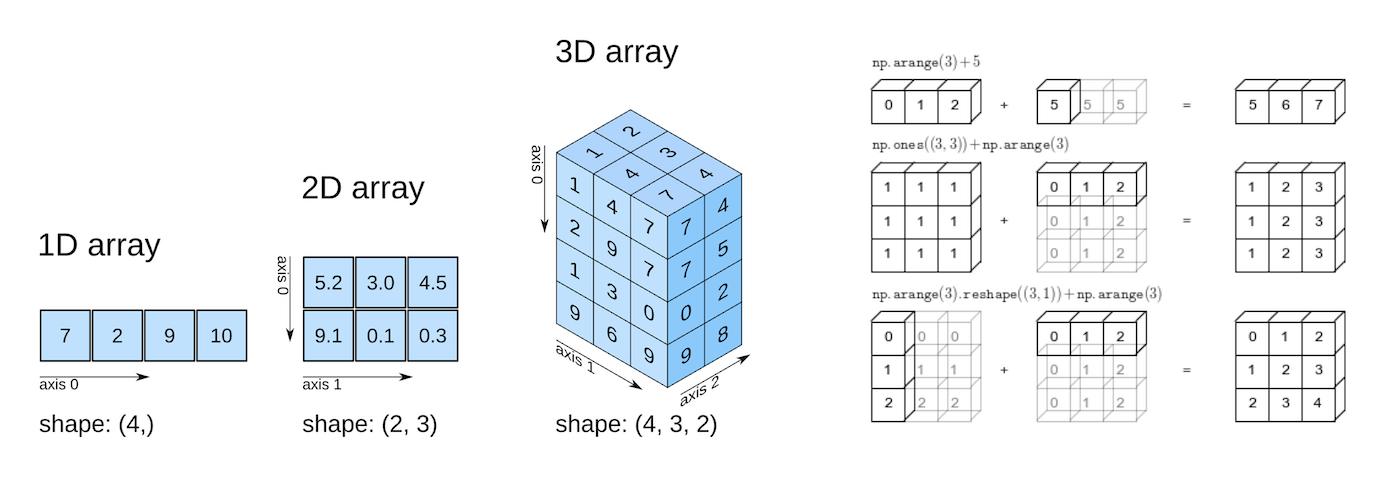
You already know how to store numbers in a list, loop over them, and even wrangle tables of data with pandas. NumPy provides numerical arrays used by pandas and many scientific libraries. It is a tool statisticians reach for when they need to do math on lots of numbers at once. This lesson introduces NumPy’s core object, the array, and shows you how it differs from both plain Python lists and pandas DataFrames/Series.
By the end of this chapter you should be able to:
- Create arrays and interpret
shape,ndim,size, anddtype. - Choose and convert dtypes, and recognize when a dtype silently changes a value.
- Convert pandas values to arrays and distinguish labels from positions.
- Select with indices, slices, and Boolean masks, and edit views or copies deliberately.
- Assign values by condition with
np.where()andnp.select(). - Predict broadcasting results and choose an aggregation axis.
- Summarize data while handling
nanvalues and theddofconvention. - Locate extreme values and rank observations while accounting for ties.
- Draw reproducible random samples with a seeded generator.
- Compute dot products and matrix products, and tell them apart from
*. - Reshape, transpose, and combine arrays while preserving the meaning of each axis.
Complete the practice activity after the worked examples.
6.1 Set Up Your Chapter Files
Download the NumPy Fundamentals practice kit. Extract stat303-numpy-fundamentals inside the chapters folder of your stat303-1 course folder, open stat303-1 in VS Code, and select the course environment. The terminal opens in stat303-1, so move it into the kit with cd chapters and then cd stat303-numpy-fundamentals before you render the activity.
stat303-1/
├── .venv/
├── assignments/
└── chapters/
    └── stat303-numpy-fundamentals/
        ├── numpy_examples.ipynb
        ├── activity06.ipynb
        ├── README.md
        └── data/
            └── country-capital-lat-long-population.csv
Run numpy_examples.ipynb for the lesson and complete activity06.ipynb for your own activity report. Use stat303-numpy-fundamentals as the notebook working folder. The capital data support the longer independent exercise; all other examples define their inputs in Python.
By convention, everyone imports NumPy as np. You’ll see this in nearly every data science notebook you ever read.
Environment check: This chapter uses NumPy and pandas. If an import fails, check the selected notebook kernel first. If a package is missing, activate your project environment and run this command in its terminal:
python -m pip install numpy pandas6.2 Why NumPy?
NumPy offers three advantages for numerical work: clearer code, compact storage, and faster execution for many array calculations.
6.2.1 Clearer Numerical Code
A Python list is a general-purpose container. To convert a list of heights from centimeters to inches, we can write a loop that processes one value at a time:
heights = [160, 172, 158, 181, 169]

# Want to convert every height from cm to inches?
inches = []
for h in heights:
    inches.append(h / 2.54)

print([round(value, 2) for value in inches])
[62.99, 67.72, 62.2, 71.26, 66.54]With a NumPy array, you skip the loop entirely:
heights = np.array([160, 172, 158, 181, 169])
inches = heights / 2.54
print(np.round(inches, 2))
[62.99 67.72 62.2 71.26 66.54]NumPy applies the division to every element. This is an element-wise, vectorized calculation: you express the operation on the whole array without writing a Python loop.
6.2.2 Compact Numerical Storage
A numerical NumPy array stores values using one fixed-size data type, called its dtype. A Python list stores references to Python objects. For many numbers, the array’s element storage is more compact.
Here we compare the same 1,000 integers. nbytes counts the array’s element data; the list estimate counts its container and the integer objects it references.
import sys

numbers_list = list(range(1000))
numbers_array = np.array(numbers_list, dtype=np.int64)

list_bytes = sys.getsizeof(numbers_list) + sum(sys.getsizeof(x) for x in numbers_list)
print("Python list and integer objects (approximate bytes):", list_bytes)
print("NumPy element data (bytes):", numbers_array.nbytes)
print("NumPy bytes per element:", numbers_array.itemsize)
Python list and integer objects (approximate bytes): 36056
NumPy element data (bytes): 8000
NumPy bytes per element: 8Each int64 value uses 8 bytes, so the array’s element data occupy 1,000 × 8 = 8,000 bytes. The list also needs space for references and individual Python objects.
This is an approximate comparison: nbytes excludes the array object’s overhead, and Python may share integer objects. Exact memory totals depend on the Python version and platform. The main idea is that a numerical array stores fixed-size values together.
6.2.3 Faster Execution
Many NumPy operations run their numerical loops in compiled code, avoiding the overhead of processing each element in a Python loop. This often makes calculations on large numerical arrays faster.
The example below performs the same height conversion on 100,000 values. Inputs are prepared before timing so we compare the calculations themselves. Each calculation creates a result, and np.allclose checks that the answers agree.
from timeit import repeat

timing_heights_list = [150 + i % 50 for i in range(100_000)]
timing_heights_array = np.array(timing_heights_list, dtype=np.float64)

def convert_with_loop():
    result = []
    for height in timing_heights_list:
        result.append(height / 2.54)
    return result

def convert_with_numpy():
    return timing_heights_array / 2.54

print("Results agree:", np.allclose(convert_with_loop(), convert_with_numpy()))

# Repeat the timings and report the fastest observed time per calculation.
runs = 10
loop_seconds = min(repeat(convert_with_loop, repeat=3, number=runs)) / runs
numpy_seconds = min(repeat(convert_with_numpy, repeat=3, number=runs)) / runs
print(f"Python loop: {loop_seconds * 1000:.3f} ms per calculation")
print(f"NumPy:       {numpy_seconds * 1000:.3f} ms per calculation")
print(f"Observed speedup: {loop_seconds / numpy_seconds:.1f} times")
Results agree: True
Python loop: 1.624 ms per calculation
NumPy: 0.013 ms per calculation
Observed speedup: 124.8 timesYour timings will vary. The speedup depends on the operation, array size, dtype, and computer. Small inputs or repeated conversions from lists can reduce the benefit; NumPy is not automatically faster for every task.
Check your understanding. Which advantage does heights / 2.54 demonstrate even before you measure its runtime? How does using one dtype help explain the storage advantage?
TipAnswer
Clearer code: one expression replaces the loop, the index variable, and the result list, so there is no runtime measurement involved. The storage advantage follows from the single dtype — because every element is the same fixed size, NumPy can store the values themselves in one contiguous block instead of storing a reference to a separate Python object for each one.
6.3 Building Blocks: NumPy Array Fundamentals
Those three advantages all belong to one object, the array, so the rest of this chapter works with arrays directly. This section covers where an array comes from and how to read the properties that describe the one you are holding.
6.3.1 Array Creation: Your Complete Toolkit
An array can start from data you already hold, from a shape you describe and fill with a constant, from a random generator, or from a file. Which function you reach for depends on which of those you are starting with, so the constructors below are grouped by starting point rather than by name.
6.3.1.1 From Existing Data
The most common way to create an array is np.array() on a list (or list of lists):
first_array = np.array([4, 8, 15, 16, 23, 42])
print(first_array)
[ 4 8 15 16 23 42]Arrays can have more than one dimension. Think of a 2D array as a grid — rows and columns — similar to a DataFrame but without row/column labels:
grades = np.array([
    [88, 92, 79],
    [95, 84, 91],
])
print(grades)
[[88 92 79]
[95 84 91]]6.3.1.2 From pandas: Positions versus Labels
This is the single biggest mental adjustment coming from pandas.
- In a pandas Series or DataFrame, you often select data by label:
df.loc["Chicago"],df["temperature"], a named index. - In a NumPy array, there are no labels at all — only positions. Every array is indexed by integer position, starting at 0, just like a list.
import pandas as pd

temps_series = pd.Series([72, 68, 75], index=["Mon", "Tue", "Wed"])
temps_array  = np.array([72, 68, 75])

print(temps_series["Tue"])   # 68 — by label
print(temps_array[1])        # 68 — by position
68
68A useful comparison: pandas provides labels and column-specific types; NumPy provides arrays indexed by position. A DataFrame can use multiple underlying arrays and data types. Use .to_numpy() to obtain an array of its values; labels are omitted, and conversion may copy data or coerce types:
raw = temps_series.to_numpy()   # the values, without the Mon/Tue/Wed labels
print(raw)
print(type(raw))
[72 68 75]
<class 'numpy.ndarray'>You’ll move between the two constantly: pandas for labeled, mixed-type, spreadsheet-like data; NumPy underneath when you need fast numerical operations on the values themselves.
6.3.1.3 Specialized Constructors and Sequential Arrays
You won’t always start from a Python list. Often you need an array of a certain shape filled with a sensible starting value — zeros to initialize a running total, ones to build a mask, evenly spaced numbers to evaluate a function. NumPy has a constructor for each of these situations:
| Function | Creates | When to use it |
|---|---|---|
np.zeros(shape) |
array of zeros | placeholders, running totals |
np.ones(shape) |
array of ones | masks, default weights |
np.full(shape, val) |
array filled with val |
any other constant starting value |
np.eye(n) |
identity matrix (1s on the diagonal) | linear algebra, later courses |
np.empty(shape) |
uninitialized array | fastest allocation — fill every entry before reading it |
np.arange(start, stop, step) |
evenly stepped values | stop is excluded, like range() |
np.linspace(start, stop, num) |
a fixed count of evenly spaced values | stop is included; best for plotting |
np.logspace(start, stop, num) |
num values evenly spaced in log space |
exponential ranges, e.g. 10⁰ to 10² |
print(np.zeros((2, 3)))        # 2x3 array of zeros
print(np.ones(4))               # 1D array of four ones
print(np.full((2, 2), 7))       # 2x2 array filled with 7
print(np.eye(3))                # 3x3 identity matrix

print(np.arange(0, 10, 2))      # [0 2 4 6 8]   -- stop (10) is excluded
print(np.linspace(0, 1, 5))     # [0. 0.25 0.5 0.75 1.]  -- stop (1) is included
print(np.logspace(0, 2, 3))     # 10**0, 10**1, 10**2
[[0. 0. 0.]
[0. 0. 0.]]
[1. 1. 1. 1.]
[[7 7]
[7 7]]
[[1. 0. 0.]
[0. 1. 0.]
[0. 0. 1.]]
[0 2 4 6 8]
[0. 0.25 0.5 0.75 1. ]
[ 1. 10. 100.]arange and linspace look similar but answer different questions: arange asks “step by how much?” while linspace asks “how many points do I want?” Because floating-point step sizes can round unpredictably, prefer linspace whenever the number of samples matters more than the exact step.
np.empty() is the one to be careful with — it grabs a block of memory without clearing it, so the values you see are leftover garbage, not zeros. Use it only when you plan to overwrite every entry yourself; otherwise use np.zeros().
Check your understanding. What is np.array([[1,2],[3,4],[5,6]]).shape?
TipAnswer
(3, 2) — 3 rows, 2 columns.
6.3.1.4 Random Arrays and Reproducible Seeds
Simulation, resampling, and shuffling all start with random numbers, and in statistics a result nobody can reproduce is not much of a result. The modern NumPy pattern is to create one generator with a seed and draw from it:
rng = np.random.default_rng(303)   # 303 is the seed: any integer will do

print(rng.random(4))                                   # uniform on [0, 1)
print(rng.integers(1, 7, size=10))                     # ten dice rolls; 7 excluded
print(rng.normal(loc=70, scale=10, size=5).round(1))   # mean 70, sd 10
[0.21443242 0.41682182 0.80769524 0.27392328]
[5 5 6 1 4 3 6 6 3 2]
[74. 58.4 80.7 62.1 77.4]Seeding is what makes this reproducible: the same seed replays the same draws, so your notebook produces the same numbers for your grader as it did for you.
same_rng = np.random.default_rng(303)
print(same_rng.random(4))          # identical to the first draw above

other_rng = np.random.default_rng(42)
print(other_rng.random(4))         # a different seed, different draws
[0.21443242 0.41682182 0.80769524 0.27392328]
[0.77395605 0.43887844 0.85859792 0.69736803]The generator also samples from data you already have — with or without replacement — and shuffles it:
rng = np.random.default_rng(303)
treatments = np.array(['control', 'low', 'high'])

print(rng.choice(treatments, size=6))                      # with replacement
print(rng.choice(np.arange(10), size=4, replace=False))    # without replacement
print(rng.permutation(np.arange(6)))                       # a shuffled copy
['low' 'control' 'high' 'low' 'low' 'high']
[7 2 1 8]
[3 1 2 4 0 5]rng.choice(..., replace=False) is how you draw a simple random sample; rng.permutation() returns a shuffled copy, while rng.shuffle() rearranges an array in place.
Use np.random.default_rng(), not the older np.random.seed() and np.random.rand() functions. The older calls share one hidden global generator, so a stray call anywhere in your notebook changes results elsewhere. A named generator keeps each analysis’s randomness to itself. You will still meet the old style in existing code and older textbooks.
6.3.1.5 Loading from Files
For labeled, mixed-type data (numbers next to names, dates, categories), you’ll keep reaching for pd.read_csv. But when a file is purely numeric, NumPy has three loaders of its own:
| Function | Best for | Notes |
|---|---|---|
np.load("data.npy") |
NumPy’s own binary format | fastest option; pairs with np.save |
np.loadtxt("data.txt") |
clean, fully-numeric text/CSV | fast, but breaks on missing values or mixed types |
np.genfromtxt("data.txt") |
messier text files | handles missing values (fills them with nan by default) |
from pathlib import Path
from tempfile import TemporaryDirectory

file_scores = np.array([[80, 90, 70], [85, 95, 75]])

# Create small example files in a temporary folder, cleaned up afterward.
with TemporaryDirectory() as folder:
    folder = Path(folder)
    np.save(folder / "scores.npy", file_scores)
    reloaded = np.load(folder / "scores.npy")
    np.savetxt(folder / "clean_scores.csv", file_scores, delimiter=",", fmt="%d")
    (folder / "messy_scores.csv").write_text("80,90,70\n85,,75\n")
    clean = np.loadtxt(folder / "clean_scores.csv", delimiter=",")
    messy = np.genfromtxt(folder / "messy_scores.csv", delimiter=",")

print("Reloaded array:\n", reloaded)
print("Clean numeric CSV:\n", clean)
print("CSV with a missing value:\n", messy)
Reloaded array:
[[80 90 70]
[85 95 75]]
Clean numeric CSV:
[[80. 90. 70.]
[85. 95. 75.]]
CSV with a missing value:
[[80. 90. 70.]
[85. nan 75.]]Rule of thumb: if the file has a header row, mixed types, or you’ll want labeled columns, reach for pandas and convert to an array afterward with .to_numpy(). Reach for these three loaders only when you’re working with plain numeric arrays and want to skip pandas entirely.
6.3.2 Understanding Array Attributes
However you built it — from a list, from a constructor, from a generator, or from a file — the resulting array answers the same four questions about itself, and they are worth checking whenever you create or receive one:
| Property | What it tells you | Example (grades) |
|---|---|---|
.shape |
size along each dimension, as a tuple | (2, 3) — 2 rows, 3 columns |
.ndim |
number of dimensions | 2 |
.size |
total number of elements | 6 |
.dtype |
the data type stored (all elements share one!) | int64 |
print(grades.shape)
print(grades.ndim)
print(grades.size)
print(grades.dtype)
(2, 3)
2
6
int64For a 2D array, name both axes before calculating. In grades, axis 0 runs down the students and axis 1 runs across the quizzes:
| quiz 0 | quiz 1 | quiz 2 | |
|---|---|---|---|
| student 0 | 88 | 92 | 79 |
| student 1 | 95 | 84 | 91 |
Moving down a column steps along axis 0; moving across a row steps along axis 1. So grades has shape = (2, 3), ndim = 2, and size = 6.
A shape (3,) describes a 1D array; it is different from both (1, 3) and (3, 1).
6.4 Data Types: Choosing and Converting
Of the four attributes you just checked, dtype is the one you will actively choose and change. A dtype decides which values an array can represent and how much room each one gets, so it governs both what your calculations return and when a value quietly changes on you.
6.4.1 Type Promotion
Key idea: arrays are homogeneous. Every element must be the same dtype (all integers, all floats, all booleans, etc.). This is different from a Python list, which can freely mix types. If you build an array from mixed values, NumPy will quietly upcast everything to the most general type. This is called type promotion:
mixed = np.array([1, 2, 3.5])
print(mixed, mixed.dtype)      # the integers became floats

both = np.array([1, 2, 3]) + np.array([0.5, 0.5, 0.5])
print(both.dtype)              # int64 + float64 promotes to float64

labels = np.array([1, 2, 'three'])
print(labels, labels.dtype)    # one string forces every element to a string
[1. 2. 3.5] float64
float64
['1' '2' 'three'] <U216.4.2 Converting with astype()
.astype() returns a new array with the dtype you ask for; it never changes the original. Converting floats to integers truncates toward zero — it does not round — so reach for np.round() first when you want rounding. Note that np.round() rounds a halfway value to the nearest even number, so 4.5 becomes 4, not 5.
measurements = np.array([1.7, 2.2, -3.8, 4.5])

print(measurements.astype(int))            # truncates toward zero
print(np.round(measurements).astype(int))  # rounds first, then converts
print(measurements.dtype)                  # the original is unchanged

counts = np.array([1, 0, 3, 0])
print(counts.astype(bool))                 # 0 -> False, everything else -> True
print(counts.astype(float))
[ 1 2 -3 4]
[ 2 2 -4 4]
float64
[ True False True False]
[1. 0. 3. 0.]6.4.3 When a dtype Changes Your Value
A dtype is a promise about how much room each element gets. When a value does not fit that room, NumPy does not grow the array — the value changes instead. An operation can also hand back a different dtype than the one you started with. Three cases are worth seeing once so you recognize them later.
# 1. A small integer dtype wraps around instead of growing.
small = np.array([120, 125], dtype=np.int8)   # int8 holds -128 to 127
print(small + 10)                             # 130 does not fit

# 2. A fixed-width string dtype truncates silently.
outcomes = np.array(['Pass', 'Fail'])         # dtype '<U4': four characters
print(outcomes.dtype)
outcomes[0] = 'Needs review'
print(outcomes)                               # cut to 'Need'

# 3. Dividing changes the dtype, even when no value is at risk.
tallies = np.array([7, 8, 9])
print(tallies / 2)                            # true division -> float64
print(tallies // 2)                           # floor division -> stays integer
[-126 -121]
<U4
['Need' 'Fail']
[3.5 4. 4.5]
[3 4 4]Floating-point values carry their own surprise: they are stored in binary, so familiar decimals are not exact. Never test float arrays with ==; use np.isclose() for element-by-element comparison or np.allclose() for a single verdict on the whole array. (That is the function the benchmarks in this chapter use to confirm two calculations agree.)
print(0.1 + 0.2 == 0.3)                       # False
print(np.isclose(0.1 + 0.2, 0.3))             # True
print(np.allclose([0.1 + 0.2, 1 / 3], [0.3, 0.33333333333333333]))
False
True
True6.4.4 Inspecting Numerical Storage
For a numerical array, itemsize is the number of bytes per element, and nbytes is the total size of its element data. Choose a dtype that can represent your values and calculations; a smaller dtype also has a narrower range or lower precision.
print("Bytes per element:", grades.itemsize)
print("Bytes of element data:", grades.nbytes)
Bytes per element: 8
Bytes of element data: 486.5 Array Indexing and Slicing: Accessing Your Data
An array’s shape and dtype describe the whole container; selection is how you reach the values inside it. NumPy selects by integer position, by slice, and by condition, and this section covers all three along with a question that follows from them: whether a selection is a window onto the original data or a separate copy of it.
6.5.1 Basic Indexing: Positions and Slices
Positional indexing works as it does for a Python list. A single integer selects one element, counting from 0, and a negative integer counts back from the end. A slice written start:stop selects a range of elements and excludes the stop position.
tens = np.array([10, 20, 30, 40, 50])
print(tens[0])     # first element
print(tens[-1])    # last element
print(tens[1:3])   # positions 1 and 2; the stop position is excluded
10
50
[20 30]For 2D arrays, use a comma to separate row and column position, instead of chaining brackets:
print(grades[0, 1])     # 92  -> row 0, column 1
print(grades[1, :])     # [95 84 91]  -> all of row 1
print(grades[:, 2])     # [79 91]     -> all of column 2 (everyone's 3rd score)
92
[95 84 91]
[79 91]Read grades[1, :] as “row 1, every column” and grades[:, 2] as “every row, column 2.” The colon : means “give me everything along this dimension.”
6.5.1.1 Steps and Reversal: start:stop:step
A slice takes an optional third part, the step, which says how far to move between the positions it visits. The step may be negative, and a negative step walks backward through the array. In tens[::-1], the most common form:
startomitted: with a negative step, start at the last element.stopomitted: continue through the first element.step = -1: move backward one position at a time.
So tens[::-1] visits positions 4, 3, 2, 1, 0, which is the array reversed:
print(tens[::2])     # every second position, forward
print(tens[::-1])    # every position, backward: the array reversed
print(tens[::-2])    # every second position, backward
[10 30 50]
[50 40 30 20 10]
[50 30 10]| Slice | Meaning | Result |
|---|---|---|
tens[::1] |
forward, one position at a time | [10 20 30 40 50] |
tens[::2] |
forward, every second position | [10 30 50] |
tens[::-1] |
backward, one position at a time | [50 40 30 20 10] |
tens[::-2] |
backward, every second position | [50 30 10] |
The -1 here is a step size, not a position, because it comes after the second colon. Compare it with tens[-1] from the first cell of this section: that -1 is a position and returns the single value 50, while tens[::-1] returns the whole array in reverse. NumPy also offers np.flip() for the same job, but the slice is the form you will meet most often.
6.5.2 Boolean Mask: Conditional Selection
This is the feature you’ll use constantly in statistics. A boolean mask is an array of True/False values, usually created by writing a comparison directly on an array:
exam_scores = np.array([55, 82, 91, 47, 76, 88])
passing = exam_scores >= 60
print(passing)
print(exam_scores[passing])
[False True True False True True]
[82 91 76 88]You can also write it in one line, and combine conditions with & (and) / | (or) — note the parentheses around each condition are required:
print(exam_scores[(exam_scores >= 60) & (exam_scores < 90)])[82 76 88]This is exactly analogous to pandas’ df[df["score"] >= 60] — same idea, minus the labels.
6.5.2.1 Counting with a Mask
A mask is worth more than the values it selects. Because True counts as 1 and False as 0, the ordinary aggregation methods answer counting questions directly — usually what you actually wanted:
print('How many passed:   ', passing.sum())
print('What fraction passed:', passing.mean())
print('Did anyone pass:     ', passing.any())
print('Did everyone pass:   ', passing.all())
print('How many did not:    ', (~passing).sum())   # ~ flips True and False
How many passed: 4
What fraction passed: 0.6666666666666666
Did anyone pass: True
Did everyone pass: False
How many did not: 2Note ~ for “not”, alongside the & and | you just saw. Python’s not, and, and or do not work element-wise on arrays and will raise an error.
6.5.3 Preserving a Dimension; Views and Copies
Selecting a column with an integer removes the column dimension; selecting it with a slice preserves that dimension. Both of these basic selections share data with grades.
print(grades[:, 1], grades[:, 1].shape)     # integer -> the column dimension is dropped
print(grades[:, 1:2], grades[:, 1:2].shape)  # slice -> the column dimension is kept
[92 84] (2,)
[[92]
[84]] (2, 1)![The 2 by 3 array grades, holding 88, 92, 79 and 95, 84, 91, with its middle column highlighted. One arrow leads to grades[:, 1], drawn as a single row holding 92 and 84, labeled shape (2,), the column axis is gone. A second arrow leads to grades[:, 1:2], drawn as a column holding 92 above 84, labeled shape (2, 1), the column axis is kept.](images/numpy-drop-vs-keep-axis.png)
grades[:, 1] picks column 1 with an integer and hands back a 1-D array of shape (2,); grades[:, 1:2] picks the same column with a slice and keeps the column axis, shape (2, 1). Same two numbers, different shape — and only the (2, 1) form lines up with the rows when you broadcast it back.
6.5.3.1 When Editing a Selection Changes the Original
Here’s a trap that catches almost everyone at first. Slicing an array does not create a new array — it creates a view, a window onto the same underlying data. Edit the view, and you edit the original.
original = np.array([1, 2, 3, 4, 5])
subset = original[1:4]
subset[0] = 999

print(subset)    # [999   3   4]
print(original)  # [  1 999   3   4   5]   <- changed too!
[999 3 4]
[ 1 999 3 4 5]Why does NumPy do this? Speed. Copying data is expensive, and NumPy is built for large datasets where copying every slice would be wasteful. So basic slicing (a[1:4], a[:, 2], etc.) shares memory with the original by default.
Boolean mask selection and fancy indexing behave differently — they always return a copy:
mask_result = original[original > 2]
mask_result[0] = -1
print(original)   # unaffected — mask selection copied the data
[ 1 999 3 4 5]![Two panels. Under basic slicing arrow view: original holds 1, 2, 3, 4, 5; subset, taken as original[1:4], is drawn as a window over positions 1 to 3 holding 2, 3, 4; after subset[0] = 999, subset holds 999, 3, 4 and original holds 1, 999, 3, 4, 5, marked changed too. Under Boolean mask arrow copy: original holds 1, 999, 3, 4, 5; mask_result, taken as original[original > 2], is a separate array holding 999, 3, 4, 5; after mask_result[0] = -1, mask_result holds -1, 3, 4, 5 and original is unchanged, marked untouched.](images/numpy-view-vs-copy.png)
subset writes to original as well. The mask builds a new array, so writing to mask_result leaves original as it was. The values here are the ones the two cells above print.
| Selection method | Returns |
|---|---|
Basic slicing (a[1:4], a[:, 0]) |
View (shares memory) |
Boolean mask (a[a > 5]) |
Copy |
Fancy indexing with a list (a[[0, 2, 4]]) |
Copy |
How to protect yourself: if you want a slice you can safely edit without touching the original, call .copy() explicitly:
safe_subset = original[1:4].copy()
safe_subset[0] = 999            # original is untouched
print('safe_subset:', safe_subset)
print('original:   ', original)
safe_subset: [999 3 4]
original: [ 1 999 3 4 5]You do not have to guess which one you have. np.shares_memory() answers the question directly, and a view records the array it looks at in its .base:
base = np.arange(6)
sliced = base[1:4]          # basic slicing
masked = base[base > 2]     # Boolean mask

print('slice shares memory:', np.shares_memory(base, sliced))
print('mask shares memory: ', np.shares_memory(base, masked))
print('slice .base is base:', sliced.base is base)
print('mask .base:          ', masked.base)   # a fresh copy owns its data
slice shares memory: True
mask shares memory: False
slice .base is base: True
mask .base: NoneRule of thumb: if you slice with a colon, assume you’re looking at the same data underneath. If you’re not sure, call .copy() — it’s cheap insurance.
6.6 Vectorized Array Operations
Everything so far has been about getting values out of an array. This section is about calculating with them.
6.6.1 What Is Vectorization?
Vectorization means applying an operation to an entire array at once instead of looping over its elements one at a time in Python. You already saw a first example in Why NumPy, dividing every height by 2.54 in a single expression. This section extends the same idea to the operations you will use constantly: arithmetic, broadcasting, aggregation, and matrix multiplication. Figure 6.3 contrasts the two styles.
![Side-by-side comparison of Python loops and NumPy vectorization. On the left, a loop adds each pair in a=[1,2,3,4] and b=[10,20,30,40] over successive iterations. On the right, c = a + b expresses the operation on both arrays. Both produce [11,22,33,44]. NumPy handles iteration internally, reducing Python overhead without necessarily processing all elements simultaneously.](images/numpy-vectorization-vs-python-loop.png)
Why vectorize:
- Clearer code. One expression, such as
x + y, replaces a loop, an index variable, and a result list you build up by hand. - Speed. NumPy runs the element-by-element work inside compiled code instead of the Python interpreter, which is usually much faster for numeric arrays.
- Fewer bugs. There is no manual index to get wrong, because there is no manual index at all.
Vectorization does not mean every element is processed simultaneously, and NumPy is not automatically faster for every task; the benefit depends on array size, dtype, memory use, and the operation. For a measured comparison, see the benchmark in Faster Execution above; the cell below only checks that the loop and the array expression agree.
# Element-wise addition of two 100,000-element arrays.
loop_a = np.arange(100_000, dtype=np.int64)
loop_b = loop_a * 10

def add_with_python_loop():
    result = np.zeros(loop_a.size, dtype=np.int64)
    for i in range(len(loop_a)):
        result[i] = loop_a[i] + loop_b[i]
    return result

sums = loop_a + loop_b          # One expression replaces the whole loop.
print('First five sums:', sums[:5])
print('Same results:', np.array_equal(add_with_python_loop(), sums))
First five sums: [ 0 11 22 33 44]
Same results: True6.6.2 Arithmetic Operations
Arithmetic on arrays is vectorized: one expression such as x + y applies the operation element-by-element, matched by position, and the element loop runs inside compiled NumPy code instead of the Python interpreter. The same is true of -, *, /, **, and the comparison operators:
x = np.array([1, 2, 3])
y = np.array([10, 20, 30])

print(x + y)
print(x * y)
print(y / x)
[11 22 33]
[10 40 90]
[10. 10. 10.]This only works cleanly when shapes match — or when NumPy can use broadcasting to make them match.
6.6.3 Broadcasting: The Heart of NumPy Vectorization
Broadcasting is NumPy’s rule for stretching a smaller array so it lines up with a bigger one, without actually copying data. It is what keeps an operation vectorized when the two shapes differ: instead of looping to repeat the smaller array, NumPy reuses its values in place during the same compiled element-wise pass. You already saw the simplest case:
print(heights)            # the array from Why NumPy
print(heights / 2.54)
[160 172 158 181 169]
[62.99212598 67.71653543 62.20472441 71.25984252 66.53543307]Here, 2.54 is a single number (a “scalar”). NumPy treats it as if it were repeated to match every element of heights.
The same idea extends to 2D arrays and 1D arrays together. Picture a table of quiz scores (rows = students, columns = quizzes), and you want to subtract each quiz’s average from every student’s score:
quiz_scores = np.array([
    [80, 90, 70],
    [85, 95, 75],
    [78, 88, 68],
])

quiz_avg = quiz_scores.mean(axis=0)   # one average per column
print('Quiz averages:', quiz_avg)

curved = quiz_scores - quiz_avg
print(curved)
Quiz averages: [81. 91. 71.]
[[-1. -1. -1.]
[ 4. 4. 4.]
[-3. -3. -3.]]Even though quiz_scores is (3, 3) and quiz_avg is (3,), NumPy broadcasts quiz_avg down each row automatically — every row has the same three column averages subtracted from it, leaving each student’s deviation from the class average on each quiz:
[80, 90, 70]     [81, 91, 71]     [-1, -1, -1]
[85, 95, 75]  -  [81, 91, 71]  =  [ 4,  4,  4]
[78, 88, 68]     [81, 91, 71]     [-3, -3, -3]
6.6.3.1 Broadcasting Rules
Line the two shapes up on their right-hand side. Walking from right to left, each pair of dimensions must either match exactly, or one of them must be 1 (a missing dimension on the shorter shape counts as a 1). Wherever a dimension is 1, NumPy stretches it to match the other operand — without actually copying any data.
Figure 6.4 walks one pair of shapes through that comparison.
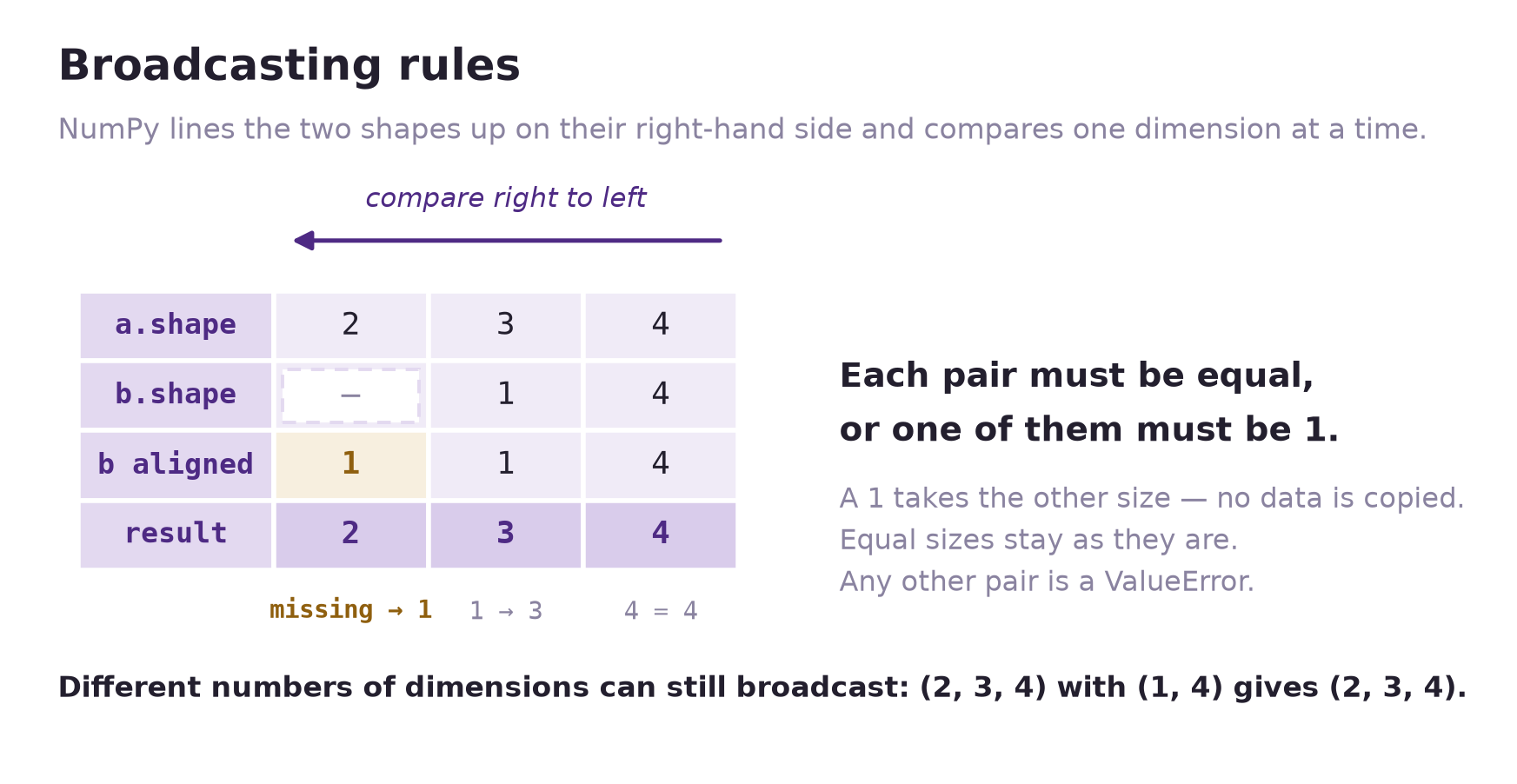
b does not have counts as a 1. Each pair then either matches or contains a 1, and a 1 takes the other size, so (2, 3, 4) and (1, 4) broadcast to (2, 3, 4).
# Two compatible examples
print(np.ones((3, 4)) + np.ones((4,)))     # -> shape (3, 4)
print(np.ones((3, 4)) + np.ones((3, 1)))   # -> shape (3, 4)

# One incompatible example
try:
    np.ones((3, 4)) + np.ones((3,))
except ValueError as error:
    print("Incompatible:", error)
# Incompatible: operands could not be broadcast together with shapes (3,4) (3,)
[[2. 2. 2. 2.]
[2. 2. 2. 2.]
[2. 2. 2. 2.]]
[[2. 2. 2. 2.]
[2. 2. 2. 2.]
[2. 2. 2. 2.]]
Incompatible: operands could not be broadcast together with shapes (3,4) (3,) (3, 4) and (3,) look like they should work — “3 rows, so why not a 3-element vector?” — but broadcasting always compares from the right, so the 3 in (3,) lines up against the columns (4), not the rows. This is the single most common broadcasting mistake. If shapes truly can’t line up, NumPy raises a ValueError — treat that as a signal to check your shapes, not an obstacle to work around.
6.6.3.2 One Factor per Row or per Column
When broadcasting fails (or silently does the wrong thing), the fix is almost always to reshape one operand so its shape reflects what it represents. Picture a table of daily sales — stores in rows, products in columns:
units = np.array([[2, 3, 4],      # store 0: 2 notebooks, 3 pens, 4 folders
                  [5, 1, 2]])     # store 1
prices = np.array([10.0, 20.0, 5.0])          # one price PER PRODUCT
store_factors = np.array([1.0, 0.9])          # one multiplier PER STORE
print('units:', units.shape, ' prices:', prices.shape, ' store_factors:', store_factors.shape)
units: (2, 3) prices: (3,) store_factors: (2,)units has shape (2, 3) — 2 stores, 3 products. prices has shape (3,), one value per column, so it broadcasts against units correctly out of the box: each price lines up with its matching product column.
revenue = units * prices        # (2, 3) * (3,) -> (2, 3), works
print(revenue)
[[20. 60. 20.]
[50. 20. 10.]]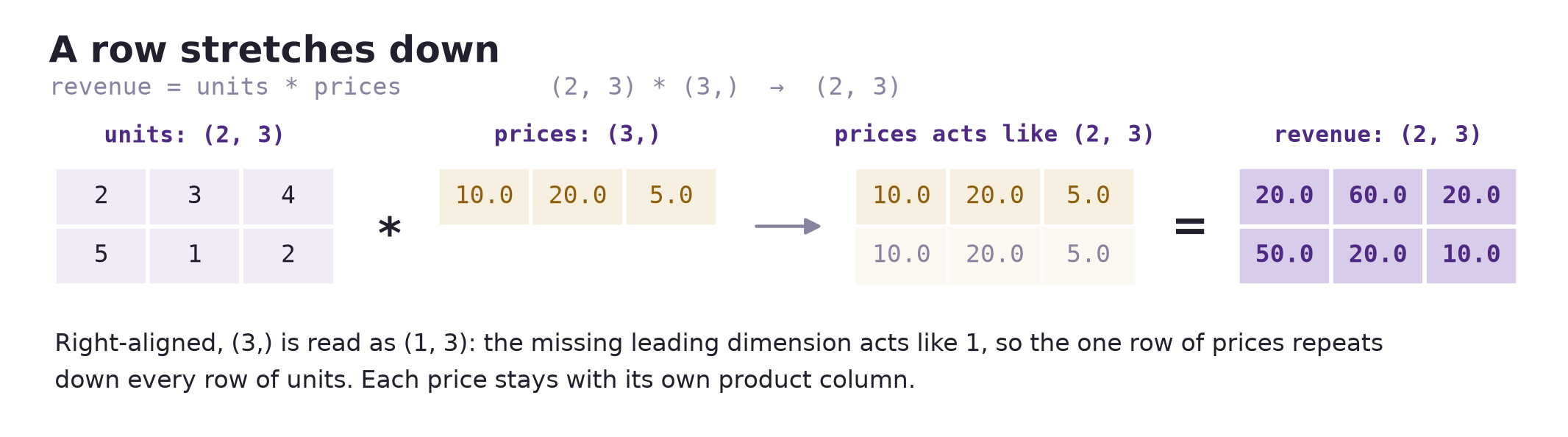
prices has shape (3,), which right-aligns as (1, 3): its single row repeats down every row of units, so each product keeps its own price and the result has the shape of units. No copy of prices is ever made.
store_factors also has shape (2,) — one value per row this time. But (2, 3) and (2,) compare 3 against 2 on the right — a mismatch, even though “2” is the right count of stores:
try:
    revenue * store_factors
except ValueError as error:
    print("Incompatible:", error)
Incompatible: operands could not be broadcast together with shapes (2,3) (2,) The fix is to reshape store_factors into a column, shape (2, 1), so each store’s multiplier lines up with its own row instead of trying to match columns:
# store_factors[:, None] is the same as store_factors[:, np.newaxis]
adjusted = revenue * store_factors[:, None]     # (2, 3) * (2, 1) -> (2, 3)
print(store_factors[:, None])   # each store's multiplier, as a column
print(adjusted)                 # each row scaled by its own store's multiplier
[[1. ]
[0.9]]
[[20. 60. 20.]
[45. 18. 9.]]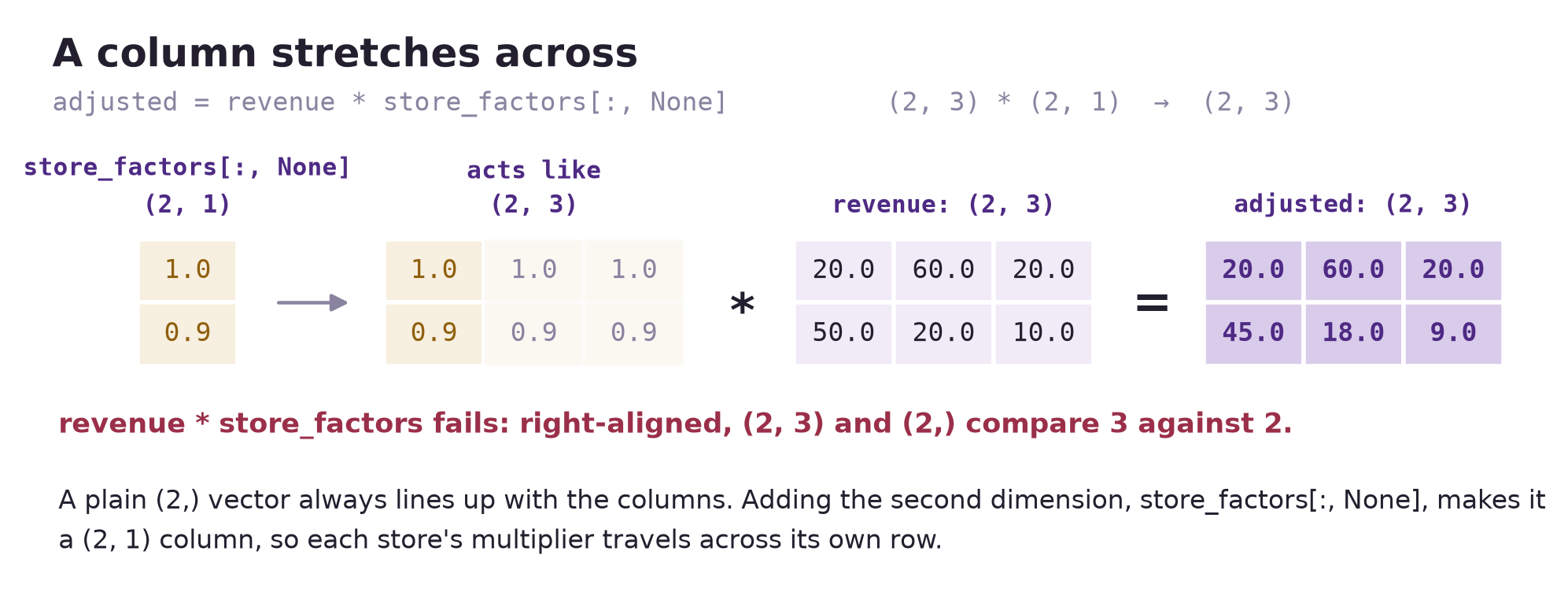
store_factors as a plain (2,) vector lines up with the three product columns and fails. store_factors[:, None] turns it into a (2, 1) column, which repeats across the columns instead, so each store’s multiplier scales its own row.
Both operands can stretch in the same operation. Each store’s multiplier is a (2, 1) column and each product’s price is a (3,) row; right-aligned, that is (2, 1) against (1, 3), so every pair holds a 1. The column repeats across the products, the row repeats down the stores, and the result is (2, 3) — larger than either input: the price each store charges for each product.
store_prices = store_factors[:, None] * prices   # (2, 1) * (3,) -> (2, 3)
print(store_prices)        # each product's price at each store
[[10. 20. 5. ]
[ 9. 18. 4.5]]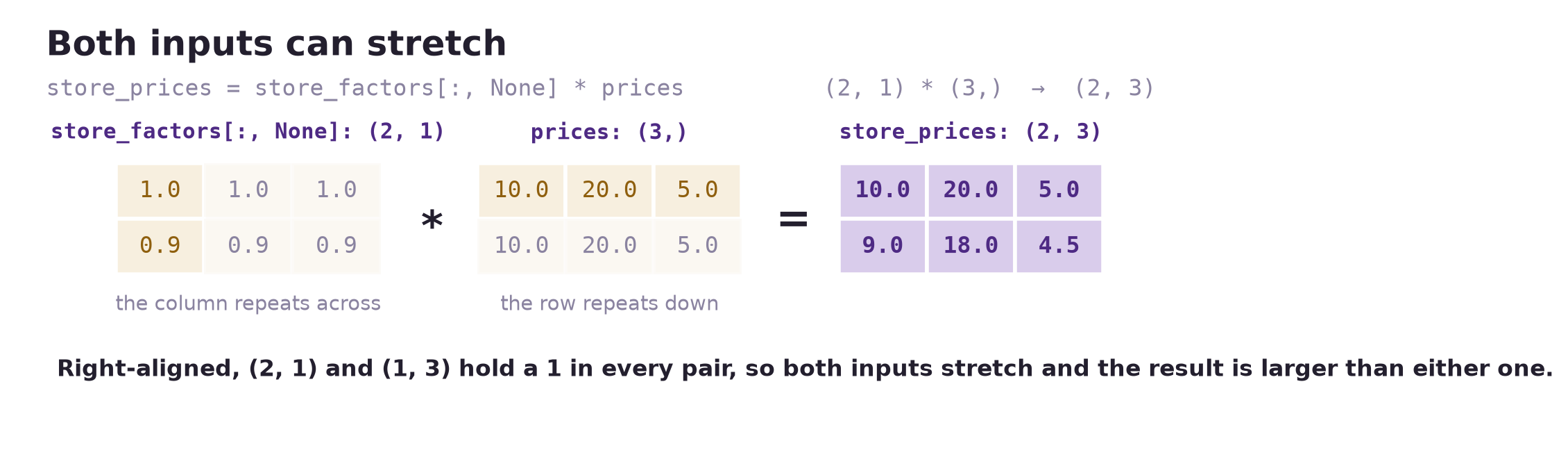
(2, 1) column of store multipliers repeats across the three products, the (3,) row of prices repeats down the two stores, and the two combine into a full (2, 3) table that is larger than either input.
Before writing any broadcasted calculation, name what each axis means (“rows are stores, columns are products”) and ask which shape — a plain (n,) vector or a (n, 1) column — matches the axis you want the factor to travel down. Getting this backwards is the most common broadcasting bug, and it’s a shape question, not a math question.
Check your understanding. If quiz_scores has shape (3, 3) and you compute quiz_scores.mean(axis=1), what shape does the result have? Can you subtract it from quiz_scores directly without reshaping?
TipAnswer
It has shape (3,), one value per row — but broadcasting matches from the right, so subtracting it directly would line those three values up with the columns, not the rows. Reshape it to (3, 1) first (or pass keepdims=True to mean), the same fix used above for store_factors.
6.6.3.3 The Same Rule in Higher Dimensions
Arrays with three dimensions follow the same rule, which matters as soon as a table arrives stacked — several weeks of the same store-by-product sales, for instance. Stacking three weeks of units gives shape (3, 2, 3): weeks along axis 0, stores along axis 1, products along axis 2. The store multipliers still apply, and they still need to travel down the stores axis:
three_weeks = np.array([[[2, 3, 4], [5, 1, 2]],     # week 1: store 0, store 1
                        [[3, 2, 5], [4, 2, 1]],     # week 2
                        [[1, 4, 3], [6, 2, 2]]])    # week 3
print(three_weeks.shape)                            # (3, 2, 3): weeks, stores, products

weekly_adjusted = three_weeks * store_factors[:, None]   # (2, 1) -> (1, 2, 1) -> (3, 2, 3)
print(weekly_adjusted.shape)
(3, 2, 3)
(3, 2, 3)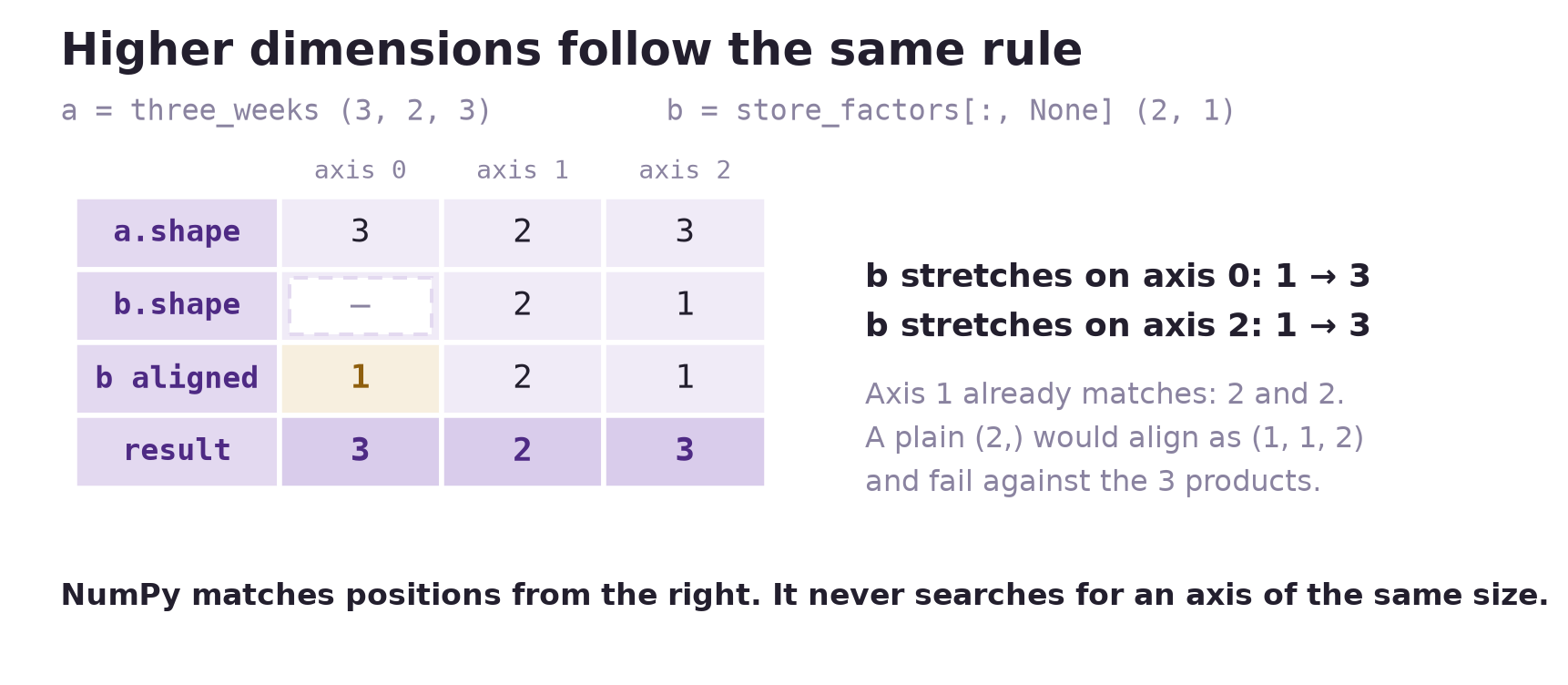
store_factors[:, None] has shape (2, 1), which right-aligns against (3, 2, 3) as (1, 2, 1). The stores axis matches at 2, and the two 1s stretch over the weeks and the products, so each store’s multiplier reaches every one of its values in every week.
NotePosition, not size
NumPy never looks for an axis whose size happens to match. It compares positions from the right, so a plain store_factors, shape (2,), aligns as (1, 1, 2) and is checked against the 3 products — a ValueError, even though the array really does hold one value per store. Adding the axis yourself with [:, None] is what puts the factor on the axis you mean, in any number of dimensions.
Three and four dimensions are the normal working shape once you reach machine learning, which is why this rule is worth learning properly now. A batch of images is stored as (images, height, width, color channels) and a batch of text as (sentences, positions, features); scaling one value per color channel, or adding one per feature, is the same right-aligned match you just made with stores and products, only with more axes to the left. Deep learning libraries such as PyTorch and TensorFlow borrow NumPy’s broadcasting rule unchanged, so what you practice here transfers directly.
Check your understanding. Line each pair of shapes up on the right and decide: do they broadcast, and if so, what is the result shape?
| Shape A | Shape B |
|---|---|
(3, 4) |
(4,) |
(3, 4) |
(3, 1) |
(3, 4) |
() (scalar) |
(2, 3, 4) |
(3, 4) |
(3, 4) |
(3,) |
(3, 4) |
(2, 3) |
TipAnswer
| Shape A | Shape B | Compatible? | Result shape | Why |
|---|---|---|---|---|
(3, 4) |
(4,) |
Yes | (3, 4) |
trailing dims match: 4 and 4 |
(3, 4) |
(3, 1) |
Yes | (3, 4) |
trailing dims: 4 and 1 → stretch the 1 |
(3, 4) |
() (scalar) |
Yes | (3, 4) |
a scalar always broadcasts |
(2, 3, 4) |
(3, 4) |
Yes | (2, 3, 4) |
missing leading dim treated as 1 |
(3, 4) |
(3,) |
No | — | trailing dims 4 and 3 don’t match, and neither is 1 |
(3, 4) |
(2, 3) |
No | — | trailing dims 4 and 3 don’t match |
6.6.4 Aggregate Functions: Statistical Summaries
Aggregation functions collapse an array down to a summary: sum, mean, std, min, max, median, and more. These are vectorized as well. They are reductions rather than element-wise operations — many values in, one value out — but the scan over the elements still happens in compiled code, so you never write a loop to total or average an array.
print(quiz_scores.mean()) # one number, the overall average81.0With no axis argument, NumPy flattens the whole array into one number. But usually you want a summary per row or per column, and that’s what axis controls.
The trick that helps most students: the axis you name is the one that disappears — it’s the dimension being collapsed, not the one being kept.
print(quiz_scores.mean(axis=0))   # collapses axis 0 (rows) -> one value per COLUMN
print(quiz_scores.mean(axis=1))   # collapses axis 1 (columns) -> one value per ROW
[81. 91. 71.]
[80. 85. 78.]| Call | Shape before | Shape after | Meaning |
|---|---|---|---|
quiz_scores.mean() |
(3, 3) |
scalar | overall average |
quiz_scores.mean(axis=0) |
(3, 3) |
(3,) |
average down each column |
quiz_scores.mean(axis=1) |
(3, 3) |
(3,) |
average across each row |
Always sanity-check the units and shape of your result, not just the number. If you meant “average score per student” but got 3 numbers that match the number of quizzes instead, you used the wrong axis.
6.6.4.1 More Summaries: Median, Percentiles, and Range
Everything that works for mean works the same way for the other summaries, including the axis rule. A few of them are only available as functions (np.median, np.percentile) rather than methods:
print('overall median      :', np.median(quiz_scores))
print('median per quiz     :', np.median(quiz_scores, axis=0))
print('25th/75th percentile:', np.percentile(quiz_scores, [25, 75]))
print('same, as quantiles  :', np.quantile(quiz_scores, [0.25, 0.75]))
print('min-to-max range    :', np.ptp(quiz_scores))
print('cumulative total    :', np.cumsum([5, 3, 8, 1]))
print('distinct values     :', np.unique([3, 1, 3, 7, 1]))
overall median : 80.0
median per quiz : [80. 90. 70.]
25th/75th percentile: [75. 88.]
same, as quantiles : [75. 88.]
min-to-max range : 27
cumulative total : [ 5 8 16 17]
distinct values : [1 3 7]6.6.4.2 Standard Deviation, Variance, and ddof
Median, percentiles, and range report where the values sit and how far apart the two extremes are. Variance and standard deviation describe spread differently: they measure how far the values fall from their own mean. Variance averages the squared deviations from the mean, and standard deviation is the square root of the variance, which returns the answer to the original units — a standard deviation of exam scores is in points, while the variance is in squared points.
Both are methods on an array, like mean, and both accept axis the same way. What sets them apart from every other summary in this chapter is a second argument, ddof (“delta degrees of freedom”), which decides the divisor: NumPy divides the total squared deviation by n - ddof. Dividing by n is the population formula; dividing by n − 1 is the sample formula you use for inference. Here is the difference that catches nearly every statistics student: NumPy defaults to ddof=0, the population formula, while pandas defaults to ddof=1. The same numbers therefore give two different standard deviations depending on which library you asked.
print('values            :', exam_scores)
print(f'variance (ddof=0) : {exam_scores.var():.2f}')
print(f'std dev  (ddof=0) : {exam_scores.std():.2f}')
print(f'variance (ddof=1) : {exam_scores.var(ddof=1):.2f}')
print(f'std dev  (ddof=1) : {exam_scores.std(ddof=1):.2f}')
print(f'pandas  .std()    : {pd.Series(exam_scores).std():.2f}')

# ddof combines with axis, which collapses the named axis just as it does for mean.
per_quiz_std = quiz_scores.std(axis=0, ddof=1)
print('std dev per quiz  :', per_quiz_std.round(2), 'shape', per_quiz_std.shape)
values : [55 82 91 47 76 88]
variance (ddof=0) : 273.14
std dev (ddof=0) : 16.53
variance (ddof=1) : 327.77
std dev (ddof=1) : 18.10
pandas .std() : 18.10
std dev per quiz : [3.61 3.61 3.61] shape (3,)ddof=1 always returns the larger number, because the same total squared deviation is divided by the smaller denominator. The per-quiz call confirms that axis behaves as it does for mean: axis 0 disappears and one standard deviation is left per column. All three quizzes report the same spread only because in this small table every student sits the same distance from each quiz’s average.
Neither default is wrong — the two libraries simply chose differently, and nothing warns you when a calculation moves between them. You met the pandas side of this in Pandas Fundamentals, where .std() was described as the sample standard deviation. Whenever you report a standard deviation or a variance, pass ddof explicitly so your intent is on the page: ddof=1 for a sample, ddof=0 when you genuinely have the whole population.
Check your understanding. You have the six scores above and want to describe the spread of the whole class those six students were sampled from. Which ddof do you pass, and is the result larger or smaller than NumPy’s default?
TipAnswer
Pass ddof=1: the six scores are a sample and you are describing the population behind them. The result is larger, because the same total squared deviation is divided by n - 1 = 5 instead of by n = 6, giving 18.10 points instead of 16.53.
6.6.4.3 Keeping the Collapsed Axis with keepdims
Collapsing an axis is what makes an aggregation result hard to broadcast back against the original array: (3, 3) becomes (3,), and (3,) lines up against columns rather than rows. Passing keepdims=True leaves the collapsed axis in place with length 1, which is exactly the shape broadcasting needs:
row_avg = quiz_scores.mean(axis=1)                  # shape (3,)
row_avg_kept = quiz_scores.mean(axis=1, keepdims=True)   # shape (3, 1)
print(row_avg.shape, '->', row_avg_kept.shape)
print(row_avg_kept)

# Center each student against that student's own average, no reshaping needed.
print(quiz_scores - row_avg_kept)
(3,) -> (3, 1)
[[80.]
[85.]
[78.]]
[[ 0. 10. -10.]
[ 0. 10. -10.]
[ 0. 10. -10.]]keepdims=True and .reshape(3, 1) give the same result here, but keepdims says why the dimension is there and does not hard-code a length that could change with your data. Prefer it whenever an aggregation result has to broadcast back against the array it came from.
6.6.5 Dot Products and Matrix Multiplication
Dot products and matrix multiplication are vectorized too, and they are the most heavily optimized operations in NumPy. They earn that attention because so much numerical work reduces to them. Fitting a regression model and computing a covariance matrix both come down to these operations, and matrix multiplication is the cornerstone of deep learning: training a network means performing it over and over, layer after layer. For floating-point arrays, a single @ or np.dot() call hands the whole multiply-and-add to a compiled linear-algebra library (BLAS); integer arrays use NumPy’s own compiled loops instead. Either way it is far faster than the nested Python loops the same math would otherwise require.
Elementwise multiplication keeps a separate product at each position. A dot product multiplies corresponding entries of two one-dimensional arrays and adds the products, returning one number. Both arrays must have the same length.
Reuse the sales arrays: units has one row per store and one column per product, while prices contains the matching product prices. The first store sold [2, 3, 4] units at prices [10, 20, 5]:
print('Revenue per product:', units[0] * prices)
print('Total revenue for store 0:', np.dot(units[0], prices))
# 2*10 + 3*20 + 4*5 = 100
Revenue per product: [20. 60. 20.]
Total revenue for store 0: 100.0To compute one total for every store, use matrix multiplication with @ or np.matmul(). A two-dimensional array multiplied by a one-dimensional vector computes a dot product for each row:
(m, n) @ (n,) → (m,)
The product dimension must match, and the products must be in the same order in both arrays. NumPy matches positions, not product names.
store_totals = units @ prices
print('Store totals:', store_totals)
print('Result shape:', store_totals.shape)
print('Using np.matmul:', np.matmul(units, prices))
Store totals: [100. 80.]
Result shape: (2,)
Using np.matmul: [100. 80.]For two-dimensional arrays, matrix multiplication follows:
(m, n) @ (n, p) → (m, p)
Each output entry is the dot product of a row from the first array and a column from the second. The inner dimensions must match; the output keeps the first array’s rows and the second array’s columns.
Compare two pricing scenarios for the same products: regular prices and prices discounted by 10%. Writing prices as a column with [:, None] and multiplying by the two scenario factors broadcasts them into a (3, 2) array, with products in rows and pricing scenarios in columns:
price_scenarios = prices[:, None] * np.array([1.0, 0.9])
print('Prices by product and scenario:')
print(price_scenarios)
scenario_totals = units @ price_scenarios
print('Revenue by store and scenario:')
print(scenario_totals)
print('Shapes:', units.shape, '@', price_scenarios.shape, '->', scenario_totals.shape)
Prices by product and scenario:
[[10. 9. ]
[20. 18. ]
[ 5. 4.5]]
Revenue by store and scenario:
[[100. 90.]
[ 80. 72.]]
Shapes: (2, 3) @ (3, 2) -> (2, 2)The first output row is [100, 90]: store 0 earns 100 at regular prices or 90 at discounted prices. The second row is [80, 72] for store 1.
| Operation | Meaning | Result in these examples |
|---|---|---|
units * prices |
Elementwise products with broadcasting | Revenue per store and product: (2, 3) |
np.dot(units[0], prices) |
Dot product of two 1D arrays | Total revenue for one store: scalar |
units @ prices |
Matrix–vector product | One total per store: (2,) |
units @ price_scenarios |
Matrix–matrix product | One total per store and scenario: (2, 2) |
For two 1D arrays, np.dot() returns their dot product; for two 2D arrays, it performs matrix multiplication. Use @ or np.matmul() to make matrix multiplication explicit. These examples use only 1D and 2D arrays; np.dot() and np.matmul() have different rules for higher-dimensional inputs.
Check your understanding. Why does units * price_scenarios fail, even though units @ price_scenarios works?
TipAnswer
* needs broadcast-compatible shapes. Comparing (2, 3) with (3, 2) from the right puts 3 against 2 and 2 against 3 — neither pair matches and neither is 1, so it raises ValueError. @ needs only the inner dimensions to match: (2, 3) @ (3, 2) contracts the shared 3 and returns (2, 2), one revenue total per store and pricing scenario.
6.7 Missing Values: Working with nan
Every aggregation in the previous section assumed that each position in the array held a number. Real data has holes: a student misses a quiz, an instrument drops a reading, a spreadsheet cell is left blank. NumPy marks such a hole with np.nan (“not a number”), and you have already created one — in Loading from Files, the blank field in messy_scores.csv came back as nan. This section covers the three things you then do about it: spot the holes with np.isnan(), summarize around them with the nan-aware aggregations, and report how many values each summary actually used.
Start with a single student: five quizzes, two of them missed.
quizzes = np.array([88.0, np.nan, 79.0, 91.0, np.nan])   # one student, five quizzes, two missed

print('dtype      :', quizzes.dtype)
print('mean       :', np.mean(quizzes))     # one hole is enough to make the answer nan
print('nan == nan :', np.nan == np.nan)     # nan is not even equal to itself
dtype : float64
mean : nan
nan == nan : Falsenan is a float, so a single hole makes the whole array a float array, and it propagates: any ordinary aggregation that touches it returns nan instead of an answer. Comparisons are no help either, because nan is the one value that is not equal to itself — quizzes > 80 reads False at a missing quiz exactly as it does for a genuine 79, so a plain Boolean mask cannot tell “below 80” from “not recorded”.
Two functions handle this, and they answer different questions. np.isnan() answers where: it returns a Boolean mask that is True at exactly the missing positions, which you then count, or invert with ~ to keep the recorded values. np.nanmean() answers what is the summary: it averages the recorded values and ignores the rest, where plain np.mean() would return nan.
missing = np.isnan(quizzes)                 # True exactly where a quiz is missing

print('missing     :', missing)
print('how many    :', missing.sum())
print('recorded    :', quizzes[~missing])
print('nanmean     :', np.nanmean(quizzes))
print('values used :', (~missing).sum())
missing : [False True False False True]
how many : 2
recorded : [88. 79. 91.]
nanmean : 86.0
values used : 3Those five lines are everything you need for one array. Each answers a different question about the same five quizzes:
| Question | Code | Result |
|---|---|---|
| Which entries are missing? | np.isnan(quizzes) |
[False True False False True] |
| How many are missing? | np.isnan(quizzes).sum() |
2 |
| What was actually recorded? | quizzes[~np.isnan(quizzes)] |
[88. 79. 91.] |
| What is the plain mean? | np.mean(quizzes) |
nan |
| What is the mean of the recorded values? | np.nanmean(quizzes) |
86.0 |
| How many values did that mean use? | (~np.isnan(quizzes)).sum() |
3 |
Neither function changes quizzes: the array still holds its two nans after every line in the table. The same two tools work unchanged on a 2D array, where each row is a student and each column a quiz:
quiz_missing = np.array([[88.0, 92.0, 79.0],     # student 0: all three quizzes recorded
                         [np.nan, 85.0, 90.0],   # student 1: missed quiz 0
                         [75.0, np.nan, 68.0]])  # student 2: missed quiz 1

print('mean of all      :', quiz_missing.mean())
print('mean per student :', quiz_missing.mean(axis=1))
mean of all : nan
mean per student : [86.33333333 nan nan]Propagation is strict: the overall mean is nan, and so is the row average of each student with a gap, even though five of their six quizzes are recorded. np.isnan() still marks the holes, and the mask takes axis the way any other reduction does, so one call counts the missing quizzes per student:
missing = np.isnan(quiz_missing)        # the same mask, now one row per student
print('missing per student:', missing.sum(axis=1))
print('complete values    :', quiz_missing[~missing])
missing per student: [0 1 1]
complete values : [88. 92. 79. 85. 90. 75. 68.]quiz_missing[~missing] returns a flat 1D array of seven values: once different rows lose different numbers of entries, no grid shape can hold the result, so dropping the holes destroys the student-by-quiz layout.
That is why you usually leave the nan in place and summarize around it instead. Each aggregation from earlier in the chapter has a nan-aware twin — a vectorized reduction that skips missing entries rather than propagating them: np.nansum, np.nanmean, np.nanmedian, np.nanstd, np.nanvar, np.nanmin, np.nanmax, and np.nanargmax. They accept axis exactly the way their plain counterparts do, and np.nanstd and np.nanvar still default to ddof=0, so the convention from Standard Deviation, Variance, and ddof must be passed here as well:
print('mean per student   :', np.nanmean(quiz_missing, axis=1))
print('sd per student     :', np.nanstd(quiz_missing, axis=1, ddof=1))
print('quizzes averaged   :', (~missing).sum(axis=1))
mean per student : [86.33333333 87.5 71.5 ]
sd per student : [6.65832812 3.53553391 4.94974747]
quizzes averaged : [3 2 2]Report the count alongside the summary. np.nanmean gives student 1 an 87.5 and student 2 a 71.5, but each of those averages two quizzes while student 0’s 86.3 averages three, and nothing in the three numbers says so. The counted row is what makes them comparable, which is why it belongs in the write-up next to the means: an average of what, over how many values. Dropping a missing quiz is itself a decision, and it is the one np.nanmean makes for you by default. If a missed quiz in this course counts as a zero, or disqualifies the student from the comparison, say so and compute it that way instead.
6.8 Advanced Selection Methods
A Boolean mask answers the question of which values to keep. The methods in this section answer two different questions about the same array: what value to assign at each position, and where in the array a value of interest actually sits. Both come up whenever you label or rank observations instead of filtering them away.
6.8.1 Conditional Choices with np.where()
Reuse exam_scores from the Boolean mask examples. A Boolean mask such as exam_scores[exam_scores >= 60] keeps only the matching values. In contrast, np.where(condition, value_if_true, value_if_false) chooses a value at every position, allowing us to label all scores without writing a Python loop:
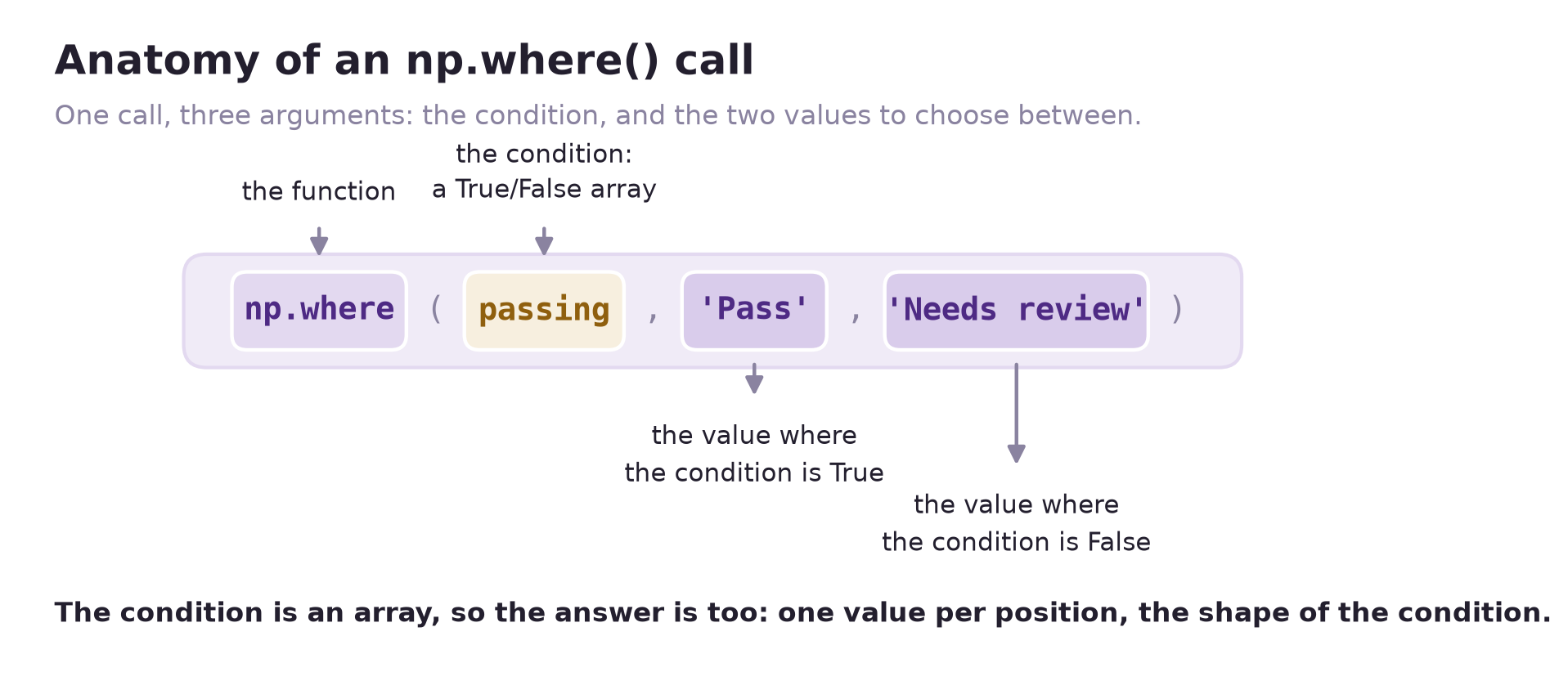
pass_labels below. passing is a Boolean array with one entry per score, and the two strings are what NumPy picks at a True position and at a False one. Both choices are given up front, so no loop and no if statement is needed.
pass_labels = np.where(passing, 'Pass', 'Needs review')
print('Scores:', exam_scores)
print('Selected scores:', exam_scores[passing])
print('Labels:', pass_labels)
print('Shapes:', exam_scores.shape, pass_labels.shape)
Scores: [55 82 91 47 76 88]
Selected scores: [82 91 76 88]
Labels: ['Needs review' 'Pass' 'Pass' 'Needs review' 'Pass' 'Pass']
Shapes: (6,) (6,)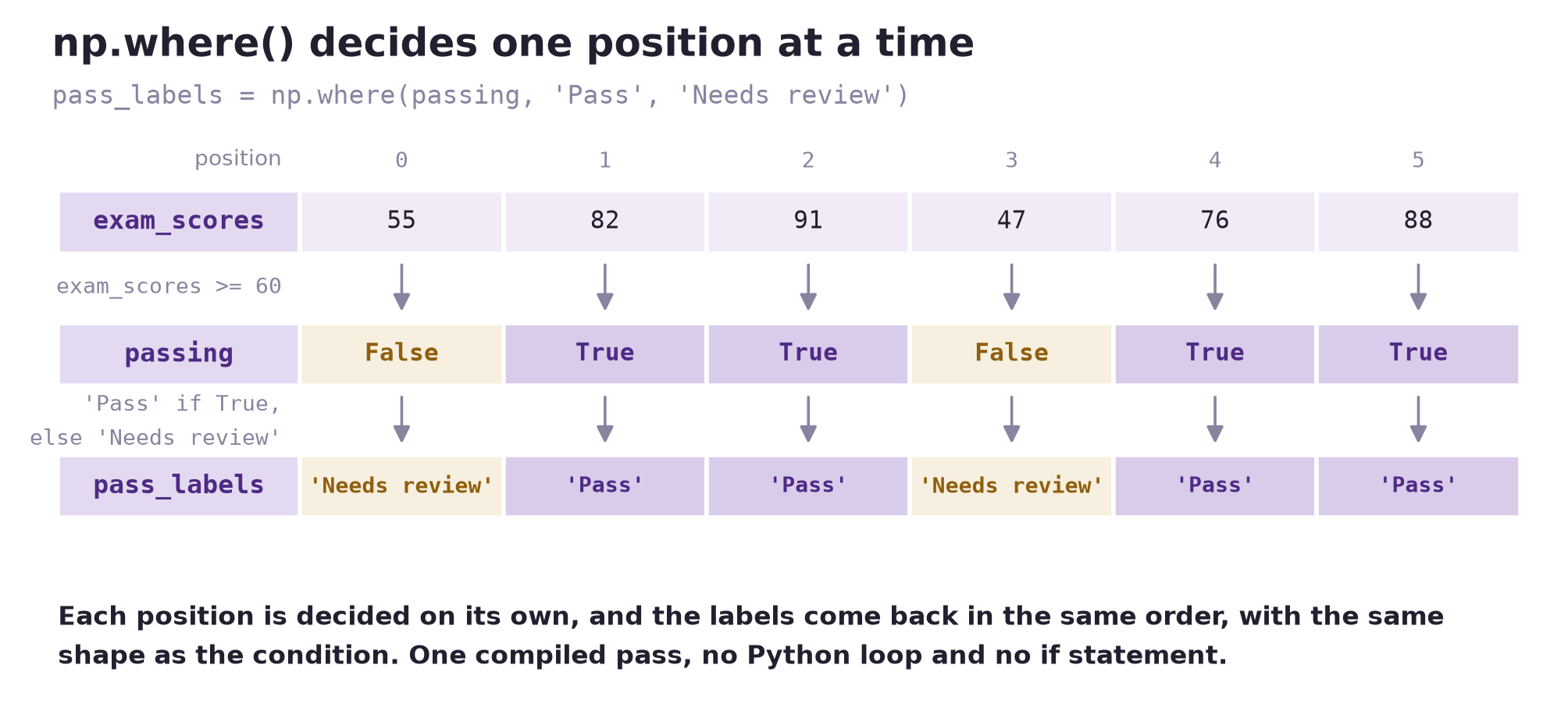
True or False directly above it, so the labels come back in the order of the scores and with the same shape.
The condition and the two choices must have broadcast-compatible shapes. Here, the scalar strings are broadcast across the six scores, so the labels have the same shape as exam_scores. The operation creates a new array; it does not change exam_scores.
With only a condition, np.where(condition) instead returns the positions where the condition is true. Its result is a tuple with one index array per dimension. For this one-dimensional example, [0] retrieves the single array of positions:
print('Index tuple:', np.where(passing))
passing_positions = np.where(passing)[0]
print('Positions:', passing_positions)
print('Scores at those positions:', exam_scores[passing_positions])
Index tuple: (array([1, 2, 4, 5]),)
Positions: [1 2 4 5]
Scores at those positions: [82 91 76 88]6.8.2 Multiple Conditions with np.select()
Use np.select(conditions, choices, default=...) when there are more than two possible outcomes. Supply an ordered list of Boolean conditions and a matching list of choices. At each position, NumPy uses the choice for the first true condition; if none is true, it uses default.
Classify the same scores into three groups: 90 or above, 60–89, and below 60:
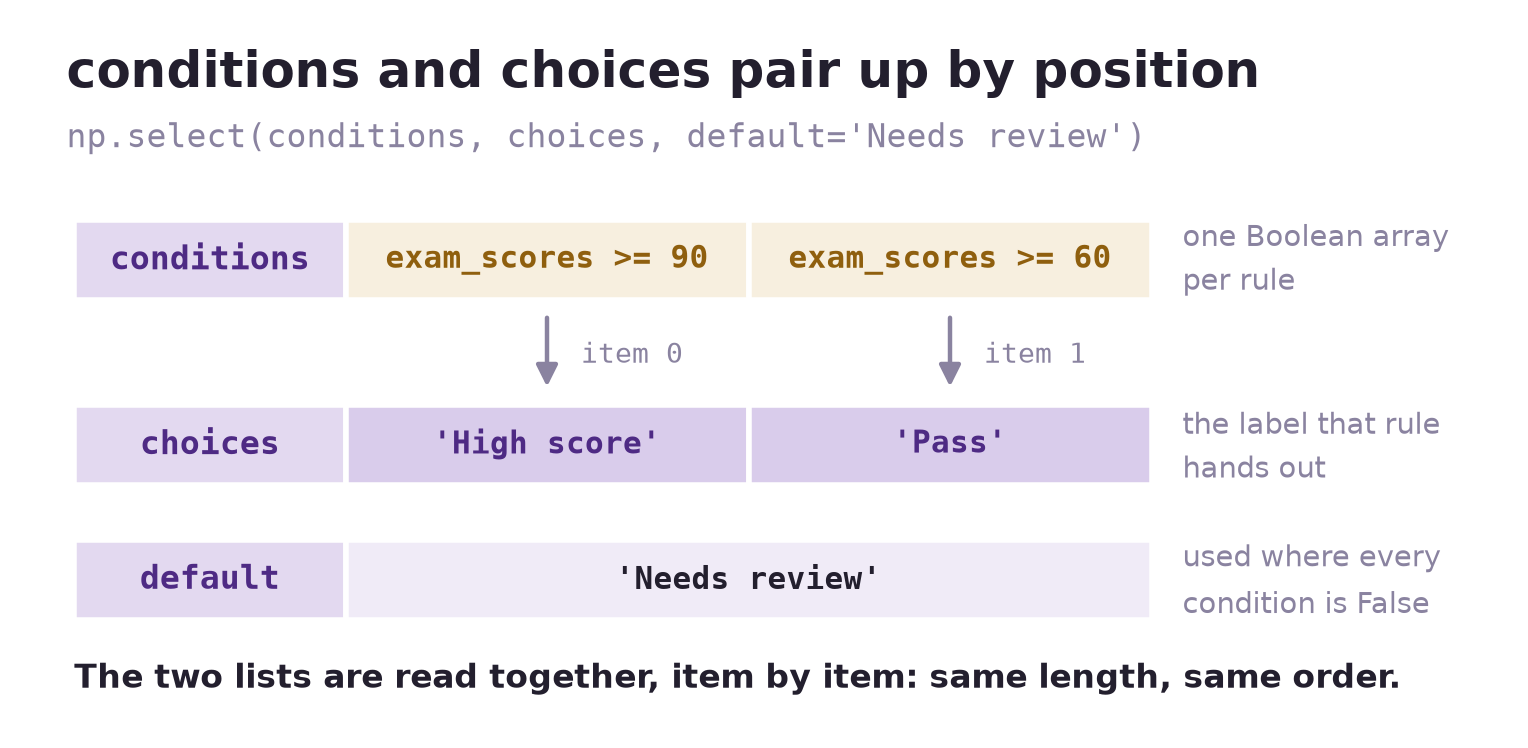
conditions[0] hands out choices[0], conditions[1] hands out choices[1], and default covers every position where no condition is True. Lists of different lengths, or in different orders, label the wrong scores.
conditions = [exam_scores >= 90, exam_scores >= 60]
choices = ['High score', 'Pass']
score_groups = np.select(conditions, choices, default='Needs review')
print(score_groups)
['Needs review' 'Pass' 'High score' 'Needs review' 'Pass' 'Pass']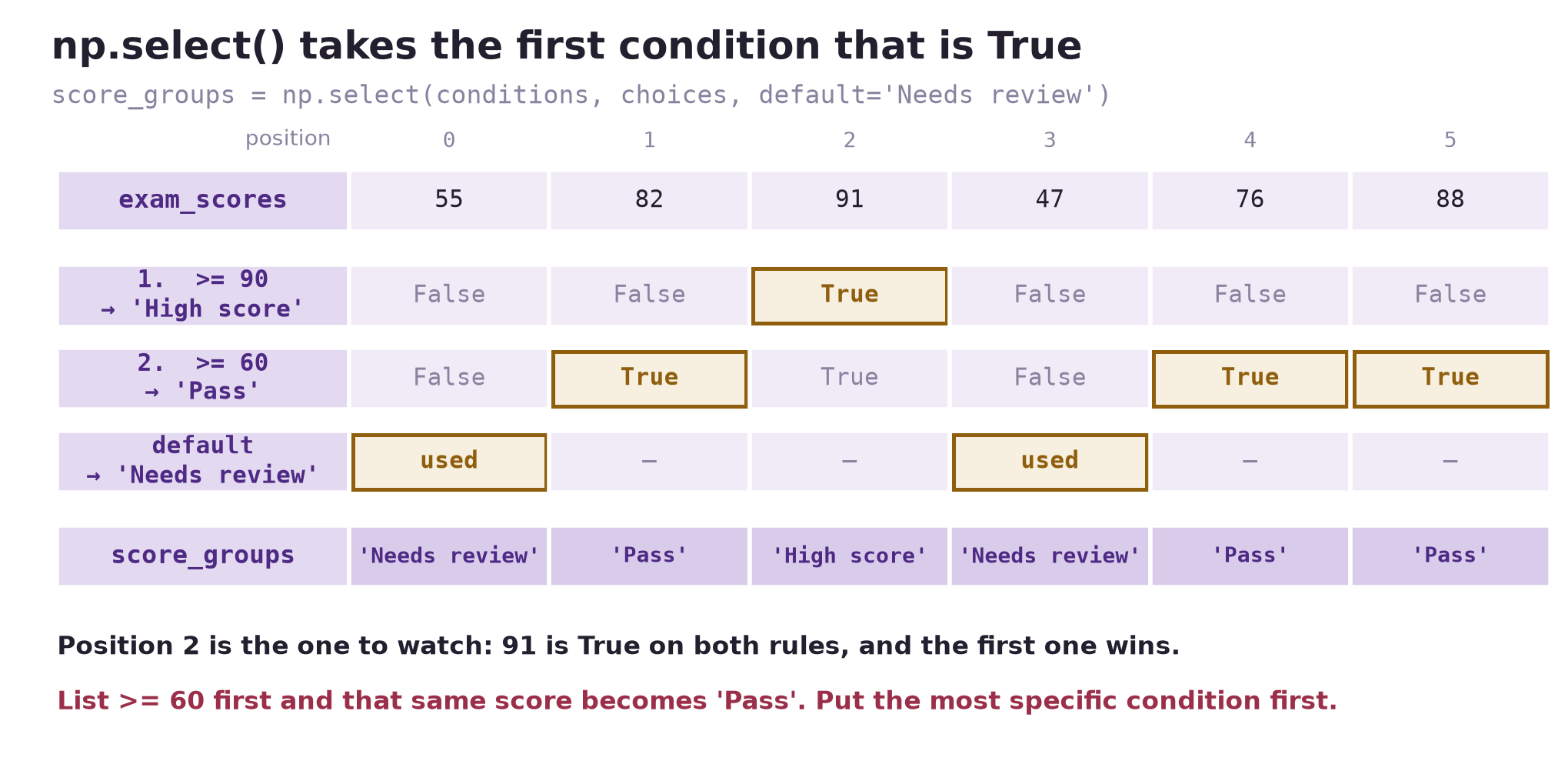
True, so position 2 — the 91, which satisfies both rules — is labeled by >= 90 and the >= 60 row below it never gets a say. Positions 0 and 3 reach the default.
The score 91 meets both conditions, but receives High score because exam_scores >= 90 comes first. Reversing the conditions and their corresponding choices would label it Pass. Put the most specific condition first when conditions overlap, or write mutually exclusive conditions.
The conditions and choices must be broadcast-compatible, and the choices and default must have compatible data types. We explicitly use a string default to match the string labels. The result is a new array; the original scores are unchanged.
| Goal | Syntax | Result for these scores |
|---|---|---|
| Keep only passing scores | exam_scores[passing] |
Four values |
| Find passing positions | np.where(passing) |
Tuple containing four positions |
| Assign one of two labels | np.where(passing, 'Pass', 'Needs review') |
Six labels |
| Assign labels using several rules | np.select(conditions, choices, default='Needs review') |
Six labels; first true condition wins |
Check your understanding. Use np.select() to label scores of 90 or above as High, 80–89 as Strong, 60–79 as Pass, and below 60 as Needs review. Predict the label for 82 before running your code.
TipAnswer
82 is Strong: it fails >= 90 but passes >= 80, and the first true condition wins.
conditions = [exam_scores >= 90, exam_scores >= 80, exam_scores >= 60]
choices = ['High', 'Strong', 'Pass']
np.select(conditions, choices, default='Needs review')
# ['Needs review' 'Strong' 'High' 'Needs review' 'Pass' 'Strong']
Note that the conditions must stay in descending order. Listing >= 60 first would label every passing score Pass.
6.8.3 Finding Minimum and Maximum Values and Positions
min() and max() (or np.min/np.max) tell you the value. argmin() and argmax() tell you where that value lives — its position.
scores_row = np.array([72, 95, 68, 95, 81])

print(scores_row.max())      # 95   -- the highest score
print(scores_row.argmax())   # 1    -- the position of the first 95
95
1Ties matter. argmax/argmin return only the first position where the extreme value occurs — they never tell you there was a tie. If you need every tied position, use a boolean mask instead:
print(scores_row.argmax())                        # 1 (only the first match)
print(np.where(scores_row == scores_row.max()))   # (array([1, 3]),) -- both positions
1
(array([1, 3]),)This distinction matters in statistics: if you’re identifying “the top student” and there’s a tie, argmax will silently hand you just one of them. Decide deliberately whether ties should be broken, reported, or investigated further — don’t let argmax make that decision for you by accident.
With 2D arrays, argmax and friends accept axis too, following the same collapsing logic you met in Aggregate Functions:
print(grades.argmax(axis=1))   # best quiz position for each student
print(grades.max(axis=0))      # best score on each quiz
[1 0]
[95 92 91]6.8.4 Finding the Top-k with np.argsort()
argmax/argmin only ever hand you a single position. Often you want the top (or bottom) k values instead — say, the 3 highest test scores. That’s what np.argsort is for: it returns the positions that would put the array in ascending order — not the sorted values themselves.
tied_scores = np.array([3, 10, 7, 10])
order = np.argsort(tied_scores)     # positions, ascending by value
print(order)
print(tied_scores[order])           # the actual sorted values
[0 2 1 3]
[ 3 7 10 10]To get the smallest k, just take the first k positions from that ascending order:
k = 2
smallest_k_idx = np.argsort(tied_scores)[:k]
print(tied_scores[smallest_k_idx])
[3 7]For the largest k, take the last k positions and reverse them:
largest_k_idx = np.argsort(tied_scores)[-k:][::-1]
print(tied_scores[largest_k_idx])
[10 10]Ties and kind='stable'. By default, when values tie, argsort doesn’t promise which tied position comes first. Pass kind='stable' to guarantee that tied values keep their original relative order — important whenever “who was recorded first” should break a tie, e.g., ranking students who scored identically:
order = np.argsort(tied_scores, kind='stable')
print(order)

# For these signed numeric scores, sort the negatives for descending order.
# This keeps original order among ties; reversing an ascending sort does not.
stable_largest_idx = np.argsort(-tied_scores, kind='stable')[:k]
print(stable_largest_idx)
print(tied_scores[stable_largest_idx])
[0 2 1 3]
[1 3]
[10 10]Reversing a stable ascending order also reverses the order within ties. For these signed numeric scores, sorting -tied_scores stably gives descending values while preserving the original order of tied entries.
6.8.4.1 2D Arrays: Row-wise or Column-wise
For a 2D array, argsort accepts axis just like the aggregation functions in Aggregate Functions — sorting happens along that axis, independently for every row or column.
test_scores = np.array([[85, 92, 78, 95],
                        [88, 76, 91, 82],
                        [95, 89, 84, 90]])
k = 2

# Row-wise: each student's own top-2 test columns
row_order = np.argsort(test_scores, axis=1)        # ascending, per row
top2_cols_per_row = row_order[:, -k:][:, ::-1]     # last k columns, reversed
print('Ascending column order, per row:\n', row_order)
print('Top-2 column positions, per row:\n', top2_cols_per_row)
Ascending column order, per row:
[[2 0 1 3]
[1 3 0 2]
[2 1 3 0]]
Top-2 column positions, per row:
[[3 1]
[2 0]
[0 3]]To pull out the actual values at those positions, pair the row-position array with the column-index array so NumPy knows which row each column index belongs to:
rows = np.arange(test_scores.shape[0])[:, None]   # column vector: [[0],[1],[2]]
top2_vals_per_row = test_scores[rows, top2_cols_per_row]
print(top2_vals_per_row)
[[95 92]
[91 88]
[95 90]]The same pattern works down columns with axis=0 — sort each column independently, then gather with a (k, number_of_columns) array of row positions and a plain column-position array.
Check your understanding. Why does np.argsort(tied_scores)[:k] give the smallest values while np.argsort(tied_scores)[-k:][::-1] gives the largest, using the same sorted-position array?
TipAnswer
Because ascending order puts the smallest values first and the largest last — you are only choosing which end to read from. The final [::-1] reverses the slice so the largest value comes first instead of last.
6.9 Array Reshaping: Transforming Data Dimensions
Selecting and searching either leave an array’s shape alone or cut it down to the values you asked for. Reshaping is different: every value survives, and only their arrangement changes.
6.9.1 Why Reshape an Array?
An array’s shape tells NumPy how values are organized and which dimensions should line up in a calculation. We reshape when the values are already correct but their dimensions do not express the structure the next operation needs. First identify what each axis represents; compatible dimensions alone do not guarantee a meaningful calculation.
You have already seen one reason in broadcasting: one factor per store has shape (2,), but multiplying a (2, 3) sales array by those factors requires a column with shape (2, 1). Similarly, reshaping row averages from (3,) to (3, 1) lets us subtract each student’s average from that student’s quiz scores.
Another common reason is to prepare arrays for matrix multiplication. As you just saw, the inner dimensions must match: (m, n) @ (n, p) → (m, p). Reshaping can also make the desired output dimensions explicit.
For example, reuse units (2 stores × 3 products) and prices (3 product prices) from the sales example. units * prices gives revenue for each store–product pair. In contrast, units @ prices.reshape(3, 1) combines the three products into one total revenue per store, giving a (2, 1) column with totals 100 and 80. Here, reshaping makes the price vector an explicit column. NumPy also accepts units @ prices directly, returning a one-dimensional result of shape (2,); the reshape is useful when the next step needs a two-dimensional column.
Reshaping is also useful when a flat sequence represents a known grid, such as 12 measurements recorded as 3 rows of 4 values. The examples below show how to express that structure and how to distinguish regrouping values with reshape() from swapping axes with .T.
6.9.2 Core Reshaping Methods: reshape()
.reshape() rearranges the same data into a new shape, without changing the values or their order — only how they’re grouped. The total size must stay the same.
flat = np.arange(12)          # shape (12,)
grid = flat.reshape(3, 4)     # 3 rows, 4 columns
print(flat)
print(grid)
[ 0 1 2 3 4 5 6 7 8 9 10 11]
[[ 0 1 2 3]
[ 4 5 6 7]
[ 8 9 10 11]]Common use: turning a 1D result (like the row-mean from the broadcasting quick check) into a column so it broadcasts correctly against rows:
row_avg = quiz_scores.mean(axis=1)   # shape (3,)
row_avg = row_avg.reshape(3, 1)      # shape (3, 1) -- now a column
centered = quiz_scores - row_avg     # broadcasts correctly across each row
print('row_avg shape:', row_avg.shape)
print(centered)
row_avg shape: (3, 1)
[[ 0. 10. -10.]
[ 0. 10. -10.]
[ 0. 10. -10.]]You can also use -1 to tell NumPy “figure out this dimension for me”:
print(flat.reshape(3, -1)) # NumPy computes the second dimension automatically[[ 0 1 2 3]
[ 4 5 6 7]
[ 8 9 10 11]]6.9.3 transpose() and .T: Matrix Transposition
.T flips rows and columns — what was a row becomes a column, and vice versa. This is essential when your data is oriented the “wrong way” for the calculation you want to do:
print(grades.shape)     # (2, 3) -- 2 students, 3 quizzes
print(grades.T.shape)   # (3, 2) -- 3 quizzes, 2 students
(2, 3)
(3, 2)Transposing doesn’t change any values — it changes how you’re looking at them. Always ask: does this still mean what I think it means? A (2, 3) array of (students × quizzes) transposed becomes (quizzes × students) — the meaning of each axis flips along with the shape.
6.10 Array Concatenation: Combining Arrays
Reshaping rearranges the values inside one array. Combining builds a bigger array out of two, and NumPy has one general function for it, np.concatenate, plus two convenience wrappers that pick the axis for you.
6.10.1 np.vstack() and np.hstack(): Adding Rows or Columns
np.vstack stacks vertically, adding rows, and np.hstack stacks horizontally, adding columns:
class_a = np.array([[85, 90], [78, 82]])
class_b = np.array([[92, 88]])

print(np.vstack([class_a, class_b]))   # a new row: one more student

new_quiz = np.array([[95], [80], [91]])
print(np.hstack([np.vstack([class_a, class_b]), new_quiz]))   # a new column: one more quiz
[[85 90]
[78 82]
[92 88]]
[[85 90 95]
[78 82 80]
[92 88 91]]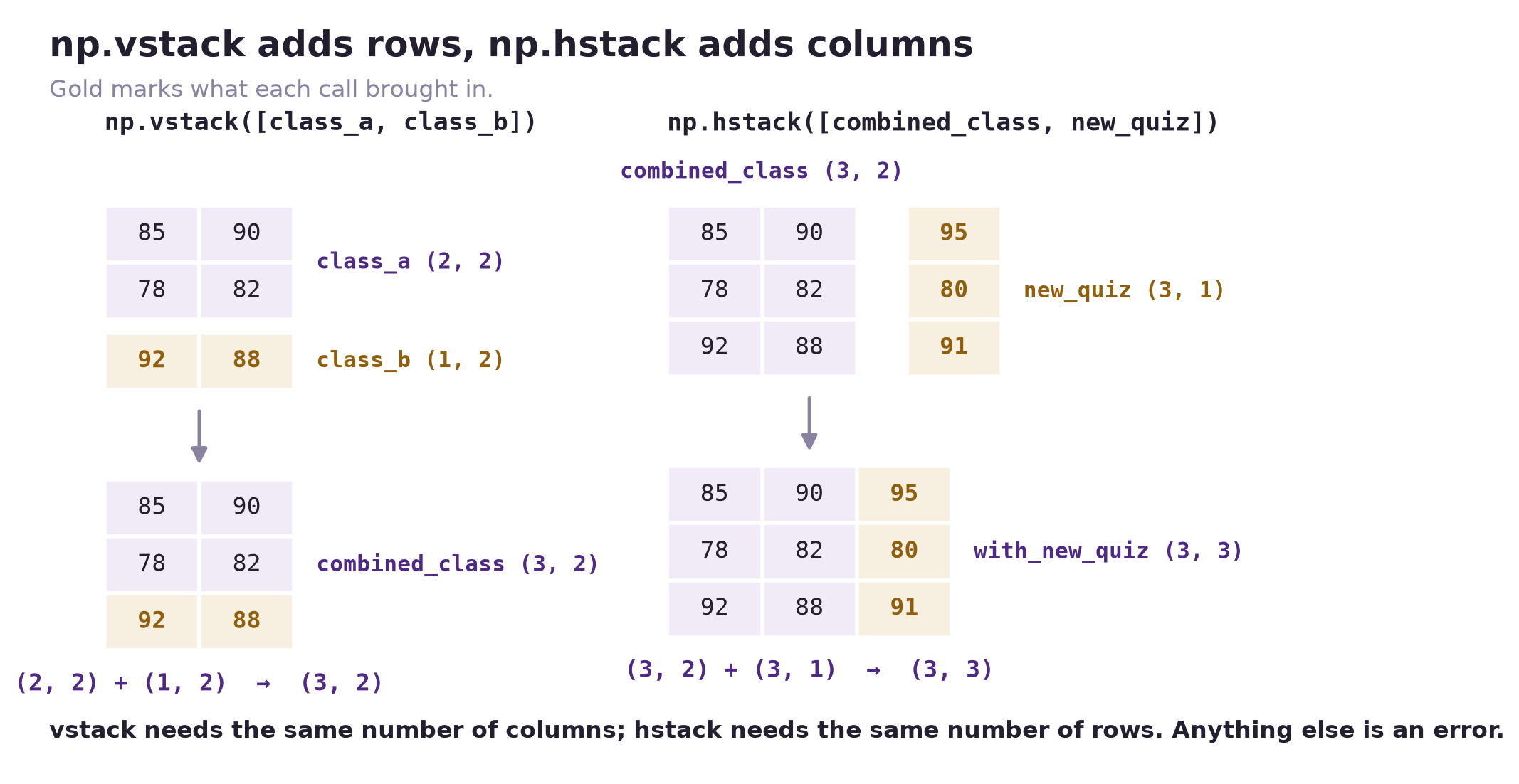
vstack lays class_b underneath class_a, adding a row, which is why the two must have the same number of columns; hstack sets new_quiz beside the stacked table, adding a column, which is why the two must have the same number of rows. Gold marks the values each call brought in.
Before combining, check shapes. vstack requires matching numbers of columns; hstack requires matching numbers of rows. Mismatched shapes raise an error rather than guessing what you meant — treat that error as a shape check, not an obstacle.
6.10.2 np.concatenate(): Joining Along an Existing Axis
np.concatenate takes the axis as an argument instead of building it into the function name. For these 2D examples, axis=0 adds rows and axis=1 adds columns, and all dimensions except the joining axis must match. These are the arrays you just stacked, so the checks confirm that the wrappers and the general form do the same job:
combined_class = np.concatenate([class_a, class_b], axis=0)
print('rows joined on axis 0:', class_a.shape, '+', class_b.shape, '->', combined_class.shape)
print('same as np.vstack:', np.array_equal(combined_class, np.vstack([class_a, class_b])))

with_new_quiz = np.concatenate([combined_class, new_quiz], axis=1)
print('columns joined on axis 1:', combined_class.shape, '+', new_quiz.shape, '->', with_new_quiz.shape)
print('same as np.hstack:', np.array_equal(with_new_quiz, np.hstack([combined_class, new_quiz])))
rows joined on axis 0: (2, 2) + (1, 2) -> (3, 2)
same as np.vstack: True
columns joined on axis 1: (3, 2) + (3, 1) -> (3, 3)
same as np.hstack: True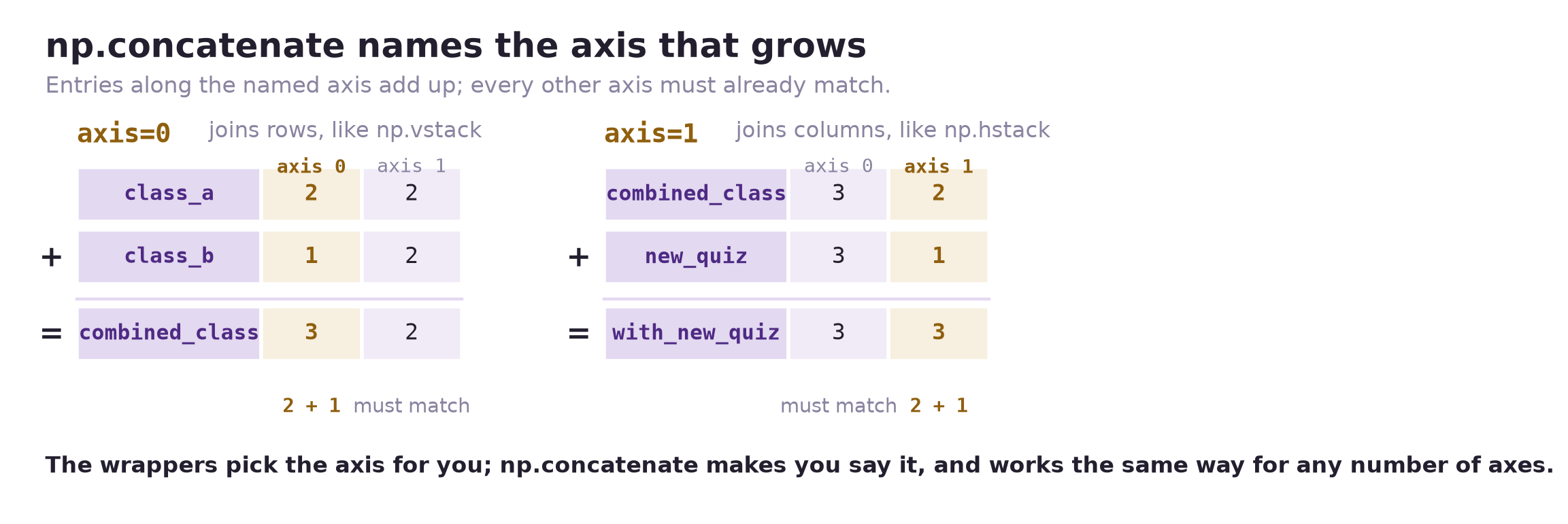
axis=0 and axis=1.
6.11 Putting It Together: A Statistics Workflow
A typical statistics workflow touches nearly every idea in this lesson:
# 1. Create the array and inspect it
gradebook = np.array([
    [80, 90, 70, 60],
    [85, 95, 75, 92],
    [78, 88, 68, 74],
    [92, 60, 85, 88],
])
print('shape and dtype:', gradebook.shape, gradebook.dtype)

# 2. Select with a boolean mask
student_avg = gradebook.mean(axis=1)
print('student averages:', student_avg)
struggling = gradebook[student_avg < 78]
print('rows for students averaging below 78:\n', struggling)

# 3. Element-wise + broadcasting: convert scores out of 100 to proportions
pct = gradebook / 100
print('scores as proportions, first student:', pct[0])

# 4. Aggregate along an axis
quiz_averages = gradebook.mean(axis=0)     # per-quiz average
print('per-quiz averages:', quiz_averages)

# 5. Find the best performer, watching for ties
best_student_idx = student_avg.argmax()
tied_best = np.where(student_avg == student_avg.max())[0]
print('best student position:', best_student_idx, ' all tied at the top:', tied_best)

# 6. Center each student on their own average (keepdims keeps the axis to broadcast over)
curved = gradebook - gradebook.mean(axis=1, keepdims=True)
print('deviation from each student\'s own average:\n', curved.round(1))
shape and dtype: (4, 4) int64
student averages: [75. 86.75 77. 81.25]
rows for students averaging below 78:
[[80 90 70 60]
[78 88 68 74]]
scores as proportions, first student: [0.8 0.9 0.7 0.6]
per-quiz averages: [83.75 83.25 74.5 78.5 ]
best student position: 1 all tied at the top: [1]
deviation from each student's own average:
[[ 5. 15. -5. -15. ]
[ -1.8 8.2 -11.8 5.2]
[ 1. 11. -9. -3. ]
[ 10.8 -21.2 3.8 6.8]]6.12 Summary Cheat Sheet
| Concept | Key function / syntax | Watch out for |
|---|---|---|
| Create array | np.array([...]) |
mixed types get upcast |
| Convert dtype | .astype(int) |
truncates toward zero; round first if you meant rounding |
| Random values | rng = np.random.default_rng(seed), then rng.random, rng.integers, rng.normal, rng.choice |
seed it, and avoid the global np.random.seed |
| Constructors | zeros, ones, full, eye, empty, arange, linspace, logspace |
empty is uninitialized garbage; arange excludes stop |
| Load from file | np.load, np.loadtxt, np.genfromtxt |
use pandas instead for labeled/mixed-type files |
| Inspect | .shape, .ndim, .size, .dtype |
shape is a tuple |
| Position vs. label | arr[i] vs. df.loc[label] |
arrays have no labels |
| Slice | arr[1:4], arr[:, 0] |
returns a view |
| Boolean mask | arr[arr > 5] |
returns a copy |
| Count with a mask | mask.sum(), mask.mean(), .any(), .all() |
use &, |, ~ — not and, or, not |
| Conditional choices | np.where(condition, x, y) |
chooses a value at each position; one-argument form returns index arrays |
| Multiple conditions | np.select(conditions, choices, default=...) |
first true condition wins; use compatible choice and default types |
| Protect original | .copy() |
use when editing a slice |
| Check view vs. copy | np.shares_memory(a, b) |
answers the question instead of guessing |
| Element-wise math | arr + 1, x * y |
shapes must match or broadcast |
| Compare floats | np.isclose, np.allclose |
never == on float arrays |
| Broadcasting | shapes align from the right; a 1 stretches to match |
mismatched shapes raise ValueError; check axis meaning, not just size |
| Dot product | np.dot(a, b) for 1D arrays |
equal lengths; returns a scalar |
| Matrix multiplication | A @ B or np.matmul(A, B) |
for 2D arrays, inner dimensions must match; different from * |
| Aggregate | .mean(axis=...) |
the named axis disappears |
| Keep the axis | .mean(axis=1, keepdims=True) |
shape (n, 1), so it broadcasts straight back |
| Spread | .std(ddof=1), .var(ddof=1), np.median, np.percentile |
NumPy defaults to ddof=0, pandas to ddof=1 — pass it explicitly |
| Missing values | np.isnan, np.nanmean, np.nansum |
nan != nan; plain .mean() returns nan |
| Value vs. position | .max() vs. .argmax() |
argmax hides ties — use np.where |
| Top-k | np.argsort(a, kind='stable')[:k] / [-k:][::-1] |
reversing ascending order reverses ties; for signed scores use np.argsort(-arr, kind="stable")[:k] |
| Reshape | .reshape(rows, cols) |
total size must stay the same |
| Transpose | .T |
meaning of axes flips too |
| Combine | np.vstack, np.hstack |
non-concatenated dimensions must match |
Next time you reach for a for loop to do math on a list of numbers, ask yourself: could this be a NumPy array instead?
6.13 Practice Activity: Shapes, Sales, and Search
Goal: Use array shapes to calculate and interpret a small sales report.
File: activity06.ipynb from the practice kit.
Submit: activity06.html through the final upload question in the NumPy Fundamentals Canvas quiz.
This section contains the complete activity instructions. The starter supplies the inputs and work spaces. Optional benchmarks, the capital exercise, and other extensions are not required. These invented data describe units sold for one day, with stores in rows and products in columns:
stores = np.array(['North', 'South', 'West'])
products = np.array(['Notebook', 'Pen', 'Folder', 'Marker'])
units = np.array([[12, 20, 8, 10], [10, 15, 12, 8], [12, 18, 9, 10]])
prices = np.array([5.0, 2.0, 3.0, 4.0])
store_factors = np.array([1.0, 0.9, 0.8])
new_store_units = np.array([9, 16, 10, 7])
Prices are dollars per unit; the factors are hypothetical multipliers applied to each store’s entire revenue row. There are no missing values.
A. Predict Shapes and Select Values
- Replace
Your Namein the opening Raw cell’sauthorfield. Run the supplied imports and inputs. - Display
units.shape,units.ndim,units.size, andunits.dtype; explain both axes. (Hint: use the same interpretation of the axes as was used earlier in the chapter for theunitsarray.) - Before running them, predict the values and shapes of
units[:, 1]andunits[:, 1:2]. Run both and explain why their dimensions differ. - Select the first two stores and the last two products with one two-dimensional slice. Display its values and shape.
B. Broadcast by Product and by Store
- Calculate
revenue = units * prices. Show the operand shapes, result shape, and result. Explain why each price matches a product and state the units. - Explain why
revenue * store_factorsfails for these shapes. If you demonstrate the error, catch it withtry/except ValueErrorso the notebook can run to completion. - Reshape the factors into a column using
[:, None]or.reshape(-1, 1). Calculate and displayadjusted_revenue, explaining why each store now receives its own multiplier. This is adjusted revenue, not profit.
C. Summarize and Find Minimum/Maximum Records
- Use unadjusted
revenuethroughout this part. Calculate one revenue total per store and one per product with the appropriate axes. Display names beside totals and explain the shapes and dollar units. - Find the store with the largest total using
argmaxand the store with the smallest total usingargmin. Report each position, store name, and value. - Find the largest individual store-product revenue value with
np.max. Usenp.where(revenue == revenue.max())to find every tie. For each tie, report the store name, product name, and value. (Hint: it may be helpful to use a for loop withzip()). Explain how the two-array result here extends the single-array tuple you saw in Finding Minimum and Maximum Values and Positions to a 2D array.
D. Edit Safely and Add a Store
- Start with
working = units.copy(). Createview = working[:, 0]andindependent = working[:, 0].copy()before either edit. Predict the effect ofview[0] = 0andindependent[1] = 999. Run them, then displayworking,independent, and originalunits. Explain which source changed and why. - Using the original
units, reshapenew_store_unitsinto one row and concatenate it on axis 0. Display the new shape and the new last row. Explain why shape(4,)cannot be directly concatenated with(3, 4)on axis 0, and why the product order must match.
Render and Submit
Restart the kernel, run all cells in order, resolve unexpected errors, and save. Include your predictions, outputs, interpretations for A–D, and a short completion note. From the activity folder in the terminal, run:
quarto render activity06.ipynb --to htmlFollow the Quarto refresher: inspect the report and a copy opened outside the project folder. Confirm your name, code, outputs, and explanations are readable. Upload only activity06.html to the NumPy Fundamentals Canvas quiz.
HTML grading (16 points): shapes and selections (3); broadcasting and units (4); axis summaries and min/max searches including ties (4); views, copies, and concatenation (4); readable named report and completion note (1).
6.14 Extended Practice
The activity above is the graded work for this chapter. The two exercises below are optional practice on a real dataset, where the rows were not chosen to be convenient and where a calculation’s units have to be stated before its result means anything.
6.14.1 Capitals and Coordinate Distances
The supplied historical file is data/country-capital-lat-long-population.csv. Inspect its columns, coordinate values, and country names. The reference country is United States of America in the Country column.
Use a simplified Euclidean distance on latitude/longitude coordinates for this first exercise. Its units are degrees in a coordinate plane, not kilometers; degrees of longitude do not represent the same ground distance everywhere, and the dateline creates a discontinuity. Treat this as practice with broadcasting and positional lookup, not a geographical distance ranking.
When you build the candidate table, remove the reference row first, and keep the candidate names and coordinate array in identical row order. Never use a fake large distance to exclude a record from a search: that would contaminate a subsequent maximum search.
Tasks
- Load the data, then pull the latitude and longitude columns into arrays with
.to_numpy(). Keep only the rows whose coordinates are present, using a mask such as~(np.isnan(latitudes) | np.isnan(longitudes))from Missing Values, and report how many rows that check keeps. Run the check even if this file turns out to have a complete coordinate for every capital — you cannot know that before you look. Then locate the single US reference row. - Compute the Euclidean distance from every other capital with complete coordinates to the reference coordinates.
- Find the closest capital, then the ten nearest and ten farthest capitals using a stable tie-breaking rule (
kind='stable'). - Explain why an array position must be passed to
.iloc, not.loc.
6.14.2 Bonus: Nearest and Farthest Capitals on a Sphere
Use the haversine formula to estimate great-circle distances on a spherical Earth. Convert latitude/longitude to radians with np.deg2rad. If the two latitude/longitude pairs are (φ₁, λ₁) and (φ₂, λ₂), compute
h = sin²((φ₂ − φ₁)/2) + cos(φ₁) cos(φ₂) sin²((λ₂ − λ₁)/2)
distance = 2 × R × arcsin(sqrt(h))
Use R = 6371.0 kilometers and np.clip(h, 0, 1) to handle floating-point roundoff. This is a spherical approximation, not an exact ellipsoidal geodesic or a travel route.
Reuse the candidates with complete coordinates, with the US reference excluded. Find the ten nearest and ten farthest, keep a stable input-order tie rule, and report names, coordinates, and kilometers. Compare the rankings with the coordinate-plane calculation and explain why they can differ. This bonus is not part of the graded activity.
6.15 Before You Move On
You should be able to predict an operation’s shape, explain each axis, and distinguish a numerical value from its position. Check whether a selection shares data before editing it, and keep labels aligned when converting between pandas and NumPy. Seed a generator when you draw random values, pass ddof when you report a standard deviation, and say how many missing values a summary skipped.
You have already practiced labeled transformations in Pandas Intermediate. Next, NumPy and pandas in a Real Workflow combines both libraries in a complete, measured data-science workflow.