9Data Visualization II: Interfaces, Subplots, and Multi-Panel Figures
Every plot in Data Visualization I was a single picture drawn with a single command. We wrote plt.hist(...) or sns.boxplot(...), added labels, and a figure appeared. We never had to ask where it appeared, because there was only one place it could go.
That question — where does this plot go? — is what this chapter is about. Once you want two plots side by side, or a grid of six, you need to name the thing you are drawing into. Doing that requires learning:
The anatomy of a matplotlib figure, so the vocabulary makes sense.
The two interfaces matplotlib offers for drawing, and why you should prefer the second one from now on.
plt.subplots() — how to create a grid of panels and draw into each one.
How seaborn fits into all this, including why some seaborn functions refuse to be put in a panel.
By the end of this chapter you should be able to:
Name the parts of a matplotlib figure and draw with the explicit ax interface instead of plt. commands.
Build a grid with plt.subplots(), index its panels, and size it with figsize, sharex / sharey, and layout="constrained".
Lay out an uneven figure with plt.subplot_mosaic() and add an inset panel.
Tell a seaborn axes-level function, which takes ax=, from a figure-level one, which builds its own panels.
Finish a multi-panel figure with formatted ticks, one shared legend, and a figure-wide title.
Download the Data Visualization II practice kit. Extract stat303-data-visualization-2 inside the chapters folder of your stat303-1 course folder, open stat303-1 in VS Code, and select the course environment. The terminal opens in stat303-1, so move it into the kit with cd chapters and then cd stat303-data-visualization-2 before you render the activity.
Run data_viz_2_examples.ipynb for the lesson and complete activity09.ipynb for your own activity report, with stat303-data-visualization-2 as the notebook working folder.
This kit has no data/ folder, and nothing belongs in one. As in the previous chapter, every figure uses the Palmer penguins dataset that comes with seaborn, which sns.load_dataset("penguins") hands you in one line. The first call downloads the file and caches it on your computer, so you need a network connection once; after that it loads from the cache. If you would rather read it from a file of your own, the note under The data in the previous chapter shows the one-line change.
The three libraries and the aliases pd, plt, and sns are the same as in Data Visualization I.
import pandas as pdimport matplotlib.pyplot as pltimport seaborn as snsdf = sns.load_dataset("penguins")df.head()
species
island
bill_length_mm
bill_depth_mm
flipper_length_mm
body_mass_g
sex
0
Adelie
Torgersen
39.1
18.7
181.0
3750.0
Male
1
Adelie
Torgersen
39.5
17.4
186.0
3800.0
Female
2
Adelie
Torgersen
40.3
18.0
195.0
3250.0
Female
3
Adelie
Torgersen
NaN
NaN
NaN
NaN
NaN
4
Adelie
Torgersen
36.7
19.3
193.0
3450.0
Female
Environment check: This chapter uses pandas, matplotlib, and seaborn. If an import fails, check the selected notebook kernel first. If a package is missing, activate your project environment and run this command in its terminal:
python-m pip install pandas matplotlib seaborn
pandas and matplotlib went into that environment in Project Environments, Packages, and File Paths, and seaborn is the package that chapter installs as its worked example. This chapter leans on matplotlib more heavily than the last one, so make sure the import cell runs before you go on.
9.2 Anatomy of a figure
Matplotlib’s vocabulary is the first thing that trips people up, because two of its central words look almost identical. Learn these four terms and most documentation suddenly becomes readable.
Figure — the whole canvas. It is the sheet of paper. A figure has a size (figsize=(width, height) in inches), and it is the thing you save to a file. A figure can hold one panel or twenty.
Axes — one panel: a single plot with its own x-axis, y-axis, title, and data. This is the confusing one. Despite sounding plural, oneAxes object is one rectangular plot. A figure with six panels contains six Axes. Whenever you read “axes” in matplotlib documentation or in a variable name like ax, read it as “panel” and you will rarely be confused.
Axis — one of the actual number lines, the x-axis or the y-axis, belonging to an Axes. You will interact with these much less often than with Axes.
Artist — everything drawable: each line, bar, dot, piece of text, tick, and legend. Everything you see on a figure is an Artist, including the Axes themselves.
The containment goes one way:
Figure  (the canvas, what you save)
└── Axes  (a panel — one plot; there can be many)
    ├── Axis  (the x number line)
    ├── Axis  (the y number line)
    └── Artists  (the bars, dots, lines, text, legend)
TipAxes vs. Axis
Axes = one panel.Axis = one number line. The plural of Axes is also “axes”, which is why people say “a figure with three axes” meaning three panels. If a sentence seems to be using the word strangely, substitute “panel” and see if it makes sense.
In the last chapter, every plot created one Figure containing exactly one Axes — we just never referred to either of them by name.
9.3 The two interfaces
Matplotlib gives you two different ways to draw the same plot. This is the main reason matplotlib code found online looks inconsistent: you are seeing two styles mixed together, sometimes in the same code block. Once you can tell them apart, the confusion mostly disappears.
9.3.1 Interface 1: pyplot, the implicit interface
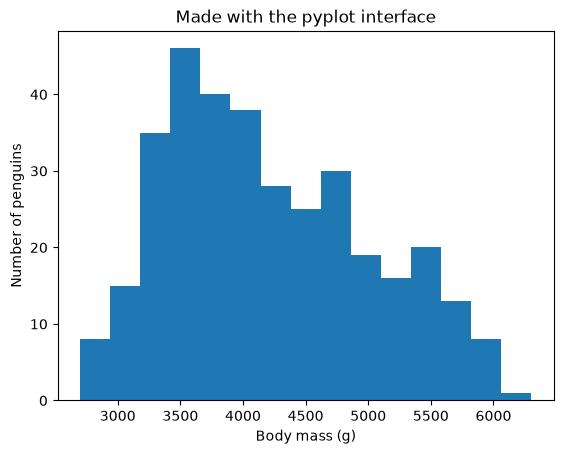
This is what the last chapter used. You call functions on plt directly, and matplotlib keeps track of a “current figure” and a “current Axes” behind the scenes. Every plt. command you issue applies to whatever is current.
plt.hist(df["body_mass_g"], bins=15)plt.xlabel("Body mass (g)")plt.ylabel("Number of penguins")plt.title("Made with the pyplot interface")plt.show()
There is no variable anywhere in that code holding the figure or the panel. plt.hist noticed that no figure existed, created one with a single Axes, made it current, and drew into it. The next three commands each modified “the current Axes” — that same one.
This style is called the implicit interface, because the panel each command draws into is implied rather than named.
It is excellent for one quick plot, and that is exactly what we used it for.
9.3.2 Interface 2: the object-oriented, explicit interface
Here you ask for the figure and panel up front, keep them in variables, and call methods on those variables:
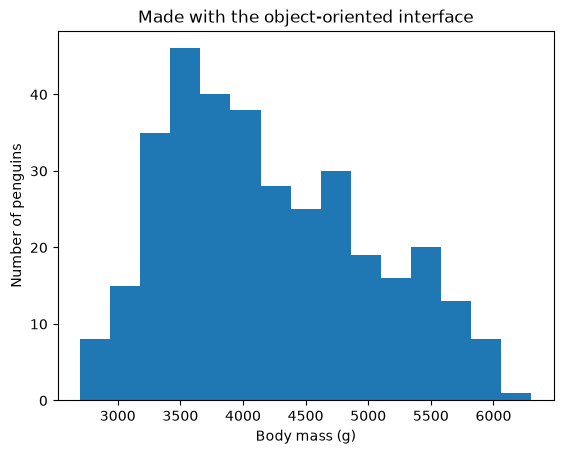
fig, ax = plt.subplots()ax.hist(df["body_mass_g"], bins=15)ax.set_xlabel("Body mass (g)")ax.set_ylabel("Number of penguins")ax.set_title("Made with the object-oriented interface")plt.show()
The same picture, with one important difference: nothing is implied. plt.subplots() creates a Figure and an Axes and hands both back, so fig is the canvas and ax is the panel. Every subsequent command says explicitly which panel it is drawing into.
Read that first line carefully, because it appears in nearly every matplotlib program you will ever write:
fig, ax = plt.subplots()
plt.subplots() returns two things, and the two names on the left unpack them: fig is the Figure, ax is the Axes. You can name them anything, but fig and ax are the universal convention.
This is called the object-oriented (OO) or explicit interface.
9.3.3 The translation table
The two interfaces do the same things under slightly different names. The pattern is that most plt.something(...) functions become ax.set_something(...) methods:
pyplot (implicit)
object-oriented (explicit)
plt.plot(...), plt.hist(...), plt.scatter(...)
ax.plot(...), ax.hist(...), ax.scatter(...)
plt.xlabel("x")
ax.set_xlabel("x")
plt.ylabel("y")
ax.set_ylabel("y")
plt.title("t")
ax.set_title("t")
plt.xlim(0, 10)
ax.set_xlim(0, 10)
plt.xticks(rotation=45)
ax.tick_params(axis="x", rotation=45)
plt.legend()
ax.legend()
plt.savefig("f.png")
fig.savefig("f.png")
(no equivalent)
fig.suptitle("figure-wide title")
Note the two sides of the split: plotting commands keep their names (plt.hist → ax.hist) while labelling commands gain a set_ prefix (plt.xlabel → ax.set_xlabel). And notice which object each belongs to: anything about one panel is a method of ax, while anything about the whole canvas — saving, a figure-wide title — is a method of fig.
NoteSetting several properties at once
Because the set_ methods all belong to the Axes, there is a shortcut that sets many at once:
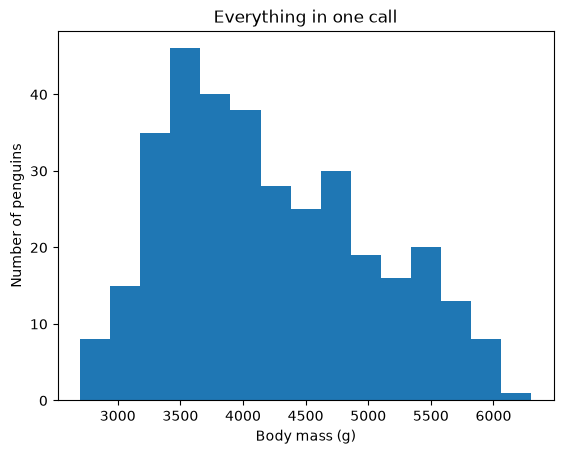
fig, ax = plt.subplots()ax.hist(df["body_mass_g"], bins=15)ax.set(xlabel="Body mass (g)", ylabel="Number of penguins", title="Everything in one call")plt.show()
ax.set(...) accepts any property that has a set_ method, with the prefix dropped. It is a convenient way to keep panel styling to one line, which matters when you are styling six panels in a loop.
9.3.4 Why you should prefer the explicit interface
For one plot, the pyplot style is shorter and perfectly fine. The problem begins the moment there is more than one panel, because “the current Axes” becomes ambiguous — and matplotlib will not warn you when you guess wrong. Consider what happens with two panels:
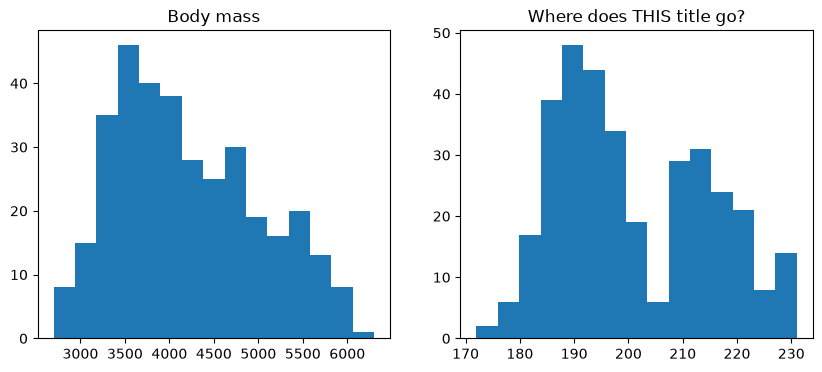
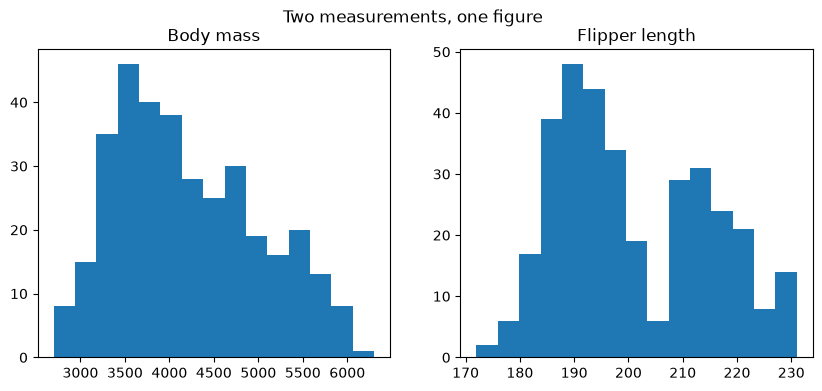
fig, (ax_left, ax_right) = plt.subplots(1, 2, figsize=(10, 4))ax_left.hist(df["body_mass_g"], bins=15)ax_left.set_title("Body mass")ax_right.hist(df["flipper_length_mm"], bins=15)ax_right.set_title("Flipper length")plt.title("Where does THIS title go?")plt.show()
The last plt.title(...) landed on the right-hand panel, because that was the most recently created one and therefore “current”. Worse, it did not just appear in the wrong place — it overwrote that panel’s existing title, so “Flipper length” is now gone. A title meant for the whole figure silently destroyed a panel label instead. Nothing errored; you just get a wrong plot that looks like a finished one.
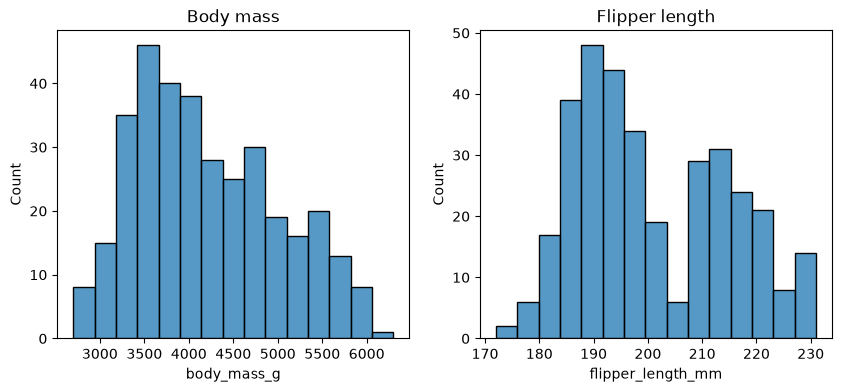
With the explicit interface the question cannot arise. Each command names its target:
With more than one panel, the second return value is a NumPy array of Axes objects. You reach a panel by indexing that array. Here the grid is one row by two columns, so axes has shape (2,) and the panels are axes[0] and axes[1]:
Note the ax= argument on the seaborn calls. That is how you tell a seaborn function which panel to draw into, and we come back to it in detail below.
9.4.1 Indexing: 1D versus 2D
The shape of the axes array follows the shape of your grid, which trips people up constantly:
plt.subplots(1, 2) → shape (2,) → index with one number: axes[0]
plt.subplots(3, 1) → shape (3,) → index with one number: axes[2]
plt.subplots(2, 3) → shape (2, 3) → index with two: axes[0, 2] (row, column)
plt.subplots() → not an array at all — a single Axes, so axes[0] is an error
That last case is the classic bug: fig, axes = plt.subplots() followed by axes[0] raises TypeError: 'Axes' object is not subscriptable. With one panel there is no array to index, which is why the single-panel convention is to name it ax, not axes.
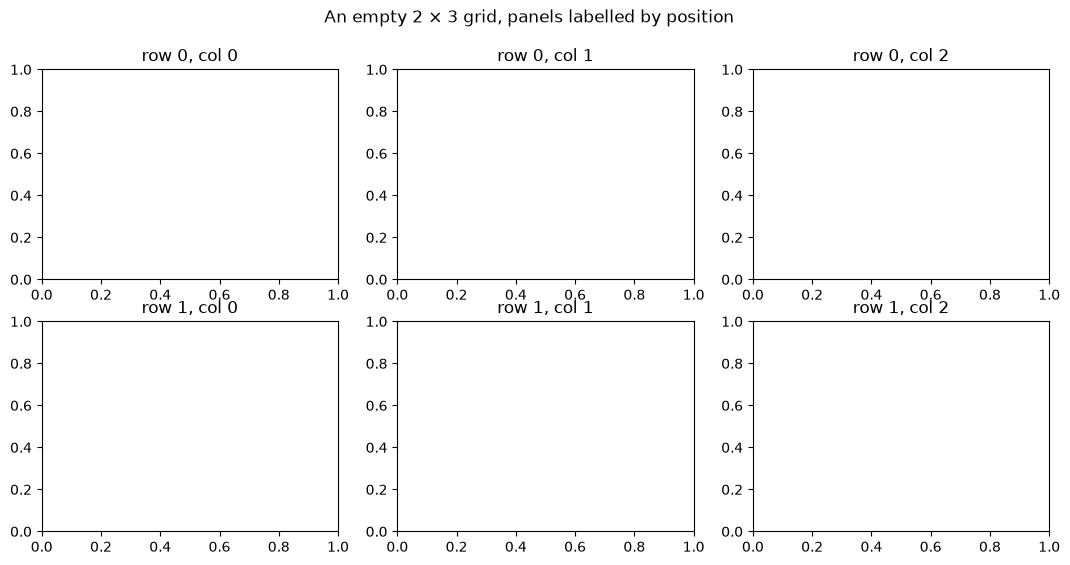
A 2×3 grid, indexed by row and column:
fig, axes = plt.subplots(2, 3, figsize=(13, 6))print("shape:", axes.shape)axes[0, 0].set_title("row 0, col 0")axes[0, 1].set_title("row 0, col 1")axes[0, 2].set_title("row 0, col 2")axes[1, 0].set_title("row 1, col 0")axes[1, 1].set_title("row 1, col 1")axes[1, 2].set_title("row 1, col 2")fig.suptitle("An empty 2 × 3 grid, panels labelled by position")plt.show()
shape: (2, 3)
9.4.2 Useful arguments to plt.subplots()
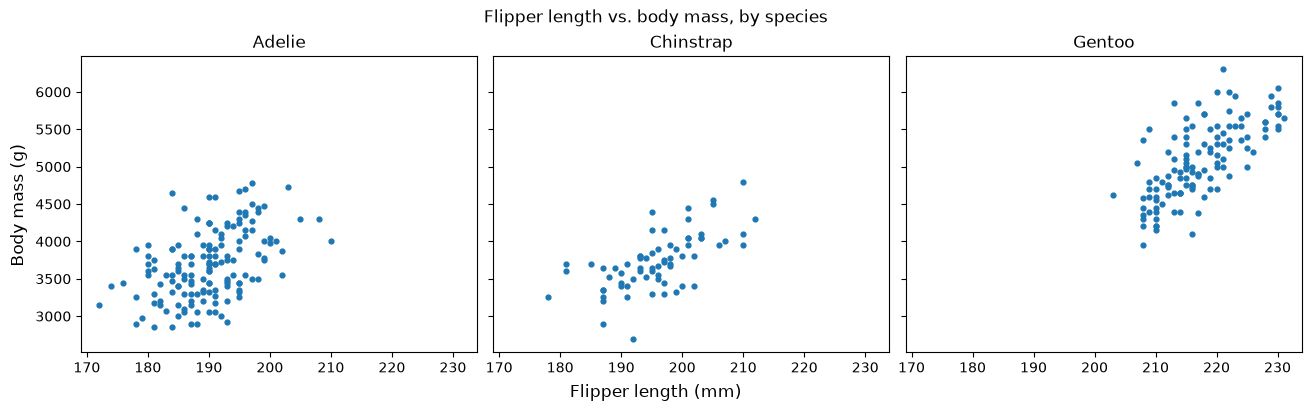
So far each grid has been built from a row count and a column count alone. A few more arguments to plt.subplots() decide whether the panels can be compared fairly and whether they fit on the figure. The figure below plots the same two measurements for each species, one species per panel:
fig, axes = plt.subplots(1, 3, figsize=(13, 4), sharex=True, sharey=True, layout="constrained")adelie = df[df["species"] =="Adelie"]axes[0].scatter(adelie["flipper_length_mm"], adelie["body_mass_g"], s=12)axes[0].set_title("Adelie")chinstrap = df[df["species"] =="Chinstrap"]axes[1].scatter(chinstrap["flipper_length_mm"], chinstrap["body_mass_g"], s=12)axes[1].set_title("Chinstrap")gentoo = df[df["species"] =="Gentoo"]axes[2].scatter(gentoo["flipper_length_mm"], gentoo["body_mass_g"], s=12)axes[2].set_title("Gentoo")fig.supxlabel("Flipper length (mm)")fig.supylabel("Body mass (g)")fig.suptitle("Flipper length vs. body mass, by species")plt.show()
The figure uses four arguments beyond the grid shape:
Argument
Effect
figsize=(w, h)
Size of the whole figure in inches. Grids need more room than one plot
sharex=True
All panels use the same x-axis range, and inner tick labels are hidden
sharey=True
Same for the y-axis
layout="constrained"
Automatically space panels so labels and titles don’t collide
sharex / sharey are not cosmetic. When you compare panels side by side, the reader assumes the axes match. If each panel auto-scales to its own data, the same visual distance means a different quantity in each panel, and the comparison is silently invalid. Share the axes whenever the panels show the same variable. Here the shared scales are what let you see at a glance that Gentoo penguins are heavier and have longer flippers: their points sit higher and further right in the same frame.
layout="constrained" fixes overlapping labels. In a grid, one panel’s x-axis label tends to run into the panel below it. Constrained layout computes the spacing for you. You will also see fig.tight_layout() used for this, which is the older approach and works nearly as well; constrained handles shared legends better.
The figure also labels its axes once instead of three times. fig.supxlabel and fig.supylabel are the figure-wide counterparts of ax.set_xlabel and ax.set_ylabel, just as fig.suptitle is the figure-wide title. When the panels share their axes, one label for the whole figure says everything three panel labels would.
9.4.3 Small multiples: one loop, many panels
The species figure repeated the same three lines once per panel, changing only the species. That repetition is the sign to write a loop. A grid of identically built panels, each showing a different variable or group so they can be compared at a glance, is called small multiples.
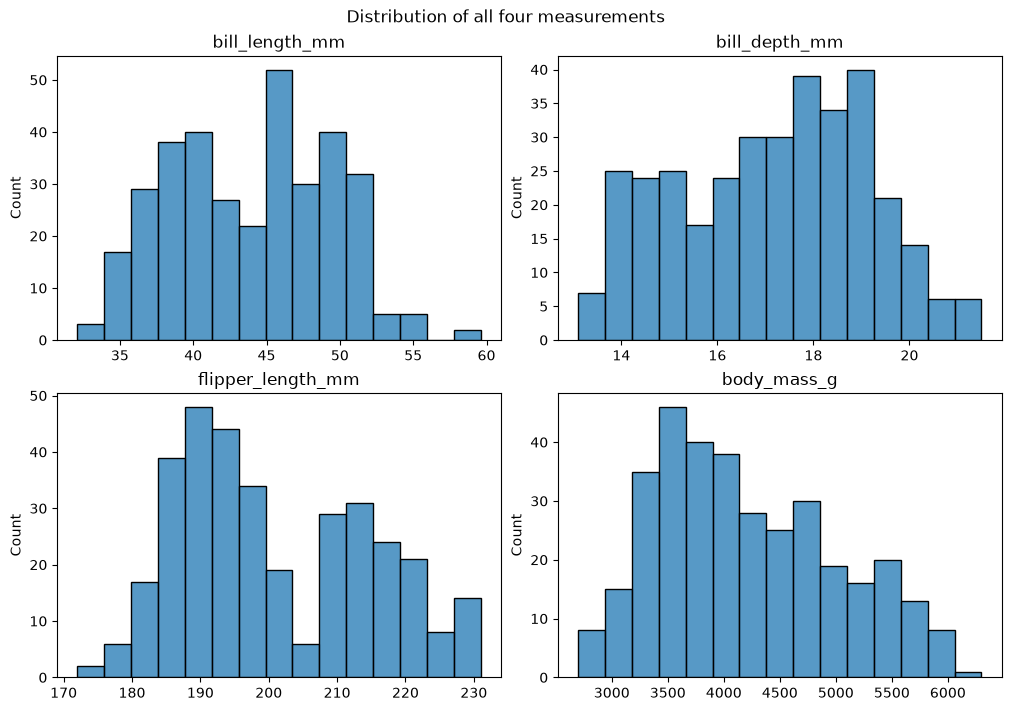
The loop needs the panels as one sequence, but a 2×2 grid comes back as a 2D array. axes.flat flattens it in reading order — left to right, then top to bottom — and zip pairs each panel with one item from your list. Here the list holds the four measurement columns:
numeric_cols = ["bill_length_mm", "bill_depth_mm","flipper_length_mm", "body_mass_g"]fig, axes = plt.subplots(2, 2, figsize=(10, 7), layout="constrained")for ax, column inzip(axes.flat, numeric_cols): sns.histplot(data=df, x=column, bins=15, ax=ax) ax.set_title(column) ax.set_xlabel("")fig.suptitle("Distribution of all four measurements")plt.show()
Four histograms, one loop, and adding a fifth variable would mean changing only the list and the grid size. Note ax.set_xlabel("") — the column name is already in the panel title, so clearing the axis label removes the duplication.
Here the panels show different variables on different scales, so sharex would be wrong: forcing bill depth (14–22 mm) and body mass (2700–6300 g) onto one x-axis range would make three of the four panels unreadable.
9.5 Uneven layouts
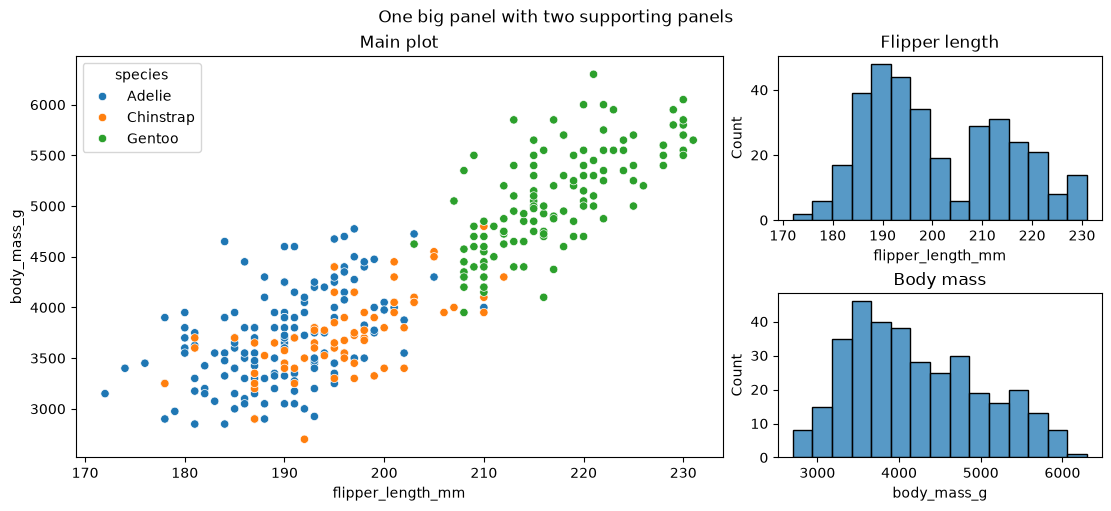
Every grid so far has had panels of equal size. Sometimes one plot is the main point and the others support it, so it deserves more room. plt.subplot_mosaic builds that kind of layout: you draw a picture of it with strings, using a letter per panel, and get back a dictionary keyed by those letters. Repeat a letter to make that panel span the space:
fig, axes = plt.subplot_mosaic(""" AAB AAC """, figsize=(11, 5), layout="constrained",)print(axes.keys())sns.scatterplot(data=df, x="flipper_length_mm", y="body_mass_g", hue="species", ax=axes["A"])axes["A"].set_title("Main plot")sns.histplot(data=df, x="flipper_length_mm", bins=15, ax=axes["B"])axes["B"].set_title("Flipper length")sns.histplot(data=df, x="body_mass_g", bins=15, ax=axes["C"])axes["C"].set_title("Body mass")fig.suptitle("One big panel with two supporting panels")plt.show()
dict_keys(['A', 'B', 'C'])
"AAB" / "AAC" describes a 2-row, 3-column grid in which A occupies the whole left 2×2 block while B and C take the right column. Because the panels come back in a dictionary, you refer to them by meaningful letters rather than remembering that the big one is axes[0, 0]. Use . in the string to leave a slot deliberately empty.
You will also meet GridSpec in older code and in the matplotlib documentation. It builds the same layouts by slicing rectangles out of a grid, and the extended practice asks you to try it. The mosaic is the one this course uses.
9.6 Seaborn: axes-level and figure-level functions
Now we can explain something that was postponed in the last chapter. Seaborn’s plotting functions come in two kinds, and the difference is exactly the Figure/Axes distinction we just learned.
9.6.1 Axes-level functions draw into a panel you give them
Every seaborn function used in the last chapter — histplot, scatterplot, boxplot, violinplot, barplot, countplot, kdeplot, heatmap, regplot, stripplot — is axes-level. Each draws onto a single Axes, and each accepts an ax= argument naming which one. With no ax=, it draws into the current Axes, which is why they worked unprompted in the last chapter.
This makes them composable with everything in this chapter:
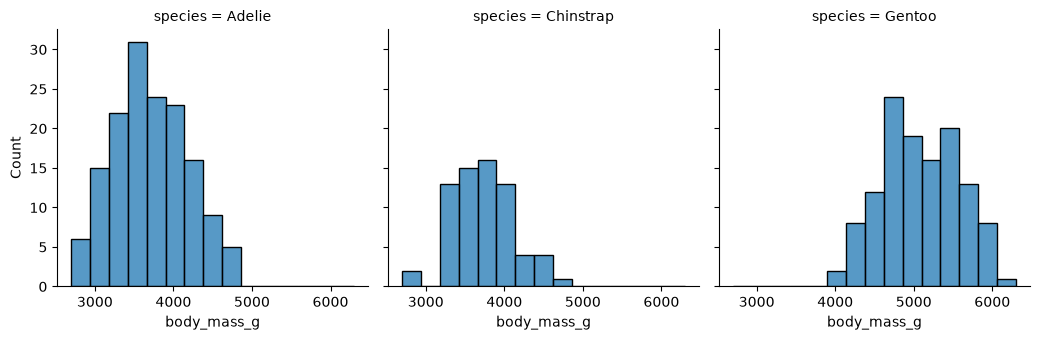
In exchange for owning the figure, they give you something the axes-level functions cannot do on their own: automatic faceting. Pass col= or row= and seaborn splits the data by that column and builds one panel per group, laying out the grid itself.
One argument, col="species", produced a three-panel figure with shared axes, matching titles, and consistent spacing. Compare that with the manual loop we wrote earlier — this is why figure-level functions exist.
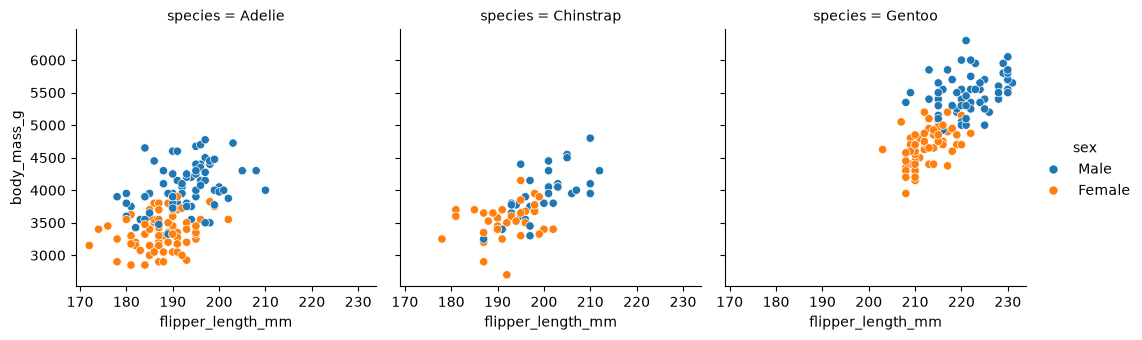
Faceting composes with the visual channels from the last chapter:
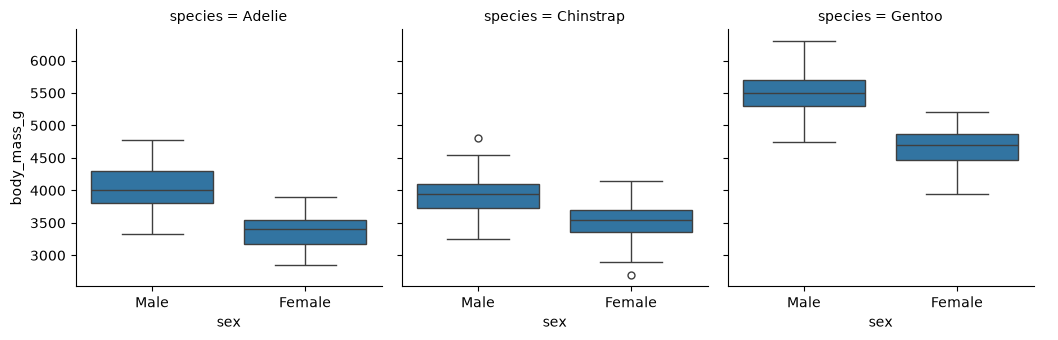
Now each panel is one species and color distinguishes sex — four variables, cleanly readable, from a single call. And catplot faceting the categorical plots:
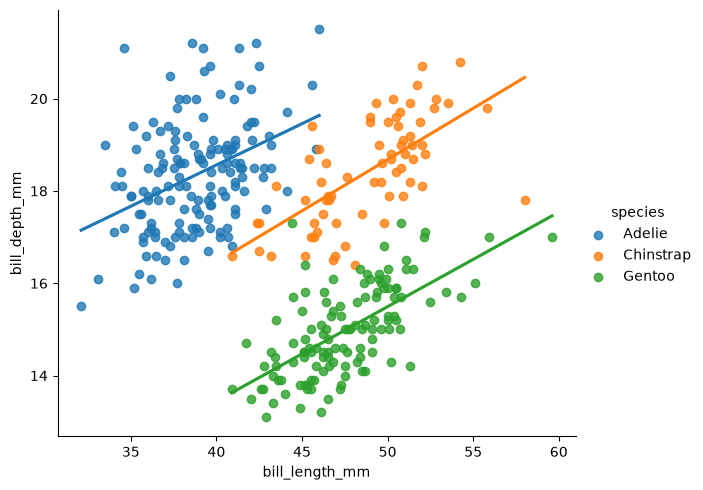
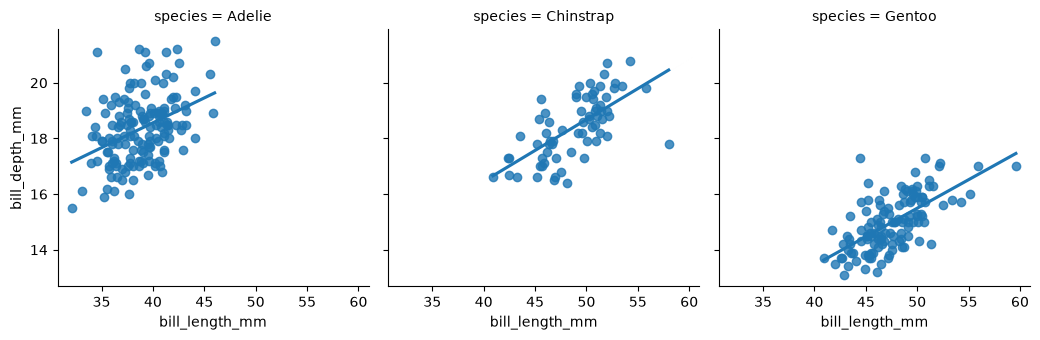
Finally, the promise from the last chapter. We wanted a separate regression line per species and had to loop regplot because it has no hue. lmplot is the figure-level version, and it does have one:
Three groups, three fitted lines, one call — the Simpson’s paradox figure from the last chapter without the loop. Swap hue for col and you get the same three regressions in three separate panels:
9.6.3pairplot: every pair of numeric columns at once
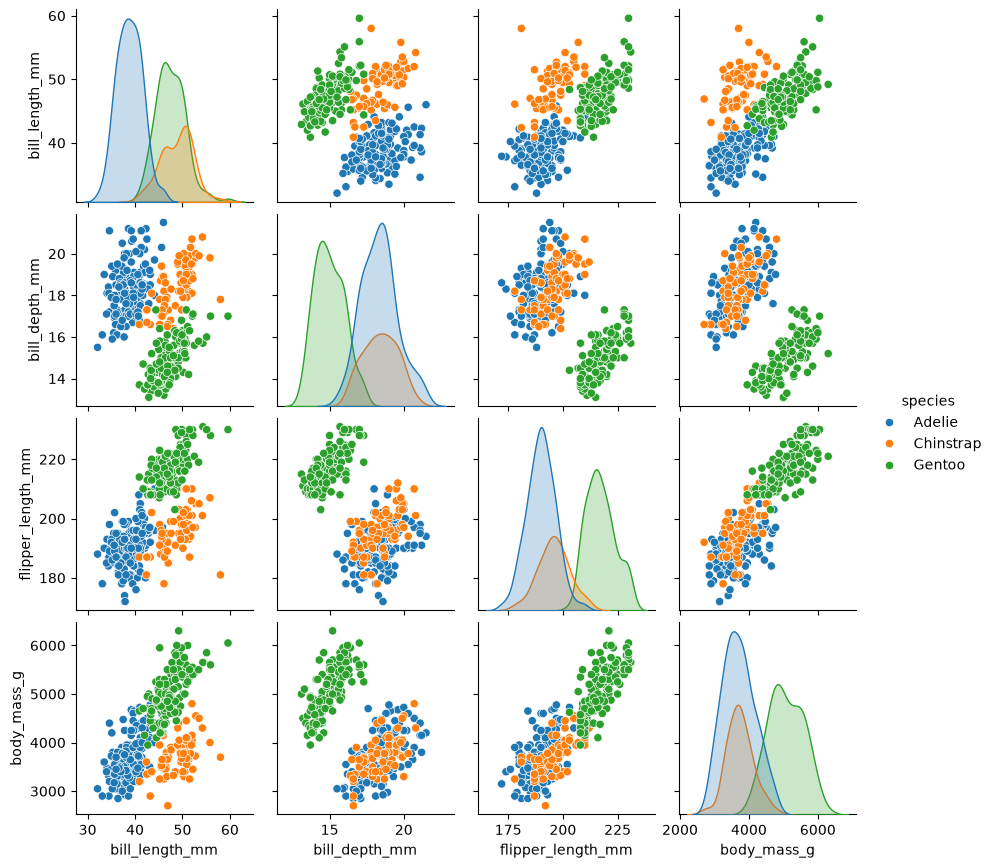
Every figure-level function so far built its panels by splitting the rows on a column. sns.pairplot builds them from the columns instead: it draws one panel for every pair of numeric variables, arranged as a grid with one row and one column per variable. It is figure-level in the same way as the others — it creates its own figure, takes no ax=, and sizes each panel with height= — so the whole grid comes from a single call:
Each off-diagonal panel is a scatter plot of the row’s variable against the column’s, so the four penguin measurements give twelve of them. Every pair appears twice, mirrored across the diagonal, which is the same repetition you saw in the correlation table. A variable plotted against itself would be a straight line, so the diagonal panels show each variable’s distribution instead — here a density curve per species, because of hue="species".
A pairplot is the picture behind the correlation heatmap from the last chapter. The heatmap reduces each pair to one number; the pairplot shows the points that number came from, and the two are worth reading together. Take bill depth and body mass. The heatmap gives them a correlation of −0.47, but their panels in the pairplot show three clouds that each slope upward. Within every species, deeper bills go with heavier penguins, and the negative coefficient comes from Gentoo penguins being heavy with shallow bills. That is the Simpson’s paradox pattern from the last chapter, and a single coefficient cannot show it.
9.6.4 The catch: ax= does not work on figure-level functions
Because a figure-level function creates its own Figure, it cannot draw into a panel that already exists. Passing ax= does not raise an error, which makes the mistake easy to miss. Seaborn prints a UserWarning saying that displot is a figure-level function and does not accept ax=, ignores the argument, and draws a separate new figure. The panel you meant to fill stays empty:
This mistake comes up often, and the fix is always to ask whether you need the figure-level function at all:
Putting a seaborn plot into a grid you built? Use the axes-level function with ax=: histplot not displot, scatterplot not relplot, boxplot not catplot, regplot not lmplot.
Want seaborn to build the grid for you, by splitting on a column? Use the figure-level function with col= / row=, and let it own the figure.
A quick way to tell which you are holding: figure-level functions take height and aspect (they size their own figure) and a kind argument; axes-level functions take ax and no kind. Figure-level names also end in -plot after a short prefix — displot, relplot, catplot, lmplot — and are easy to misread as the axes-level names they wrap. displot and histplot are different functions; so are relplot and scatterplot.
9.6.5 Working with what a figure-level function returns
A figure-level call returns a FacetGrid object rather than Axes, and you adjust the result through it:
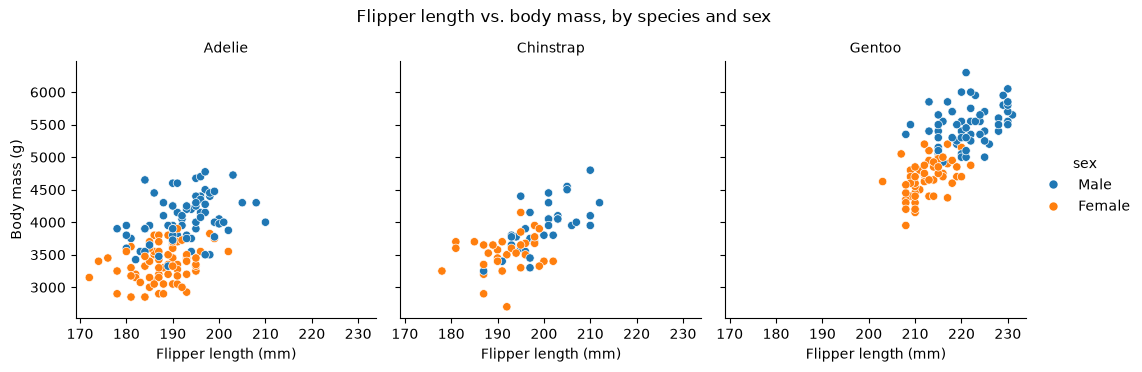
g = sns.relplot(data=df, x="flipper_length_mm", y="body_mass_g", col="species", hue="sex", height=3.5)g.set_axis_labels("Flipper length (mm)", "Body mass (g)")g.set_titles("{col_name}")g.figure.suptitle("Flipper length vs. body mass, by species and sex", y=1.05)plt.show()
On a FacetGridg
What it does
g.set_axis_labels(x, y)
Label the x and y axes across all panels
g.set_titles("{col_name}")
Retitle panels; {col_name} is the group’s value
g.figure
The underlying Figure — for suptitle, savefig
g.axes
The array of underlying Axes, if you need one directly
g.axes.flat[0]
The first panel, e.g. to add an annotation
g.savefig("name.png")
Save the figure
col_wrap=3
Wrap a long row of facets onto multiple rows
col_wrap matters when the faceting column has many values. With col= alone, seaborn puts every panel in a single row, which gets uncomfortably wide past four or five groups; col_wrap=3 breaks that row after three panels and continues below. Our penguin columns only have three values each, so there is nothing to wrap here — but remember it the first time you facet on something like a 12-month column.
Faceting on two columns at once, with col= and row=, gives a grid of every combination:
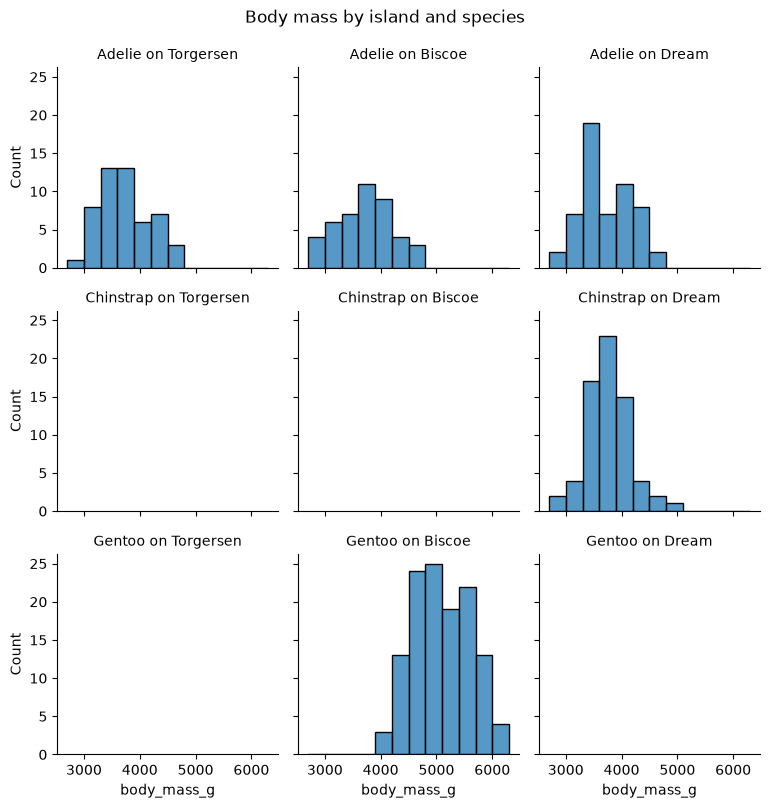
g = sns.displot(data=df, x="body_mass_g", col="island", row="species", bins=12, height=2.6)g.set_titles("{row_name} on {col_name}")g.figure.suptitle("Body mass by island and species", y=1.03)plt.show()
Two things to notice.
First, set_titles is doing necessary work. Seaborn’s default title for a two-way facet is the full species = Chinstrap | island = Biscoe, and nine of those across a grid this size run into each other and become unreadable. "{row_name} on {col_name}" substitutes just the group values, giving “Chinstrap on Biscoe”.
Second, four panels are empty, and that is the most informative thing in the figure. Faceting creates a slot for every combination of the two columns, whether or not any rows fall into it, so the blanks show you exactly which combinations do not occur: no Gentoos except on Biscoe, no Chinstraps except on Dream. That is the island/species structure we found with a heatmap in the last chapter, arrived at from a different direction. An empty facet is not a bug in your code — it is data.
9.7 Finishing a multi-panel figure
Whether you built the panels yourself with plt.subplots() or let seaborn build them with col=, what remains is finishing work: one legend instead of three, an inset where points crowd together, tick labels a reader can take in at a glance, and a saved file with nothing cut off. None of these changes what the figure shows. Each one changes how easily a reader gets it.
9.7.1 Sharing a legend across panels
The first finishing job is usually the legend. When every panel uses the same colors, a legend in each one is repeated clutter. The fix is to take the legend entries from one panel, remove the per-panel legends, and attach a single legend to the figure.
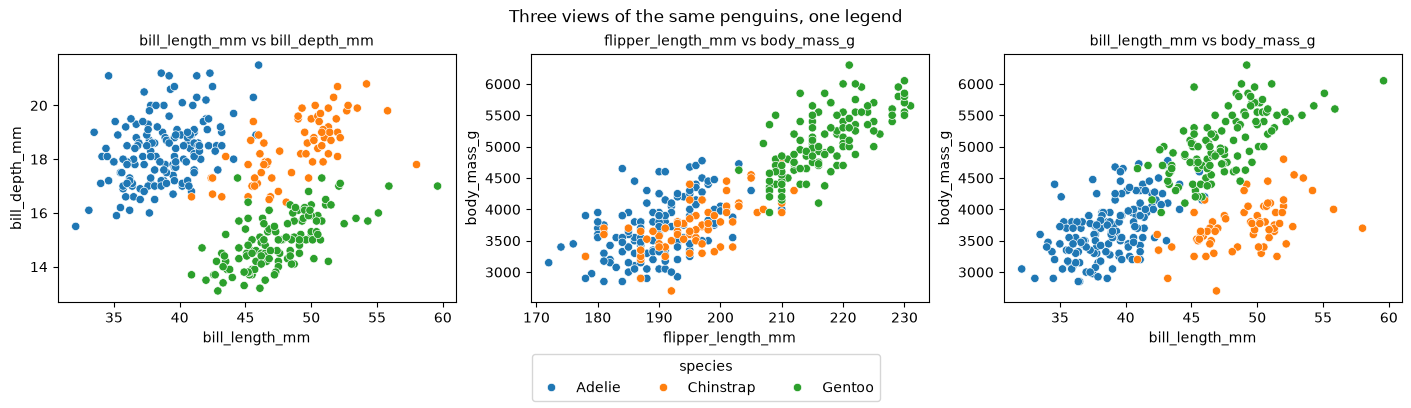
fig, axes = plt.subplots(1, 3, figsize=(14, 4), layout="constrained")numeric_pairs = [("bill_length_mm", "bill_depth_mm"), ("flipper_length_mm", "body_mass_g"), ("bill_length_mm", "body_mass_g")]for i, (ax, (xcol, ycol)) inenumerate(zip(axes, numeric_pairs)):# Let ONLY the first panel build a legend — we harvest it, then delete it. sns.scatterplot(data=df, x=xcol, y=ycol, hue="species", ax=ax, legend=(i ==0)) ax.set_title(f"{xcol} vs {ycol}", fontsize=10)handles, labels = axes[0].get_legend_handles_labels()axes[0].get_legend().remove()fig.legend(handles, labels, title="species", loc="outside lower center", ncols=3)fig.suptitle("Three views of the same penguins, one legend")plt.show()
The mechanics are worth stepping through, because there is a trap in the obvious version:
legend=(i == 0) passes True for the first panel and False for the other two, so exactly one legend gets built.
get_legend_handles_labels() reads that panel’s legend entries — the colored markers (handles) and the species names (labels).
axes[0].get_legend().remove() then deletes the per-panel legend, now that we have its contents.
fig.legend(handles, labels, ...) attaches them once to the figure.
The trap is step 1. It is tempting to pass legend=False to every panel and then ask for the handles, but a panel that never drew a legend has no labelled artists, so get_legend_handles_labels() returns two empty lists and fig.legend renders a legend box containing nothing but its title. You have to let one panel build a legend in order to steal it.
The loc="outside lower center" position requires layout="constrained", which is one of the places constrained layout beats tight_layout(). ncols=3 lays the three entries out in a row rather than a column, which suits a legend under a wide figure.
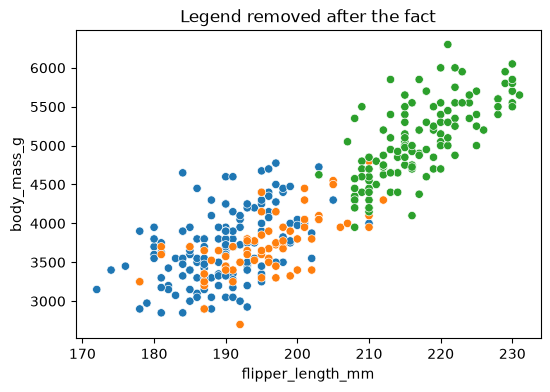
If a seaborn function has already drawn a legend you want gone, remove it directly:
fig, ax = plt.subplots(figsize=(6, 4))sns.scatterplot(data=df, x="flipper_length_mm", y="body_mass_g", hue="species", ax=ax)ax.get_legend().remove()ax.set_title("Legend removed after the fact")plt.show()
9.7.2 Showing detail with an inset
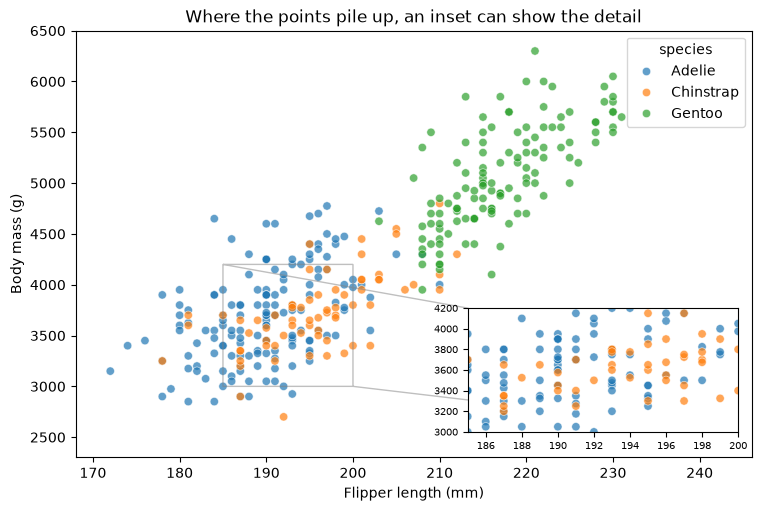
A finished panel can be right overall but crowded in one region, where the points pile on top of each other. An inset fixes that without a second figure: it puts a small, magnified view of the same data inside the panel, so the main panel keeps the full range while the inset shows the crowded part.
ax.inset_axes([left, bottom, width, height]) creates that small Axes as a child of the panel, positioned in fractions of the parent. [0.58, 0.06, 0.40, 0.29] starts 58% of the way across and 6% up, and takes 40% of the width and 29% of the height. Because the numbers are relative to the parent, the inset stays put when the surrounding layout changes.
ax.indicate_inset_zoom() then draws the rectangle marking the magnified region and the lines connecting it to the inset. Without it, the reader has to work out the relationship from the axis numbers alone.
An inset also needs somewhere to sit where it covers nothing. This scatter has no penguins with long flippers and low body mass, so its bottom-right corner is free, and widening the limits a little past the data with ax.set(xlim=..., ylim=...) makes that corner roomier without moving a single point.
fig, ax = plt.subplots(figsize=(7.5, 5), layout="constrained")sns.scatterplot(data=df, x="flipper_length_mm", y="body_mass_g", hue="species", alpha=0.7, ax=ax)ax.set_xlabel("Flipper length (mm)")ax.set_ylabel("Body mass (g)")ax.set_title("Where the points pile up, an inset can show the detail")# Widen the limits past the data, clearing a corner for the inset.ax.set(xlim=(168, 246), ylim=(2300, 6500))# A child Axes, placed in fractions of the parent panel.zoom = ax.inset_axes([0.58, 0.06, 0.40, 0.29])sns.scatterplot(data=df, x="flipper_length_mm", y="body_mass_g", hue="species", alpha=0.7, legend=False, ax=zoom)zoom.set(xlim=(185, 200), ylim=(3000, 4200), xlabel="", ylabel="")zoom.tick_params(labelsize=7)ax.indicate_inset_zoom(zoom, edgecolor="gray")plt.show()
Two details of craft. Put the inset where the data is not: the magnified view sits in the empty corner, so it hides nothing — and that includes the inset’s own tick labels, which are drawn outside its frame and will cover points if you place it too tightly. Widening the limits is the cheap way to clear that space. If no corner can be freed, the region deserves its own panel instead.
Keep the inset’s ticks. The temptation is to strip them for tidiness, but an inset has a different scale from its parent and those numbers are the only thing saying so. Here legend=False drops the duplicate legend and the axis labels are dropped because the parent already names both variables — the tick numbers stay.
9.7.3 Formatting tick labels
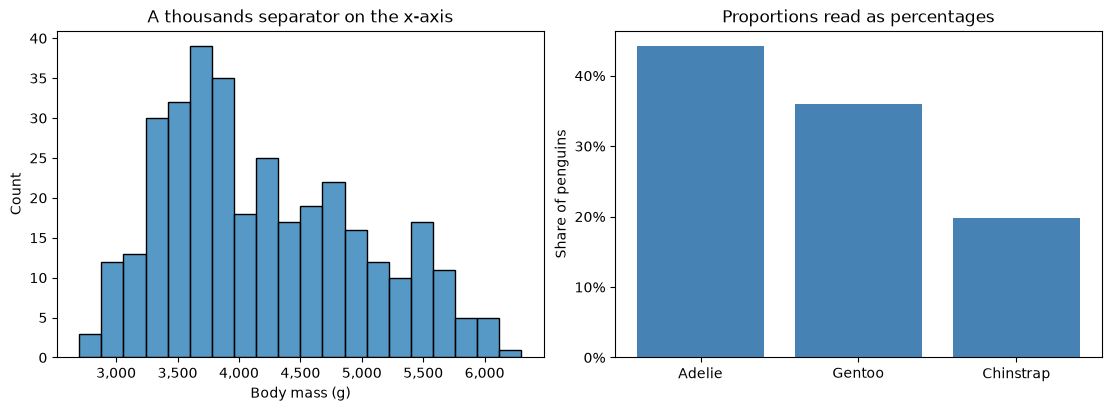
The legend and the inset add things to a figure. The next finishing step changes how a panel’s own numbers read. Matplotlib writes tick labels straight from the data, which gives you 6000 where a reader expects 6,000, and 0.44 where they expect 44%. The fix lives on the axis objects ax.xaxis and ax.yaxis — another place where having the object in hand is what makes the adjustment possible.
set_major_formatter accepts a format string in which {x} stands for the tick value. '{x:,.0f}' is a thousands separator with no decimals; '{x:.0%}' turns a proportion into a percentage.
fig, (ax_mass, ax_share) = plt.subplots(1, 2, figsize=(11, 4), layout="constrained")sns.histplot(data=df, x="body_mass_g", bins=20, ax=ax_mass)ax_mass.xaxis.set_major_formatter('{x:,.0f}')ax_mass.set(xlabel="Body mass (g)", title="A thousands separator on the x-axis")shares = df["species"].value_counts(normalize=True)ax_share.bar(shares.index, shares.values, color="steelblue")ax_share.yaxis.set_major_formatter('{x:.0%}')ax_share.set(ylabel="Share of penguins", title="Proportions read as percentages")plt.show()
The right-hand panel holds proportions — value_counts(normalize=True), from Pandas Fundamentals — so the values behind the bars are 0.442, 0.360, and 0.198. The formatter is what makes them read as the percentages a caption would quote, and the data itself is untouched: format for the reader rather than by rewriting your numbers.
Two adjustments you will reach for on the same figures: ax.tick_params(axis="x", rotation=45) when category names overlap, and ax.set_xticks([...]) when you want to choose the tick positions yourself instead of accepting matplotlib’s.
9.7.4 Saving a multi-panel figure
The last finishing step is writing the figure to a file. With the figure in a variable, save it with fig.savefig:
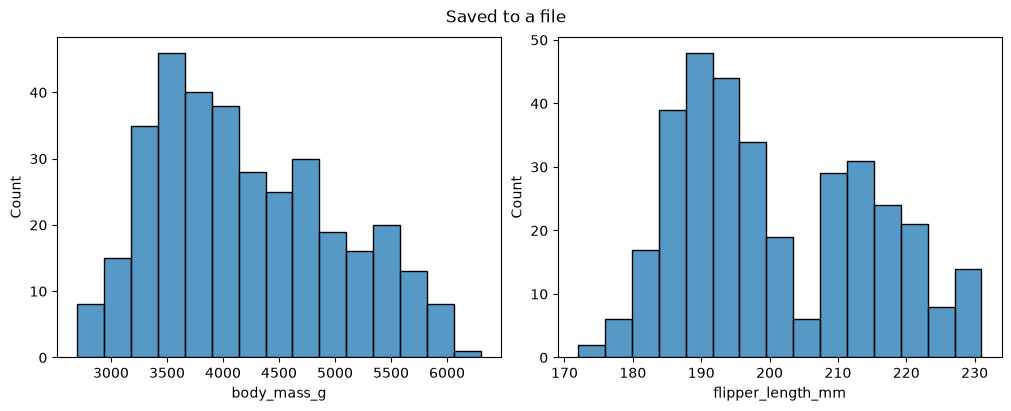
fig, axes = plt.subplots(1, 2, figsize=(10, 4), layout="constrained")sns.histplot(data=df, x="body_mass_g", bins=15, ax=axes[0])sns.histplot(data=df, x="flipper_length_mm", bins=15, ax=axes[1])fig.suptitle("Saved to a file")fig.savefig("penguin_panels.png", dpi=300, bbox_inches="tight")plt.show()
Three points, two of which bit us in the last chapter:
fig.savefig, not plt.savefig. With several figures in flight, plt.savefig saves whichever is current — name the one you mean.
Save before plt.show().plt.show() closes out the figure, so saving afterwards writes a blank image. In the explicit interface this is less dangerous, since fig still refers to the figure, but keep the habit.
bbox_inches="tight" crops surrounding whitespace and, importantly, stops a suptitle or an outside legend from being cut off. dpi=300 is a reasonable resolution for print.
For a figure-level seaborn plot, save through the FacetGrid: g.savefig("name.png"), or equivalently g.figure.savefig(...).
9.8 Summary Cheat Sheet
The anatomy. A Figure is the canvas; an Axes is one panel; an Axis is one number line; Artists are the things drawn. “Axes” means panel.
The two interfaces.
# Implicit (pyplot): fine for a single quick plotplt.hist(data)plt.xlabel("x")# Explicit (object-oriented): use this for everything elsefig, ax = plt.subplots()ax.hist(data)ax.set_xlabel("x")
Plotting commands keep their names, labelling commands gain set_, panel properties live on ax, and figure properties live on fig.
Submit:activity09.html through the final upload question in the Data Visualization II Canvas quiz.
This section contains the complete activity instructions. The starter loads the data and supplies spaces to record your work. Open activity09.ipynb from the folder prepared in Set Up Your Chapter Files, using the same project environment. The worked examples above are preparation, not additional submission requirements.
You will use the same Palmer penguins dataset, loaded the same way, so the activity needs no data file of its own.
A. The Two Interfaces, and a Title That Goes Astray
Replace Your Name in the opening Raw cell’s author field. Run the setup cell; it must report the shape (344, 7).
Draw a histogram of bill_length_mm twice, once with the pyplot interface and once with the object-oriented interface, giving each an x-label and a title. Say in one sentence what fig and ax refer to in the second version.
Build a 1×2 figure, draw into both panels, and then call plt.title("Left panel"). Report where the title actually appeared and explain why. Fix it so the title lands on the left panel.
B. A Grid Whose Panels Are Comparable
Create fig, axes = plt.subplots(2, 2). Before running anything, write down the index of the bottom-left panel and the value of axes.shape; then confirm both by setting that panel’s title.
Build a 1×3 figure comparing body_mass_g across the three species: a box plot, a violin plot, and a bar chart of means, one per panel.
Use sharey=True and explain in a sentence why sharing the y-axis matters for this comparison. Give the figure a size that leaves the panels readable.
C. Looping Over Panels, and One Figure-Wide Label
Using zip and axes.flat, draw a 2×2 grid of scatter plots of body_mass_g against each of the four numeric columns.
One panel plots body mass against itself. Say what that panel shows, then replace it with something a reader would learn from.
Give the figure a single figure-wide title instead of four panel titles, and label the shared axes once. Save it as a 300-dpi PNG and confirm nothing is cut off.
D. Axes-Level or Figure-Level
Draw sns.displot(data=df, x="body_mass_g", col="species"), then rebuild the same figure with plt.subplots() and sns.histplot(..., ax=...). Say which version was shorter and what you had to do by hand.
Explain why the same call fails when you pass ax= to sns.catplot() but works with sns.boxplot(), and name the argument that tells you at a glance which kind of function you are holding.
Use sns.lmplot to fit one regression line per species for bill_depth_mm against bill_length_mm, and say what that figure shows that a single pooled line hid in the previous chapter.
Render and Submit
Restart the kernel, run all cells in order, resolve unexpected errors, and save. Include your figures, outputs, and explanations for A–D, and a short Markdown completion note. From stat303-data-visualization-2 in the terminal, run:
quarto render activity09.ipynb --to html
Follow the Quarto refresher: inspect the HTML and a copy opened outside the project folder, and confirm that every figure appears and your name is on the report. Upload only activity09.html to the Data Visualization II Canvas quiz; keep your notebook locally.
HTML grading (16 points): both interfaces drawn, fig/ax explained, and the misplaced title diagnosed and fixed (4); panel indexing, axes.shape, the three-panel comparison, and the sharey justification (4); the looped grid, the self-comparison panel replaced, figure-wide labelling, and a clean saved file (4); the faceted figure rebuilt by hand, the ax= explanation, and the per-species regression lines (3); name, readable report, and completion note (1).
9.10 Extended Practice
These longer exercises are additional practice, not requirements for the Canvas quiz. Work in a separate notebook beside your activity and load the data the way the chapter does. Include your code, figures, and explanations.
9.10.1 Mosaic against GridSpec
GridSpec is matplotlib’s older tool for uneven layouts. Instead of drawing the layout as a string, you create an empty figure with fig = plt.figure(), divide it into a grid with gs = fig.add_gridspec(2, 3), and claim each panel by slicing that grid: fig.add_subplot(gs[:, 0:2]) is a panel spanning every row and the first two columns. Reproduce this chapter’s subplot_mosaic figure this way. Then say which version you would rather read and maintain, and why.
9.10.2 Empty Panels, and What They Tell You
Facet body mass with sns.displot twice: once with col="island", row="species", and once with col="island", row="sex". The first has empty panels and the second does not. Explain what that difference tells you about the two pairs of variables.
9.10.3 One Legend for the Whole Figure
Build a 1×3 figure in which each panel is coloured by species, then remove the three panel legends and give the figure a single shared legend. Explain what goes wrong if you simply call ax.legend() on the last panel instead.
9.10.4 Two Y-Axes, and Whether to Use Them
Two variables with different units sometimes seem to belong on one panel. ax.twinx() returns a second Axes that shares ax’s x-axis but has its own y-axis on the right, so each variable gets its own scale. Use the species means below, typed in as numbers because computing a mean per group needs .groupby(), which comes in a later chapter:
Draw mean body mass as bars against the left y-axis and mean flipper length as a line against the right one, colouring each y-axis label to match its data. Then draw the same information as two stacked panels sharing an x-axis. Argue for one of the two versions as the one you would publish, and name the specific way the twin-axis version can mislead a reader.
9.11 Before You Move On
The habit to carry forward is naming the thing you draw into. A single quick plot can go through plt.* and land wherever pyplot puts it, but as soon as a figure has more than one panel, every command needs an address: ax for a panel, fig for the whole canvas. Axes-level seaborn functions take that address through ax=; figure-level ones refuse it, because they build the figure themselves.
The other habit is making the panels comparable. A grid invites the reader to compare its panels, so share the axes when the panels show the same variable, and give the figure enough room that none of it is cramped.
For any multi-panel figure you make or read, you should be able to answer four questions:
What is one panel, and what changes from panel to panel?
Are the axes shared, and if not, could a reader mistake the panels for comparable?
Which commands addressed a panel, and which addressed the whole figure?
Did seaborn build these panels, or did you — and does the function you called accept ax=?
Continue to Data Cleaning, where the messy realities you have been plotting around — missing values, duplicated records, extreme values — become the subject rather than a footnote.