from pathlib import Path
import pandas as pd
print('Working folder:', Path.cwd().name)
print('pandas version:', pd.__version__)Working folder: nu-stat303-1-sec20-coursebook-clean
pandas version: 3.0.5Transformations, Alignment, and Custom Logic
In Pandas Fundamentals, you learned how to select, filter, sort, and summarize the data a DataFrame already contains. This chapter shifts the focus from exploring existing data to generating new insights: deriving new columns, calculating summaries across multiple dimensions, and measuring relationships between variables.
We will approach this in three stages, with each step giving you more computational control:
By the end of this chapter, you should be able to:
map(), replace(), or apply()).lambda expressions and readable named functions for custom logic.Download the Pandas Intermediate practice kit, extract it, and place stat303-pandas-intermediate inside the chapters folder of your stat303-1 course folder. Open stat303-1 in VS Code and select the course environment. The examples need pandas, which you already installed. The terminal opens in stat303-1, so move it into the kit with cd chapters and then cd stat303-pandas-intermediate before you render the activity.
stat303-1/
├── .venv/
├── assignments/
└── chapters/
    └── stat303-pandas-intermediate/
        ├── pandas_intermediate_examples.ipynb
        ├── activity05.ipynb
        └── README.md
Use pandas_intermediate_examples.ipynb for worked examples and activity05.ipynb for your practice activity report. Run both notebooks with the extracted folder as the working directory.
from pathlib import Path
import pandas as pd

print('Working folder:', Path.cwd().name)
print('pandas version:', pd.__version__)
Working folder: nu-stat303-1-sec20-coursebook-clean
pandas version: 3.0.5The import should succeed in your verified project environment. Check the working folder before opening or rendering the activity. If needed, revisit the Reading Data setup.
The most common transformation is combining two existing columns into a new one. Because pandas operations are vectorized, you write the calculation once and it applies to every row automatically — no loop required.
business_df = pd.DataFrame({
    'Product':         ['Laptop', 'Phone', 'Tablet', 'Watch', 'Headphones'],
    'Units_Sold':      [150, 300, 200, 500, 250],
    'Price_per_Unit':  [1200, 800, 600, 400, 200],
    'Cost_per_Unit':   [800, 500, 400, 250, 120],
})

business_df['Total_Revenue'] = business_df['Units_Sold'] * business_df['Price_per_Unit']
business_df['Total_Cost']    = business_df['Units_Sold'] * business_df['Cost_per_Unit']
business_df['Gross_Profit']  = business_df['Total_Revenue'] - business_df['Total_Cost']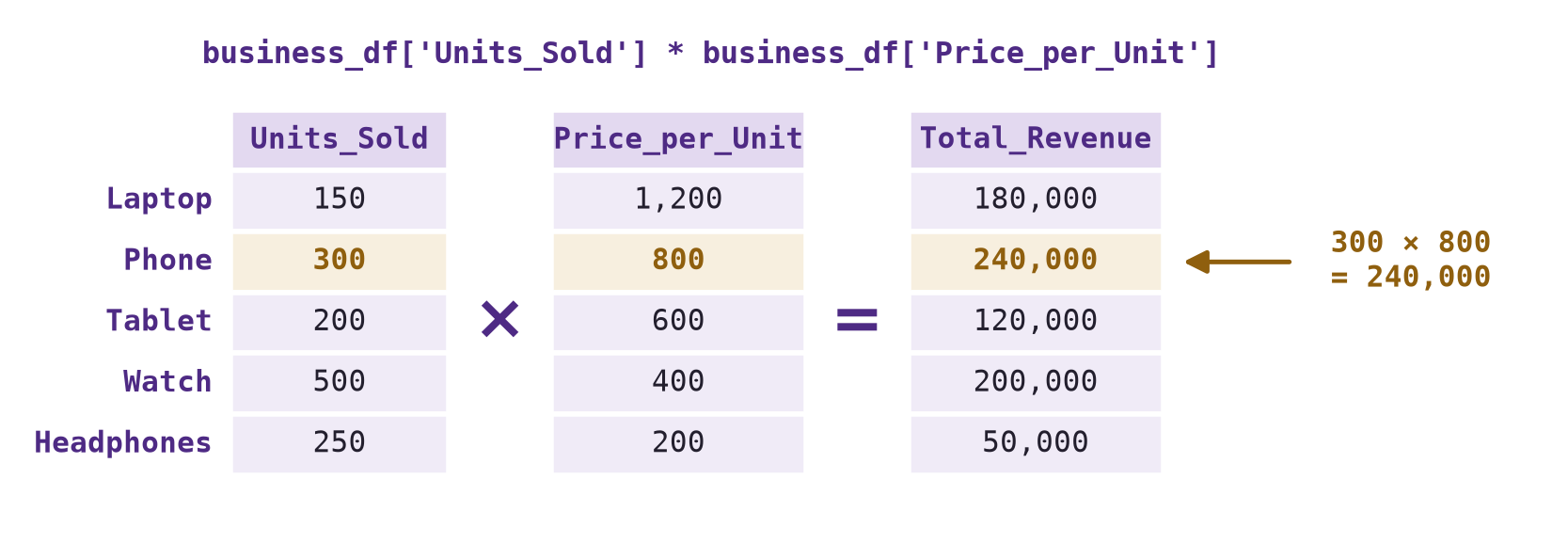
Units_Sold by that same product’s Price_per_Unit. The highlighted row shows one of the five products.
| Operation | Symbol | Typical use |
|---|---|---|
| Addition | + |
combining two sources, e.g. online + retail |
| Subtraction | - |
profit, difference, change |
| Multiplication | * |
totals, e.g. price * quantity |
| Division | / |
rates, ratios, margins |
| Power | ** |
compound growth, e.g. principal * (1 + rate) ** years |
| Floor division | // |
quotient rounded down; counts full batches for nonnegative quantities and positive batch sizes |
| Modulo | % |
remainders, e.g. id % 10 gives the last digit of a nonnegative integer ID |
These Series operations align by row label (index), not row position. Here both columns come from the same DataFrame, so their indexes already match: Units_Sold and Price_per_Unit are combined for each product.
You can also combine a column with a single number. Pandas applies it to every row:
business_df['Discounted_Price'] = business_df['Price_per_Unit'] * 0.9   # 10% off everything
business_df['Price_with_Shipping'] = business_df['Price_per_Unit'] + 50  # flat $50 shipping
business_df['Tax_Amount'] = business_df['Total_Revenue'] * 0.08 # 8% taxaxis=1Pandas Fundamentals introduced axis as the direction a summary collapses. That same choice lets you turn a summary into a new column. Methods like .sum(), .mean(), .max(), and .min() default to working down each column — one result per column — while axis=1 works across each row, giving one result per row that lines up with the data:
quarterly_sales = pd.DataFrame({
    'Q1': [100, 150, 200, 120, 180],
    'Q2': [110, 140, 220, 130, 190],
    'Q3': [120, 160, 210, 140, 200],
    'Q4': [130, 170, 230, 150, 210],
}, index=['Product_A', 'Product_B', 'Product_C', 'Product_D', 'Product_E'])

quarter_cols = ['Q1', 'Q2', 'Q3', 'Q4']
quarters = quarterly_sales[quarter_cols]
quarterly_sales['Total'] = quarters.sum(axis=1)
quarterly_sales['Average'] = quarters.mean(axis=1)
quarterly_sales['Range'] = quarters.max(axis=1) - quarters.min(axis=1)
quarterly_sales| Q1 | Q2 | Q3 | Q4 | Total | Average | Range | |
|---|---|---|---|---|---|---|---|
| Product_A | 100 | 110 | 120 | 130 | 460 | 115.0 | 30 |
| Product_B | 150 | 140 | 160 | 170 | 620 | 155.0 | 30 |
| Product_C | 200 | 220 | 210 | 230 | 860 | 215.0 | 30 |
| Product_D | 120 | 130 | 140 | 150 | 540 | 135.0 | 30 |
| Product_E | 180 | 190 | 200 | 210 | 780 | 195.0 | 30 |
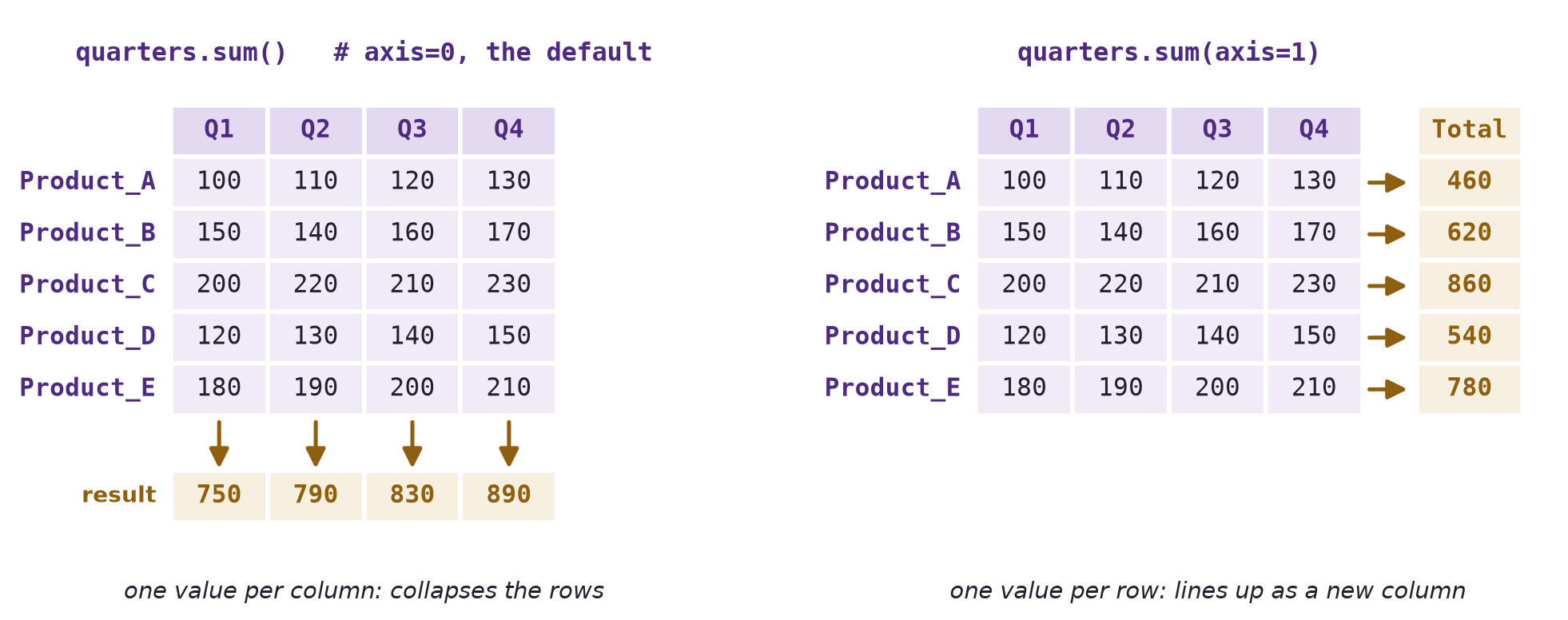
axis=0 collapses the rows and returns one total per quarter; axis=1 collapses the columns and returns one total per product, which lines up with the rows and can be stored as a new column.
Select the input columns explicitly. Otherwise, a newly added total would be included in the next average or range. Here all four quarterly values are observed; inspect missing values before interpreting a partial total.
So far we’ve combined columns that live in the same DataFrame. Pandas can also combine two separate DataFrames — and this is where its most distinctive feature shows up: automatic alignment.
When two DataFrames share the same row labels (index) and column labels, arithmetic between them works exactly like arithmetic within one:
store_a = pd.DataFrame({
    'Electronics': [50000, 55000, 60000],
    'Clothing':    [30000, 32000, 35000],
}, index=['Q1', 'Q2', 'Q3'])

store_b = pd.DataFrame({
    'Electronics': [45000, 50000, 58000],
    'Clothing':    [28000, 30000, 33000],
}, index=['Q1', 'Q2', 'Q3'])

combined_sales = store_a + store_b       # matches by label: Q1 with Q1, Electronics with Electronics
sales_difference = store_a - store_b
Notice pandas didn’t need the rows or columns to be in the same order — it matched Q1 with Q1 and Electronics with Electronics by label, not by position. This is a key difference from a plain grid of numbers: pandas always asks “which row/column labels match?” before it does any math.
If one DataFrame has a row or column the other doesn’t, pandas still tries to align everything — and fills in NaN (missing value) wherever a match can’t be found:
df1 = pd.DataFrame({'A': [10, 20, 30], 'B': [40, 50, 60]}, index=[0, 1, 2])
df2 = pd.DataFrame({'B': [5, 10, 15, 20], 'C': [100, 200, 300, 400]}, index=[1, 2, 3, 4])

df1 + df2| A | B | C | |
|---|---|---|---|
| 0 | NaN | NaN | NaN |
| 1 | NaN | 55.0 | NaN |
| 2 | NaN | 70.0 | NaN |
| 3 | NaN | NaN | NaN |
| 4 | NaN | NaN | NaN |
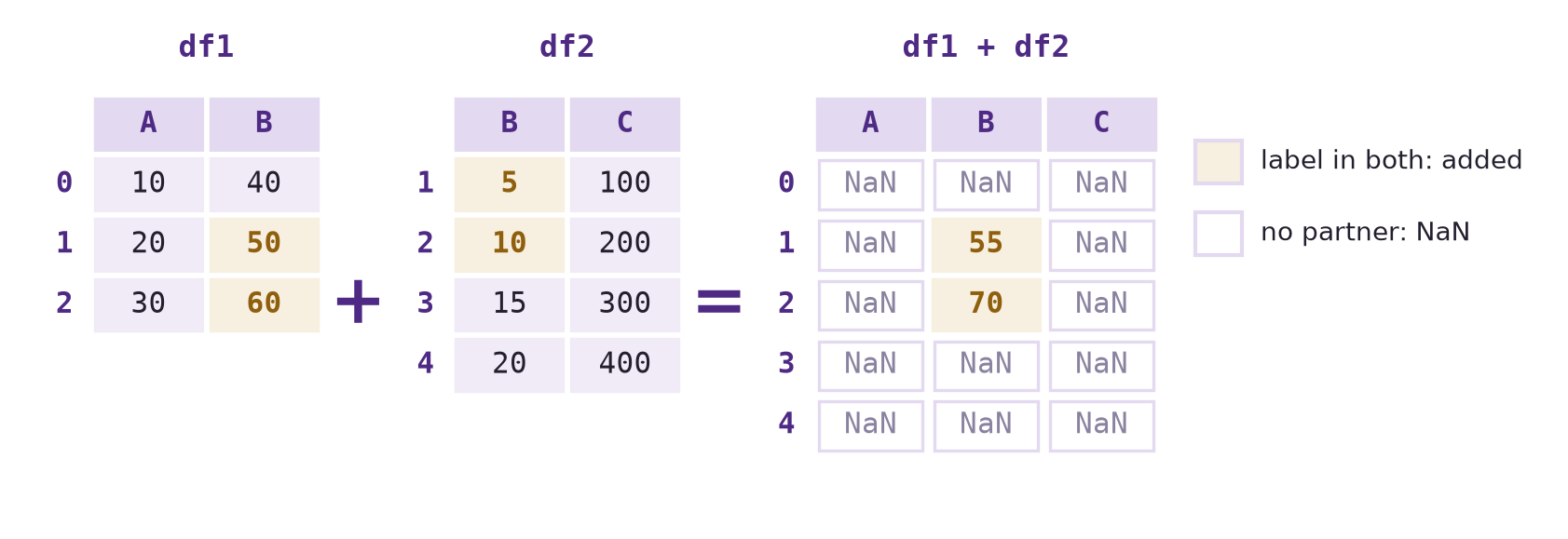
df1 + df2 keeps every row label (0–4) and every column label (A–C) from either input. Only the highlighted cells, column B at rows 1 and 2, have a partner on both sides; every other cell becomes NaN.
Every cell where a label exists in only one DataFrame becomes NaN — column A only exists in df1, so the entire column is missing in the result.
.add(), .sub(), .mul(), .div()If NaN isn’t what you want, use the explicit method version of each operator instead of the symbol. These accept a fill_value — the value to use for any label that’s missing from one side, before the operation runs:
df1.add(df2, fill_value=0)   # missing entries treated as 0 before adding
df1.sub(df2, fill_value=0) # an explicit zero assumption for missing entries| A | B | C | |
|---|---|---|---|
| 0 | 10.0 | 40.0 | NaN |
| 1 | 20.0 | 45.0 | -100.0 |
| 2 | 30.0 | 50.0 | -200.0 |
| 3 | NaN | -15.0 | -300.0 |
| 4 | NaN | -20.0 | -400.0 |
The cell above displays only its last line, the subtraction. Figure 5.4 shows what the addition on the first line produces.
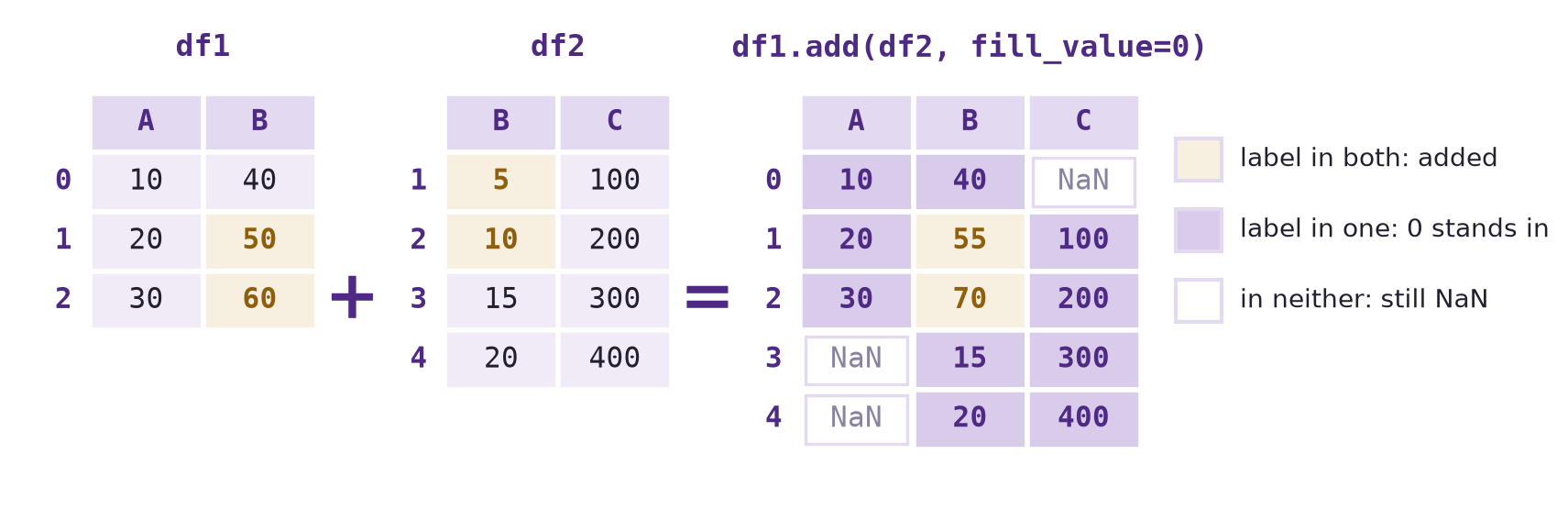
df1.add(df2, fill_value=0), the first line of the cell above. A cell that exists in only one input is filled with 0 before adding, so it keeps the value it has; a cell that exists in neither input stays NaN.
| Symbol | Explicit method | Extra control |
|---|---|---|
+ |
.add(other, fill_value=...) |
fill a missing operand before addition; both missing stays missing |
- |
.sub(other, fill_value=...) |
fill a missing operand before subtraction; both missing stays missing |
* |
.mul(other, fill_value=...) |
fill a missing operand before multiplication; both missing stays missing |
/ |
.div(other, fill_value=...) |
fill a missing operand before division; zero denominators can produce infinity or NaN |
Choose a missing-value policy before filling. Zero can make sense when an absent record means no sales; it does not mean an unknown measurement is zero. fill_value also fills existing missing entries on one side. A location missing on both sides remains missing. Inspect the aligned result before using it.
Quick check: Why is row 1, column B equal to 55, while every value in column C is missing in df1 + df2?
.corr()Once you have several numeric columns, a natural next question is: do any of them move together? The correlation coefficient summarizes that relationship as a single number between -1 and 1.
sales_data = pd.DataFrame({
    'Advertising_Spend':      [900, 1200, 1000, 1500, 800, 1100],
    'Website_Traffic':        [4800, 5600, 5000, 6200, 4300, 5100],
    'Customer_Satisfaction':  [3.8, 4.2, 4.0, 4.5, 3.5, 4.1],
    'Sales_Revenue':          [21000, 27000, 23500, 32000, 18500, 24500],
})

correlation_matrix = sales_data.corr()   # Pearson correlation by default
correlation_matrix| Advertising_Spend | Website_Traffic | Customer_Satisfaction | Sales_Revenue | |
|---|---|---|---|---|
| Advertising_Spend | 1.000000 | 0.985418 | 0.966549 | 0.995368 |
| Website_Traffic | 0.985418 | 1.000000 | 0.975735 | 0.993707 |
| Customer_Satisfaction | 0.966549 | 0.975735 | 1.000000 | 0.981675 |
| Sales_Revenue | 0.995368 | 0.993707 | 0.981675 | 1.000000 |
.corr() computes the correlation between every pair of numeric columns at once and returns a correlation matrix as a DataFrame. Select numeric columns explicitly in a DataFrame containing mixed data types, for example df.select_dtypes(include="number").corr(). Missing observations are excluded separately for each pair, so pairs can use different sample sizes. For columns with variation and enough paired observations, the diagonal is 1. A constant column or insufficient data produces an undefined correlation (NaN), and the correlation matrix is symmetric — the correlation of A with B is the same as B with A.
| Pearson correlation value | Interpretation |
|---|---|
| Close to +1 | strong positive linear association — larger values of one tend to accompany larger values of the other |
| Close to -1 | strong negative linear association — larger values of one tend to accompany smaller values of the other |
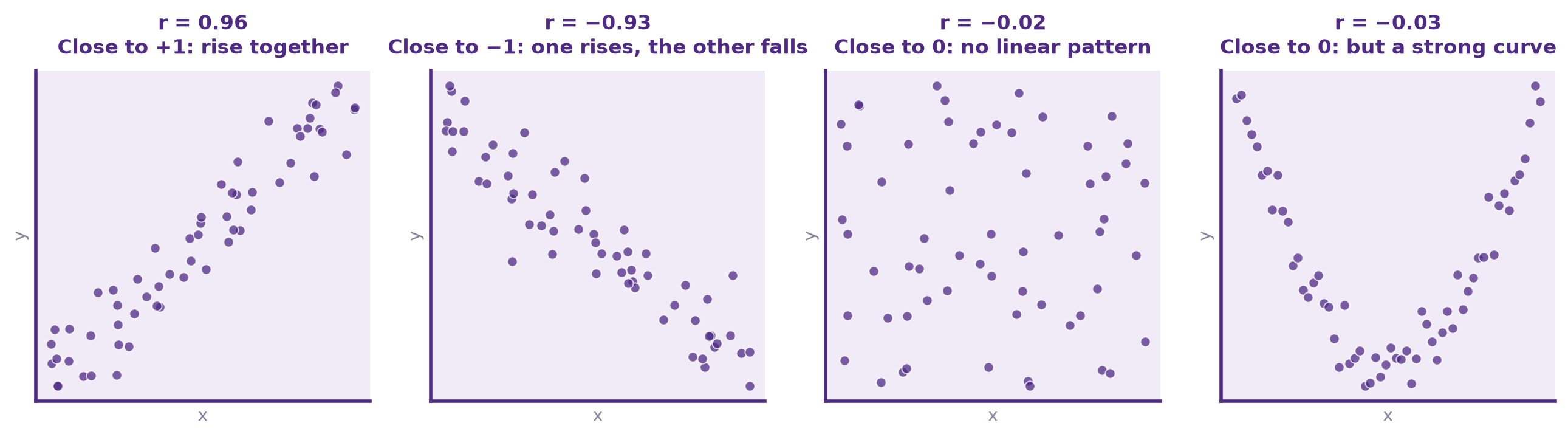
| Close to 0 | little to no linear association; a nonlinear relationship may still exist |
NaN |
undefined, for example when a column is constant or there are too few paired observations |
If you only care about two specific columns, call .corr() directly on one Series with another as the argument:
Figure 5.5 shows what these values look like in a scatterplot.
sales_data['Advertising_Spend'].corr(sales_data['Sales_Revenue'])
# A strong positive linear relationship in these six invented observations.np.float64(0.9953681655616977)For a DataFrame with many numeric columns, scanning a whole matrix by eye gets tedious. A short loop over the matrix (not the original data) can rank every pair by strength:
pairs = []
cols = correlation_matrix.columns
for i in range(len(cols)):
    for j in range(i + 1, len(cols)):        # skip the diagonal and duplicates
        pairs.append((cols[i], cols[j], correlation_matrix.iloc[i, j]))

pairs_df = pd.DataFrame(pairs, columns=['Variable_1', 'Variable_2', 'Correlation'])
pairs_df['Strength'] = pairs_df['Correlation'].abs()
pairs_df.sort_values('Strength', ascending=False)| Variable_1 | Variable_2 | Correlation | Strength | |
|---|---|---|---|---|
| 2 | Advertising_Spend | Sales_Revenue | 0.995368 | 0.995368 |
| 4 | Website_Traffic | Sales_Revenue | 0.993707 | 0.993707 |
| 0 | Advertising_Spend | Website_Traffic | 0.985418 | 0.985418 |
| 5 | Customer_Satisfaction | Sales_Revenue | 0.981675 | 0.981675 |
| 3 | Website_Traffic | Customer_Satisfaction | 0.975735 | 0.975735 |
| 1 | Advertising_Spend | Customer_Satisfaction | 0.966549 | 0.966549 |
Correlation is not causation. The default Pearson coefficient used here summarizes linear relationships — two variables can be strongly related in a curved way and still show a correlation near zero. Treat .corr() as a starting point for investigation, not a final answer.
map(), replace(), and apply()Arithmetic and .corr() cover a lot of ground, but sometimes you need logic that isn’t just “add these columns” — a lookup that rewrites every value, a substitution that touches only a few of them, or a calculation that mixes several columns in a custom way. That’s what these three tools are for, in that order.
map() — element-by-element, one Series at a timeSeries.map() transforms every value in a Series individually, based on a dictionary, a function, or another Series. It’s the right tool for recoding — turning categories into codes, or codes into labels.
df = pd.DataFrame({
    'Industry': ['Tech', 'Healthcare', 'Finance', 'Tech', 'Retail'],
    'Revenue':  [100000, 150000, 80000, 120000, 90000],
})

industry_codes = {'Tech': 1, 'Healthcare': 2, 'Finance': 3, 'Retail': 4}
df['Industry_Code'] = df['Industry'].map(industry_codes)   # dictionary lookup

df['Industry_Label'] = df['Industry'].map(lambda x: f"IND_{x}")   # function

df| Industry | Revenue | Industry_Code | Industry_Label | |
|---|---|---|---|---|
| 0 | Tech | 100000 | 1 | IND_Tech |
| 1 | Healthcare | 150000 | 2 | IND_Healthcare |
| 2 | Finance | 80000 | 3 | IND_Finance |
| 3 | Tech | 120000 | 1 | IND_Tech |
| 4 | Retail | 90000 | 4 | IND_Retail |
Any value not found in the dictionary becomes NaN — so map() is also a quick way to spot categories you forgot to account for.
replace() — swapping specific valuesBecause a map() dictionary rewrites every value, a category you left out of it is lost to NaN. replace() is the tool for the opposite situation: it substitutes particular values (or a dictionary of many) with new ones and keeps everything else exactly as it was. Comparing the two on the same dictionary is the clearest way to see the difference.
Start with a small Series:
s = pd.Series(['Tech', 'Retail', 'Other'])s0 Tech
1 Retail
2 Other
dtype: strUsing map(): Look up each value in the dictionary. Because Other is not a key, its result is missing (NaN).
s.map({'Tech': 'Technology', 'Retail': 'Consumer Retail'})0 Technology
1 Consumer Retail
2 NaN
dtype: strUsing replace(): Replace the specified values. Because Other is not listed, it stays unchanged.
s.replace({'Tech': 'Technology', 'Retail': 'Consumer Retail'})0 Technology
1 Consumer Retail
2 Other
dtype: str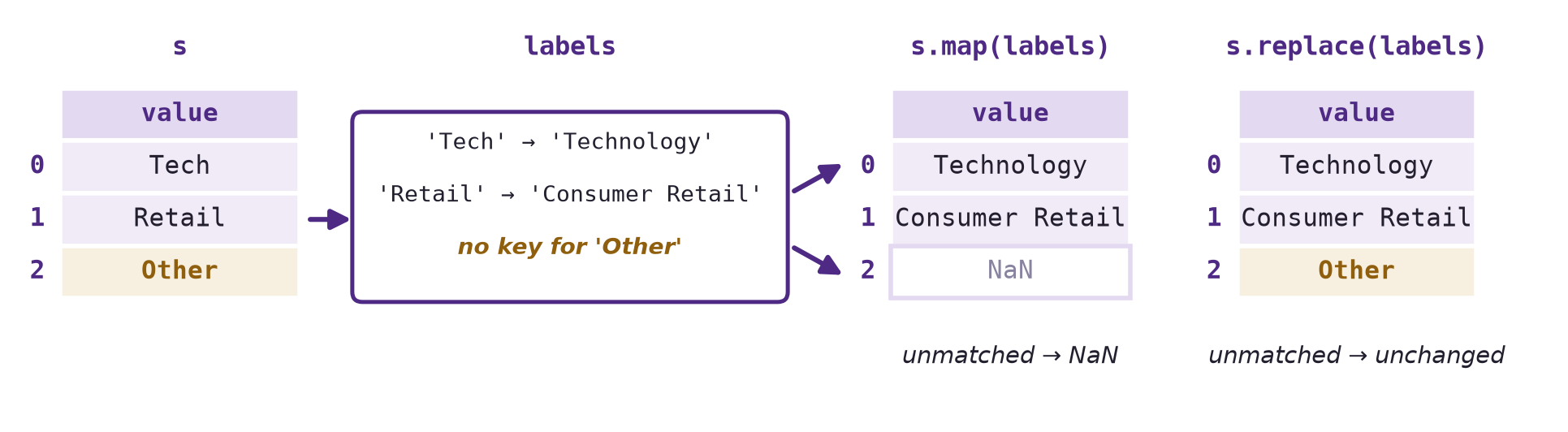
map() looks up every value, so Other, which has no key, becomes NaN. replace() changes only the values that have a key and leaves Other as it was.
Using replace() on the earlier DataFrame column: Replace Tech and Retail; keep Healthcare and Finance unchanged.
df['Industry'].replace({'Tech': 'Technology', 'Retail': 'Consumer Retail'})0 Technology
1 Healthcare
2 Finance
3 Technology
4 Consumer Retail
Name: Industry, dtype: strThese calls return new Series. To save the last result in the DataFrame, assign it back to df['Industry'].
apply() — the flexible, all-purpose toolmap() and replace() both read the new value out of a dictionary, so every replacement has to be known in advance. apply() is the tool for when the new value has to be computed: you hand it a function and pandas calls that function for you. What the function receives depends on the object you call apply() on — a whole row or column from a DataFrame, a single value from a Series.
DataFrame.apply() runs a function on every row (axis=1) or every column (axis=0). Either way the function receives a Series, and whatever it returns becomes one entry in the result. Use axis=1 when the calculation needs more than one column of the same row.
financial_df = pd.DataFrame({
    'Revenue': [1000, 1500, 800],
    'Expenses': [980, 1200, 790],
})

def cap_expenses(row):
    """Expenses can never exceed 95% of revenue."""
    max_allowed = row['Revenue'] * 0.95
    return min(row['Expenses'], max_allowed)

financial_df['Capped_Expenses'] = financial_df.apply(cap_expenses, axis=1)
financial_df| Revenue | Expenses | Capped_Expenses | |
|---|---|---|---|
| 0 | 1000 | 980 | 950.0 |
| 1 | 1500 | 1200 | 1200.0 |
| 2 | 800 | 790 | 760.0 |
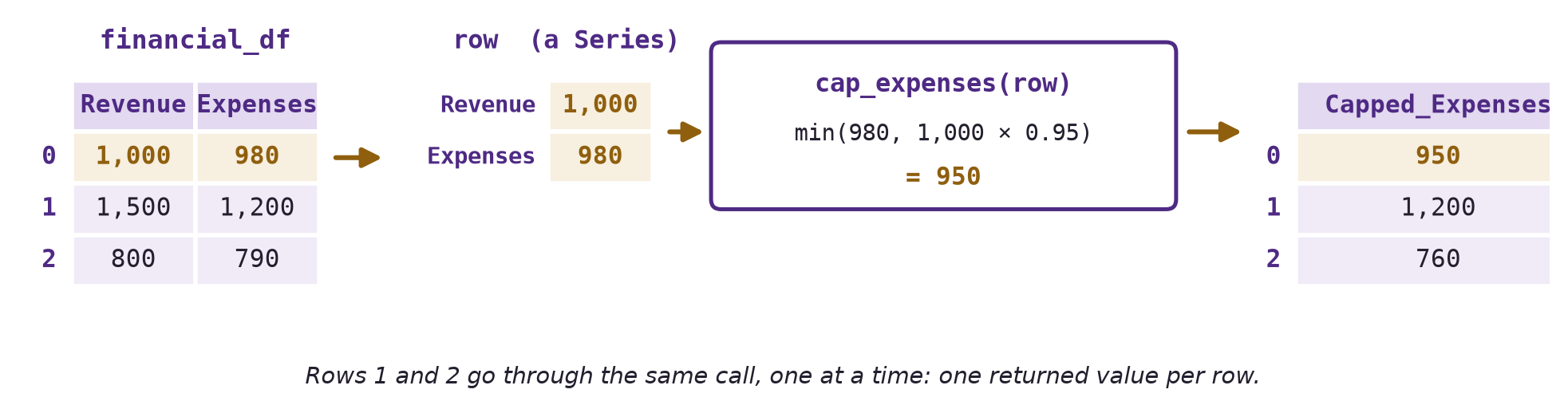
axis=1, apply() calls cap_expenses once for each row. Each call receives that row as a Series, so row['Revenue'] and row['Expenses'] work, and the value it returns becomes that row’s entry in the new column.
axis=0 is the default, and it sends one column at a time. The function then receives a whole column as a Series, so it can summarize that column — here, the spread between its largest and smallest value. The result has one entry per column instead of one per row.
def value_range(column):
    """Largest value minus smallest, for one column."""
    return column.max() - column.min()

financial_df[['Revenue', 'Expenses']].apply(value_range)   # axis=0 is the default
Revenue 700
Expenses 410
dtype: int64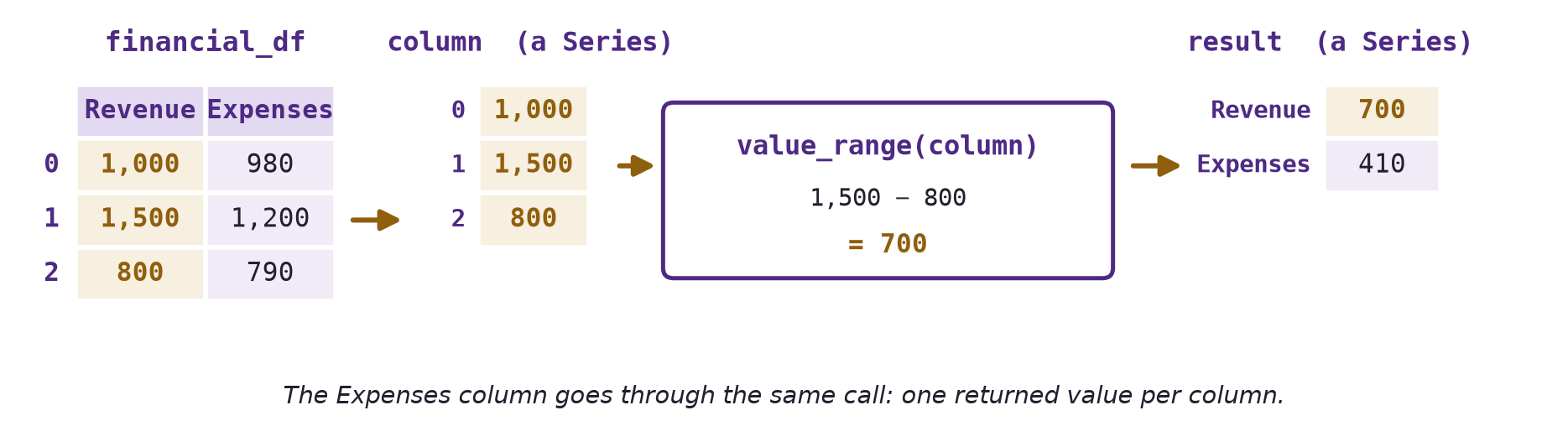
axis=1, apply() hands the function one column at a time. Each call receives that column as a Series, and the returned value becomes that column’s entry in the result.
This default is behind the most common apply() error. Leave axis=1 off a function written for rows and pandas sends it columns instead, so a lookup like row['Revenue'] raises a KeyError: a column Series has no Revenue label.
Series.apply() runs a function on every element. Calling apply() on a single column passes one value per call rather than a whole row, so the function works with a plain number or string instead of with labels.
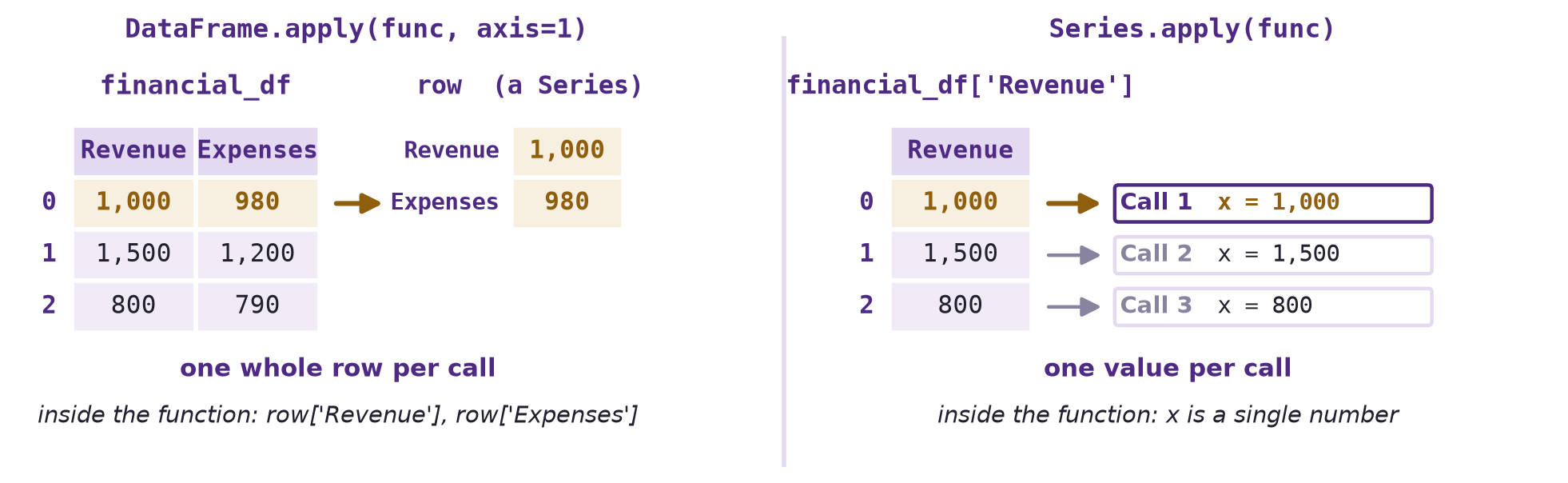
DataFrame.apply(func, axis=1) passes a complete labeled row, so the function indexes into it; Series.apply(func) passes one value at a time.
A conditional rule on a single column is a natural fit:
scores_df = pd.DataFrame({'score': [72, 95, 80, 88]})
scores_df['category'] = scores_df['score'].apply(lambda x: 'High' if x > 80 else 'Low')
scores_df| score | category | |
|---|---|---|
| 0 | 72 | Low |
| 1 | 95 | High |
| 2 | 80 | Low |
| 3 | 88 | High |
apply() can express any rule you can write as a function, which makes it tempting to reach for every time. For a calculation that is only arithmetic, though, the function is pure overhead: apply() runs your Python function once per value (or once per row), while the column expressions from the start of this chapter hand the whole column over in a single step. Both give the same answer; what differs is how much Python work it takes to get there.
def tenth_off(value):
    """Take 10% off one number."""
    return value * 0.9

via_apply  = financial_df['Revenue'].apply(tenth_off)   # one Python call per value
vectorized = financial_df['Revenue'] * 0.9              # one operation on the whole column

print('same answer:', (via_apply == vectorized).all())
vectorized
same answer: True0 900.0
1 1350.0
2 720.0
Name: Revenue, dtype: float64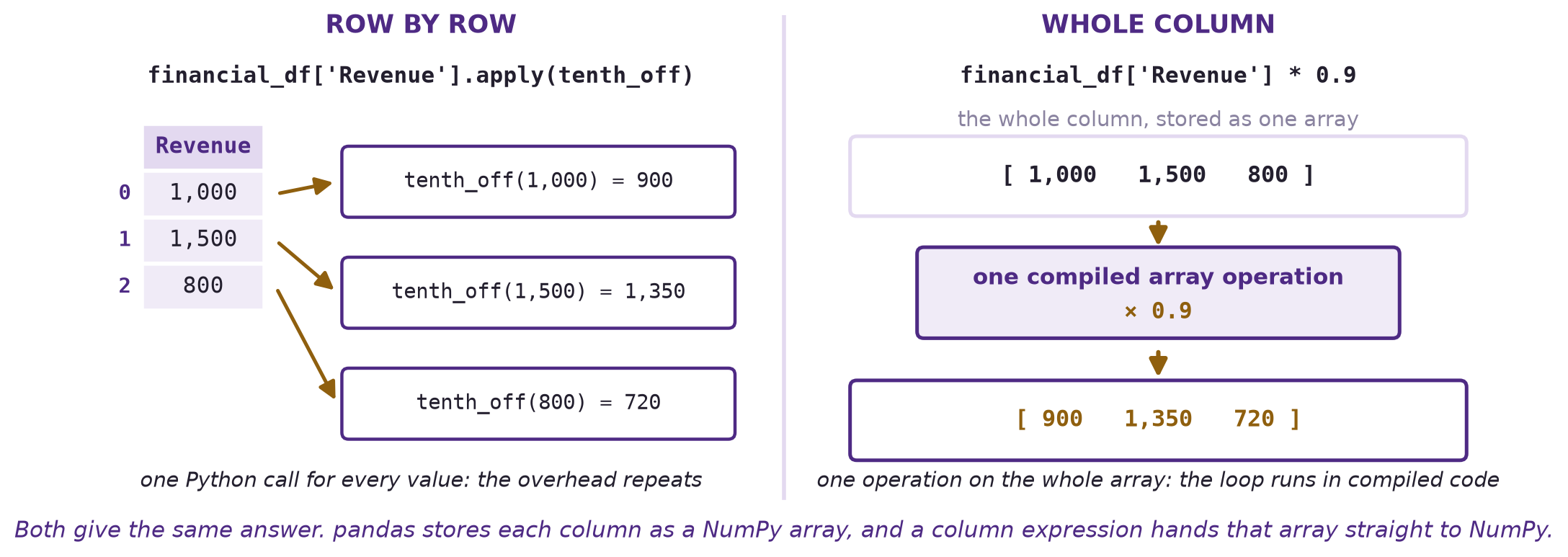
apply() calls tenth_off once for every value, so the cost of a Python call repeats; the column expression multiplies the whole stored array in one compiled operation.
That compiled path is NumPy’s. Pandas stores each column as a NumPy array, so a column expression passes that array straight to an operation written in compiled code instead of looping in Python — the subject of NumPy Fundamentals, the next chapter. Built-in methods take the same path: the expense cap earlier in this section can be written financial_df['Expenses'].clip(upper=financial_df['Revenue'] * 0.95). The row function was useful for learning apply(), while clip() expresses that particular rule directly.
On three rows the difference is invisible; on a real column it is not. %timeit is a Jupyter command that runs a single line many times and reports the average, which makes the two forms directly comparable on a column large enough for the gap to show.
big = pd.DataFrame({'Revenue': range(200_000)})

%timeit big['Revenue'].apply(tenth_off)
%timeit big['Revenue'] * 0.9
11.9 ms ± 24 μs per loop (mean ± std. dev. of 7 runs, 100 loops each)
71.9 μs ± 164 ns per loop (mean ± std. dev. of 7 runs, 10,000 loops each)Milliseconds against microseconds: on the machine that produced these numbers the row-by-row version took roughly 165 times as long. The exact ratio depends on the machine, the pandas version, and the size and dtype of the data, so measure rather than assume — but the reason behind it does not change, because 200,000 Python calls cannot keep up with one compiled operation.
Keep apply() for the rules arithmetic cannot state — conditional logic, calculations that mix several columns, text work — and write the column expression whenever one exists.
Every apply() example above could use a named function defined with def. When the logic is short — a single expression — it’s often more convenient to write it inline with a lambda function, an anonymous, one-line function.
lambda arguments: expressionorders = pd.DataFrame({
'price': [100.0, 250.0, 80.0, 1200.0],
'discount_pct': [10, 20, 0, 5],
'total_cost': [150, 500, 700, 1200],
'name': [' ada ', 'BEN', ' cHEN', 'dana '],
'rating': [5, 4, 3, 2],
})
orders['discounted_price'] = orders.apply(
lambda row: row['price'] * (1 - row['discount_pct'] / 100), axis=1
)
orders['segment'] = orders['total_cost'].apply(
lambda x: 'High Value' if x > 500 else 'Medium Value' if x > 200 else 'Low Value'
)
orders['clean_name'] = orders['name'].apply(lambda x: x.strip().title())
orders| price | discount_pct | total_cost | name | rating | discounted_price | segment | clean_name | |
|---|---|---|---|---|---|---|---|---|
| 0 | 100.0 | 10 | 150 | ada | 5 | 90.0 | Low Value | Ada |
| 1 | 250.0 | 20 | 500 | BEN | 4 | 200.0 | Medium Value | Ben |
| 2 | 80.0 | 0 | 700 | cHEN | 3 | 80.0 | High Value | Chen |
| 3 | 1200.0 | 5 | 1200 | dana | 2 | 1140.0 | High Value | Dana |
A lambda is just a shorthand — it doesn’t do anything a def function couldn’t. Reach for one when the logic fits comfortably on one line; switch to a named def function once the logic needs more than one line, gets hard to read, or you’ll reuse it elsewhere.
# Getting hard to read as a lambda — better as a named function:
def classify_risk(row):
    if row['total_cost'] > 1000 and row['rating'] <= 2:
        return 'High Risk'
    elif row['total_cost'] > 500:
        return 'Medium Risk'
    return 'Low Risk'

orders['risk'] = orders.apply(classify_risk, axis=1)
orders[['total_cost', 'rating', 'risk']]| total_cost | rating | risk | |
|---|---|---|---|
| 0 | 150 | 5 | Low Risk |
| 1 | 500 | 4 | Low Risk |
| 2 | 700 | 3 | Medium Risk |
| 3 | 1200 | 2 | High Risk |
Quick check: would you write orders['tax'] = orders['price'].apply(lambda x: x * 0.08) or orders['tax'] = orders['price'] * 0.08? (The second — it’s the same result with no apply() overhead. Reach for apply/lambda only once you need logic that a plain column expression can’t express, when a named function makes a multi-branch rule easier to read. Many conditional rules can also be expressed using Boolean masks and .loc.)
A lambda can also define the key in .sort_values(). The key creates temporary comparison values that determine the row order. It does not change the stored values.
Start with four titles and their row labels:
titles = pd.DataFrame({'Title': ['cedar', 'Harbor', 'ember', 'Meadow']}, index=[104, 101, 109, 103])
titles| Title | |
|---|---|
| 104 | cedar |
| 101 | Harbor |
| 109 | ember |
| 103 | Meadow |
Sort alphabetically, ignoring capitalization. lambda col: col.str.lower() converts the titles to lowercase for comparison:
titles.sort_values('Title', key=lambda col: col.str.lower())| Title | |
|---|---|
| 104 | cedar |
| 109 | ember |
| 101 | Harbor |
| 103 | Meadow |
Here, col receives the entire Title Series, not one title at a time. col.str.lower() produces cedar, harbor, ember, and meadow. Sorting these comparison values places ember before Harbor, while the displayed titles keep their original capitalization.
Sort by title length, shortest first. Change the lambda to return the number of characters in each title:
titles.sort_values('Title', key=lambda col: col.str.len(), kind='stable')| Title | |
|---|---|
| 104 | cedar |
| 109 | ember |
| 101 | Harbor |
| 103 | Meadow |
The comparison values are 5, 6, 5, and 6. kind='stable' keeps the original relative order of equal-length titles: cedar stays before ember, and Harbor stays before Meadow. The row labels move with their rows; sorting does not reset them.
The key function must return a Series with the same shape as its input. These calls return sorted DataFrames; titles remains unchanged unless you assign a result back to it.
Quick check: How would you show the longest titles first? Add ascending=False to the length sort.
Reference: pandas sort_values().
Here’s a small worked example combining several ideas from this lesson: two stores’ prices, a shopper’s grocery list, and a decision about where to shop.
prices = pd.DataFrame({
    'Item':   ['roll', 'bun', 'cake', 'bread'],
    'Target': [1.50, 2.00, 5.00, 16.00],
    'Kroger': [1.00, 2.50, 4.50, 17.00],
}).set_index('Item')

shopping_list = pd.DataFrame({
    'Item': ['roll', 'bun', 'cake', 'bread'],
    'Qty':  [6, 5, 3, 1],
}).set_index('Item')

# Column arithmetic + alignment: quantities times prices, matched by Item label
cost_at_target = shopping_list['Qty'] * prices['Target']
cost_at_kroger  = shopping_list['Qty'] * prices['Kroger']

totals = pd.DataFrame({
    'Target_Total': [cost_at_target.sum()],
    'Kroger_Total': [cost_at_kroger.sum()],
})

# apply() for a small piece of custom, row-level logic
totals['Cheaper_Store'] = totals.apply(
    lambda row: 'TARGET' if row['Target_Total'] < row['Kroger_Total']
                else 'KROGER' if row['Kroger_Total'] < row['Target_Total']
                else 'TIE',
    axis=1,
)
totals| Target_Total | Kroger_Total | Cheaper_Store | |
|---|---|---|---|
| 0 | 50.0 | 49.0 | KROGER |
Notice that the multiplication shopping_list['Qty'] * prices['Target'] works because both Series share the same index (Item) — that’s the alignment from the alignment section doing the work of matching “roll” with “roll” automatically, even though the two DataFrames were created separately. These invented inputs have complete prices and quantities. With real data, check for missing values before summing: the default sum skips them and could understate the bill.
| Concept | Key syntax | Watch out for |
|---|---|---|
| Column-to-column arithmetic | df['A'] + df['B'] |
aligns by row label (index), not position |
| Arithmetic with a constant | df['A'] * 0.9 |
applies to every row |
| Row-wise summary | df[quarter_cols].sum(axis=1) |
choose input columns; missing values are skipped by default |
| Between-DataFrame arithmetic | df1 + df2 |
aligns by label, not position |
| Misaligned labels | df1 + df2 |
keeps the union of labels; a missing operand gives a missing result |
| Controlled alignment | df1.add(df2, fill_value=0) |
justify zero; both sides missing stays missing |
| Full correlation matrix | df.select_dtypes(include="number").corr() |
Pearson by default; uses available pairs; association does not imply causation |
| Pairwise correlation | df['A'].corr(df['B']) |
Pearson by default: -1 to 1 when defined, otherwise NaN |
| Recode values | series.map({...}) |
an ordinary lookup dictionary makes unmatched values missing |
| Swap known values | series.replace({...}) |
unmatched values stay unchanged |
| Custom row/column logic | df.apply(func, axis=1) |
row-wise Python calls often add overhead; prefer built-in operations when suitable |
| Inline one-off logic | df.apply(lambda row: ..., axis=1) |
switch to def once it’s more than one line |
Goal: Build and explain a small store report using labeled transformations.
File: activity05.ipynb.
Submit: activity05.html through the final upload question in the Pandas Intermediate Canvas quiz when assigned.
This section contains the complete activity instructions. Use this section for the task list; the notebook contains invented inputs and spaces to record your work.
Open activity05.ipynb from the folder prepared in Set Up the Chapter Files, using the same project environment.
The worked examples are preparation, not additional submission requirements.
Your Name in the opening Raw cell’s author field. Run the setup check; it must report True.sales represents.sales and create a working copy named report. Calculate Revenue = Units * Price, Cost = Units * Unit_Cost, and Gross_Profit = Revenue - Cost.quarter_sales to quarters and leave quarter_sales itself unchanged for Part B. In quarters, name the input columns explicitly as ['Q1', 'Q2'] and calculate each product’s total and average. Display the result, and explain why calculating the average after adding the total column would give the wrong answer.quarter_sales + adjustments, predict the row and column labels of the result and the value at row P10, column Q2.NaN, using the labels of both input DataFrames..add(..., fill_value=0) and compare with the ordinary addition. Identify the cells that are still NaN and explain why.adjustments and repeat the calculation. Explain why label-matched results stay the same.report['Department'] using the supplied department_labels. Display the result and say which department came out as NaN and why..replace() and explain how its result differs from .map() for that department.Review if gross profit is negative, High Volume if units are at least 20 and profit is nonnegative, and Standard otherwise. Apply it with axis=1, keep the result as Status, and display product, gross profit, and status.apply() is unnecessary for it. Then write a one-line lambda with apply() for a rule plain arithmetic cannot express: label each product Premium when its price is at least 6 dollars and Budget otherwise.campaigns DataFrame. Calculate the Pearson correlation between Advertising and Revenue.Restart the kernel, run all cells in order, resolve errors, and save. Add a short Markdown completion note, then save again. From stat303-pandas-intermediate in the terminal, run:
quarto render activity05.ipynb --to htmlFollow the Quarto refresher: inspect the HTML and a copy opened outside the project folder. Check your name, predictions, code, outputs, and explanations for A–D. When assigned, upload only activity05.html to the Pandas Intermediate Canvas quiz; keep your notebook locally.
HTML grading (16 points): calculated variables, explicit inputs, and units (4); alignment and justified fill_value choices (4); recoding and custom logic (4); correlation and interpretation (3); name, readable report, and completion note (1).
You should be able to explain which labels a calculation matches, which columns contribute to a summary, and how unmatched values behave in a lookup. Choose a column expression when it describes the calculation clearly; use a named function when it makes a custom rule easier to understand.
More extensive missing-data decisions belong in Data Cleaning, and group-specific summaries belong in Data Grouping and Aggregation.
Next, NumPy Fundamentals introduces arrays, positions, shapes, and broadcasting. NumPy and pandas in a Real Workflow later brings the two libraries together.
References: pandas mapping, aligned addition, and correlation.