1 Jupyter Notebooks in VS Code
In STAT 201, you used Jupyter notebooks through Anaconda. Throughout STAT303, the Python sequence, you will consistently use VS Code to write and run .ipynb notebooks. In this sequence, you will also use Quarto to produce HTML assignment submissions.
By the end of this chapter, you should be able to:
- Explain the roles of the tools you use.
- Identify its Python kernel.
- Open a project folder.
- Run and save a notebook.
- Use your existing Quarto installation to render and inspect an HTML submission.
1.1 Anaconda vs. VS Code
Anaconda and Visual Studio Code serve different roles and can be used together. Anaconda bundles Python, hundreds of packages, and environment-management tools, making it convenient but requiring more disk space. VS Code is a lightweight code editor that connects to your Python installation and lets you add extensions as needed. The table below compares their purposes and key features.
 Anaconda Anaconda |
 Visual Studio Code (VS Code) Visual Studio Code (VS Code) |
|
|---|---|---|
| Overview | A Python distribution with environment-management tools | A powerful, flexible, and lightweight code editor |
| What it is | A distribution that includes Python, many common packages, and tools such as conda and Navigator | A free code editor from Microsoft, built on the open-source Code - OSS project |
| Main purpose | Makes it easy to install Python and manage packages and environments | Provides a modern, flexible environment to write, run, and debug code in Python and many other languages |
| Key features | • Preinstalls many popular data science packages • Environment management with conda • Anaconda Navigator graphical interface |
• Clean, customizable interface • Python support through extensions • Integrated terminal and Jupyter notebook support through the Jupyter extension • Debugging, code navigation, and Git tools • Extensible through additional extensions • Works with different Python environments, including Anaconda environments |
1.1.1 Why We Use VS Code Throughout STAT303
Throughout the STAT303 Python sequence, you will move from running individual code cells to managing complete analyses: reading data, writing and checking code, explaining results, and preparing reports. VS Code gives you one workspace for that process. Learning the workflow now lets you reuse it as the assignments become more complex.
- Build on what you learned in STAT 201. You will still use Jupyter notebooks (
.ipynbfiles), with code cells, Markdown explanations, and outputs. VS Code becomes the place where you edit and run those notebooks, and it can connect to the Python installation you already have through Anaconda. - Keep each analysis organized. Opening a project folder puts your notebooks, datasets, and supporting files together in the Explorer. You can see which files belong to an assignment and practice using paths that work within that project.
- Understand and troubleshoot your code. Code completion and function information help you work with unfamiliar libraries. Seeing code, outputs, and error messages together makes it easier to investigate a problem and check whether a change fixes it.
- Use the same workflow for each submission. Run and check your notebook, save it, render it to HTML with Quarto from the integrated terminal, and inspect the report before submitting. Practicing these steps makes the submission process familiar across the sequence.
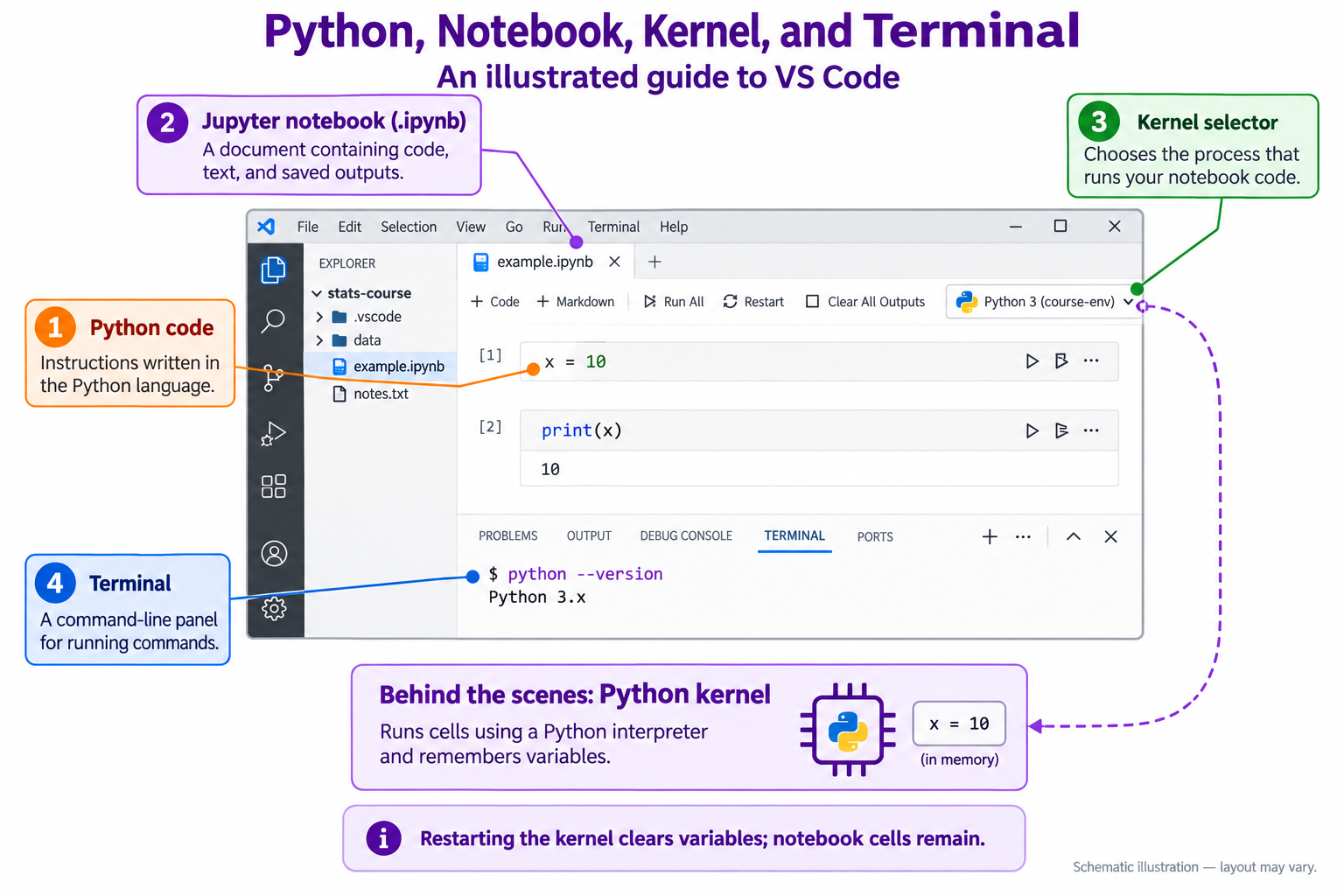
The tools have distinct jobs: VS Code is the workspace, the Python kernel runs your notebook code, and Quarto creates the HTML report. The notebook kernel and the terminal can use different Python environments; in this chapter and the next, you will learn how to check that each uses the environment you intend.
1.2 Open a Project Folder
If you need VS Code, install it from the official website first. Then download the setup practice kit, extract it, and open the extracted stat303-setup folder using File → Open Folder. Do not work inside the ZIP viewer or open only a notebook without its surrounding folder.
This kit contains the two chapter practice notebooks:
stat303-setup/
├── activity01.ipynb
├── activity02.ipynb
├── data/
│   └── station_readings.csv
└── README.md
Keep the folder arrangement unchanged while learning this workflow. Leave the notebooks alongside the data/ folder, and keep the data files inside data/.
Opening the folder does not require any extensions. Before opening a notebook and locating its editor and kernel picker, install the extensions in the next section.
1.3 Check Your VS Code Extensions
Open the Extensions panel with Ctrl+Shift+X on Windows/Linux or Cmd+Shift+X on macOS. Search for Python and Jupyter, and install both extensions published by Microsoft. If they are already installed, verify that both are enabled. These extensions provide Python environment discovery and notebook execution in VS Code.
After both extensions are installed and enabled, click activity01.ipynb in the Explorer to open it in the notebook editor.
Find these areas in VS Code:
- Explorer: project folders and files.
- Notebook editor: code and Markdown cells.
- Kernel picker: usually at the top right of the notebook.
- Terminal panel: open it with Terminal → New Terminal; note the shell shown in its tab/menu.
You will select a Python kernel and run a cell in the next section.
1.4 Select a Notebook Kernel and Run a Test Cell
Open activity01.ipynb, then use Select Kernel at the top right of the notebook to choose a working Python 3 environment. If the environment is not shown immediately, choose Select Another Kernel → Python Environments.
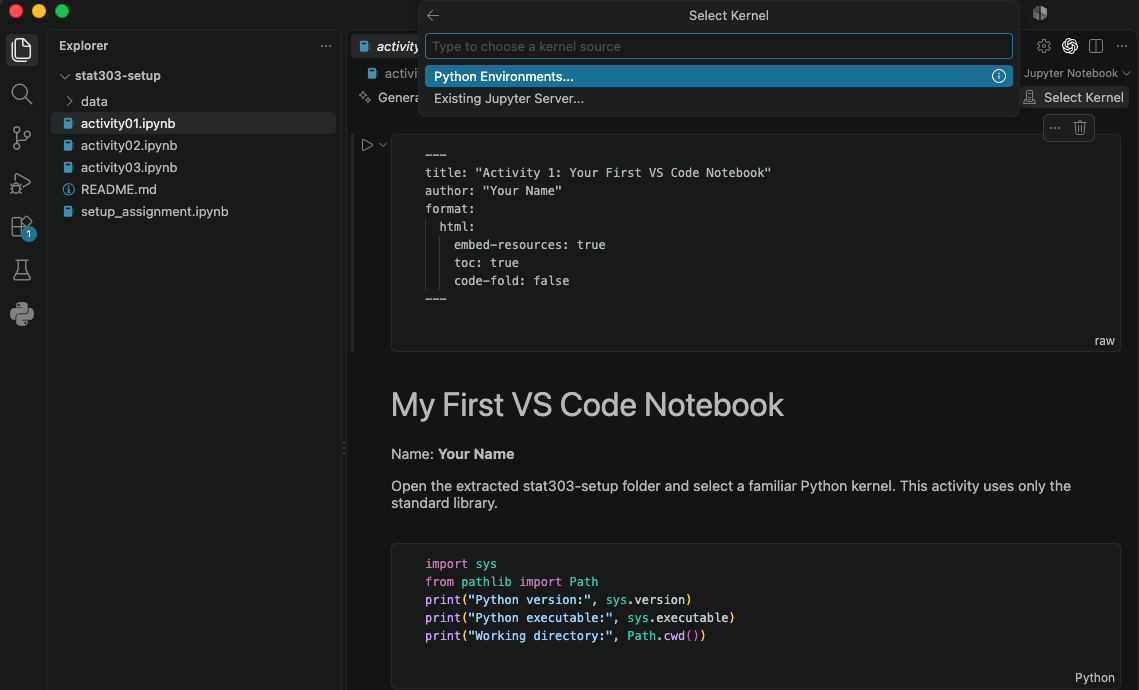
For this chapter, choose the environment you used in STAT 201. If you used Anaconda’s default environment, choose base; it may be labeled conda or have anaconda3 or miniconda3 in its path. Your existing environment is sufficient for this first check. Chapter 2 guides you through creating a separate environment for this course. We recommend a recent Python 3 release, preferably Python 3.10 or newer, but the course does not require one exact version.
Run this in a notebook code cell, not the terminal:
import sys
print("Notebook is running")
print(sys.version)
print(sys.executable)
print(2 + 3)
You should see a Python version, the path to its executable, and 5. The executable path identifies the environment used by this notebook.
If your test cell runs successfully, continue to the next section. If Python or the notebook does not start, expand the troubleshooting guide below.
If no kernel appears, Python may still be installed; VS Code may not have found its environment.
- No kernel is offered? Check that Microsoft’s Python and Jupyter extensions are enabled, restart VS Code, and open the kernel picker again. Choose Select Another Kernel → Python Environments if that option appears.
- Previously used Anaconda? Open Anaconda Navigator and launch a local Jupyter notebook as you did in STAT 201. Run
import sysfollowed byprint(sys.executable). If it works, return to the VS Code kernel picker and look for an environment with the same path. - VS Code says
ipykernelis required? Install it for the selected environment using the VS Code prompt. If that environment is managed or read-only, ask for assistance or follow Chapter 2 to create your own environment. - Still cannot find or run Python? Ask for setup assistance and share the error message. If no working installation is available, install a recent Python 3 release from the official Python website; Python 3.10 or newer is recommended.
1.5 Code, Markdown, and Saved Outputs
Use code cells for computation and Markdown cells for explanations, headings, and answers. Run cells with their play controls or Shift+Enter. Save the notebook with Ctrl+S or Cmd+S.
A notebook remembers values from previously executed cells. Moving or editing a cell does not undo its earlier effects. Before considering work complete, restart the kernel, run all code cells in order, and save again. A successfully executed notebook should not depend on variables created in deleted cells.
The HTML submitted later will be generated from this saved notebook. Writing an explanation in a code comment is useful, but Markdown is better for the report’s narrative.
If your notebook is working, continue to the next section. If you encounter a problem, expand the troubleshooting guide below.
| Symptom | First check |
|---|---|
| No kernel is offered | Python/Jupyter extensions are enabled; a Python interpreter is installed and discoverable |
| Code will not run | The cell is Code rather than Markdown and a kernel is selected |
| Output differs after restarting | All required assignments/imports occur earlier in the notebook |
| You cannot find the data folder | The ZIP is extracted and the correct project folder is open |
1.6 Render and Submit with Quarto
In STAT201, you already used Quarto to generate HTML from notebooks in your Anaconda-based workflow. The same Quarto application works with notebooks edited in VS Code. This is a refresher on completing that workflow in the new editor.
1.6.1 Check Your Existing Quarto Installation
Open Terminal → New Terminal in VS Code and enter:
quarto --versionA version number means this terminal can find Quarto. You do not need to reinstall it simply because you changed editors. If the command is not found, restart VS Code and check your existing Quarto installation. If it is missing, install the Quarto application from the official download page and open a new terminal.
The Quarto VS Code extension is optional for our workflow. It adds editing assistance and integrated previews; it is not required to run quarto render in the terminal. The Quarto application, the Python/Jupyter extensions used for notebooks, and the optional Quarto extension serve different purposes. See Quarto’s VS Code guide.
1.6.2 Keep the Template’s Report Settings
The practice notebooks start with a Raw cell containing settings like these:
---
title: "Activity 1: Your First VS Code Notebook"
author: "Your Name"
format:
  html:
    embed-resources: true
    toc: true
    code-fold: false
---
Edit the existing title and author when appropriate; retain the indentation and --- lines. This is YAML configuration, not Python code. Keep it in the supplied Raw cell. toc: true adds a table of contents, and code-fold: false keeps code visible for grading.
embed-resources: true puts ordinary figures and styling inside the HTML. It does not include your Python environment or input data for rerunning the work, and external websites or services can still require internet access.
1.6.3 Restart, Run All, Save, Render, Inspect
Quarto normally renders an .ipynb file using its saved outputs. It does not rerun notebook code by default. A successful render alone does not show that your current code runs correctly. Follow this sequence:
- Select the intended notebook kernel. For Chapter 1, use your familiar working STAT201 environment; Chapter 2 introduces a project environment.
- Restart the kernel and run every code cell from top to bottom. Resolve unexpected errors. Use Markdown headings and explanations near the results they discuss.
- Save the notebook. Keep necessary imports and computations, and remove irrelevant exploratory output.
- In the terminal, check that you are in the folder containing the notebook. List its files with
lson macOS,Get-ChildItemin Windows PowerShell, ordirin Windows Command Prompt. If needed, usecdwith the actual folder path in quotes; Chapter 2 explains navigation in detail. - Run
quarto render filename.ipynb --to html, replacingfilename.ipynbwith your notebook’s name. Quote a filename containing spaces, for examplequarto render "my assignment.ipynb" --to html. - Open the resulting HTML in a browser. Check your name or required identifier, explanations, code, and current outputs. Copy only the HTML to another folder and open the copy to check that ordinary figures and formatting travel with it. Correct the notebook and repeat saving/rendering if anything is missing.
The standalone practice kits have no Quarto project configuration redirecting output, so the HTML is created beside the notebook. Keep the notebook and data for future work; upload the HTML requested in the activity or assignment. Detailed notebook rendering behavior is described in Quarto’s notebook guide.
| Symptom | First check |
|---|---|
| Quarto command not found | Existing Quarto application installation and a fresh VS Code terminal |
| No valid input files | Terminal folder and the notebook’s exact filename |
| Missing or old outputs in HTML | Restart/run all, save, render again, and open the newly generated HTML |
| Raw YAML appears in the report | Keep the settings in the supplied Raw cell rather than a Markdown or code cell |
| Figure or styling missing from the copied HTML | Confirm embed-resources: true in the Raw cell and render again |
| Notebook import or file error | Resolve it before rendering; Chapter 2 covers environment and file-path checks |
1.7 Practice Activity: Your First VS Code Notebook
Goal: Demonstrate that you can use a familiar notebook in the new editor.
File: activity01.ipynb from the practice kit.
Submit: activity01.html through the final file-upload question in the Jupyter Notebooks in VS Code Canvas quiz.
No data science package installation is required for this activity.
Follow this section for the complete activity instructions, then answer the multiple-choice questions and upload your HTML in Canvas.
- Open the extracted project folder and select your intended kernel.
- Replace
Your Namein the opening Raw cell’sauthorfield with your name. - Run the supplied environment-information cell. Add a Markdown sentence identifying which Python installation you selected.
- Add a code cell that defines three numerical readings in a list and prints their mean using
sum()andlen(). - Add a Markdown explanation of what the code does. Explain the difference between a notebook and its kernel.
- Restart the kernel, run all cells, save, close the notebook, and reopen it. In Markdown, record whether the fresh run and reopening preserved the expected outputs, then save again.
Completion checks: Your name and explanation render as text, the calculation produces a visible result, and the outputs remain present after reopening. You can point to Explorer, the kernel picker, and the terminal without confusing their roles.
Render and Submit Your HTML
Follow the Quarto refresher above. From stat303-setup, render your saved notebook with:
quarto render activity01.ipynb --to htmlInspect activity01.html, including a copy opened outside the project folder. Check that your name, Python information, mean calculation and result, explanations, and completion note appear. Upload this HTML to the final question in the Jupyter Notebooks in VS Code Canvas quiz. If you correct the notebook, save and render again before uploading.
HTML grading (16 points): name and readable Markdown (2), Python identification (4), mean calculation (4), explanation of code and kernel (4), and completion checks and readable HTML (2). Use your own three numerical readings; the example below is not required.
Keep: your saved activity01.ipynb and the practice-kit files for later chapters. Submit only the HTML file to this quiz.
For readings [18, 20, 22], the mean is 20.0. The notebook is the document; the kernel is the process running its code. Existing outputs can remain visible even when the kernel has stopped, so visible output alone does not establish that a fresh run works.
Continue to Project Environments, Packages, and File Paths.
References: VS Code notebooks, Python environments.