2 Project Environments, Packages, and File Paths
In STAT 201, you may have used the terminal mainly to render a Quarto document as HTML. This chapter starts with what that terminal does and how to move between folders in it. You will then use it alongside VS Code notebooks to create a project Python environment, install packages, and locate a local data file.
By the end of this chapter, you should be able to:
- Explain how the terminal supports your Python data science workflow.
- Check your current folder, list its contents, and move between folders.
- Ask three questions before running a command: where am I typing, which Python am I using, and which folder is current?
- Create and verify a project environment, install packages, and record its dependencies.
- Recognize a notebook magic command and use
%timeitand%matplotlib inline. - Build a relative data path and diagnose a missing-file result.
Complete the Chapter 1 setup first so that Python, VS Code, its Python and Jupyter extensions, and Quarto are ready. Continue with the extracted setup practice kit. Open the stat303-setup folder in VS Code, then open activity02.ipynb inside it. If you already used this folder in Chapter 1, continue with that copy.
Before you create the environment, the relevant files should look like this:
stat303-setup/
├── activity01.ipynb
├── activity02.ipynb
└── data/
    └── station_readings.csv
Later in this chapter, you will create a project environment and save a record of its installed packages alongside the notebooks. Follow the examples in activity02.ipynb; the practice activity at the end explains what evidence to keep for submission.
2.1 What Is a Terminal?
A terminal is a text interface where you type commands and read their output. Instead of clicking a folder or a button, you describe an action in text. A shell is the program that reads those commands and carries them out. Common shells include zsh or Bash on macOS, and PowerShell or Command Prompt on Windows.
If you typed a command such as quarto render assignment.ipynb --to html in STAT 201, you have already used a terminal: you asked the shell to start Quarto, gave it a notebook filename, and requested HTML output. You do not need to run this example now.
In VS Code, open Terminal → New Terminal. This integrated terminal lets you work beside your notebook without opening a separate application. Check its tab or dropdown for the shell name; this chapter provides separate commands where shells differ. See the VS Code terminal introduction for more about the interface.
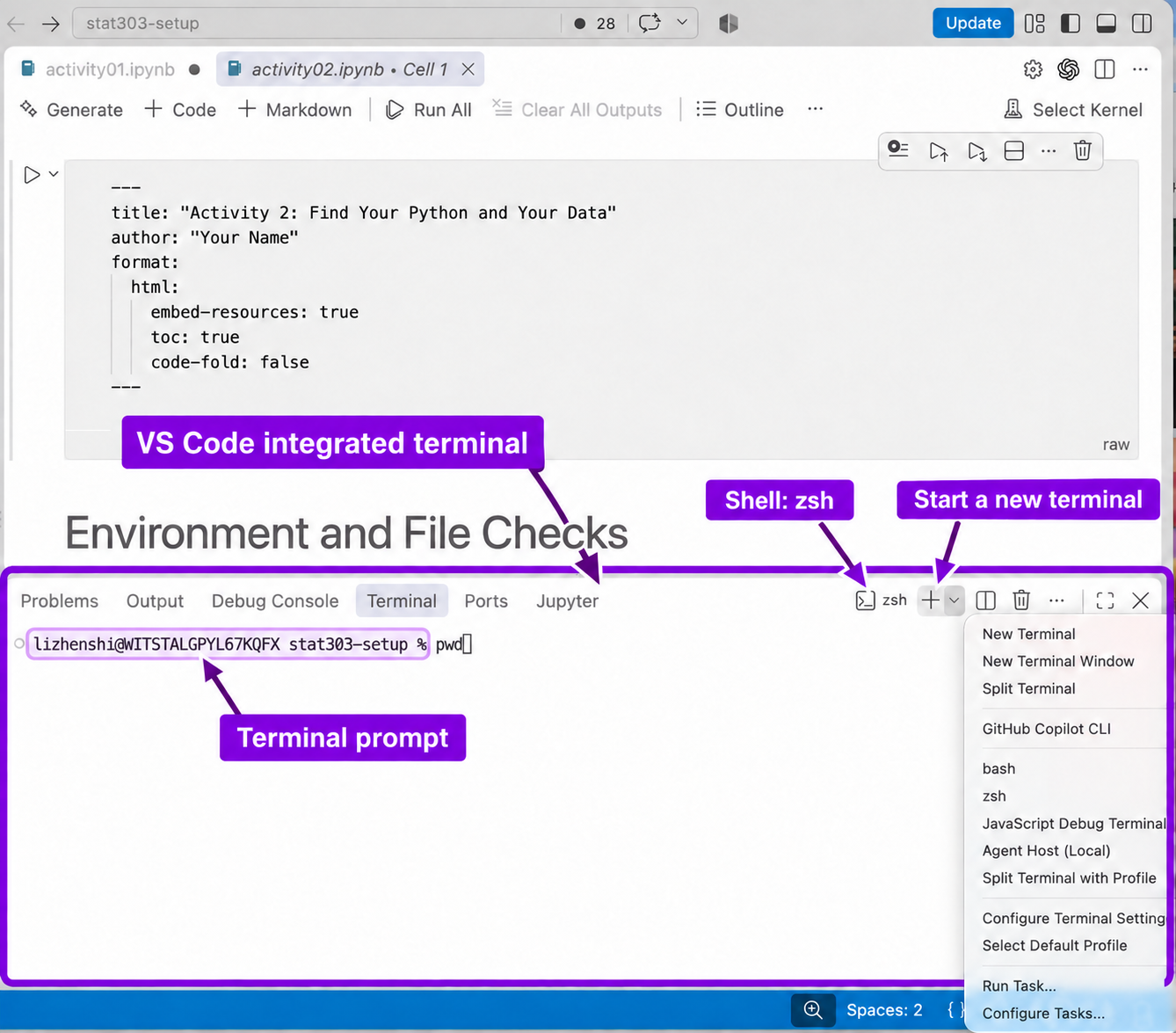
2.1.1 Read the Prompt and Enter a Command
The prompt is the text that appears when the shell is ready for input. Yours might look like one of these examples:
student@laptop stat303-setup %
PS C:\Users\student\stat303-setup>
Type after the prompt and press Enter to run a command. Do not copy the prompt itself. Read any output, then wait for the prompt to return before entering the next command. Some successful commands produce no output.
A terminal can also run an interactive Python session. If you see >>>, Python is waiting for Python code; type exit() and press Enter to return to the shell before using the navigation commands below. In a notebook, Python code goes in a code cell and runs through the selected kernel.
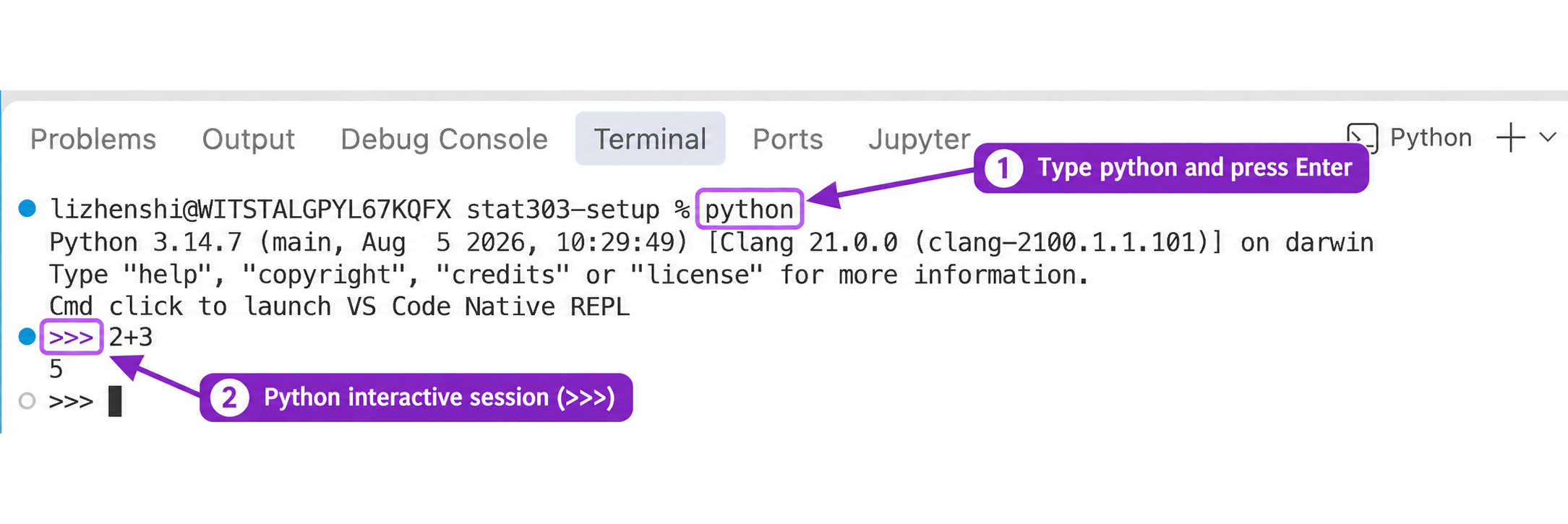
python at the shell prompt and press Enter; the >>> prompt shows that Python is ready for Python code.
2.2 Why Use the Terminal for Python Data Science?
Your notebook holds calculations, plots, and explanations. The terminal helps you prepare and run the project around it:
- Manage Python environments and packages. Create a separate environment for the project and install libraries such as Pandas into it.
- Locate files. Check which folder you are working in and whether it contains the notebook or dataset a command needs.
- Run project tools. Render an HTML report with Quarto or run a saved Python script.
- Repeat a workflow. Save the commands you used so that you or a classmate can repeat the setup later.
For example, a data analysis assignment may involve installing Pandas in the terminal, analyzing a CSV in a notebook, and returning to the terminal to render the saved notebook as HTML. Keeping these steps in one VS Code workspace makes the workflow easier to follow.
2.4 Ask Three Questions Before a Command
Throughout this course, you will use both notebooks and the terminal. Some tasks can be completed in either place, but the commands may differ. Your notebook and terminal may also use different Python environments or work from different folders.
Before running a command, ask these three questions to help avoid syntax errors, installing packages in the wrong environment, or failing to find files.
| Question | In a notebook | In a terminal |
|---|---|---|
| 1. Where am I typing? | Use a Python code cell for Python code. | Identify the shell; a >>> prompt means you are inside Python instead. |
| 2. Which Python am I using? | Run import sys, then print(sys.executable). |
Run python -c "import sys; print(sys.executable)". |
| 3. Which folder is current? | Run from pathlib import Path, then print(Path.cwd()). |
Use pwd, Get-Location, or cd for your shell. |
The terminal command python -c "import sys; print(sys.executable)" starts Python, prints the executable path, and exits back to the shell. On macOS, use python3 instead if python is not available. Navigation commands such as cd do not use Python, so you do not need to check which Python environment is active before running them.
The notebook and terminal can use different Python installations and different working directories. Choosing a notebook kernel does not necessarily change which Python the terminal uses. Compare the two sys.executable outputs to identify which Python each uses; at this point, simply record what you find.
Similarly, the folder visible in Explorer does not prove either one’s current directory. Check the current directory in each place. A terminal command may find or create a file in one folder while the notebook looks for it in another.
Apply the check: identify where you are typing, record the Python executable used in each place, and confirm that the terminal’s current folder is stat303-setup. The next sections explain project environments and guide you through setting one up.
2.5 Why Use a Python Virtual Environment?
In Chapter 1, you selected Anaconda’s base environment from STAT 201 to check that your notebook could run in VS Code. That gave you a familiar starting point. As you begin new projects, use a separate environment for each project instead of installing everything into base.
2.5.1 Different Projects Need Different Tools
Your computer may have multiple Python versions installed to support different projects. One project might require Python 3.11, while another uses Python 3.12. These are examples, not instructions to install both versions for this course. Code and packages that work with one Python version may need changes to work with another.
Projects also use different libraries, installed as packages. For example, Pandas helps analyze tables, while Matplotlib helps create plots. Each package has its own versions, separate from Python’s version, and may depend on other packages. These required packages are called dependencies.
Conflicts can arise when two tools need incompatible versions of the same dependency. As a hypothetical example, an older analysis tool might require version 1 of a shared library, while a newer tool requires version 2. Installing or upgrading packages for one project in a shared environment can make another project’s previously working code fail.
2.5.2 Give Each Project Its Own Environment
A Python virtual environment gives a project access to a particular Python interpreter and its own set of installed packages. Think of it as a toolbox assigned to that project. Two projects can use different Python versions, different packages, or different versions of the same package. They can also use the same Python version while keeping their packages separate.
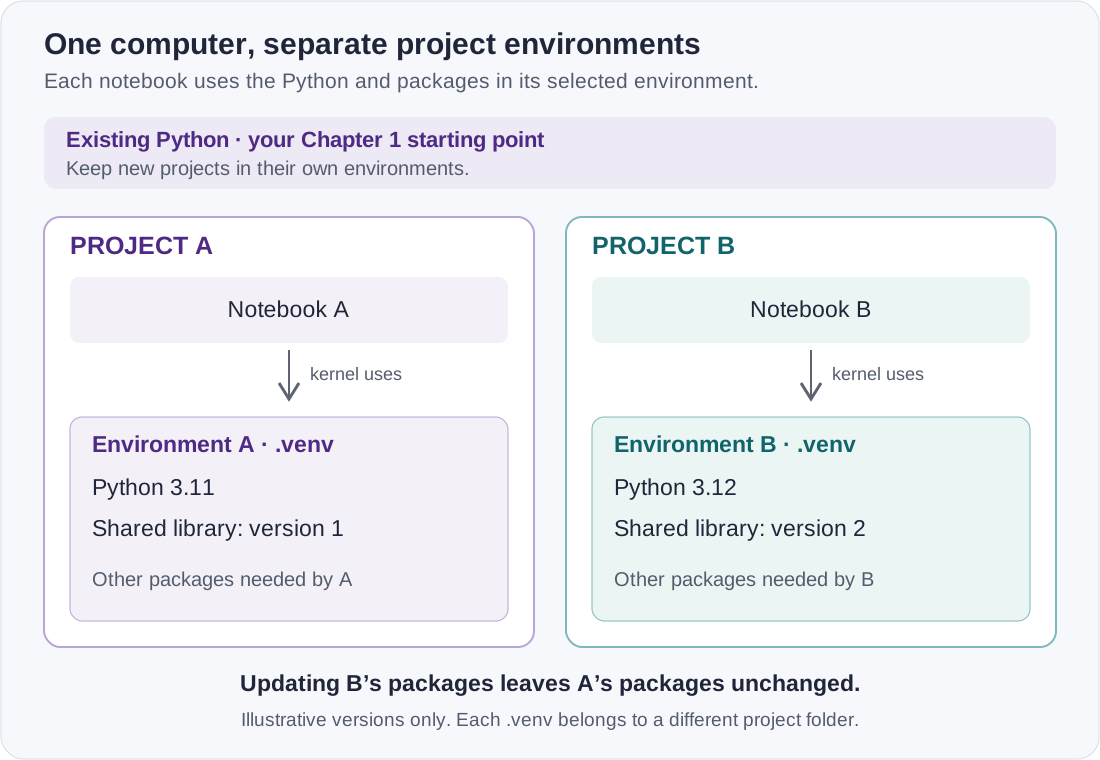
With separate environments, changing packages in Project B does not change the packages installed in Project A. Isolation does not make incompatible libraries work together inside one environment; each project still needs a compatible set of dependencies.
For STAT303: keep the notebooks in stat303-setup together as one course project and give that project one environment. You do not need a new environment for every notebook. Later, an unrelated project should get its own environment. In VS Code, connect each notebook to its project’s environment through the kernel picker.
The Python version identifies the language/interpreter release. The environment provides that interpreter and a set of packages. The kernel is the running process that executes your notebook’s code using the selected environment.
The environment-creation method we will use starts from an already installed Python interpreter. It does not download a different Python version, and by default it does not include packages installed in another environment. You will install the course packages into the new environment. See the Python virtual environment tutorial.
2.5.4 Check Your Understanding
Suppose activity01.ipynb and activity02.ipynb belong to the same project and need the same packages. Do they need separate environments? If you close VS Code, must you create the project environment again?
Both notebooks can use the same project environment. Closing VS Code stops your working session but does not delete the environment folder or its installed packages. When you return, select that environment again as needed.
Next, create the environment, connect the notebook to it, and verify the terminal separately.
2.6 Create a Course Environment
For STAT303, use Python’s built-in venv module rather than a Conda environment. Anaconda is not required. The module is named venv; .venv is the conventional name of the folder it creates inside the project. Keep notebooks and data outside .venv, and do not copy the environment folder between computers.
Before starting, use the navigation commands from Section 2.3 to confirm that the terminal is in stat303-setup and that the activity notebooks are visible. Keep this as your working folder.
Create .venv using one of the following methods. The GUI method is the most direct when you are already working in a notebook. The terminal method performs the same setup with a command. If .venv already exists in stat303-setup, do not create another one; select and verify the existing environment instead.
2.6.1 Method 1: Create .venv from the Notebook Kernel Picker
Open
activity02.ipynband select Select Kernel at the top right.Choose Python Environments. If you see only recently used kernels, choose Select Another Kernel first.
Choose Create Python Environment.
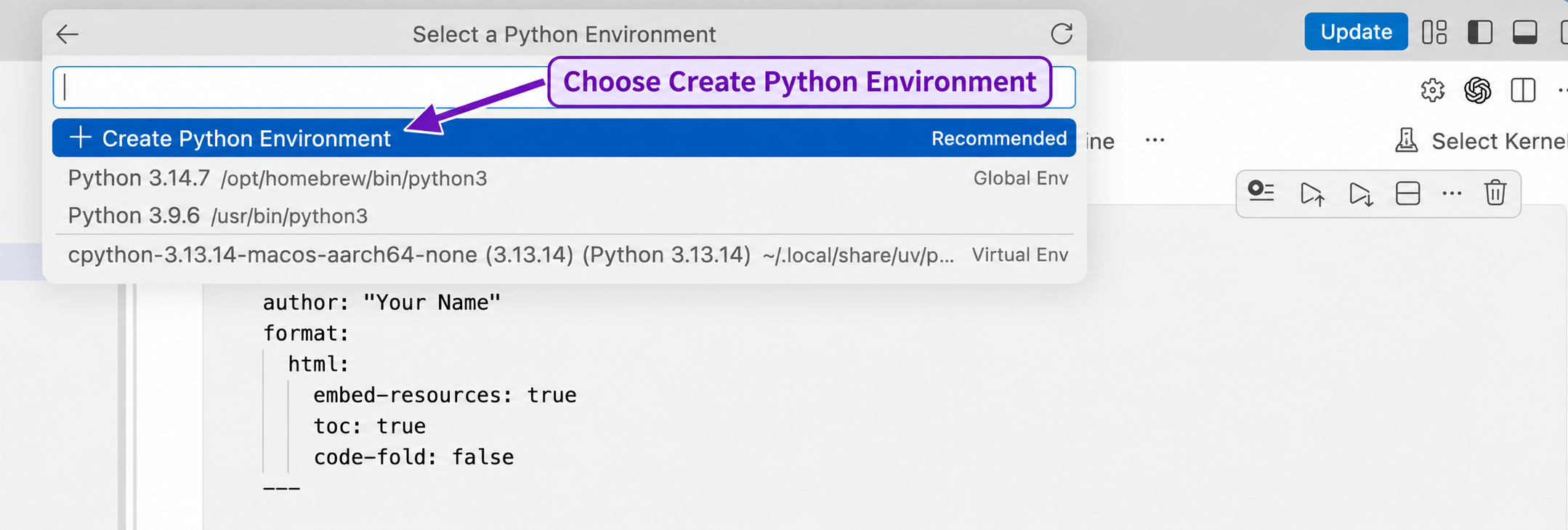
Figure 2.4: Choose Create Python Environment from the notebook kernel picker. Choose Venv when VS Code asks for the environment type. Do not choose Conda for this course setup.
Choose the working Python 3 installation you used in Chapter 1. Use the course-recommended version if one has been specified; the example version numbers earlier in this chapter are not installation requirements.
Wait while VS Code creates the
.venvfolder insidestat303-setup. If the new environment is not selected automatically, open Select Kernel → Python Environments again and choose the entry whose path containsstat303-setup/.venvorstat303-setup\.venv.
If your menus differ from the screenshot, open the Command Palette (Cmd+Shift+P on macOS or Ctrl+Shift+P on Windows), run Python: Create Environment, and choose Venv. After creation, select .venv in the notebook’s kernel picker. See VS Code’s environment guide.
2.6.2 Method 2: Create .venv in the Terminal
Start in the stat303-setup folder. First identify the Python that will create the environment, then create .venv:
python -c "import sys; print(sys.executable)"
python -m venv .venv
In the first command, -c tells Python to run the quoted code and then exit back to the shell. In the second, -m venv runs Python’s environment-creation module, and .venv names the folder to create. A successful creation may produce no output; look for .venv in Explorer. On macOS, use python3 in both commands if python is not available. After the command finishes, open activity02.ipynb and choose the new .venv from Select Kernel → Python Environments.
2.6.3 Restart the Terminal and Verify Both Places
Use Python: Select Interpreter in the Command Palette to select the same project .venv for the workspace. This selection supports terminal activation; verify the notebook kernel separately. See VS Code’s kernel guide.
After using either method, close the current terminal and start a new one with Terminal → New Terminal. VS Code may activate the selected project environment automatically in the new terminal; verify it below. A prompt beginning with (.venv) means that .venv is activated in that terminal.
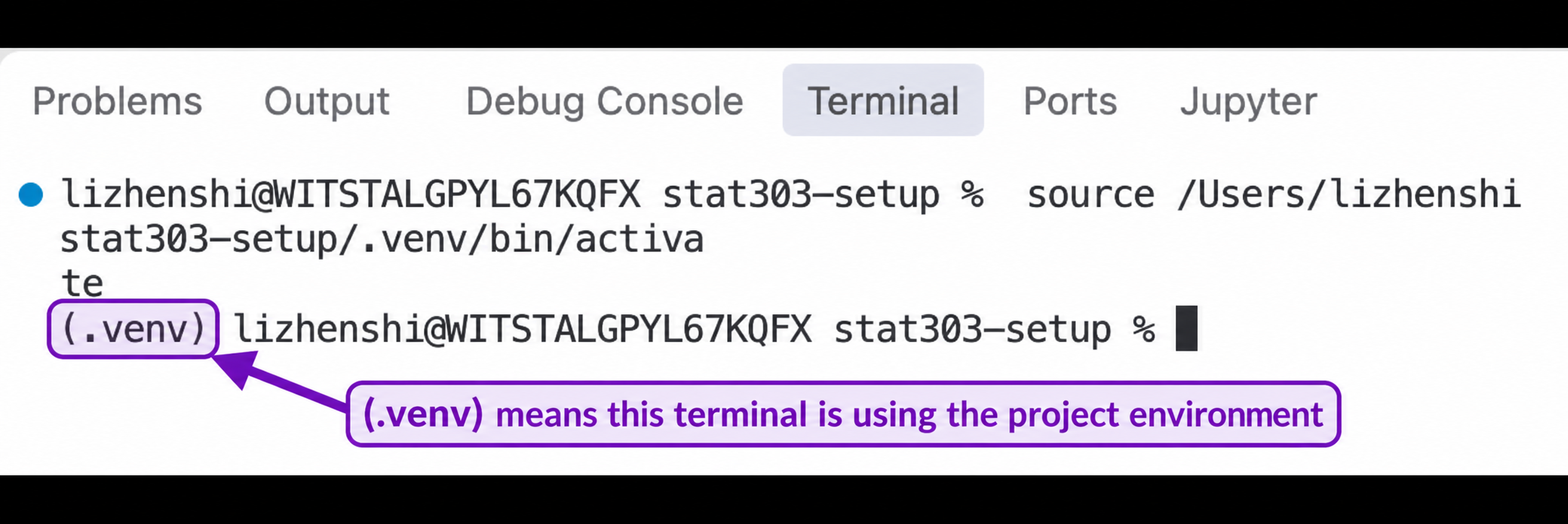
If (.venv) does not appear, activate the environment using the command for your shell:
source .venv/bin/activate.\.venv\Scripts\Activate.ps1.venv\Scripts\activate.batThe (.venv) marker is a useful visual check. Verify the exact environment before installing packages. In the terminal, run:
python -c "import sys; print(sys.executable)"In a notebook code cell, run:
import sys
print(sys.executable)
Both outputs should identify Python inside the same project’s .venv, typically ending in .venv/bin/python on macOS or .venv\Scripts\python.exe on Windows. Two different projects can both have a folder named .venv, so compare the project portion too. If they differ, activate the intended environment in the terminal or reselect the notebook kernel, then repeat the checks.
If VS Code prompts you to install ipykernel before the notebook can run, accept the installation for the selected .venv. This package lets the environment run notebook cells. The next section also includes it in the terminal installation command.
Before continuing: .venv exists alongside your notebooks, and both executable checks identify that environment. Creating an environment does not install the data science packages; that is the next step.
2.7 Install Packages in the Intended Environment
Throughout the STAT303 sequence, you will use several essential Python packages for data science. Pandas provides labeled Series and DataFrames for organizing and analyzing data, while NumPy supports efficient array operations and numerical computation. Plotting libraries help you visualize results, and statistical and machine-learning libraries allow you to build models using prepared data. We will introduce these connections as the course develops.
Now that you have created your project environment, the next step is to install the required packages inside it.
A new virtual environment normally includes pip, Python’s package installer. Pip supports installing from PyPI. Installing a package puts it in an environment; importing it makes it available in a running Python session. We will install the course tools now and check that they can be imported. Their data-analysis features come in later chapters.
Practice both methods below. They demonstrate two ways to install packages into the same environment: the terminal installs the first four tools, and the notebook installs Seaborn.
2.7.1 Method 1: Install from the Terminal
Open a new terminal in VS Code and confirm that (.venv) appears at the beginning of the prompt. This indicates that your virtual environment is active.
Install the packages by running:
pip install ipykernel numpy pandas matplotlibThese packages will be installed in your project’s virtual environment.
If
(.venv)does not appear, activate your virtual environment before installing packages.
| Package | Why we install it |
|---|---|
ipykernel |
Allows this environment to run notebook code cells |
numpy |
Supplies numerical tools used later in the course |
pandas |
Supplies tools for tabular data used later |
matplotlib |
Supplies plotting tools used later |
Wait for the shell prompt to return and check for errors. Pip may install additional packages required by these tools; those are dependencies. Requirement already satisfied means the requested package is already installed with a version meeting the request.
2.7.2 Method 2: Install from the Notebook
Select your project’s .venv as the notebook kernel. Then run this in a code cell to install Seaborn:
%pip install seabornThis installs Seaborn into the environment used by your notebook. Restart the kernel if prompted.
pip is an IPython magic command. With automagic enabled by default, you can omit the % in %pip:
pip install seaborn2.7.3 Install Once, Import in Every Notebook
In a notebook code cell, check the installations:
import numpy as np
import pandas as pd
import matplotlib
import seaborn as sns

print("NumPy:", np.__version__)
print("Pandas:", pd.__version__)
print("Matplotlib:", matplotlib.__version__)
print("Seaborn:", sns.__version__)
as gives an imported package a shorter name, such as np. Each package’s __version__ attribute reports its version; type two underscores on each side. Your version numbers may differ from a classmate’s. These checks use imports, attributes, and print() from the Python review.
Installation persists in .venv after you close a notebook. Imports belong to the running kernel session, so rerun the import cells after restarting the kernel and include them in each notebook that needs the packages.
If a notebook reports ModuleNotFoundError after a terminal installation, compare sys.executable in both places first. The package may have been installed for another Python. Correct the environment selection and install into the intended .venv if needed. If both paths are correct, check the package name and whether installation completed, then restart the kernel and rerun the imports.
2.8 Notebook Magic Commands
A magic command is an instruction to the notebook itself rather than a line of Python. These commands come from IPython, the kernel that runs your notebook code cells, and they exist to do things the Python language has no syntax for: install a package into the running environment, measure how long code takes, or configure how plots are displayed.
You have already run one. In %pip install seaborn, the leading % marks that line as a magic command rather than as Python.
This section introduces only the handful of magic commands that appear in later chapters. You do not need to memorize them now. The goal is that a line beginning with % looks familiar, rather than puzzling, when you meet one later.
2.8.1 A Single % Marks a Line, and %% Marks a Cell
One percent sign marks a line magic, which applies to the rest of that one line only; the other lines in the cell stay ordinary Python. Two percent signs mark a cell magic, which applies to the entire cell and must be written as the cell’s first line.
%pwd%%timeit
total = 0
for n in range(100000):
total = total + nAs noted for %pip above, automagic lets you drop the % from many line magics. Type it anyway. The symbol tells a reader, including you in a few weeks, that the line is an instruction to the notebook and not Python code.
2.8.2 %timeit Measures How Long Code Takes to Run
%timeit reports how long a piece of code takes. Later chapters use it whenever two ways of writing the same calculation need to be compared. It runs the code repeatedly and reports an average, because a single run of fast code measures mostly noise.
Use %timeit for one line and %%timeit for a whole cell:
%timeit sum(range(100000))The result looks like the following. Your numbers will differ from a classmate’s, because timing depends on the machine.
1.12 ms ± 18.3 µs per loop (mean ± std. dev. of 7 runs, 1,000 loops each)Read that as: the code was run 1,000 times in a row to form one loop’s measurement, this was repeated 7 times, and one execution averaged 1.12 milliseconds. A millisecond (ms) is a thousandth of a second and a microsecond (µs) is a millionth.
%time runs the code once and reports that single run. Use it when one run already takes long enough to be informative, such as reading a large file, and %timeit when the code is fast.
%%timeit cell discards its variables
Because %%timeit runs the cell many times, any variable assigned inside it is discarded once timing finishes. Build your data in one cell, then time the calculation in another cell that only reads it.
In NumPy and pandas in a Real Workflow, you will use %timeit to compare a row-by-row .apply() against the equivalent NumPy array calculation and see how much time the array version saves.
2.8.3 %matplotlib inline Displays Plots Inside the Notebook
%matplotlib inline tells Matplotlib to draw each figure as a static image in the notebook’s output area, directly beneath the cell that created it, instead of opening it in a separate window.
You will find this line at the top of many notebooks, including several later chapters of this book. VS Code’s notebook editor already displays figures inline, so your plots appear whether or not you run it. Leave the line in place when you find it: it is harmless, and it makes the notebook behave the same way for someone who opens it in a different tool.
2.8.4 A Short Reference
| Magic command | What it does |
|---|---|
%pip install <package> |
Installs a package into the environment running this notebook |
%timeit <code> |
Times one line, repeated, and reports the average |
%%timeit |
Times the whole cell, repeated; must be the cell’s first line |
%time <code> |
Times one line, run once |
%matplotlib inline |
Draws Matplotlib figures in the notebook output |
%pwd |
Prints the notebook’s current working directory |
%cd <folder> |
Changes the working directory for the rest of the kernel session |
%whos |
Lists the variables currently defined in the kernel |
%lsmagic |
Lists every available magic command |
A related symbol is !, which sends the rest of the line to your shell, as in !ls. This book prefers %pip install over !pip install because %pip is guaranteed to install into the environment your notebook kernel is using, while !pip runs whichever pip the shell happens to find.
To explore further, run %lsmagic for the full list, or add a trailing question mark, as in %timeit?, to read the built-in help for any magic command. The complete reference is IPython’s built-in magic commands.
2.8.5 Magic Commands Work in Notebooks, Not in Scripts or the Terminal
Magic commands are IPython syntax, not Python language syntax. Copy %timeit sum(range(100000)) into a .py file and run it with python script.py, and Python stops with a SyntaxError. They are also distinct from terminal commands: pip install seaborn is what you type at a shell prompt, while %pip install seaborn is what you type in a notebook code cell.
This is the first of the three questions from Section 2.4 in a new form. Before running a line that starts with %, confirm that you are typing it in a notebook code cell.
2.9 Record and Recreate Dependencies
Your .venv contains installed packages. A requirements file records package names and versions as text so you can install them again in another environment. Create this record after completing the installations and import checks above, including Seaborn.
2.9.1 Save the Package Record
In the terminal, confirm that the current folder is stat303-setup and that your (.venv) environment is active. Then save the environment’s package list to requirements.txt using the command for your shell:
python -m pip freeze > requirements.txtpython -m pip freeze | Out-File -Encoding utf8 requirements.txtpython -m pip freeze > requirements.txtHere > writes output into a file. In PowerShell, | passes output to Out-File, and -Encoding utf8 specifies the text encoding. This avoids the different default used by Windows PowerShell 5.1. See PowerShell’s encoding reference and pip’s requirements-file encoding.
All three commands write requirements.txt in the current folder and replace it if it already exists. The command may finish without displaying output; open the file in Explorer and check that it contains package entries before continuing.
A line such as numpy==2.2.0 means “install NumPy version 2.2.0.” This is an illustration, not a required course version. Keep the actual entries generated from your environment. Expect more names than you explicitly installed because the packages also need dependencies.
When sharing requirements.txt, also tell your collaborator which Python version you used.
2.9.2 Use the Record in a New Environment
To recreate your project environment on another computer or share it with a collaborator, follow these steps:
Use an installed, compatible Python version to create a new project
.venv, following Section 2.6.Activate it and verify its Python executable.
In the terminal, move to the folder containing
requirements.txtand run:python -m pip install -r requirements.txtSelect the new environment as the notebook kernel and repeat the import checks from Section 2.7.
-r requirements.txt tells pip to read the installation requirements from that file. Recreate the environment on the destination computer instead of copying the .venv folder. Matching package versions helps repeat the setup, though Python version and operating-system differences can still matter.
Does pip freeze install packages? No. It reports what is installed; pip install -r requirements.txt performs installation.
What if you export while the terminal uses a different project’s Python? You record that other environment’s packages. Check sys.executable, switch to the intended environment, and export again.
What if you install another package afterward? Repeat the import check and export again when you want the requirements file to reflect the updated environment.
For details, see pip’s requirements-file guide.
2.10 Find Local Data with Paths
A path describes where a file or folder is located. There are two ways to write one:
| Path type | Example | Where it starts |
|---|---|---|
| Absolute | /Users/student/stat303-setup/data/station_readings.csv on macOS, or C:/Users/student/stat303-setup/data/station_readings.csv on Windows |
The filesystem root, including the drive on Windows |
| Relative | data/station_readings.csv |
The current working directory of the program using the path |
The absolute examples include a particular user’s folders, so they will usually differ on your computer. The relative example works when the notebook’s current working directory is stat303-setup and the supplied folder layout is preserved.
The notebook and terminal can have different working directories. The folder visible in VS Code’s Explorer does not prove either one’s current directory. As a result, the terminal may find or create a file in one folder while the notebook looks for it in another. Check the current directory in each place when working with files.
Use Python’s built-in pathlib module to build paths. With Path, / joins folder and file names and handles the separators for your operating system. In a notebook code cell:
from pathlib import Path
print(Path.cwd())
data_path = Path("data") / "station_readings.csv"
print("Resolved path:", data_path.resolve())
print("File found:", data_path.is_file())
For the practice notebooks stored directly inside stat303-setup, the expected working directory is the extracted stat303-setup folder. If is_file() returns False, inspect the displayed directory, filename, capitalization, and extracted folder layout. VS Code settings or a different notebook location can change the working directory; always check rather than assume. If the directory is not the one you need, see Move to the Folder You Need below.
Once the file check returns True, inspect a few lines without needing data-analysis syntax:
print(data_path.read_text(encoding="utf-8").splitlines()[:3])For this supplied file, read_text() reads the text, splitlines() separates it into lines, and [:3] selects the first three. The result is a list of text lines, not yet a Pandas table.
A path expression describes a location; it does not establish that a file exists. In particular, resolve() displays an absolute path; it does not find a misplaced file or prove that the file exists.
2.10.1 What Changes When the Working Directory Changes?
Suppose a different project has this layout. This is a hypothetical example; you do not need to create a notebooks folder in the practice kit.
example-project/
├── notebooks/
│   └── analysis.ipynb
└── data/
    └── station_readings.csv
If the notebook’s current working directory is example-project/notebooks, Path("data") refers to a folder inside notebooks. To reach the CSV shown above, start with .. to go up to example-project, then enter data:
Path("..") / "data" / "station_readings.csv"This works only when the actual working directory has that relationship. Do not repeatedly add .. until a path happens to work.
For the main workflow, keep a consistent folder layout and check Path.cwd() before building your data path.
2.10.2 Move to the Folder You Need
When Path.cwd() is not the folder you expected, you have two ways to correct it: move yourself to where the notebook is, or move the running notebook’s working directory to where you need it. Prefer the first.
Preferred: open the right project folder. A notebook’s working directory normally starts as the folder that contains the notebook file. So an unexpected Path.cwd() usually means the notebook is not where you assumed. Extracting the practice kit can leave a nested stat303-setup/stat303-setup/ folder, for example. In VS Code, choose File → Open Folder and open the stat303-setup folder that directly contains activity02.ipynb and the data folder, then reopen the notebook. This fix is permanent, requires no extra code, and gives the same working directory every time you open the project.
When the files must stay where they are: %cd. %cd is a line magic (Section 2.8) that changes the working directory of the running kernel, so every cell you run afterwards resolves relative paths from the new location.
%cd dataGive %cd a child folder’s name to move down, .. to move up one level, or an absolute path to jump directly:
%cd ..
%cd /Users/student/stat303-setup
%cd C:/Users/student/stat303-setup
Then confirm the result instead of assuming the move worked:
%pwdTwo cautions apply. The change lasts only for the current kernel session, so restarting the kernel returns you to the starting directory. And %cd moves relative to where you already are, so running a %cd .. cell a second time takes you up two levels. If you use %cd, place it in one cell near the top of the notebook so that running the notebook from the top always produces the same working directory.
Finally, a terminal’s cd and a notebook’s %cd are separate. Typing cd in a terminal changes that terminal’s directory and has no effect on a notebook that is already running, and %cd changes the kernel’s directory and has no effect on your terminal.
!cd runs in a temporary shell and does not change the notebook’s working directory; use %cd as described above. Avoid scattering directory changes through your notebook, because they make results depend on the order in which cells run.
data_path.exists() checks whether the path exists, whether it is a file or a folder. For this activity, use data_path.is_file() because you are looking specifically for a file.
When You Return to the Project
Use this checklist when you resume work after closing VS Code:
- Open the same
stat303-setupfolder and select its.venvas the notebook kernel. - Open a terminal, check its current folder, and activate
.venvif needed. Compare the terminal and notebook Python paths before installing anything. - Run the notebook from the top, including imports and the data-path check. Reuse the installed packages; creating
.venvand installing the same packages are not daily steps.
If you restart only the kernel, rerun the code cells to restore imports and variables. The files and installed packages remain on disk.
2.11 Practice Activity: Find Your Python and Your Data
Goal: Demonstrate that you can use a project environment, verify installed packages, and locate data from a notebook.
File: activity02.ipynb from the setup practice kit.
Submit: activity02.html through the final file-upload question in the Project Environments, Packages, and File Paths Canvas quiz.
Continue working in the extracted stat303-setup folder. Keep the supplied code cells and folder arrangement. Add your explanations and copied terminal commands/output in Markdown, using the notebook’s Terminal and Notebook Evidence and Dependencies and Troubleshooting sections. Use commands for your own shell; the starter’s terminal examples use macOS/Linux commands. Terminal commands belong in the terminal, not in Python code cells.
Follow this section for the complete activity instructions, then answer the multiple-choice questions and upload your HTML in Canvas.
- Open
activity02.ipynb. ReplaceYour Namein the opening Raw cell’sauthorfield with your name. Record your terminal shell and explain one use of the terminal in data science and why the project should have its own environment. - In the terminal, show the current directory and list its contents. Record the commands and output showing
stat303-setup, the activity notebook, anddata. Create the project’s.venvif needed, activate it in the terminal, and select it as the notebook kernel. Before installing packages, record where you are typing, which Python you are using, and which folder is current. Include the terminal commandpython -c "import sys; print(sys.executable)"and its output. - Follow the chapter’s package-installation steps: install
ipykernel,numpy,pandas, andmatplotlibfrom the terminal, and install Seaborn with%pip install seabornin a temporary notebook code cell. If you already completed these installations in the project environment, record the commands you used. Remove the temporary installation cell and keep its command in Markdown so that running all cells does not repeat the installation. - Run the supplied Python-information and package-check cells. Add a NumPy import and version check alongside the other package checks. Compare the terminal and notebook Python executable paths, and explain what in the paths shows that both use the same project’s
.venv. - In the terminal, enter
data, show the current directory, and list its contents. While the terminal is still insidedata, rerun the notebook’sPath.cwd()check. Record the commands and outputs and explain whether moving in the terminal changed the notebook’s working directory. Return the terminal tostat303-setupwithcd ..and verify its location. - Before running the supplied data-path cells, predict the results of
data_path.is_file()andwrong_path.is_file()in Markdown. Run the cells and keep the resolved path, both file-check results, and the first three lines of the CSV visible. Explain whatPath("data") / "station_readings.csv"is relative to and one thing you would check if the real file check returnedFalse. Keepwrong_pathseparate fromdata_path; do not rename or delete the supplied files. - From
stat303-setup, use the active project environment and the export command for your shell in Record and Recreate Dependencies to writerequirements.txt. Record the command and file location. Open the file, copy two actual package/version entries into Markdown, and explain what they record. - Restart the kernel, run all code cells from top to bottom, resolve unexpected errors, and save. In Markdown, record whether the environment, package imports, and file checks worked as expected, then save again.
Completion checks: Your name and explanations render as text, the terminal and notebook use the same project environment, all four data science packages import successfully, the real CSV check returns True, and the deliberately incorrect path check returns False. Your report includes the terminal navigation comparison and two entries from requirements.txt.
Render and Submit Your HTML
Follow the Chapter 1 Quarto refresher. From stat303-setup, render your saved notebook with:
quarto render activity02.ipynb --to htmlInspect activity02.html, including a copy opened outside the project folder. Check that your name, Python and package information, terminal evidence, file-check results, explanations, dependency entries, and completion note appear. Upload this HTML to the final question in the Project Environments, Packages, and File Paths Canvas quiz. If you correct the notebook, save and render again before uploading.
HTML grading (16 points): tool/context explanations (2), environment and package evidence (4), navigation comparison (3), file-path work (3), dependency record (2), and readable completed HTML (2).
Keep: your saved activity02.ipynb, data, and requirements.txt. Submit only the HTML file to this quiz.
Changing the terminal’s directory does not change a running notebook’s working directory. The relative data path starts from the notebook’s current working directory. With the supplied folder arrangement, the real CSV check should return True and the deliberately incorrect filename should return False.
Python and package versions may differ across students. Use your actual outputs and requirements entries. You may replace your personal username in copied paths with [username], keeping enough of the path to identify the project and environment.
2.12 Next: Assignment B
After the two chapter practice activities, complete Assignment B: Setting Up Your Course Workspace. In it you build the stat303-1 course folder that holds every chapter practice kit and assignment for the rest of the quarter, with one environment shared by all of them, and you move this chapter’s stat303-setup folder into it. Keep stat303-setup until then. Assignment B has its own project kit and a 100-point assessment. Follow the assignment page for the complete instructions and submit its HTML through the Canvas assignment, separately from the chapter quiz.
References: Python venv, IPython %pip, pathlib, pip dependency resolution.