from pathlib import Path
import pandas as pd
movie_path = 'data/movie_ratings.csv'
print('Working folder:', Path.cwd().name)
print('Movie file found:', Path(movie_path).is_file())Working folder: stat303-pandas-fundamentals
Movie file found: TrueIn Reading Data, you learned to load data from external files into pandas DataFrames and inspect their structure. Now we will use DataFrames to answer questions: Which records meet a condition? Which columns do we need? How can we calculate and summarize a useful variable?
This chapter follows a practical sequence:
Select → filter → sort → create or update → summarize and explain.
By the end, you should be able to:
Download the Pandas Fundamentals practice kit, extract it, and place stat303-pandas-fundamentals inside the chapters folder of your stat303-1 course folder. Open stat303-1 in VS Code and select the course environment. The examples need pandas, which you already installed. The terminal opens in stat303-1, so move it into the kit with cd chapters and then cd stat303-pandas-fundamentals before you render the activity.
You can start this chapter before your stat303-1 folder exists. For now, place stat303-pandas-fundamentals inside the stat303-setup folder from Chapter 2, open stat303-setup in VS Code, and select its .venv as the notebook kernel; it already contains pandas. The terminal then opens in stat303-setup, so move it into the kit with cd stat303-pandas-fundamentals. After Assignment B moves stat303-setup into stat303-1/chapters/, move stat303-pandas-fundamentals out of stat303-setup so that it sits directly inside chapters, as shown below. The notebooks find their files relative to the kit folder, so they keep working after the move.
stat303-1/
├── .venv/
├── assignments/
└── chapters/
    └── stat303-pandas-fundamentals/
        ├── pandas_examples.ipynb
        ├── activity04.ipynb
        ├── README.md
        └── data/
            ├── movie_ratings.csv
            ├── Top 10 Albums By Year.csv
            └── STAT303-1 survey for data analysis.csv
Use pandas_examples.ipynb for worked examples and activity04.ipynb for your practice report. Both should run with stat303-pandas-fundamentals as the notebook’s working directory. Keep the input files unchanged.
from pathlib import Path
import pandas as pd

movie_path = 'data/movie_ratings.csv'
print('Working folder:', Path.cwd().name)
print('Movie file found:', Path(movie_path).is_file())
Working folder: stat303-pandas-fundamentals
Movie file found: TrueThe check should return True. If it does not, inspect Path.cwd(), the extracted folder, and the exact filename. See the Reading Data setup for the working-directory check. The terminal and notebook can have different current directories.
Before loading a larger DataFrame with pd.read_csv(), we first create a small DataFrame from a Python dictionary. The dictionary keys become column names, and each equal-length list supplies a column. We deliberately use row labels that differ from row positions. That is all you need in order to follow the selection examples; Create Your Own Series and DataFrames at the end of the chapter returns to these constructors in more detail.
screenings = pd.DataFrame(
    {
        'Title': ['Cedar', 'Harbor', 'Orbit', 'Meadow', 'Ember'],
        'Rating': [7.2, 8.1, 6.5, 8.1, 7.8],
        'Tickets': [120, 80, 150, 90, 110],
    },
    index=[104, 101, 107, 103, 109],
)
screenings| Title | Rating | Tickets | |
|---|---|---|---|
| 104 | Cedar | 7.2 | 120 |
| 101 | Harbor | 8.1 | 80 |
| 107 | Orbit | 6.5 | 150 |
| 103 | Meadow | 8.1 | 90 |
| 109 | Ember | 7.8 | 110 |
These are invented screenings for illustration. One row is one screening; Title, Rating, and Tickets are variables. The first row’s label is 104 and its position is 0. Position describes where a row currently appears; it is not another stored index column.
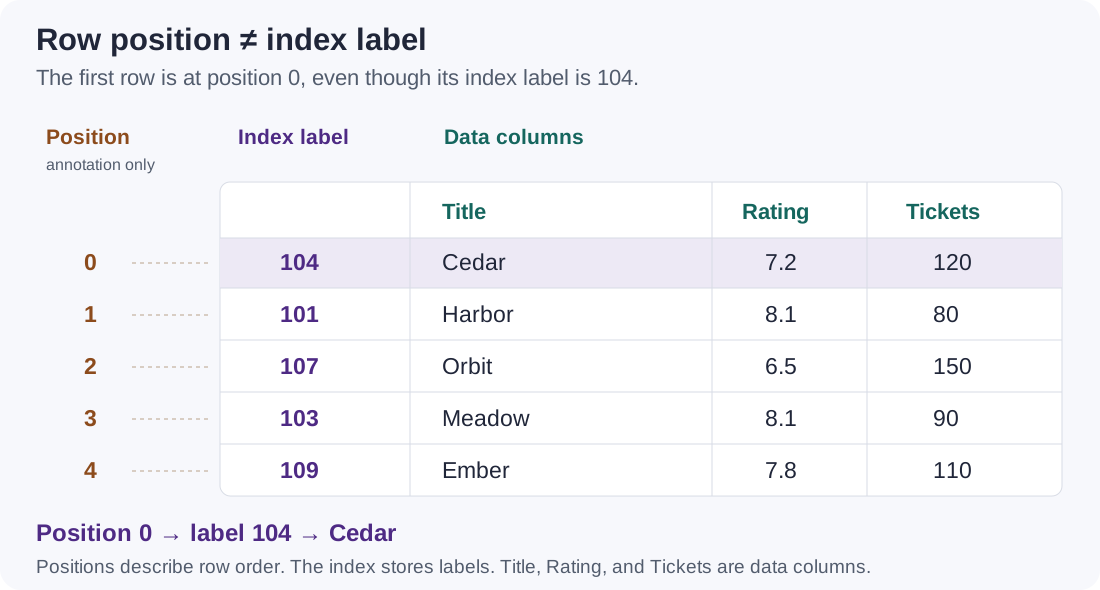
We will reuse screenings to select columns, build True/False conditions, and combine filters. Its five rows let you predict each result before running the code. You will then apply the same selection and filtering patterns to the larger imported movie DataFrame.
Put a column name in quotes inside brackets to select it, such as screenings['Rating']. A single selected column can be returned as either a Series or a DataFrame, depending on how you write the selection:
screenings['Rating'] returns a one-dimensional Series.screenings[['Rating']] returns a two-dimensional DataFrame with one column.Compare the types and shapes:
rating_series = screenings['Rating']
rating_table = screenings[['Rating']]
print('Single name:', type(rating_series).__name__, rating_series.shape)
print('List of names:', type(rating_table).__name__, rating_table.shape)
rating_table
Single name: Series (5,)
List of names: DataFrame (5, 1)| Rating | |
|---|---|
| 104 | 7.2 |
| 101 | 8.1 |
| 107 | 6.5 |
| 103 | 8.1 |
| 109 | 7.8 |
The Series has shape (5,); the one-column DataFrame has shape (5, 1). Both contain the same five ratings and retain the row labels. In screenings[['Rating']], the inner brackets create a list containing one column name; the outer brackets select those columns from the DataFrame.
Put the column names in a list inside the selection brackets. The result is a DataFrame with the columns in the order you requested. For example, select Title and Tickets:
screenings[['Title', 'Tickets']]| Title | Tickets | |
|---|---|---|
| 104 | Cedar | 120 |
| 101 | Harbor | 80 |
| 107 | Orbit | 150 |
| 103 | Meadow | 90 |
| 109 | Ember | 110 |
This selection keeps all five rows and their index labels, and returns only the two requested columns. Its shape is (5, 2).
.loc and .ilocBoth tools select rows and columns, but they interpret the selectors differently:
| Accessor | Selects by | Read it as |
|---|---|---|
.loc |
Row and column labels | “Give me the row named …” |
.iloc |
Integer positions, starting at 0 | “Give me the row at position …” |
The syntax is df.loc[row_selector, column_selector] or df.iloc[row_selector, column_selector]. The first slot selects rows; the second selects columns. A colon : alone means all entries on that axis. If you omit the column selector, all columns are returned.
The colon is the same slice notation you used on Python lists in Data Structures — start:stop with the stop excluded, and either endpoint optional. .iloc follows that rule exactly; .loc is the one exception, as the next section shows.
A default index often has labels 0, 1, 2, ..., so labels and positions can look interchangeable. In screenings, they are deliberately different:
| Row position | Index label | Title |
|---|---|---|
| 0 | 104 | Cedar |
| 1 | 101 | Harbor |
| 2 | 107 | Orbit |
| 3 | 103 | Meadow |
| 4 | 109 | Ember |
Even when a label is an integer, .loc treats it as a name, not a position. Labels can also be strings, such as 'a' or a movie title.
screenings.loc[101] asks for the row labeled 101; screenings.iloc[1] asks for the second row. Both select Harbor in this DataFrame. Add a column selector to retrieve one cell.
print('By row label:')
print(screenings.loc[101])
print('\nBy row position:')
print(screenings.iloc[1])
print('\nOne cell by labels:', screenings.loc[101, 'Rating'])
print('The same cell by positions:', screenings.iloc[1, 1])
By row label:
Title Harbor
Rating 8.1
Tickets 80
Name: 101, dtype: object
By row position:
Title Harbor
Rating 8.1
Tickets 80
Name: 101, dtype: object
One cell by labels: 8.1
The same cell by positions: 8.1With this DataFrame’s unique labels, a single row selector returns a Series, while lists keep a DataFrame: screenings.loc[[101]] and screenings.iloc[[1]] each have shape (1, 3). Selecting one row and one column returns a single value.
A missing row label, such as screenings.loc[999], raises KeyError. A single position outside the DataFrame, such as screenings.iloc[5], raises IndexError. .iloc does not accept a string label. Negative positions count from the end: screenings.iloc[-1] selects Ember.
A .loc label slice includes the ending label. An .iloc position slice excludes the stop position. Both include the start. These rules also apply when slicing columns.
To select Harbor, Orbit, and Meadow, use either of these expressions:
print('Labels 101 through 103, including 103:')
print(screenings.loc[101:103, :])
print('\nPositions 1 through 3, stopping before 4:')
print(screenings.iloc[1:4, :])
print('\nStopping before position 3 leaves out Meadow:')
print(screenings.iloc[1:3, :])
Labels 101 through 103, including 103:
Title Rating Tickets
101 Harbor 8.1 80
107 Orbit 6.5 150
103 Meadow 8.1 90
Positions 1 through 3, stopping before 4:
Title Rating Tickets
101 Harbor 8.1 80
107 Orbit 6.5 150
103 Meadow 8.1 90
Stopping before position 3 leaves out Meadow:
Title Rating Tickets
101 Harbor 8.1 80
107 Orbit 6.5 150Read the two matching slices as follows:
Current row order:    Cedar   Harbor   Orbit   Meadow   Ember
Index labels:          104      101     107      103     109
Row positions:           0        1       2        3       4
.loc[101:103]                     [-------included-------]
.iloc[1:4]                       [-------included-------] stop before 4
.loc[101:103] returns labels 101, 107, and 103. A label slice follows the DataFrame’s current row order; it is not a numerical condition asking for labels between 101 and 103. The slice includes the intermediate row labeled 107.
Here, the labels are unique and both endpoints exist. Missing or duplicate endpoints can make label slicing more complicated. Use an explicit list or a Boolean condition when it better describes your request.
For a DataFrame with labels 'a', 'b', 'c', 'd', 'e' in that order, .loc['b':'d'] and .iloc[1:4] likewise select the same three rows. With a default index 0, 1, 2, 3, 4, .loc[0:2] selects three rows, while .iloc[0:2] selects two.
You can omit an endpoint: screenings.loc[107:] starts at label 107 and continues to the end; screenings.iloc[:2] selects positions 0 and 1. Positional slices can extend past the DataFrame’s end, so screenings.iloc[:10] returns all five rows rather than raising the error that screenings.iloc[10] would.
The columns are stored in the order Title, Rating, Tickets, at positions 0, 1, and 2. A label slice from 'Title' through 'Rating' includes both columns. The equivalent positional slice is 0:2. Column label slices follow the current column order, not alphabetical order.
print('All rows; Title through Rating, including Rating:')
print(screenings.loc[:, 'Title':'Rating'])
print('\nAll rows; column positions 0 and 1, stopping before 2:')
print(screenings.iloc[:, 0:2])
print('\nHarbor through Meadow, with the first two columns:')
print(screenings.iloc[1:4, 0:2])
All rows; Title through Rating, including Rating:
Title Rating
104 Cedar 7.2
101 Harbor 8.1
107 Orbit 6.5
103 Meadow 8.1
109 Ember 7.8
All rows; column positions 0 and 1, stopping before 2:
Title Rating
104 Cedar 7.2
101 Harbor 8.1
107 Orbit 6.5
103 Meadow 8.1
109 Ember 7.8
Harbor through Meadow, with the first two columns:
Title Rating
101 Harbor 8.1
107 Orbit 6.5
103 Meadow 8.1Use a list for particular entries, including entries that are not adjacent. The selected rows and columns follow the order in your lists. A slice uses a colon (101:103); a list uses commas ([101, 103]). The list selects only those two labels, leaving out the row between them.
print('Specific labels, in the requested order:')
print(screenings.loc[[109, 101], ['Title', 'Tickets']])
print('\nThe same entries selected by position:')
print(screenings.iloc[[4, 1], [0, 2]])
print('\nA two-label list skips Orbit:')
print(screenings.loc[[101, 103], ['Title', 'Rating']])
Specific labels, in the requested order:
Title Tickets
109 Ember 110
101 Harbor 80
The same entries selected by position:
Title Tickets
109 Ember 110
101 Harbor 80
A two-label list skips Orbit:
Title Rating
101 Harbor 8.1
103 Meadow 8.1These pairs select the same entries in the original screenings DataFrame:
| Task | .loc: labels |
.iloc: positions |
|---|---|---|
| Harbor’s row | screenings.loc[101] |
screenings.iloc[1] |
| Harbor as a one-row DataFrame | screenings.loc[[101]] |
screenings.iloc[[1]] |
| Harbor’s rating | screenings.loc[101, 'Rating'] |
screenings.iloc[1, 1] |
| Harbor through Meadow | screenings.loc[101:103] |
screenings.iloc[1:4] |
| Title through Rating, all rows | screenings.loc[:, 'Title':'Rating'] |
screenings.iloc[:, 0:2] |
| Ember then Harbor; title and tickets | screenings.loc[[109, 101], ['Title', 'Tickets']] |
screenings.iloc[[4, 1], [0, 2]] |
Predict before running:
screenings.loc[107:, 'Title'] return?screenings.iloc[:2, 0] return?screenings.iloc[-1] return?screenings.loc[101:103], screenings.iloc[1:3], and screenings.loc[[101, 103]]?screenings.iloc[:, 0:1] include the Rating column?Title, and returns a one-column DataFrame.Use .loc when you know the labels, and .iloc when you know the positions. Next, Boolean selection lets you ask for rows based on their values.
A comparison applied to a Series produces a Boolean Series. Each Boolean value answers the question for its corresponding row.
.loc also accepts a Boolean mask for its row selection: screenings.loc[mask, column_names] keeps rows where the mask is True and selects the named columns. The mask below is built from screenings, so its labels match the DataFrame’s index.
high_rating = screenings['Rating'] >= 8
print(high_rating)
screenings.loc[high_rating, ['Title', 'Rating']]
104 False
101 True
107 False
103 True
109 False
Name: Rating, dtype: bool| Title | Rating | |
|---|---|---|
| 101 | Harbor | 8.1 |
| 103 | Meadow | 8.1 |
The mask retains the row labels. The result contains only rows for which the condition is True. Read this as: keep screenings rated at least 8, and show their titles and ratings.
You can write the condition directly inside .loc and select the output columns in the same expression. This is the same selection as the named high_rating mask above:
screenings.loc[screenings['Rating'] >= 8, ['Title', 'Rating']]| Title | Rating | |
|---|---|---|
| 101 | Harbor | 8.1 |
| 103 | Meadow | 8.1 |
For filtering with a condition built from a column, use .loc[condition], as in the examples above.
Predict before running: What does screenings.loc[screenings['Tickets'] >= 120, 'Title'] return? How does using ['Title'] instead change the result’s shape?
Cedar and Orbit. Selecting 'Title' returns a Series with shape (2,); selecting ['Title'] returns a DataFrame with shape (2, 1).
Use & for elementwise AND, | for elementwise OR, and ~ to negate a Boolean mask. Put parentheses around each comparison. Python’s and and or do not combine pandas Series in this way.
selected = (screenings['Rating'] >= 8) & (screenings['Tickets'] < 90)
screenings.loc[selected, ['Title', 'Rating', 'Tickets']]| Title | Rating | Tickets | |
|---|---|---|---|
| 101 | Harbor | 8.1 | 80 |
Both conditions must hold for the same row. Replacing & with | would keep a row satisfying either condition.
For membership in a set of categories, use .isin() rather than writing many equality comparisons:
chosen_titles = screenings['Title'].isin(['Harbor', 'Meadow'])
screenings.loc[chosen_titles, ['Title', 'Tickets']]| Title | Tickets | |
|---|---|---|
| 101 | Harbor | 80 |
| 103 | Meadow | 90 |
~Use ~ to reverse a Boolean mask: True becomes False, and False becomes True. This is useful when you want to exclude rows that match a condition.
The mask chosen_titles above is True for Harbor and Meadow. Negating it keeps all the other screenings:
other_titles = ~chosen_titles
screenings.loc[other_titles, ['Title', 'Tickets']]| Title | Tickets | |
|---|---|---|
| 104 | Cedar | 120 |
| 107 | Orbit | 150 |
| 109 | Ember | 110 |
The result should contain these rows:
| Index label | Title | Tickets |
|---|---|---|
| 104 | Cedar | 120 |
| 107 | Orbit | 150 |
| 109 | Ember | 110 |
The same filter can be written directly as screenings.loc[~screenings['Title'].isin(['Harbor', 'Meadow']), ['Title', 'Tickets']]. Both versions select rows without changing screenings.
When negating a comparison, put the comparison in parentheses. For example, ~(screenings['Rating'] >= 8) keeps the ratings below 8 in this DataFrame. Apply ~ to the Boolean condition, not to the numerical column itself.
Pause and predict: Which screenings would ~((screenings['Rating'] >= 8) & (screenings['Tickets'] < 90)) keep? Explain why a row is kept when at least one of the two conditions is false.
You have selected rows by label, by position, and by condition, and every one of those selections left the row order and the index untouched. This section changes both: it sorts the rows with sort_values() and replaces the index with set_index(). Those two operations are where labels and positions come apart. A label is a name that stays attached to its record, while a position only describes where that record currently sits, so reordering the rows changes what .iloc returns while .loc keeps retrieving the same records.
sort_values('Rating') sorts the rows by the Rating column. ascending=False puts the highest ratings first. kind='stable' keeps rows with equal ratings in their original relative order. Assign the sorted DataFrame to ordered so that screenings keeps its original order.
ordered = screenings.sort_values('Rating', ascending=False, kind='stable')
ordered| Title | Rating | Tickets | |
|---|---|---|---|
| 101 | Harbor | 8.1 | 80 |
| 103 | Meadow | 8.1 | 90 |
| 109 | Ember | 7.8 | 110 |
| 104 | Cedar | 7.2 | 120 |
| 107 | Orbit | 6.5 | 150 |
print('First row after sorting:', ordered.iloc[0]['Title'])
print('Row still labeled 104:', ordered.loc[104, 'Title'])
First row after sorting: Harbor
Row still labeled 104: CedarThe labels move with their records. .iloc[0] now refers to the first record in the sorted DataFrame, while .loc[104] still retrieves Cedar.
When a column supplies meaningful row labels, set_index() can move it into the index. reset_index() normally moves those labels back into a column and supplies a new default index.
by_title = screenings.set_index('Title')
print('New index:', by_title.index.tolist())
restored = by_title.reset_index()
restored.head(2)
New index: ['Cedar', 'Harbor', 'Orbit', 'Meadow', 'Ember']| Title | Rating | Tickets | |
|---|---|---|---|
| 0 | Cedar | 7.2 | 120 |
| 1 | Harbor | 8.1 | 80 |
Here, screenings is unchanged because we assigned the returned objects to new names. The original numerical labels are not retained by set_index('Title'); preserve them first if they carry needed information. An index need not be unique, so .loc[label] is not guaranteed to return just one row in every dataset.
Load movie_ratings.csv into a DataFrame to apply these skills to real movie records. We will load the file once and use separate names for derived DataFrames. The examples below move between two DataFrames on purpose: movies shows how these methods behave on more than two thousand records, while the five-row screenings keeps every result small enough to check by hand.
movies = pd.read_csv(movie_path)
print('Movie DataFrame shape:', movies.shape)
movies[['Title', 'IMDB Rating', 'Production Budget']].head(3)
Movie DataFrame shape: (2228, 11)| Title | IMDB Rating | Production Budget | |
|---|---|---|---|
| 0 | Opal Dreams | 6.5 | 9000000 |
| 1 | Major Dundee | 6.7 | 3800000 |
| 2 | The Informers | 5.2 | 18000000 |
Question: Which movies have the highest ratings? For tied ratings, show larger vote counts first.
ranked_movies = movies.sort_values(
    ['IMDB Rating', 'IMDB Votes', 'Title'],
    ascending=[False, False, True],
)
ranked_movies[['Title', 'IMDB Rating', 'IMDB Votes']].head(5)| Title | IMDB Rating | IMDB Votes | |
|---|---|---|---|
| 182 | The Shawshank Redemption | 9.2 | 519541 |
| 2084 | Inception | 9.1 | 188247 |
| 561 | The Dark Knight | 8.9 | 465000 |
| 1962 | Pulp Fiction | 8.9 | 417703 |
| 790 | Schindler's List | 8.9 | 276283 |
The sorting keys are applied in order: rating descending, then votes descending within rating ties, then title alphabetically within remaining ties. Sorting preserves existing row labels unless you explicitly request a new index.
A full sort orders every record. When you want only the largest or smallest few, the next section introduces a more direct tool.
Use nlargest() or nsmallest() to select a few records by a numeric column, as in movies.nlargest(5, 'Worldwide Gross'). Both keep the first rows encountered at a tied cutoff; keep='all' may return more rows than you asked for when the cutoff is tied, so state the tie rule when it matters. Use a full sort instead when you need a complete ordering or several explicit tie-breaking rules. sort_index() orders labels, whereas sort_values() orders measurements.
print('Two largest ticket counts:')
print(screenings.nlargest(2, 'Tickets')[['Title', 'Tickets']])
print('\nTwo smallest ticket counts:')
print(screenings.nsmallest(2, 'Tickets')[['Title', 'Tickets']])
print('\nRows ordered by their labels:')
print(screenings.sort_index())
Two largest ticket counts:
Title Tickets
107 Orbit 150
104 Cedar 120
Two smallest ticket counts:
Title Tickets
101 Harbor 80
103 Meadow 90
Rows ordered by their labels:
Title Rating Tickets
101 Harbor 8.1 80
103 Meadow 8.1 90
104 Cedar 7.2 120
107 Orbit 6.5 150
109 Ember 7.8 110Sorting changes row order. Ranking assigns a number to each row while retaining that order. With ascending=False, the highest rating receives the best (smallest) rank. The default averages the ranks occupied by a tie; method='min' gives every tied record the smallest of those ranks.
screening_ranks = screenings[['Title', 'Rating']].copy()
screening_ranks['average_rank'] = screenings['Rating'].rank(ascending=False)
screening_ranks['competition_rank'] = screenings['Rating'].rank(ascending=False, method='min')
screening_ranks| Title | Rating | average_rank | competition_rank | |
|---|---|---|---|---|
| 104 | Cedar | 7.2 | 4.0 | 4.0 |
| 101 | Harbor | 8.1 | 1.5 | 1.0 |
| 107 | Orbit | 6.5 | 5.0 | 5.0 |
| 103 | Meadow | 8.1 | 1.5 | 1.0 |
| 109 | Ember | 7.8 | 3.0 | 3.0 |
Harbor and Meadow occupy ranks 1 and 2, so their average ranks are both 1.5 and their competition ranks are both 1. The next rank is 3. A rank is not a rating difference: moving one rank does not imply a fixed change in rating.
Try it: Add method='dense'. Which rank follows the two tied leaders?
For a single column (a Series), distinguish the extreme value from the position or label of the row containing it. .max() and .min() return values. The methods below identify where those values occur:
| Method on a Series | Returns | Use with |
|---|---|---|
argmax() |
Integer position of the first maximum | .iloc[position] |
argmin() |
Integer position of the first minimum | .iloc[position] |
idxmax() |
Index label of the first maximum | .loc[label] |
idxmin() |
Index label of the first minimum | .loc[label] |
Here, “first” means the first occurrence in the Series’s current order. Use the returned position or label with the same DataFrame from which you selected the column. See the pandas references for positions and labels.
maximum_gross = movies['Worldwide Gross'].max()
maximum_label = movies['Worldwide Gross'].idxmax()
print('Maximum worldwide gross:', maximum_gross)
print('Label of first maximum:', maximum_label)
movies.loc[maximum_label, ['Title', 'Worldwide Gross']]
Maximum worldwide gross: 2767891499
Label of first maximum: 2094Title Avatar
Worldwide Gross 2767891499
Name: 2094, dtype: object.max() returns the value. .idxmax() returns the label of its first occurrence; .loc then retrieves the record. This works as a single-record lookup here because the imported index is unique. Ties, duplicate labels, and columns with no observed values need explicit handling.
print('All records tied at the maximum rating:')
print(screenings.loc[screenings['Rating'] == screenings['Rating'].max(), ['Title', 'Rating']])
print('Minimum rating:', screenings['Rating'].min())
print('Label of first minimum:', screenings['Rating'].idxmin())
print('Position of first maximum:', screenings['Rating'].argmax())
All records tied at the maximum rating:
Title Rating
101 Harbor 8.1
103 Meadow 8.1
Minimum rating: 6.5
Label of first minimum: 107
Position of first maximum: 1argmax() gives a position for use with .iloc; idxmax() gives a label for use with .loc. Their numerical values can happen to match under a default index, which is why we use nonconsecutive labels here. Check that there is at least one observed value before asking for an extreme record.
Pause and explain: Why would passing maximum_label to .iloc be unsafe after sorting?
Choose whether you want to change the DataFrame you are working on or keep a separate result. The examples below show how to add and remove columns and rows, use inplace, and update values reliably.
Question: By how many millions of dollars does worldwide gross exceed the recorded production budget?
movie_analysis = movies.copy()
movie_analysis['gross_minus_budget_millions'] = (
    movie_analysis['Worldwide Gross'] - movie_analysis['Production Budget']
) / 1_000_000
movie_analysis[['Title', 'gross_minus_budget_millions']].head(3)| Title | gross_minus_budget_millions | |
|---|---|---|
| 0 | Opal Dreams | -8.985557 |
| 1 | Major Dundee | -3.785127 |
| 2 | The Informers | -17.685000 |
Pandas performs the arithmetic across corresponding rows without an explicit Python loop. Python ignores the underscores in 1_000_000, which are a readability aid for long numbers, so the divisor is one million. The result is measured in millions of dollars. It is not actual profit: the file does not account for all costs or how ticket revenue is distributed.
For a ratio, keep only records with an observed, positive denominator. Do not replace zero budgets with 1 to make division run; that would invent budget information.
positive_budget = movie_analysis['Production Budget'].notna() & (
    movie_analysis['Production Budget'] > 0
)
budget_movies = movie_analysis.loc[positive_budget].copy()
budget_movies['gross_to_budget'] = (
    budget_movies['Worldwide Gross'] / budget_movies['Production Budget']
)
print('Rows excluded for missing or nonpositive budgets:', len(movie_analysis) - len(budget_movies))
budget_movies[['Title', 'gross_to_budget']].head(3)
Rows excluded for missing or nonpositive budgets: 0| Title | gross_to_budget | |
|---|---|---|
| 0 | Opal Dreams | 0.001605 |
| 1 | Major Dundee | 0.003914 |
| 2 | The Informers | 0.017500 |
This dimensionless ratio compares two recorded quantities; it is not a complete return-on-investment measure.
The excluded count printed above is zero: every record in this file has an observed, positive budget. A check that excludes nothing still belongs in the code. It states the requirement the calculation depends on, and it reports honestly if the data later contains a record that does not meet it.
To watch the same check exclude something, build a small DataFrame in which one budget is zero and another is missing. These three rows are invented for the demonstration; movie_analysis is unchanged.
budget_demo = pd.DataFrame({
    'Title': ['Alpha', 'Beta', 'Gamma'],
    'Worldwide Gross': [50_000_000, 30_000_000, 12_000_000],
    'Production Budget': [10_000_000, 0, None],
})
demo_positive = budget_demo['Production Budget'].notna() & (budget_demo['Production Budget'] > 0)
demo_eligible = budget_demo.loc[demo_positive].copy()
demo_eligible['gross_to_budget'] = (
    demo_eligible['Worldwide Gross'] / demo_eligible['Production Budget']
)
print('Rows excluded for missing or nonpositive budgets:', len(budget_demo) - len(demo_eligible))
print(demo_eligible[['Title', 'gross_to_budget']])
Rows excluded for missing or nonpositive budgets: 2
Title gross_to_budget
0 Alpha 5.0Two of the three rows are excluded, and only Alpha reaches the division. Zero and missing are excluded for different reasons: dividing by zero does not produce a usable ratio, and a missing budget gives nothing to divide by. Report excluded records when interpreting a derived variable, and state the count even when it is zero.
insert()Direct assignment adds a new column at the end, or replaces a column of the same name. insert() lets you choose its position. It changes the target DataFrame and returns None; work on a copy when you want to preserve your starting DataFrame.
screening_report = screenings.copy()
screening_report.insert(1, 'Venue', ['North', 'South', 'North', 'South', 'North'])
print(screening_report.head(2))
print('Original columns:', screenings.columns.tolist())
Title Venue Rating Tickets
104 Cedar North 7.2 120
101 Harbor South 8.1 80
Original columns: ['Title', 'Rating', 'Tickets']The position 1 places Venue after Title. The list is assigned in row order. If you assign a Series instead, pandas aligns its values by index labels; verify those labels before assigning.
drop(columns=[...]) returns a DataFrame without the named columns. Assign that result to keep it; the receiving DataFrame keeps its columns. Pass a list to remove several columns. An absent or misspelled name raises an error by default.
without_ratings = screening_report.drop(columns=['Rating'])
print('Returned columns:', without_ratings.columns.tolist())
print('Starting columns:', screening_report.columns.tolist())
Returned columns: ['Title', 'Venue', 'Tickets']
Starting columns: ['Title', 'Venue', 'Rating', 'Tickets']Use rename() when column names are too long, unclear, or inconsistent with the naming style you want to use. For example, tickets_sold states what Tickets counts and follows a lowercase naming style with underscores.
Pass a dictionary to columns= that maps existing names to new names. Renaming changes the column labels, not the values stored in those columns. Columns not listed in the dictionary keep their names.
clear_names = screenings.rename(columns={'Tickets': 'tickets_sold'})
print(clear_names.columns.tolist())
print(screenings.columns.tolist())
The first output is ['Title', 'Rating', 'tickets_sold']; the second is ['Title', 'Rating', 'Tickets']. By default, rename() returns a new DataFrame, so assign the result to keep it. Here, screenings remains unchanged. The inplace subsection below shows how to change the receiving DataFrame instead.
To rename several columns at once, include several pairs, such as columns={'Title': 'title', 'Rating': 'rating', 'Tickets': 'tickets_sold'}. Use the exact existing names as dictionary keys; inspect df.columns first if you are unsure.
To add one row, assign with .loc using a new index label. Here 112 is not yet in the index. A dictionary matches values to column names; supply every column to avoid unintended missing values. This changes expanded directly.
expanded = screenings.copy()
expanded.loc[112] = {'Title': 'Willow', 'Rating': 7.9, 'Tickets': 95}
print(expanded.tail(2))
print('Original and expanded row counts:', len(screenings), len(expanded))
Title Rating Tickets
109 Ember 7.8 110
112 Willow 7.9 95
Original and expanded row counts: 5 6If the label already exists, .loc updates that row instead of adding another. Do not assume len(df) is an unused index label. .iloc can update existing positions, but cannot add a row beyond the DataFrame’s bounds.
For several rows, build a small DataFrame and combine it with pd.concat(). The function returns a new DataFrame and preserves index labels by default. Here verify_integrity=True checks for duplicate row labels.
new_rows = pd.DataFrame([
    {'Title': 'Willow', 'Rating': 7.9, 'Tickets': 95},
    {'Title': 'Juniper', 'Rating': 8.3, 'Tickets': 105}
], index=[112, 115])
combined = pd.concat([screenings, new_rows], verify_integrity=True)
print(combined.tail(2))
print('Original and combined row counts:', len(screenings), len(combined))
Title Rating Tickets
112 Willow 7.9 95
115 Juniper 8.3 105
Original and combined row counts: 5 7Use ignore_index=True instead when the old row labels have no meaning and you want a fresh index from 0. Concatenation matches columns by name; mismatched column names can introduce missing values, so check the columns first.
drop(index=[104]) removes the row labeled 104, not the row at position 104. To remove rows based on values, describe the rows to keep with a Boolean mask. Both examples below keep separate results.
without_cedar = screenings.drop(index=[104])
at_least_100 = screenings.loc[screenings['Tickets'] >= 100].copy()
print('After dropping label 104:', without_cedar['Title'].tolist())
print('At least 100 tickets:', at_least_100['Title'].tolist())
After dropping label 104: ['Harbor', 'Orbit', 'Meadow', 'Ember']
At least 100 tickets: ['Cedar', 'Orbit', 'Ember']| Task | Expression pattern | Effect |
|---|---|---|
| Add or replace a column | df['new'] = values |
Changes df |
| Insert at a position | df.insert(1, 'new', values) |
Changes df; returns None |
| Remove named columns | result = df.drop(columns=['name']) |
Keeps the returned DataFrame |
| Remove labeled rows | result = df.drop(index=[104]) |
Keeps the returned DataFrame |
| Keep rows meeting a condition | result = df.loc[mask].copy() |
Creates a DataFrame for further work |
Try it: Build a screening report with a high_rating column, place a venue column second, and remove Tickets from the report. Verify that screenings still has its original columns.
inplace ArgumentFor methods that support it, the default inplace=False returns a result and leaves the receiving DataFrame unchanged. With inplace=True, the method changes the receiving DataFrame and returns None. Examples include drop(), rename(), and sort_values().
Not every method has an inplace argument: insert() already modifies its target, and pd.concat() returns a new DataFrame. inplace=True does not guarantee faster execution or lower memory use. For this course, prefer assigning returned results.
rename_demo = screenings.copy()
returned = rename_demo.rename(columns={'Tickets': 'tickets_sold'}, inplace=True)
print('Return value:', returned)
print('Columns after the operation:', rename_demo.columns.tolist())
Return value: None
Columns after the operation: ['Title', 'Rating', 'tickets_sold']Do not write rename_demo = rename_demo.rename(..., inplace=True): that assigns None to the variable. Here, checking the returned value and column names is more informative than printing object memory addresses.
loc, iloc) vs. Getting a CopyAn assignment such as df.loc[row, column] = value or df.iloc[row_position, column_position] = value modifies df itself. Selecting with .loc or .iloc without an assignment only retrieves values; the accessor alone does not mean “modify.” Work on a copy here so the original screenings values remain available for later examples.
Cedar has row label 104 and row position 0; Rating has column position 1. These assignments make the same change to two separate copies:
updated_by_label = screenings.copy()
updated_by_position = screenings.copy()
updated_by_label.loc[104, 'Rating'] = 9.0
updated_by_position.iloc[0, 1] = 9.0
print(updated_by_label)
print('Same updated DataFrame:', updated_by_label.equals(updated_by_position))
print('Original Cedar rating:', screenings.loc[104, 'Rating'])
Title Rating Tickets
104 Cedar 9.0 120
101 Harbor 8.1 80
107 Orbit 6.5 150
103 Meadow 8.1 90
109 Ember 7.8 110
Same updated DataFrame: True
Original Cedar rating: 7.2The same slice endpoint rules apply to assignment. To give Harbor, Orbit, and Meadow a rating of 8.5, .loc includes the ending label 103, while .iloc must stop at position 4:
slice_by_label = screenings.copy()
slice_by_position = screenings.copy()
slice_by_label.loc[101:103, 'Rating'] = 8.5
slice_by_position.iloc[1:4, 1] = 8.5
print(slice_by_label[['Title', 'Rating']])
print('Same updated DataFrame:', slice_by_label.equals(slice_by_position))
Title Rating
104 Cedar 7.2
101 Harbor 8.5
107 Orbit 8.5
103 Meadow 8.5
109 Ember 7.8
Same updated DataFrame: TrueTry it: On a fresh copy named ticket_update, change Ember’s ticket count to 115 using .loc. Then make the equivalent change on another fresh copy using .iloc. Display the row and confirm that screenings still contains 110 tickets for Ember.
Use ticket_update.loc[109, 'Tickets'] = 115. The positional equivalent is other_update.iloc[4, 2] = 115, after creating other_update = screenings.copy().
Use a Boolean mask in the row slot and the target column name in the column slot. Here we create a flag for every row, then update only rows with a rating of at least 8:
flags = screenings.copy()
flags['high_rating'] = False
flags.loc[flags['Rating'] >= 8, 'high_rating'] = True
flags| Title | Rating | Tickets | high_rating | |
|---|---|---|---|---|
| 104 | Cedar | 7.2 | 120 | False |
| 101 | Harbor | 8.1 | 80 | True |
| 107 | Orbit | 6.5 | 150 | False |
| 103 | Meadow | 8.1 | 90 | True |
| 109 | Ember | 7.8 | 110 | False |
SettingWithCopyWarningAvoid flags[flags['Rating'] >= 8]['high_rating'] = True: the second selection targets an intermediate object. Use flags.loc[flags['Rating'] >= 8, 'high_rating'] = True to name the DataFrame, rows, and column in one assignment.
In older pandas versions without Copy-on-Write, this ambiguity could produce SettingWithCopyWarning. In pandas 3, Copy-on-Write means chained assignment cannot update the original and can produce a ChainedAssignmentError warning. Fix the assignment rather than suppressing the warning. See the pandas Copy-on-Write guide.
For an independently editable subset, make the copy explicit:
mask = movies['IMDB Rating'] >= 8
subset = movies.loc[mask, ['Title', 'IMDB Rating']].copy()
subset.loc[:, 'IMDB Rating'] = 10.0  # changes subset, not movies
other = movies does not copy the DataFrame: both names refer to the same object, so an update through either name changes that object.
Methods such as drop(), sort_values(), and rename() return a new DataFrame by default. They do not modify the receiving DataFrame. “New result” does not necessarily mean all underlying data is immediately duplicated: pandas 3 can share storage until a write. Use .copy() when you want to make your intention to work on an independent copy explicit.
renamed = movie_analysis.rename(columns={'IMDB Rating': 'rating'})
print('Original still has IMDB Rating:', 'IMDB Rating' in movie_analysis.columns)
print('Returned DataFrame has rating:', 'rating' in renamed.columns)
Original still has IMDB Rating: True
Returned DataFrame has rating: TrueKeep a transformed result with result = df.method(...). Writing df = df.method(...) instead reassigns the variable to the returned DataFrame; it is not an in-place change to the old object. Other names referring to the old object still refer to it.
Here is another returned result, this time removing a column:
compact = renamed.drop(columns=['IMDB Votes'])
print('Column counts before and after:', renamed.shape[1], compact.shape[1])
Column counts before and after: 12 11sorted_screenings = screenings.sort_values('Rating', ascending=False)
print('Original order:', screenings['Title'].tolist())
print('Sorted result:', sorted_screenings['Title'].tolist())Original order: ['Cedar', 'Harbor', 'Orbit', 'Meadow', 'Ember']
Sorted result: ['Harbor', 'Meadow', 'Ember', 'Cedar', 'Orbit']| Operation covered in this chapter | Changes the receiving DataFrame? | What to keep |
|---|---|---|
df['new'] = values |
Yes; adds or replaces a column | df |
df.loc[rows, cols] = values, df.iloc[rows, cols] = values |
Yes; updates the specified target | df |
df.insert(...) |
Yes | df; return value is None |
df.drop(...), df.sort_values(...), df.rename(...) |
No, with default inplace=False |
The returned DataFrame |
Supported method with inplace=True |
Yes | df; return value is None |
df.copy() |
No | An independent copy |
pd.concat([df, new_rows]) |
No | The combined DataFrame |
df.head(), df.tail(), df.select_dtypes(...) |
No | A selected result; use .copy() before editing for explicit independence |
series.astype(...), series.str.lower(), series.rank() |
No | The returned Series; assign it to a column to update a DataFrame |
pd.to_numeric(...), pd.to_datetime(...) |
No | Converted values; assign them to a column to update a DataFrame |
Check your understanding: After small = screenings.drop(columns=['Tickets']), does screenings still have Tickets? After small.loc[104, 'Rating'] = 9.0, which DataFrame changes?
screenings still has Tickets. The assignment changes small; Cedar’s rating in screenings remains 7.2.
Reading Data introduced type inspection. Here we convert columns because a specific operation requires it, and check what the conversion changed. Text dtype names can vary between pandas versions; object is not the only way text can be represented.
A column’s storage type and its meaning are different. An integer year or identifier is numeric in storage, but averaging it may not answer a useful question. Inspect both the dtype and representative values.
| Kind of data | Common dtype examples | Operations to consider |
|---|---|---|
| Whole-number counts | int64, nullable Int64 |
Counts and arithmetic; check missing values |
| Measurements | float64, nullable Float64 |
Arithmetic and numerical summaries |
| Text | str, string, or object |
Inspect values, then use .str methods |
| Logical flags | bool, nullable boolean |
Conditions and masks |
| Dates/times | datetime64[...] |
.dt components and date differences |
| Durations | timedelta64[...] |
Elapsed-time calculations |
| Categories | category |
Repeated labels; ordering must be meaningful |
Capitalized nullable types can represent missing values using pd.NA. An object column may contain mixed Python objects, so it does not guarantee that all values are strings. Exact inferred dtype names depend on pandas version and input.
print('Pandas version:', pd.__version__)
print(screenings.dtypes)
screenings.info()
numeric_screenings = screenings.select_dtypes(include='number')
print('Numeric columns:', numeric_screenings.columns.tolist())
print('Non-numeric columns:', screenings.select_dtypes(exclude='number').columns.tolist())
Pandas version: 3.0.5
Title str
Rating float64
Tickets int64
dtype: object
<class 'pandas.DataFrame'>
Index: 5 entries, 104 to 109
Data columns (total 3 columns):
# Column Non-Null Count Dtype
--- ------ -------------- -----
0 Title 5 non-null str
1 Rating 5 non-null float64
2 Tickets 5 non-null int64
dtypes: float64(1), int64(1), str(1)
memory usage: 332.0 bytes
Numeric columns: ['Rating', 'Tickets']
Non-numeric columns: ['Title']select_dtypes() selects columns by storage type; it does not convert their contents. include='number' is useful for finding numerical columns, but inspect their meanings before summarizing them. Select known text columns by name when you need predictable behavior across pandas versions.
Use astype() when the intended type is known and the values are valid. Use to_numeric() or to_datetime() when parsing text and auditing failed conversions. convert_dtypes() can infer nullable types, but it is not a substitute for cleaning currency symbols or checking invalid dates.
optional_counts = pd.Series([120, None, 80], dtype='Int64')
print(optional_counts)
print('Tickets as floating point:', screenings['Tickets'].astype('float64').dtype)
print('Title as explicit string dtype:', screenings['Title'].astype('string').dtype)
0 120
1 <NA>
2 80
dtype: Int64
Tickets as floating point: float64
Title as explicit string dtype: stringraw_counts = pd.Series(['1,200', ' 850 ', 'unknown', None], name='followers')
cleaned_counts = raw_counts.str.strip().str.replace(',', '', regex=False)
counts = pd.to_numeric(cleaned_counts, errors='coerce')
conversion_failed = raw_counts.notna() & counts.isna()
print('Converted values:')
print(counts)
print('Non-missing inputs that failed conversion:')
print(raw_counts.loc[conversion_failed])Converted values:
0 1200.0
1 850.0
2 NaN
3 NaN
Name: followers, dtype: float64
Non-missing inputs that failed conversion:
2 unknown
Name: followers, dtype: strerrors='coerce' creates missing values for inputs it cannot convert. It does not repair the source information. The audit distinguishes an originally missing value from an observed string such as unknown that failed conversion. Check the failed values before calculating summaries.
Use .astype('string') to request a string dtype. .to_string() instead produces a formatted textual display; it is not the equivalent dtype-conversion method.
love_in_title = movies['Title'].str.contains('Love', case=False, regex=False, na=False)
movies.loc[love_in_title, ['Title', 'IMDB Rating']].head(5)| Title | IMDB Rating | |
|---|---|---|
| 39 | Love and Death on Long Island | 6.9 |
| 48 | My Summer of Love | 7.0 |
| 71 | The Love Letter | 5.1 |
| 124 | I Love You, Beth Cooper | 5.9 |
| 158 | Beloved | 5.3 |
Here, regex=False requests a literal substring, and na=False treats missing titles as not matching. It finds the text Love anywhere in a title, not necessarily as a whole word. Methods such as .str.strip(), .str.lower(), and .str.replace() operate on the values of a Series. Regular expressions belong in later work.
Continue with the movie titles. Preserve the original text and create a normalized version for text matching: standardize capitalization with .str.casefold() and replace literal hyphens with spaces. Hyphens and capitalization are part of the original titles, so this is a matching choice rather than a correction to the movie names. Count characters and check which normalized titles end with man:
movie_titles = movies['Title'].astype('string')
text_report = pd.DataFrame({'original': movie_titles})
text_report['normalized'] = movie_titles.str.casefold().str.replace('-', ' ', regex=False)
text_report['characters'] = text_report['normalized'].str.len()
text_report['ends_with_man'] = text_report['normalized'].str.endswith('man', na=False)
examples = movie_titles.str.contains('-', regex=False, na=False) | text_report['ends_with_man']
text_report.loc[examples].head(6)| original | normalized | characters | ends_with_man | |
|---|---|---|---|---|
| 18 | Bubba Ho-Tep | bubba ho tep | 12 | False |
| 19 | The Good German | the good german | 15 | True |
| 108 | Arn - Tempelriddaren | arn tempelriddaren | 20 | False |
| 122 | Rabbit-Proof Fence | rabbit proof fence | 18 | False |
| 129 | The Postman | the postman | 11 | True |
| 137 | A Single Man | a single man | 12 | True |
.str.len() counts characters, including spaces. .str.endswith('man') checks the final characters, not a whole word: it also matches The Good German.
The movie titles in this file have no surrounding whitespace or missing values. To demonstrate .str.strip() and missing-text behavior, create a small practice Series from the first two movie titles, deliberately adding spaces to one title and a missing entry:
practice_titles = pd.Series(
    ['  ' + movie_titles.iloc[0] + '  ', movie_titles.iloc[1], pd.NA],
    dtype='string',
)
practice_report = pd.DataFrame({'original': practice_titles})
practice_report['clean'] = practice_titles.str.strip().str.casefold()
practice_report['characters'] = practice_report['clean'].str.len()
practice_report['ends_with_man'] = practice_report['clean'].str.endswith('man', na=False)
practice_report| original | clean | characters | ends_with_man | |
|---|---|---|---|---|
| 0 | Opal Dreams | opal dreams | 11 | False |
| 1 | Major Dundee | major dundee | 12 | False |
| 2 | <NA> | <NA> | <NA> | False |
The extra spaces and missing entry were introduced only in practice_titles; the movie dataset is unchanged. Missing text remains missing during cleaning and character counting. The explicit na=False in .str.endswith() treats missing text as not matching the suffix.
Use .str.split() when you need to separate text into fields. For deliberate pattern matching, .str.extract() can capture a regular-expression group; inspect unmatched rows before using the extracted values. Regular expressions are a topic for later work.
.dtraw_dates = movies['Release Date']
release_dates = pd.to_datetime(raw_dates, format='%b %d %Y', errors='coerce')
failed_dates = raw_dates.notna() & release_dates.isna()
print('Non-missing dates that failed conversion:', failed_dates.sum())
print('Examples:', raw_dates.loc[failed_dates].head().tolist())
release_dates.head(3)Non-missing dates that failed conversion: 0
Examples: []0 2006-11-22
1 1965-04-07
2 2009-04-24
Name: Release Date, dtype: datetime64[us]The declared format matches text such as Nov 22 2006. A date that fails conversion becomes NaT, pandas’ missing datetime value. If a source uses more than one format, inspect it before choosing a parsing strategy.
movie_dates = movies[['Title']].copy()
movie_dates['release_year'] = release_dates.dt.year
reference_date = pd.Timestamp('2024-01-01')
movie_dates['days_since_release'] = (reference_date - release_dates).dt.days
movie_dates.head(3)| Title | release_year | days_since_release | |
|---|---|---|---|
| 0 | Opal Dreams | 2006 | 6249 |
| 1 | Major Dundee | 1965 | 21453 |
| 2 | The Informers | 2009 | 5365 |
The fixed reference date makes the result reproducible. This is elapsed time as of January 1, 2024, not as of the day you run the notebook. .dt.year and .dt.month give date components. The next example compares additional calendar features and durations.
Calendar components describe a date; subtracting dates measures elapsed time. Continue with the movie release dates parsed above to compare calendar years, months, quarters, weekdays, ISO weeks, and days since release as of January 1, 2024. Keep each movie’s title and original date text alongside the parsed date so the results can be checked.
date_report = movies[['Title', 'Release Date']].copy()
date_report['release_date'] = release_dates
date_report['year'] = release_dates.dt.year
date_report['month'] = release_dates.dt.month
date_report['quarter'] = release_dates.dt.quarter
date_report['weekday'] = release_dates.dt.day_name()
date_report['iso_year'] = release_dates.dt.isocalendar().year
date_report['iso_week'] = release_dates.dt.isocalendar().week
date_report['days_since_release'] = (reference_date - release_dates).dt.days
date_report.head(3)| Title | Release Date | release_date | year | month | quarter | weekday | iso_year | iso_week | days_since_release | |
|---|---|---|---|---|---|---|---|---|---|---|
| 0 | Opal Dreams | Nov 22 2006 | 2006-11-22 | 2006 | 11 | 4 | Wednesday | 2006 | 47 | 6249 |
| 1 | Major Dundee | Apr 07 1965 | 1965-04-07 | 1965 | 4 | 2 | Wednesday | 1965 | 14 | 21453 |
| 2 | The Informers | Apr 24 2009 | 2009-04-24 | 2009 | 4 | 2 | Friday | 2009 | 17 | 5365 |
Calendar year and ISO year need not match. Find movie releases whose ISO year differs from their calendar year:
different_iso_year = (date_report['year'] != date_report['iso_year']).fillna(False)
date_report.loc[different_iso_year, ['Title', 'release_date', 'year', 'iso_year', 'iso_week']].head(3)| Title | release_date | year | iso_year | iso_week | |
|---|---|---|---|---|---|
| 24 | Oscar and Lucinda | 1997-12-31 | 1997 | 1998 | 1 |
| 198 | Confessions of a Dangerous Mind | 2002-12-31 | 2002 | 2003 | 1 |
| 595 | Good | 2008-12-31 | 2008 | 2009 | 1 |
For example, Oscar and Lucinda was released on December 31, 1997, which falls in ISO week 1 of ISO year 1998. days_since_release measures elapsed days from each release date to the fixed reference date. A negative value would indicate a release after January 1, 2024.
Practice: Add day_of_month using .dt.day and day_of_week using .dt.dayofweek (Monday is 0). Compare these columns with weekday for the first three movies. Choose one movie and explain its days_since_release value. Use failed_dates from the parsing step to check for non-missing release dates that failed conversion; explain how those differ from dates already missing in the source.
print('Median IMDB rating:', movies['IMDB Rating'].median())
print('Mean worldwide gross:', movies['Worldwide Gross'].mean())
print('Observed rating count:', movies['IMDB Rating'].count())
Median IMDB rating: 6.4
Mean worldwide gross: 101937019.3016158
Observed rating count: 2228These summaries answer different questions and have different units. Do not average an IMDB rating and a vote count across a row: although Python can calculate the number, the result has no useful common unit. The mean and median alone also cannot establish a distribution’s shape; examine a plot when that is the question.
describe() gives a compact numerical summary by default for a DataFrame containing both numeric and nonnumeric columns. Select a text column to see its count, number of unique values, and most common value instead. For specific questions, request the statistic directly.
print(screenings[['Rating', 'Tickets']].describe())
print('\nText summary:')
print(screenings['Title'].describe())
print('\nRating quartiles:')
print(screenings['Rating'].quantile([0.25, 0.5, 0.75]))
print('Rating sample standard deviation:', screenings['Rating'].std())
Rating Tickets
count 5.00000 5.000000
mean 7.54000 110.000000
std 0.68775 27.386128
min 6.50000 80.000000
25% 7.20000 90.000000
50% 7.80000 110.000000
75% 8.10000 120.000000
max 8.10000 150.000000
Text summary:
count 5
unique 5
top Cedar
freq 1
Name: Title, dtype: object
Rating quartiles:
0.25 7.2
0.50 7.8
0.75 8.1
Name: Rating, dtype: float64
Rating sample standard deviation: 0.6877499545619757| Method | Question |
|---|---|
count() |
How many values are observed? |
mean(), median() |
Where is the center? |
min(), max() |
What are the observed extremes? |
std() |
How spread out are the values? (Sample standard deviation by default.) |
quantile(0.25) |
What value marks the lower quartile under the chosen interpolation rule? |
These methods generally skip missing values by default. Report the observed count with your summary. A median is less sensitive to extreme magnitudes than a mean; neither alone describes the full distribution.
Question: Among movie records with an observed rating, what proportion have a rating of at least 8?
observed_rating = movies['IMDB Rating'].notna()
rated_movies = movies.loc[observed_rating]
numerator = (rated_movies['IMDB Rating'] >= 8).sum()
denominator = len(rated_movies)
proportion = numerator / denominator if denominator > 0 else None
print('Numerator:', numerator)
print('Denominator:', denominator)
print('Proportion:', proportion)
Numerator: 134
Denominator: 2228
Proportion: 0.06014362657091562Summing a Boolean Series counts True values. len(df) counts rows in a DataFrame, while series.count() counts non-missing values. Excluding missing ratings answers a question about observed ratings; dividing by all records would answer a different question. If the eligible group is empty, the proportion is undefined rather than zero.
For a conditional proportion, build the subgroup first, then decide which records have the observations needed for the question. Report both numerator and denominator alongside the proportion.
print('Movie records by genre:')
print(movies['Major Genre'].value_counts())
print('\nProportions among non-missing genres:')
print(movies['Major Genre'].value_counts(normalize=True))
Movie records by genre:
Major Genre
Comedy 685
Drama 613
Action/Adventure 505
Horror/Thriller 340
Western/Musical 54
Documentary 31
Name: count, dtype: int64
Proportions among non-missing genres:
Major Genre
Comedy 0.307451
Drama 0.275135
Action/Adventure 0.226661
Horror/Thriller 0.152603
Western/Musical 0.024237
Documentary 0.013914
Name: proportion, dtype: float64value_counts() excludes missing values by default. normalize=True divides by the count of included values. Use dropna=False if you want missing entries displayed as a category, and explain that choice. These summaries describe the records in movie_ratings.csv, not all movies.
axisEvery summary so far collapsed one column into a single number. The same methods can collapse the other direction, across a row, and the axis argument is how you say which direction you mean. It appears in sum(), mean(), max(), and many other pandas methods, so it is worth pinning down before you meet it again.
Start with a small table in which every entry is measured in the same unit — quarterly sales, in dollars, for two regions:
quarterly_sales = pd.DataFrame(
    {'Q1': [100, 150], 'Q2': [120, 170], 'Q3': [110, 160]},
    index=['North', 'South'],
)
quarterly_sales| Q1 | Q2 | Q3 | |
|---|---|---|---|
| North | 100 | 120 | 110 |
| South | 150 | 170 | 160 |
print('Total per quarter across regions:')
print(quarterly_sales.sum(axis=0))
print('\nTotal per region across quarters:')
print(quarterly_sales.sum(axis=1))
Total per quarter across regions:
Q1 250
Q2 290
Q3 270
dtype: int64
Total per region across quarters:
North 330
South 480
dtype: int64axis=0, the default, reduces down the rows and leaves one answer per column: the total for each quarter. axis=1 reduces across the columns and leaves one answer per row: the total for each region.
The argument is easier to remember if you read it as the direction that disappears, not the direction you are looking at. With axis=0 the row axis disappears and one value per column survives; with axis=1 the column axis disappears and one value per row survives.
A row-wise summary is only meaningful when the values share a unit. Totalling three quarters of sales answers a question; totalling a price column and a rating column does not. NumPy Fundamentals uses the same axis numbering for arrays, so the habit transfers.
Use these constructors to make small examples or organize values collected in Python. You do not need them to filter imported data: selecting a column from an existing DataFrame already gives you a Series for building a Boolean mask.
Create a Series when you want to assemble a labeled sequence directly in Python, such as weekday and weekend ticket prices.
A Series contains one sequence of values and an index. A list supplies the values; without an explicit index, pandas supplies positions 0, 1, and so on as labels. A dictionary supplies both labels (keys) and values. A Series also has a dtype describing how its values are stored.
prices_from_list = pd.Series([10, 12], index=['weekday', 'weekend'], name='price')
prices_from_dict = pd.Series({'weekday': 10, 'weekend': 12}, name='price')
print(prices_from_list)
print('Same values and labels:', prices_from_list.equals(prices_from_dict))
weekday 10
weekend 12
Name: price, dtype: int64
Same values and labels: TrueCreate a DataFrame when your data is already assembled in Python and you want to organize it into rows and columns for selection, filtering, or calculation.
A dictionary of equal-length lists describes columns. A list of dictionaries describes records: each dictionary contributes a row, and its keys identify columns. A missing key creates a missing entry, so inspect the result before calculating with it.
by_columns = pd.DataFrame({'Title': ['Cedar', 'Harbor'], 'Tickets': [120, 80]})
by_records = pd.DataFrame([
    {'Title': 'Cedar', 'Tickets': 120},
    {'Title': 'Harbor', 'Tickets': 80},
])
print(by_records)
print('Same DataFrame:', by_columns.equals(by_records))
print(pd.DataFrame([{'Title': 'Cedar', 'Tickets': 120}, {'Title': 'Harbor'}]))
Title Tickets
0 Cedar 120
1 Harbor 80
Same DataFrame: True
Title Tickets
0 Cedar 120.0
1 Harbor NaNUse these constructors for small examples or data assembled in Python. For CSV, Excel, JSON, HTML, and SQL sources, use the readers introduced in Reading Data. Constructing a DataFrame does not establish that its values are complete or correct.
Check your understanding: Create a three-row DataFrame with columns item and price using each construction method. What happens when one record omits price?
Goal: Use pandas to answer questions about rows, columns, and calculated values.
File: activity04.ipynb.
Submit: activity04.html through the final upload question in the Pandas Fundamentals Canvas quiz.
These are the complete Activity 4 instructions. Use this section for the task list; the notebook contains spaces to record your work.
Open activity04.ipynb from the folder prepared in Set Up the Chapter Files, using the same project environment.
The Extended Practice exercises and optional extensions are not required for this quiz.
Your Name in the opening Raw cell’s author field. Run the supplied imports and file check; it must report True.screenings DataFrame. Before running selections, predict the titles returned by screenings.loc[[101, 103], 'Title'] and screenings.iloc[1:3, 0] in Markdown.screenings['Rating'] and screenings[['Rating']]. Identify which result is a Series and which is a DataFrame, and explain what each shape tells you about its dimensions.data/movie_ratings.csv into movies and display its shape.IMDB Rating >= 8 and Production Budget < 50000000. Use parentheses and &..loc to retain those rows and the columns Title, IMDB Rating, IMDB Votes, Worldwide Gross, and Production Budget. Store an explicit copy as selected_movies.IMDB Rating descending, then IMDB Votes descending, then Title ascending. Assign the sorted result back to selected_movies so Part C uses that order. Display the first five rows and explain the tie-breaking order.gross_minus_budget_millions to selected_movies using worldwide gross minus production budget, divided by 1,000,000. Display the first five rows with their titles and calculated values.gross_budget_gap_millions, assigning the result to report. Explain how the new name describes the calculated quantity and preserves its units. Display the column names of both DataFrames and explain which DataFrame has the new name. Explain what would happen if you called rename() without keeping its returned result.movies DataFrame, keep the records with observed IMDB Rating. Count the records with rating at least 8 and the total with observed ratings. Display both counts and their ratio, guarding against a zero denominator.movies DataFrame, even if it is zero. If some ratings were missing, explain which records would be excluded from the numerator and denominator, and why a missing rating should not be treated as a rating below 8.gross_budget_gap_millions in report and interpret it for the selected movie records, using the correct units. Do not generalize it to all movies.Restart the kernel, run all cells in order, resolve errors, and save. Add a short Markdown completion note, then save again. From stat303-pandas-fundamentals in the terminal, run:
quarto render activity04.ipynb --to htmlFollow the Quarto refresher: inspect the HTML and a copy opened outside the project folder. Check your name, predictions, code, outputs, and explanations for A–D. Upload only activity04.html to the Pandas Fundamentals Canvas quiz; keep your notebook and data locally.
HTML grading (16 points): labels, positions, and object shapes (3); filtering, selected columns, and sorting (4); calculated variable and retained rename (4); summaries and denominators (4); name, readable report, and completion note (1).
Use a separate notebook beside data/. These longer exercises are additional practice, not requirements for the Pandas Fundamentals quiz. Include your code, outputs, and explanations.
Start by displaying head(), shape, and dtypes. Write what one row represents. Keep the original DataFrame unchanged and create a working copy for transformations. Useful tools for the questions below are notna(), isna(), .loc, and idxmax(); use a Boolean equality mask if you want every tied maximum. Add a Markdown interpretation after each output.
Read data/Top 10 Albums By Year.csv; treat each row as an album entry for a year rather than assuming each title is unique.
Worldwide Sales and its dtype. Convert it with pd.to_numeric(..., errors='coerce'). Report how many non-missing inputs become missing and show those original values.mean_sales_per_year = Worldwide Sales / (2022 - Year). Check that the elapsed-year denominator is positive and report how many rows the check excludes. Every album year in this file is before 2022, so that count should be zero; state it anyway, and explain what your code would do with an album released in 2022. Explain that this is a simplified average, not an observed annual sales history.Genre == 'Hip Hop'. Create mean_sales_per_year_per_track by dividing the annualized value by a positive Tracks count. Find the maximum of this new per-track metric, then report the album, artist, and value.Begin with shape, columns.tolist(), and a few rows. For each proportion, write the eligible group in words before coding; then show the numerator and denominator. For the follower comparison, inspect missing counts before splitting the ordered records. These checks make the analysis reproducible without supplying its answers.
Read data/STAT303-1 survey for data analysis.csv. Inspect the header before renaming. This historical file already uses short names for many variables. Its parties question has a long name; use the following mapping after inspecting it:
survey = pd.read_csv('data/STAT303-1 survey for data analysis.csv')
survey = survey.rename(columns={
    'On average (approx.) how many parties a month do you attend during the school year? Enter a whole number (0, 1, 2, 3, 4, ...)': 'parties_per_month'
})parties_per_month to numeric and audit conversion failures. Among respondents with an observed numeric answer, calculate the proportion reporting more than four parties per month.introvert_extrovert answer is Introvert, excluding missing answers to that question. Show both counts; inspect category labels before filtering.value_counts(normalize=True) on how_happy. Explain its missing-value treatment. Then find the proportion answering either Pretty happy or Very happy within the more-than-four-parties subgroup, again using observed answers to that question as the denominator.num_insta_followers values. Remove literal commas and tildes with .str.replace(..., regex=False), convert to numeric, and audit failures. Explain why removing ~ retains an approximate number without making it exact.kind='stable' and retain the original row order for ties. Split that sorted group into its top quarter and the rest, and compare their mean observed internet_hours_per_day. Report the size of each group and the number of non-missing internet-hour values contributing to each mean. Calculate the size of the top quarter from your own count of observed follower values rather than typing a number: with the full file, 184 respondents have an observed count, so the top quarter is 46. If your conversion keeps a different number, say so and use your own. Do not place respondents with unknown follower counts in the lower-follower group.You should now be able to explain which rows and columns an expression selects, whether a transformation changes the original object, and what a calculated value means. Keep checking units, missing values, tie rules, and denominators alongside your code.
Pandas Intermediate comes next, with more work on alignment and transformations. Then NumPy Fundamentals introduces arrays, positions, and shape rules.
References: pandas indexing, sorting, Copy-on-Write, numeric conversion, datetime conversion, and category counts.